
- Top Pick: Samsung 27" Odyssey G5 (G51F) Series QHD (1440P) Gaming Monitor
- Best Value: Sceptre 27-inch Prime Gaming Monitor 100Hz 1ms DisplayPort HDMI x2 100% sRGB AMD FreeSync Build-in Speakers, Eye Care Frameless Machine Black 2025 (E275W-FW100T Series)
- Premium Choice: Acer 23.8in FHD 1920×1080 IPS 120Hz Office Monitor KB242Y G0bi
What is FreeSync is a question many gamers ask when comparing monitors and looking for smoother, tear-free gameplay. In simple terms, FreeSync is AMD’s variable refresh rate technology that synchronizes your monitor’s refresh rate with your graphics card’s frame rate, eliminating screen tearing and reducing stutter. Its biggest advantage is that it is open and royalty-free, which has made it widely available on affordable monitors. This guide explains how FreeSync works, the different tiers you will see when shopping, the real pros and cons, and how to set it up so you get fluid, tear-free gaming without paying a premium for the feature.
Understanding What FreeSync Is
Before deciding whether you need it, it helps to understand the problem FreeSync solves and why it is so widely available. FreeSync tackles the mismatch between your monitor’s refresh rate and your graphics card’s frame rate, and its open nature is a defining feature that keeps it affordable and common.
As an Amazon Associate we earn from qualifying purchases at no extra cost to you.




How FreeSync Works
A standard monitor refreshes at a fixed rate regardless of how many frames your graphics card produces. When the frame rate and refresh rate do not align, the screen can display parts of two frames at once, creating a torn image that breaks immersion.
FreeSync solves this by letting the monitor vary its refresh rate to match the graphics card’s frame rate in real time. The display shows each new frame as soon as it is ready rather than on a fixed schedule.
This synchronization means frames appear whole and well-timed, removing tearing and smoothing the stutter that fixed refresh rates cause when frame rates fluctuate during demanding moments in a game. Rather than the monitor and graphics card following separate timetables that occasionally clash, the display follows the card’s lead, which is the core reason a variable refresh screen looks so much cleaner in motion than a traditional fixed one.
FreeSync Tiers Explained
FreeSync comes in a few tiers that are helpful to understand when buying a monitor. The standard tier provides core tear-free synchronization, while higher tiers add features like low-framerate compensation and stricter requirements.
The premium tiers target higher refresh rates and add support for smoother performance at low frame rates, along with more demanding certification. Top tiers also bring high dynamic range support for better contrast and color.
For most buyers, even the standard tier delivers excellent tear-free gaming, while the premium tiers suit those who want the extra smoothness and image features on a higher-end display. Knowing the tier helps you weigh whether those extras are worth the price for the way you play.
FreeSync and Open Standards
A defining feature of FreeSync is that it is built on an open, royalty-free standard. This means monitor makers can add it without paying licensing fees, which keeps costs down and has led to its presence on a huge range of displays.
Because it is open, FreeSync is widely supported, and modern Nvidia graphics cards can also use FreeSync monitors through the adaptive sync standard. This broad compatibility is a major reason for its popularity.
This openness is the heart of FreeSync’s appeal, making variable refresh rate accessible on affordable monitors and across different graphics card brands rather than locking it behind a premium. It is the main reason FreeSync became so common so quickly, since manufacturers faced no licensing barrier to adding it, and gamers benefited from tear-free technology appearing even on budget displays that would never have carried a costlier proprietary alternative.
Why FreeSync Matters for Gaming
The technology only matters if it improves your experience, so let us look at what FreeSync delivers. Its mix of tear-free smoothness and wide, affordable availability makes it one of the most accessible ways to upgrade how your games feel, putting variable refresh rate within reach of almost any budget.
Eliminating Screen Tearing and Stutter
The headline benefit of FreeSync is the removal of screen tearing, the distracting split that appears when frames are out of sync with the display. With FreeSync, every frame is shown whole and at the right time.
It also reduces stutter caused by uneven frame delivery. By matching the refresh rate to the frame rate, motion stays smooth even as the frame rate rises and falls during gameplay, which fixed refresh rates handle poorly.
For everyday gaming, this means a cleaner, more immersive picture, especially in titles where the action and frame rate vary, which is exactly where the benefits of variable refresh rate are most noticeable. After playing on a properly set up FreeSync display, the tearing and uneven motion of a fixed-rate screen become hard to overlook, which is why many gamers now treat variable refresh rate as a basic expectation when buying a monitor.
The Pros and Cons of FreeSync
FreeSync delivers a real improvement at low cost, but it has trade-offs worth understanding before you buy.
Pros:
- Open and royalty-free, making it affordable and very widely available.
- Eliminates screen tearing and smooths stutter for fluid motion.
- Works across AMD and many Nvidia cards through adaptive sync.
Cons:
- Quality varies between monitors, since the standard is flexible.
- Lower-end displays may have a narrow variable refresh range.
- Premium features like low-framerate compensation require higher tiers.
FreeSync and Compatibility
One of FreeSync’s strengths is broad compatibility. Because it uses the open adaptive sync standard, it works with AMD graphics cards and, in recent years, with Nvidia cards that support the same standard.
This means a FreeSync monitor is a flexible choice that does not lock you to one graphics card brand. If you switch cards in the future, your FreeSync display will likely continue to work.
That flexibility, combined with the low cost, makes FreeSync a practical and future-friendly choice for a wide range of gamers regardless of which graphics card they currently own. Buying a FreeSync monitor does not tie you to a single brand for years to come, which is reassuring given how often gamers upgrade their graphics card while keeping the same display for much longer before replacing it.
How to Set Up and Use FreeSync
Getting the most from FreeSync comes down to a few settings and the right hardware pairing. Enabling it is simple, and a couple of tweaks ensure it works at its best. Here is the practical approach to fluid, tear-free gaming that gets the full benefit from your monitor and graphics card together.
Enabling FreeSync on Your System
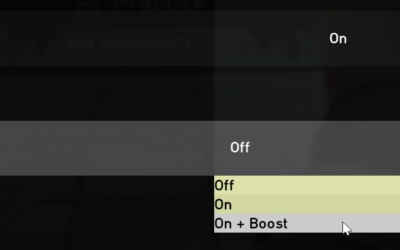
To use FreeSync, you need a FreeSync monitor and a compatible graphics card connected with a suitable cable. You then enable FreeSync both in the monitor’s on-screen menu and in your graphics card’s control software.
Most modern setups make this straightforward, but it is worth confirming the setting is active in both places. Keeping your graphics drivers updated ensures the smoothest and most reliable behavior across your games.
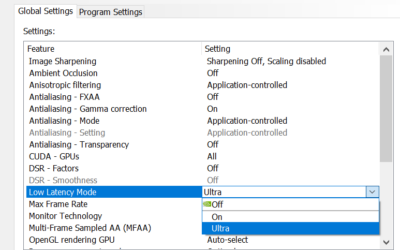
If you are using an Nvidia graphics card with a FreeSync monitor, you may need to enable adaptive sync in the Nvidia control software as well, since this is how recent Nvidia cards take advantage of FreeSync displays. Once everything is switched on, you can confirm it is working through your monitor’s menu or your graphics software, giving you peace of mind that frames are now synchronized rather than shown on a fixed schedule.
Pairing FreeSync With Frame Rates
FreeSync works within your monitor’s variable refresh range, so the experience is best when your frame rate stays inside that window. Capping your frame rate a few frames below the monitor’s maximum helps keep it in range.
This cap avoids tearing or added lag that can occur when frames exceed the display’s ceiling. Many games and tools make setting such a limit quick and easy to apply.
Combining FreeSync with a sensible frame-rate cap and a capable graphics card delivers the smoothest, most responsive result, letting the technology work without edge-case issues at the limits of its range. The cap keeps your frames inside the window where FreeSync operates, while a strong card keeps the frame rate high enough to stay comfortably within that window during heavy scenes rather than slipping below it where the benefit fades.
Choosing a FreeSync Monitor
When shopping, check the monitor’s variable refresh range and tier, since a wider range and a premium tier deliver smoother results, especially at low frame rates. A good range matters more than the marketing label.
Match the monitor’s refresh rate and resolution to your graphics card so the pairing makes sense, since a high refresh display needs a capable card to take full advantage. To find a monitor and card that work well together, compare current options and their verified prices through the links on this page.
Because FreeSync quality varies more than its more tightly controlled rival, reading a few reviews of a specific monitor is time well spent, since they will tell you whether its variable refresh range and overall image quality live up to the label. A well-chosen FreeSync display delivers the same smooth, tear-free gameplay as far pricier options, which is exactly what makes it such a strong value for the vast majority of gamers today.
See More:
Final Thoughts on FreeSync
To wrap up, FreeSync is AMD’s open variable refresh rate technology that syncs your monitor to your graphics card, eliminating screen tearing and smoothing stutter for fluid, immersive gameplay. Understanding what is FreeSync shows why its open, royalty-free nature makes it so affordable and widely available, how the tiers let you choose extra smoothness and image features, and why it works across different graphics card brands. Pick a monitor with a good variable refresh range, match it to your card, and FreeSync will deliver smooth, tear-free gaming without a premium price, whatever graphics card you happen to own.
Top-Rated Picks


| Product | Brand | Rating | Reviews | Price |
|---|---|---|---|---|
| ARCTIC MX-4 (4 g) – Premium Performance Thermal Paste… | ARCTIC | ★ 4.8 | 104k | $4.99 |
| ARCTIC MX-4 (incl. Spatula, 4 g) – Premium Performanc… | ARCTIC | ★ 4.8 | 71.9k | $5.49 |
| Crucial 8GB DDR4 RAM 3200MHz (PC4-25600), Downclockab… | Crucial | ★ 4.8 | 62.8k | $74.99 |
| AMD Ryzen 5 5600X 6-core, 12-thread unlocked desktop … | — | ★ 4.8 | 30.2k | $177.60 |
| NVIDIA Shield Remote; Voice Search, Motion-Activated,… | — | ★ 4.7 | 10.6k | $25.99 |
Frequently Asked Questions
What do the FreeSync tiers mean?
Standard FreeSync only guarantees basic variable refresh. FreeSync Premium adds a minimum 120Hz refresh at 1080p plus mandatory Low Framerate Compensation. FreeSync Premium Pro adds HDR certification with tested colour accuracy and low latency HDR tone mapping. The tier badge tells you what AMD actually validated rather than what the panel merely claims.
Does FreeSync work over HDMI?
Yes. AMD supported FreeSync over HDMI before the standard existed, and HDMI 2.1 added native VRR. Some older monitors only support FreeSync over DisplayPort, so check the manual. Consoles use the HDMI 2.1 VRR path, which is why many FreeSync monitors also advertise console compatibility for the PlayStation and Xbox.
How do I confirm FreeSync is actually running?
Enable it in the monitor on-screen menu first, then turn it on in AMD Software under Display or in the Nvidia Control Panel if you use a GeForce card. Most monitors show a refresh rate counter in their menu that should fluctuate with your frame rate rather than sitting at a fixed number.
Why do I see brightness flickering with FreeSync on?
Rapid refresh rate swings change how long each frame is lit, and some panels, especially VA types, shift brightness as a result. Loading screens and menus with wildly variable frame rates are the worst cases. Capping your frame rate inside the VRR range or updating the monitor firmware usually reduces the effect.
Does FreeSync reduce input lag?
It does not add the queuing delay that traditional VSync does, so it feels more responsive while eliminating tearing. It does not reduce latency below an uncapped, tearing setup, however. For the lowest latency with no tearing, run FreeSync with a frame cap three to five frames under your maximum refresh.



Write Your Review
No reviews yet. Be the first to share your experience!