
⚡ Key Takeaways
As an Amazon Associate we earn from qualifying purchases at no extra cost to you. Product prices and availability are accurate as of the date shown and are subject to change.



- Every modern GPU has a thermal limit, often called the maximum junction temperature, beyond which it begins to reduce its boost clocks to avoid damage.
- You have several options ranging from built-in tools to dedicated monitoring software.
- “Normal” depends on whether the card is idle or under heavy load, and on its cooler design.
- If your readings are higher than you’d like, several straightforward fixes can help, starting with the simplest.
Learning how to check GPU temperature is one of the most useful skills any PC gamer or creator can pick up, because heat is the single biggest threat to your graphics card’s performance and longevity. Whether you’re running an NVIDIA GeForce RTX 5090, an RTX 5070, or an AMD Radeon RX 9070 XT, your GPU constantly monitors its own temperature and will throttle its clock speeds to protect itself when things get too hot. Knowing how to read those temperatures, what’s normal, and what’s a warning sign lets you catch cooling problems before they turn into stutters, crashes, or hardware damage.
In this guide we’ll walk through several easy ways to monitor your GPU temperature on Windows, explain what the numbers mean for modern RTX 50-series and RX 9000-series cards, and cover practical steps to bring temperatures down if they climb too high. No special hardware is required, just a few free tools and a couple of minutes.
Why GPU Temperature Matters
Every modern GPU has a thermal limit, often called the maximum junction temperature, beyond which it begins to reduce its boost clocks to avoid damage. NVIDIA RTX 50-series GPUs are typically rated to operate safely up to around 90°C on the core, with memory junction limits even higher. When a card approaches those limits, it throttles, meaning your frame rates drop even though the GPU is working as hard as it can. Sustained high temperatures also accelerate wear on components like the fan bearings, thermal paste, and capacitors.
Monitoring temperature isn’t about chasing the coldest possible number. It’s about confirming your card stays within a healthy range under load, spotting sudden spikes that signal dust buildup or a failing fan, and verifying that any overclock or undervolt you apply is stable and safe.
How to Check GPU Temperature in Windows
You have several options ranging from built-in tools to dedicated monitoring software. Most users will want at least one lightweight monitoring app for detailed, real-time data.
Method 1: Windows Task Manager
The quickest way to check your GPU temperature requires no downloads at all. Open Task Manager by pressing Ctrl + Shift + Esc, click the Performance tab, and select your GPU from the left sidebar. If you have a dedicated graphics card with an up-to-date driver, Windows will display the current GPU temperature near the bottom of the panel. This is perfect for a fast idle reading, though it only shows the core temperature and doesn’t log data over time.
Method 2: NVIDIA App or Radeon Software
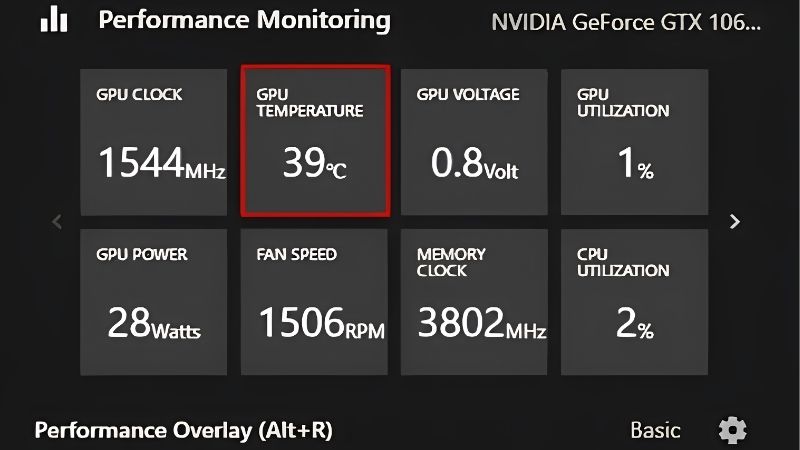
If you have an NVIDIA card, the NVIDIA App includes a performance overlay that shows GPU temperature, clock speeds, utilization, and power draw while you game. Press Alt + R to bring up the overlay and enable the monitoring panel. AMD users get a similar built-in tool in Radeon Software (Adrenalin Edition) with its own performance metrics overlay. Because these come straight from the GPU vendor, they’re reliable and require no third-party installs.
Method 3: MSI Afterburner with RivaTuner
For the most detailed picture, MSI Afterburner paired with the bundled RivaTuner Statistics Server is the enthusiast standard. It works with any brand of GPU, not just MSI cards. Afterburner gives you an on-screen display that overlays temperature, clock speed, fan RPM, memory usage, and frame rate directly in your game, and it can log everything to a file so you can review temperatures over an entire gaming session. It also lets you build a custom fan curve, which we’ll touch on below.
Method 4: HWiNFO and GPU-Z
HWiNFO is a powerful sensor-monitoring tool that exposes every temperature your card reports, including the all-important GPU “hot spot” and GDDR6/GDDR7 memory junction temperatures, not just the average core reading. GPU-Z is a smaller utility that shows the same key sensors plus useful details about your card’s specifications. Both are free and ideal when you want to dig deeper into what each part of the card is doing.
What Is a Normal GPU Temperature?
“Normal” depends on whether the card is idle or under heavy load, and on its cooler design. As a general guide, the table below shows typical ranges for modern desktop graphics cards.
| State | Typical Temperature | What It Means |
|---|---|---|
| Idle (desktop) | 30°C – 50°C | Healthy; depends on room and case airflow |
| Gaming load | 60°C – 80°C | Normal operating range for most GPUs |
| Heavy / sustained load | 75°C – 85°C | Acceptable; fans should ramp accordingly |
| Warning zone | 87°C – 90°C+ | Approaching throttle limit; investigate cooling |
| Memory junction | Up to ~95°C | GDDR runs hotter than the core; higher limits |
A power-hungry flagship like the RTX 5090, with roughly 575W TBP, can comfortably sit in the high 70s to low 80s under load while staying well within spec, since it’s designed to dissipate that much heat. A more modest RTX 5070 (around 250W) or RX 9070 XT (around 304W) will typically run cooler given the same case airflow. If your card consistently crosses 87°C and starts dropping clocks, that’s your cue to improve cooling.
How to Lower Your GPU Temperature
If your readings are higher than you’d like, several straightforward fixes can help, starting with the simplest.
Improve Case Airflow
Your GPU can only be as cool as the air it’s pulling in. Make sure your case has a sensible front-to-back or front-to-top airflow path with intake and exhaust fans, and that cables aren’t blocking the flow. Even a single well-placed intake fan in front of the GPU can drop core temperatures by several degrees. Our guide to the best GPU cooler fans can help you choose quiet, high-airflow options.
Clean Out Dust
Dust is the silent killer of GPU cooling. Over months, it clogs the heatsink fins and coats the fan blades, choking airflow and raising temperatures noticeably. A periodic blast of compressed air through the card’s fins and fans, with the PC powered off, often restores performance for free.
Set a Custom Fan Curve or Undervolt
Using MSI Afterburner, you can create a more aggressive fan curve so the fans spin up sooner and keep the GPU cooler, trading a little extra noise for lower temperatures. Alternatively, undervolting reduces the voltage your GPU uses at a given clock speed, which lowers both heat and power draw with little or no performance loss, an especially popular tweak on high-wattage RTX 50-series cards.
Consider Upgraded Cooling
If you run a hot flagship and air cooling isn’t keeping up, a liquid-cooled solution can dramatically reduce temperatures and noise. See our roundup of the best AIO GPU coolers for options that tame even the most demanding cards. And if heat problems point to an aging or underpowered card, our best graphics cards comparison can help you plan an upgrade, while 4K gamers should check the best GPU for 4K gaming guide.
When High Temperatures Signal a Problem
A sudden jump in idle or load temperatures, fans that never spin up or run at full speed constantly, or thermal throttling that wasn’t happening before all point to something needing attention. Common culprits include dried-out thermal paste, a failing fan, a clogged heatsink, or poor case ventilation. If you’ve cleaned the card and improved airflow but a relatively new GPU still overheats, it may be a defective unit worth claiming under warranty.
Top-Rated Picks


Dropped $0.02


| Product | Brand | Rating | Reviews | Price |
|---|---|---|---|---|
| ARCTIC MX-4 (4 g) – Premium Performance Thermal Paste… | ARCTIC | ★ 4.8 | 104k | $4.99 |
| ARCTIC MX-4 (incl. Spatula, 4 g) – Premium Performanc… | ARCTIC | ★ 4.8 | 71.9k | $5.49 |
| Crucial 8GB DDR4 RAM 3200MHz (PC4-25600), Downclockab… | Crucial | ★ 4.8 | 62.8k | $74.99 |
| AMD Ryzen 5 5600X 6-core, 12-thread unlocked desktop … | — | ★ 4.8 | 30.2k | $177.60 |
| NVIDIA Shield Remote; Voice Search, Motion-Activated,… | — | ★ 4.7 | 10.6k | $25.99 |
Frequently Asked Questions
How do I check my GPU temperature without installing software?
Open Task Manager (Ctrl + Shift + Esc), go to the Performance tab, and click your GPU in the sidebar. Windows displays the current temperature for dedicated graphics cards with up-to-date drivers. It’s a quick idle reading, though dedicated tools like HWiNFO give far more detail.
What GPU temperature is too high?
Most modern GPUs are fine up to the mid-80s Celsius under load. Once a card consistently reaches 87°C to 90°C and starts throttling its clocks, that’s the warning zone. Memory junction temperatures can safely run higher, often up to around 95°C, since GDDR is rated differently from the core.
Is 80°C safe for a gaming GPU?
Yes. Around 80°C under a sustained gaming load is completely normal and well within spec for RTX 50-series and RX 9000-series cards. Throttling typically doesn’t begin until roughly 87°C or higher, so there’s healthy headroom at 80°C.
Why is my GPU running hot while idle?
High idle temperatures (above 55°C to 60°C) often indicate dust buildup, poor case airflow, fans that aren’t spinning, or a warm ambient room. Background tasks, multiple high-refresh monitors, or a stuck fan profile can also raise idle temps. Cleaning the card and checking the fan curve usually helps.
Does checking GPU temperature affect performance?
No. Monitoring tools read sensor data with negligible system impact. An on-screen overlay uses a tiny amount of resources to draw the display, but it won’t meaningfully reduce your frame rates.
Conclusion
Knowing how to check GPU temperature takes only minutes and pays off for years. Use Task Manager or your vendor’s app for quick readings, or step up to MSI Afterburner and HWiNFO for detailed, logged monitoring of the core and memory junction. Keep an eye on the numbers under load, aim to stay comfortably below the mid-80s Celsius, and act on warning signs like dust, failing fans, or sudden temperature spikes. With good airflow, regular cleaning, and a sensible fan curve or undervolt, your graphics card will run cooler, quieter, faster, and longer.

Write Your Review
No reviews yet. Be the first to share your experience!