
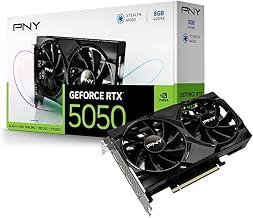
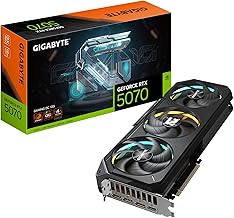
- Top Pick: PNY NVIDIA GeForce RTX™ 5070 Epic-X RGB™ OC Triple-Fan Graphics Card | 12GB GDDR7, 192-bit, Boost Speed: 2685 MHz, SFF-Ready, PCIe® 5.0, 2.4-Slot, NVIDIA Blackwell Architecture, DLSS 4.5
- Best Value: Nvidia Technology for Dummies: From Gaming Graphics to AI Supercomputers
- Premium Choice: G.SKILL WigiDash PC Command Panel – 7 inch Touch Display, Up to 20 (5×4) Widget Grid, Customizable Hotkeys/Shortcuts/Widgets, Monitor System Performance (Windows 10 and 11, USB Powered)
In a fast-paced tactical shooter like Valorant, every frame counts. Higher and more stable frame rates translate directly into lower input latency, smoother tracking, and a genuine competitive edge, and much of that performance is unlocked not in the game’s own menu but in the Nvidia Control Panel. Dialing in the right settings can add meaningful fps on any GPU.
This guide walks through the exact Nvidia Control Panel tweaks that maximize Valorant frame rates and minimize latency, from power management to low-latency mode. Whether you are running a budget RTX 3050 or a modern RTX 5070, these adjustments help your card deliver the highest, most consistent frame rates for competitive play in 2026.
As an Amazon Associate we earn from qualifying purchases at no extra cost to you.



⚡ Save on Your Next PC — Amazon Prime
Prime members get fast free shipping on the systems above, plus early access to Prime Day & Black Friday PC deals. New members get a 30-day free trial.
Watch: How to Optimize Nvidia Control Panel Settings for Maximum FPS in Valorant — Video Review
Set Up a Valorant-Specific Profile
Rather than changing global settings, create a dedicated profile so your tweaks apply only to Valorant. In the Nvidia Control Panel, open Manage 3D Settings, switch to the Program Settings tab, and select Valorant from the dropdown. This keeps your other games and applications untouched while giving the shooter its own optimized configuration.
Prioritize Performance Over Quality
Several settings directly favor frame rate. Set Power Management Mode to Prefer Maximum Performance so your GPU never downclocks mid-match, and set Texture Filtering Quality to High Performance for a small but free fps gain. On budget cards like the RTX 3050 or GTX 3060 these changes matter most, but even an RTX 5070 benefits from consistency.
- Power Management Mode: Prefer Maximum Performance.
- Texture Filtering Quality: High Performance.
- Vertical Sync: Off, to remove frame-rate caps and reduce latency.
Enable Low Latency Mode
Nvidia’s Low Latency Mode reduces the render queue, shrinking the delay between your mouse movement and the on-screen result. For a reaction-dependent game like Valorant, set it to Ultra. Combined with a high frame rate, this makes your aim feel noticeably crisper and more responsive.
Configure Display and G-SYNC Settings
If you own a G-SYNC monitor, enabling it alongside a frame-rate cap set slightly below your refresh rate produces tear-free, low-latency gameplay. In the Manage 3D Settings menu, set Max Frame Rate a few frames under your monitor’s refresh, and ensure your display is running at its full refresh rate in the Windows and Nvidia display settings.
Tips
- Cap your frame rate: A cap just below your refresh rate with G-SYNC gives the lowest latency and no tearing.
- Update drivers first: Install the latest Game Ready Driver before tweaking for the best baseline.
- Use High Performance power plan: Set Windows to High Performance so the CPU and GPU stay fully awake.
- Monitor fps: Enable an overlay to verify your changes actually raised frame rates.
Frequently Asked Questions
Do Nvidia Control Panel settings really increase FPS in Valorant?
Yes, though the gain varies. Settings like Prefer Maximum Performance and texture filtering tweaks can add several frames and, just as importantly, improve consistency and reduce input latency.
Should I turn V-Sync on or off for Valorant?
Turn V-Sync off in the Nvidia Control Panel for the lowest latency. If you have a G-SYNC monitor, use G-SYNC with a frame-rate cap instead to eliminate tearing without the latency penalty.
What is Low Latency Mode and should I use Ultra?
Low Latency Mode reduces the render queue for faster response. Setting it to Ultra is ideal for competitive shooters like Valorant, where minimal input lag directly benefits your aim.
Will these settings help on a low-end GPU?
Absolutely. Budget cards like the RTX 3050 gain the most from performance-focused tweaks, since squeezing out extra frames matters more when raw power is limited.
Conclusion
Optimizing the Nvidia Control Panel is one of the easiest ways to boost your Valorant performance without spending a cent. Create a game-specific profile, prioritize maximum performance, enable Ultra low latency, and configure G-SYNC with a smart frame cap. Applied together, these settings deliver higher, steadier frame rates and sharper responsiveness on any Nvidia GPU, giving you the competitive consistency that matters most in ranked play in 2026.

Write Your Review
No reviews yet. Be the first to share your experience!