
- Top Pick: msi Gaming GeForce GT 1030 4GB DDR4 64-bit HDCP Support DirectX 12 DP/HDMI Single Fan OC Graphics Card (GT 1030 4GD4 LP OC)
- Best Value: msi Gaming RTX 3050 Ventus 2X 6G OC Graphics Card (NVIDIA RTX 3050, 96-Bit, Boost Clock: 1492 MHz, 6GB GDDR6 14 Gbps, HDMI/DP, Ampere Architecture)
- Premium Choice: msi Gaming GeForce GT 710, Graphics Card, Desktop, HDMI/VGA/DVI – 2GB GDRR3 64-bit HDCP Support DirectX 12 OpenGL 4.5 Single Fan Low Profile, Nvidia
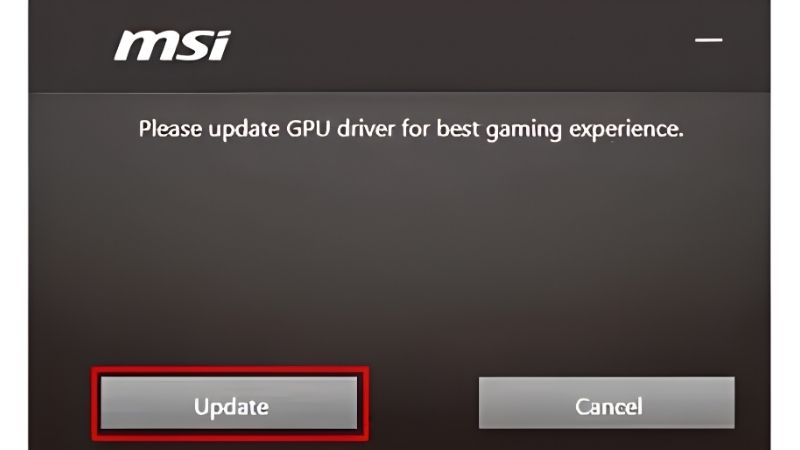
MSI GPU drivers is a search built on a reasonable assumption that happens to be wrong. You bought an MSI graphics card, so you look for MSI’s drivers, the way you would look for a printer manufacturer’s drivers. MSI does not write graphics drivers. Nvidia does. Every RTX card — MSI, ASUS, PNY, Gigabyte, Zotac — runs the identical Nvidia driver. This explains what MSI actually provides, where to get what you need, and the one situation where an MSI-specific build genuinely matters.
Why MSI GPU Drivers Are Not a Thing
The confusion is structural rather than silly. Almost every other component in your PC gets drivers from whoever made the box. Graphics cards work differently, and the reason is worth understanding.
Board Partners Do Not Write Drivers
Nvidia designs the GPU, writes the driver, and ships both. Board partners — MSI, ASUS, Gigabyte, PNY, Zotac — buy the same silicon and build cards around it. What they choose is the cooler, the factory clock, the power delivery, the aesthetics, and the warranty.
What they do not choose is the software that talks to the chip. An MSI RTX 5070 Ti and a PNY RTX 5070 Ti run byte-identical drivers, because they are the same GB203 die and the driver does not know or care which cooler is bolted to it.
This is why “MSI GPU drivers” returns MSI’s support pages hosting Nvidia driver packages — often several versions behind. MSI is redistributing Nvidia’s work, not producing its own.
What MSI Actually Makes
MSI’s genuine software contribution is tuning and monitoring, not drivers, and one piece of it is the enthusiast standard.
MSI Afterburner is the big one. Despite the branding it works on any card — GeForce, Radeon, or Intel Arc, from any partner. It is developed by Alexey Nicolaychuk, better known as Unwinder, the same engineer behind RivaTuner. Version 4.6.6 was the first stable release in over two years, adding official RTX 50 support, unofficial Radeon RX 9000 support, and control of up to four independent fans.
MSI Center handles system-level features on MSI hardware — fan profiles, RGB, and similar. It is not a driver and it is not required for your GPU to work.
Where You Should Actually Get Drivers
From Nvidia, through the Nvidia App. Not from MSI’s support page, which is usually behind.
Note that the landscape shifted recently. Nvidia retired the Nvidia Control Panel with the 610.47 driver release in May 2026, after twenty years. With driver 610.62 the installer offers either the GPU driver alone or the driver plus the Nvidia App — neither option installs the Control Panel. Existing installs survive until a clean driver installation removes them, and anyone who genuinely needs it can still get it from the Microsoft Store, though Nvidia will add no further fixes.
So a great deal of the advice you will find for MSI cards references menus that a clean install no longer gives you. Translate to the Nvidia App rather than assuming something is broken.
The One Real Exception: MSI Laptops
Everything above applies to desktop cards. Laptops are genuinely different, and this is where the “manufacturer driver” instinct turns out to be correct.
Why Laptop Drivers Are Actually Different
A laptop GPU is not a self-contained card. It shares a display pipeline with the integrated Intel or AMD graphics, switches between them via Optimus, and operates inside a power and thermal budget the OEM defines.
That integration means the OEM sometimes ships a validated build with laptop-specific handling for display output, power management, and hybrid graphics switching. Nvidia’s generic driver works on most modern laptops. On some models it does not.
The symptoms when it does not are distinctive: a black internal panel while external output works, broken external display output, or power management that will not idle the discrete GPU. If you see those after installing a generic driver, the OEM build is the answer — not a newer Nvidia release.
The Laptop Trap That Looks Like a Driver Fault
The most common laptop complaint is not a driver problem at all. A game running on the integrated GPU instead of the discrete one produces terrible frame rates that look exactly like a broken install.
Force the discrete GPU per application in the Nvidia App’s Graphics tab. Windows has its own graphics preference setting under System → Display → Graphics, and the two can disagree — check both.
This is worth trying before any reinstall. It costs a minute and it resolves a surprising share of “my MSI laptop is slow” reports.
When to Use MSI’s Page Anyway
Three cases. If you have an MSI laptop and the generic driver misbehaves. If you need a specific older version and Nvidia’s archive is awkward to navigate. Or if you want MSI Center for fan and RGB control on MSI hardware.
For a desktop MSI graphics card, none of those apply. Go to Nvidia.
Pros and Cons of Going Direct to Nvidia
Once you know the drivers come from Nvidia, a second question follows: which branch, and how often. Both have real trade-offs.
Game Ready or Studio?
Game Ready ships every three to five weeks with day-zero profiles for new titles. Studio ships every six to eight weeks, prioritising validated stability in Adobe, Blackmagic, and Autodesk applications.
Studio is not slower in games. It simply lags on launch-day profiles. The decision is about downside: if a broken driver costs you an evening, run Game Ready. If it costs a client deadline, run Studio.
Both are WHQL-certified. Both work identically on any board partner’s card.
The Case for Updating
DLSS is the argument. Nvidia ships model revisions, Multi Frame Generation refinements, and Reflex improvements through drivers — DLSS 4.5 landed at CES 2026, MFG 6x followed, and DLSS 5 arrives this autumn with early plumbing already visible in the 610.47 release as DLSS-NR profile entries.
Day-zero profiles matter more than they used to. Modern engines lean on driver-side optimisation enough that launching a new title on a six-month-old driver frequently leaves 10–20% on the table.
And display drivers run in kernel mode, so the security patches are not theoretical.
The Case for Freezing
Regressions are real and recurring. Nvidia introduces performance drops in specific titles several times a year, and the fix arrives three to five weeks later. If your current driver runs everything you play, updating trades certainty for possibility.
Encoder stability is the sharper case — streamers regularly find an NVENC configuration that worked for months starts dropping frames after an update.
The sensible middle: update when a release names a fix you need or a game you want just launched. Not because a notification appeared. And note the version you are on before you do, because recovering a known-good state without that number is tedious in exactly the moment you have no patience for it.
Installing Cleanly, Whatever the Brand on the Box
The procedure is identical for MSI, ASUS, PNY, or anyone else. It is short and the steps are not optional.
The Clean Install Path
Create a Windows restore point first. Disconnect from the network before uninstalling the old driver — this stops Windows Update from racing you to install its own version into the gap.
Run the Nvidia installer, choose Custom (Advanced), tick Perform a clean installation. This wipes existing profiles, which is the point: a clean install is how you find out whether the driver is actually the problem.
Reboot fully rather than trusting the installer’s prompt. Then reconnect.
Stopping Windows Replacing It
On Windows 11 Pro, defer driver updates through Group Policy. On Home editions the practical workaround is Microsoft’s “Show or hide updates” troubleshooter — clumsy but functional.
Do this in the same session rather than later. The window between rebooting onto your chosen driver and Windows deciding to help is measured in minutes on a connected machine.
If Something Breaks
Device Manager, expand Display adapters, right-click the GPU, Properties, Driver tab, Roll Back Driver. Reboot. Three minutes and it covers most cases.
If Roll Back is greyed out, a clean install wiped the previous package — download your last known-good version from Nvidia’s archive instead. If you have no display at all, boot Safe Mode, remove the display driver there, and reboot onto the Microsoft basic adapter, from which anything is installable.
The Version Number Habit
One thing worth doing regardless of brand. Note your current driver version before you install anything new — the Nvidia App shows it, and so does nvidia-smi in the top-left of its output.
Recovering a known-good state without that number means guessing through an archive of dozens of releases, in exactly the mood where you have no patience for it. A screenshot costs ten seconds and saves an evening roughly once a year.
See More:
- Nvidia beta
- Nvidia CUDA 11.8
- Check CUDA version
- Nvidia GPU for gaming
- PNY GeForce RTX 5080 16GB OC review
Conclusion: What to Do About MSI GPU Drivers
There are no MSI GPU drivers, and that is good news rather than bad. MSI builds the cooler, the clocks, and the board; Nvidia writes the software, and every RTX card from every partner runs the identical driver. Go to the Nvidia App, pick Game Ready or Studio based on whether a bad driver costs you an evening or a deadline, tick clean install, and ignore MSI’s support page — it hosts Nvidia’s packages, usually a few versions behind.
Two things worth carrying. First, the Control Panel is gone as of driver 610.47 in May 2026, so guides pointing you there are describing software a clean install no longer provides — the settings live in the Nvidia App now. Second, the exception is real: if you have an MSI laptop and the generic driver produces a black internal panel or broken external output, the OEM build is genuinely the answer. And what MSI does make is worth having — Afterburner is free, works on any card regardless of brand, and does more for your temperatures than any driver choice will.
Frequently Asked Questions
Does MSI make its own graphics drivers?
No. MSI is a board partner that builds the cooler, the power delivery, and the circuit board, but the display driver comes from Nvidia or AMD depending on which GPU is fitted. Any download page offering an MSI specific display driver is simply mirroring an older vendor package, which is usually months behind the current release.
Where should I download the driver for an MSI card?
Go directly to the Nvidia or AMD driver page, select the GPU model printed on the card, and download the current release. Doing this guarantees you get the newest game optimisations and security fixes. The only MSI specific software worth installing is MSI Center for fan and lighting control, or MSI Afterburner for overclocking and monitoring.
What does MSI Afterburner do that the driver does not?
Afterburner exposes core and memory clock offsets, the power and temperature limits, the voltage frequency curve for undervolting, custom fan curves, and an on screen monitoring overlay through RivaTuner. None of that is part of the display driver. It works on cards from any brand, not just MSI, which is why it remains the default tool for tuning.
Do I ever need an MSI VBIOS update?
Rarely. A VBIOS update is only appropriate when MSI publishes one for a specific fault, such as a fan behaviour bug or a resizable BAR enablement on older boards. Flashing a VBIOS carries real risk of bricking the card and can void support, so never flash one that was not published for your exact model and part number.
Should I install the driver from the disc in the box?
No. The bundled disc or USB is almost always outdated by the time the card ships and can install a driver that lacks support for recent games and current DLSS or FSR versions. Install the current vendor driver from a fresh download and use the clean install option so nothing from an OEM package lingers.
As an Amazon Associate we earn from qualifying purchases at no extra cost to you.













Write Your Review
No reviews yet. Be the first to share your experience!