
- Top Pick: Thermal Grizzly Kryonaut – 1 Gram – Extremely High Performance Thermal Paste + 12 Cleaning Wipes 6 Wet & 6 Dry – for Demanding Applications and Overclocking CPU/GPU/PS4/PS5/Xbox
- Best Value: ANQ-L336 Mini eGPU Enclosure 40Gbps Thunderbolt3/4 USB4 for Laptop Compatible with Win/Linux/MacOS/ROG Ally X/Claw 8, PCIe External GPU Dock with PD 85W, Support NVIDIA/AMD, DC/ATX/SFX/Flex
- Premium Choice: NVIDIA 900-2G414-0000-000 Tesla P4 8GB GDDR5 Inferencing Accelerator Passive Cooling
What is NVIDIA Container is a question that pops up the moment you open Task Manager, spot several processes named NVIDIA Container, and wonder whether they are safe or why they are using so much CPU. The good news is that it is a legitimate part of your NVIDIA software, not a virus, and high resource usage is usually easy to fix. This guide explains in plain language what NVIDIA Container does, whether you should worry, and a clear step-by-step process to bring its CPU and GPU usage back under control.
What Is NVIDIA Container and Is It Safe?
Before fixing anything, it helps to understand what you are looking at. NVIDIA Container, sometimes seen as nvcontainer.exe, is a host process that runs several NVIDIA background services and components. It is a normal part of the driver package, but because it manages multiple tasks, it can occasionally consume more resources than expected, which is what sends most people searching for answers.
What NVIDIA Container Actually Does
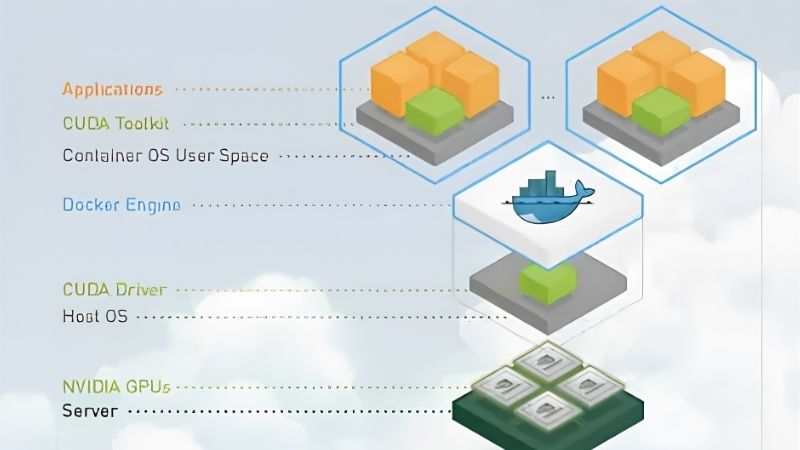
NVIDIA Container is essentially a wrapper that hosts and manages other NVIDIA processes and services rather than doing heavy work itself. It handles background components tied to your graphics software, such as driver services, telemetry, and features linked to the NVIDIA app or GeForce Experience, keeping them organized under one framework.
Because it acts as a host, you will often see more than one NVIDIA Container process running at the same time, each managing different components. This is completely normal and does not indicate a problem on its own. The processes are simply the plumbing that lets your graphics features and services run in the background while you use your PC.
Understanding this host-and-services structure is the key to fixing problems calmly. Because NVIDIA Container itself rarely misbehaves, the goal is almost never to remove it, but to identify which background component it is hosting is causing trouble and address that specific piece, which is exactly what the steps later in this guide help you do.
Is NVIDIA Container a Virus?
In almost all cases, NVIDIA Container is a genuine, safe component installed alongside your graphics drivers, not malware. It arrives with the official NVIDIA software and is signed by NVIDIA, so seeing it in Task Manager is expected behavior on any system with an NVIDIA graphics card.
The one sensible check is location. A legitimate NVIDIA Container runs from official NVIDIA program folders, so if you are ever suspicious, you can right-click the process in Task Manager and open its file location to confirm it sits in a proper NVIDIA directory. If it does, there is nothing to worry about; if a file with a similar name sits somewhere unusual, a malware scan is a reasonable precaution.
Why It Sometimes Uses High CPU or GPU
High usage almost always comes from the background features NVIDIA Container manages rather than the host process itself. Common culprits include telemetry and data-collection tasks, in-game overlay features, background recording such as instant replay, and services that keep running after a driver update or a game session.
Outdated or partially corrupted drivers are another frequent cause, since a botched update can leave services misbehaving and consuming resources unnecessarily. The encouraging part is that because these are known, specific triggers, the fixes below target them directly, and most people can resolve high NVIDIA Container usage in a few minutes without any technical risk.
It also helps to know that occasional short spikes are perfectly normal, especially right after a driver update, a game launch, or a Windows restart, as services initialize. Sustained high usage over many minutes is the real signal that something needs attention, so watch the pattern over time rather than reacting to a single momentary spike you happen to catch in Task Manager.
How to Fix NVIDIA Container High Resource Usage
Once you understand the causes, the fix is a straightforward, low-risk process. The steps below move from the simplest checks to the more thorough ones, so you can stop as soon as your CPU and GPU usage returns to normal. Work through them in order for the best results.
What You Will Need Before You Start
This is a software fix, so you need very little, but a couple of items make the process smoother and safer.
First, make sure you have a stable internet connection to download fresh drivers if needed. Second, before doing a clean driver reinstall, it is wise to back up anything important, and keeping a reliable external SSD on hand for quick backups is a smart habit for any PC owner. Finally, if your high usage turns out to be heat-related throttling, a can of compressed air to clear dust from your GPU can help, and pairing that with fresh thermal paste is worth considering for an older card.
None of these are strictly required for the basic fixes, but having them ready means you can move from a quick tweak to a full clean reinstall without interruption if the simple steps do not fully solve the problem.
Step-by-Step Fix for High CPU Usage
Follow these steps in order, checking your CPU and GPU usage in Task Manager after each one.
1. Restart your PC first. A simple reboot clears stuck NVIDIA services and resolves a surprising number of temporary high-usage cases before you try anything else.
2. Update your graphics drivers to the latest version through the NVIDIA app or official website, since outdated or corrupted drivers are a leading cause of misbehaving background services.
3. Disable in-game overlay and background recording features such as instant replay in your NVIDIA software, as these are common sources of ongoing CPU and GPU usage.
4. Turn off NVIDIA telemetry tasks using Task Scheduler, which stops background data-collection routines from running and consuming resources.
5. Restart NVIDIA services from the Services panel, or end the NVIDIA Container process in Task Manager so Windows relaunches it cleanly.
6. If usage is still high, perform a clean driver reinstall, ideally removing the old driver fully before installing the latest version, to eliminate any lingering corruption.
Working through these in sequence resolves the vast majority of high NVIDIA Container usage cases, and you can stop the moment your resource usage returns to normal levels.
Pro Tips and Mistakes to Avoid
A few habits make this process smoother and prevent common errors. Do not blindly end every NVIDIA process at once, since some are needed for your display and features to work correctly, and force-closing the wrong one can cause temporary glitches until Windows restarts the service.
Avoid downloading drivers from unofficial third-party sites, which is both a security risk and a common cause of the corruption that triggers high usage in the first place. Keep your drivers reasonably current rather than updating obsessively with every release, and remember that a single reboot often fixes a temporary spike, so try the simple steps before reaching for a full reinstall.
Managing NVIDIA Container Long-Term
Fixing the immediate problem is one thing; keeping it from returning is another. A little ongoing maintenance and a clear understanding of your options will keep NVIDIA Container quiet and your system running smoothly over the long run.
Should You Disable NVIDIA Container?
It is tempting to simply disable NVIDIA Container entirely, but that is rarely the right move because it manages services your graphics features depend on. Disabling it wholesale can break overlays, recording, and other functionality, so the better approach is to disable only the specific background features you do not use, such as telemetry or recording, rather than the host itself.
The pros and cons are worth weighing directly. Disabling unneeded features reduces resource usage and startup clutter, which is a real benefit on lower-end systems, but the downside is losing conveniences like overlays and instant replay, and the risk of unexpected behavior if you disable the wrong thing. For most users, trimming individual features is the safe, effective middle ground rather than shutting the whole system down.
Keeping Drivers and Services Healthy
The single best long-term habit is keeping your drivers current through official channels, since most persistent NVIDIA Container issues trace back to outdated or corrupted software. Updating every month or two, rather than with every single release, strikes a good balance between stability and staying up to date.
Periodically reviewing which background features you actually use also helps, letting you disable the ones you do not need before they quietly consume resources. Combined with occasional dust cleaning to prevent heat-related throttling, these small habits keep both NVIDIA Container and your wider system running efficiently without constant intervention.
Frequently Asked Questions
These quick answers resolve the questions that most often come up about NVIDIA Container.
Can I safely end NVIDIA Container in Task Manager? Yes, ending it temporarily is safe, and Windows will usually relaunch it, though some features may briefly stop until it restarts or you reboot.
Will disabling it improve performance? Only if a specific feature was causing high usage. Disabling unneeded background tasks can help low-end systems, but disabling the whole host can break features.
See More:
- NVIDIA
- NVIDIA DeepStream
- NVIDIA GPU driver update
- NVIDIA GeForce NOW download
- NVIDIA RTX A2000 12GB driver
Final Thoughts on NVIDIA Container
Understanding what NVIDIA Container is turns a worrying mystery in Task Manager into a simple, manageable part of your NVIDIA software. It is a legitimate host process, not a virus, and when it uses high CPU or GPU, the cause is almost always a specific background feature or an outdated driver that the steps above resolve quickly. Keep your drivers current, trim only the features you do not need, and clear dust occasionally, and NVIDIA Container will stay quiet in the background. If you want to keep your whole system healthy for the long run, having a few basic maintenance tools ready is a small, worthwhile investment.
As an Amazon Associate we earn from qualifying purchases at no extra cost to you.












Write Your Review
No reviews yet. Be the first to share your experience!