
- Top Pick: Getting Started with NVIDIA GPUs : A Beginner’s Guide to AI Acceleration with python, C++ and Cuda
- Best Value: Linux Hardware Mastery: Drivers, Firmware, GPUs, Wi-Fi, and Making Any PC Work (The Modern Linux Mastery Series)
- Premium Choice: NVIDIA GeForce RTX 3090 Founders Edition Graphics Card (Renewed)

Prime
Editor's Pick
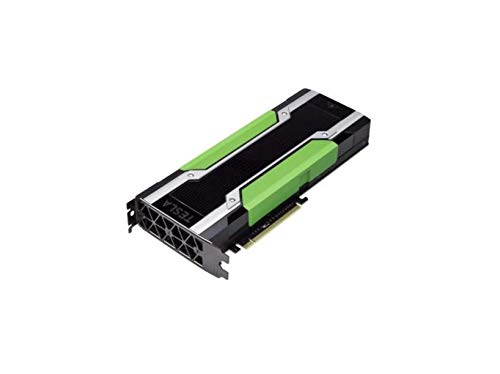
Generic Full Height Bracket Compatible with Nvidia Tesla P40 P100 M60 V100 GPU PK3RJ 820178-001 with 4 Screws


Best Seller
Getting Started with NVIDIA GPUs : A Beginner’s Guide to AI Acceleration with python, C++ and Cuda

NVIDIA GPU drivers are usually invisible until something breaks, and then a crash, a black screen, or relentless stutter can make gaming miserable. If your card is misbehaving and you suspect the driver, this review is a practical troubleshooting guide. We will explain why these drivers cause problems in the first place, walk through fixes for the most common failures, and help you tell the difference between a software glitch and a card that has genuinely run out of road in 2026.
As an Amazon Associate we earn from qualifying purchases at no extra cost to you.




Why NVIDIA GPU Drivers Cause Problems
Most driver trouble is not random; it comes from a handful of predictable causes, and recognizing them turns frantic guessing into a calm, quick fix. Understanding the root of the problem is what lets you solve it once instead of reinstalling in circles, so it pays to know the usual suspects.
Corrupted Installs and Leftover Files
The most frequent culprit is a messy installation. When a new driver installs over an old one, leftover files and settings can conflict, producing crashes and stutters that have nothing to do with the hardware.
This is why so many problems vanish after a clean reinstall. Clearing out the old files removes the corruption that a simple overwrite leaves in place, giving the new driver a clean slate to work from.
The lesson is that how you install matters as much as which version you install. A careful, clean setup prevents the majority of driver headaches before they ever start.
It is worth naming the worst offender explicitly: installing a new driver directly over a failing or partially removed old one. That single shortcut causes a large share of the crashes people spend days chasing, when a clean removal first would have prevented them entirely.
Version Bugs and Regressions
Occasionally the driver itself is the problem. A brand-new release can introduce a bug that affects a specific game, feature, or hardware combination, and no amount of reinstalling will fix a genuine software regression.
When a problem appears immediately after an update, the driver version is the prime suspect. In these cases the answer is not a clean install of the same broken build but rolling back to the last version that worked.
This is exactly why waiting a day or two after a major release can be wise, since early bugs often surface and get patched quickly once many users install the update.
Keeping track of which driver version you are on makes this diagnosis fast. If you can say a problem started the day you moved from one version to another, you have effectively pinpointed the cause, and the fix is simply to step back to the build that behaved.
Hardware vs Driver: Telling Them Apart
Not every crash is a driver’s fault, and misdiagnosing the cause wastes time. A driver problem typically appears suddenly after an update or install and often affects specific games or features rather than everything at once.
Hardware problems tend to be more consistent and physical: artifacts on screen, crashes under heavy load regardless of driver version, or overheating. Learning to spot the pattern saves you from reinstalling drivers endlessly when the real issue is the card, or vice versa.
A simple experiment helps separate the two. Roll back to a driver that was previously stable; if the problem disappears, it was software, and if it persists across several known-good versions, the hardware becomes the likely suspect. This one test saves hours of aimless reinstalling and points you at the real fix.
Fixing the Most Common Driver Issues
With the causes clear, most driver failures follow a reliable repair path, and you rarely need advanced skills to fix them. Working through the fixes in order resolves the overwhelming majority of problems, so start at the top and stop when your card behaves again.
Before diving in, make a quick note of your current driver version and any recent changes. That context tells you whether a rollback is even relevant and stops you from repeating fixes you have already tried.
Crashes, Timeouts, and Black Screens
Driver crashes and the dreaded display timeout, where the screen goes black and recovers, are among the most reported issues. The first-line fix is a clean install: fully remove the current driver and install a fresh copy from the official source.
For persistent cases, Display Driver Uninstaller in safe mode removes every trace of the old driver before a clean install, which resolves the corrupted-leftover problems behind most timeouts. It is the tool experienced users reach for when a normal reinstall does not stick.
If crashes only started after a recent update, roll back to the previous version instead. A regression cannot be reinstalled away, and reverting is often the fastest path back to stability.
If timeouts continue even after a clean install and a rollback, widen the net beyond the driver. Check that the power supply is adequate and that the card is seated properly, since power-delivery problems can masquerade as driver crashes and send you chasing the wrong culprit.
Stutter and Frame Drops
Stutter that appears out of nowhere often traces back to a driver conflict or a background feature misbehaving. A clean install again solves many of these, clearing the settings that cause uneven frame pacing.
It is also worth checking that overlays, recording features, and power settings are configured sensibly, since these interact with the driver and can introduce hitches. Ruling them out one at a time isolates the real cause.
If stutter persists across clean installs and multiple driver versions, the problem may be moving beyond software, especially if it coincides with running out of VRAM in demanding games.
Monitoring tools that show frame times rather than just average FPS make stutter far easier to diagnose. A jagged frame-time graph points to a pacing problem worth chasing in software, while a smooth graph at a low average simply means the card is working as hard as it can.
Pros and Cons of Chasing Every Update
Staying current has real benefits: performance optimizations for new games, security fixes, fresh features, and day-one support for the titles you want to play. For gamers on modern cards, prompt updates are clearly worthwhile.
The downside is that brand-new drivers can occasionally bring their own bugs, and updating mid-project can disrupt a stable setup. The balanced approach is to update promptly for the games you play but not to feel obligated to install every single release, holding a known-good version when reliability is the priority.
A practical rhythm many players settle on is to update just before a big game they have been waiting for, then leave things alone until the next one. That captures the day-one optimizations that matter while avoiding the churn of installing releases that change nothing for the games they actually play.
When a Driver Fix Isn’t the Answer
Sometimes you can do everything right, clean install, roll back, tweak settings, and the problems persist, because the real limit is the hardware. Recognizing that moment prevents you from pouring hours into software fixes that were never going to help, and it points you toward the solution that will.
Signs the GPU Itself Is Failing or Dated
Certain symptoms point past the driver. Visual artifacts that appear regardless of driver version, crashes under load on every build you try, or overheating all suggest a hardware issue rather than a software one.
A dated card shows a different pattern: everything is stable, but frame rates are simply low and VRAM runs out in modern games. In that case nothing is broken; the card has just fallen behind what current titles demand, and no driver can change that.
Temperatures are worth checking here too. A card that throttles or crashes only when it gets hot may be suffering from failing cooling or dried-out thermal paste rather than a driver bug, and cleaning out dust or repasting can revive it without any new hardware at all.
The 2026 Cost of Upgrading
If a replacement is the answer, the market shapes your timing. The steep price climb of late 2025 has eased into a relatively stable stretch, so buying now carries less risk than it did recently, though stability does not mean prices are low.
Costs have plateaued rather than fallen, and memory-heavy cards remain expensive. Fresh supply is on the way through additional DDR5 sourcing and Micron’s new Idaho fabs, but those facilities are not expected to run until roughly 2027 to 2028, so meaningful relief is years out. Put simply, prices have paused rather than dropped, and holding out for a crash is a weak strategy.
The sensible reading, then, is that once you have proven the driver is not at fault, this stable stretch is a fair time to buy rather than a moment to keep waiting. Prices are unlikely to reward patience over the next year or so.
Choosing a Reliable Replacement
When you do upgrade, prioritize a current-generation card with enough VRAM for the games you play, since memory headroom is the factor most likely to keep a new GPU relevant for years. A modern mid-range RTX is the sweet spot for most gamers.
Buying during this stable window is reasonable rather than reckless, especially once you have confirmed the driver is not the issue. When you are ready, the recommended GeForce GPUs linked in this review are chosen for reliability and longevity, so you spend once and stop troubleshooting.
It is also worth buying a little more capability than you need today. A card that comfortably exceeds your current games has margin for the next few years of releases, which means fewer driver battles and far longer before you find yourself back at this same crossroads.
See More:
Final Verdict: Keeping NVIDIA GPU Drivers Trouble-Free
Most problems with NVIDIA GPU drivers come down to messy installs or the occasional buggy release, and both are fixable with a clean install, DDU when needed, and a willingness to roll back a bad version. Work through the fixes in order, tell software glitches apart from hardware symptoms, and you will solve the vast majority of issues without spending a cent.
The key is knowing when the driver is no longer the problem. If a clean, current install still leaves you with artifacts, load crashes, or simply too few frames and not enough VRAM, the card itself is the limit, and this stable pricing window is a reasonable time to replace it. When that day arrives, compare the recommended GeForce cards linked throughout this review for a reliable upgrade that ends the troubleshooting for good.
Frequently Asked Questions
What is the fastest safe way to update?
Install the NVIDIA App, let it detect your card, choose Game Ready or Studio, and use Express installation for routine updates. For a problematic system, download the package manually from nvidia.com, disconnect the network, and run a custom install with the clean installation box ticked.
Do I need Display Driver Uninstaller every time?
No. DDU is a troubleshooting tool, not a routine step. Reserve it for switching GPU brands, recovering from a failed install, or chasing black screens and driver timeout errors. Overusing it just adds risk of removing something you wanted to keep.
Should I let Windows Update handle drivers?
It works as a fallback but usually delivers older versions and can overwrite a driver you deliberately chose. If you manage drivers yourself, set Windows Update to exclude driver updates for the display adapter so it does not reinstall a version you just rolled back from.
How do I know which driver my card needs?
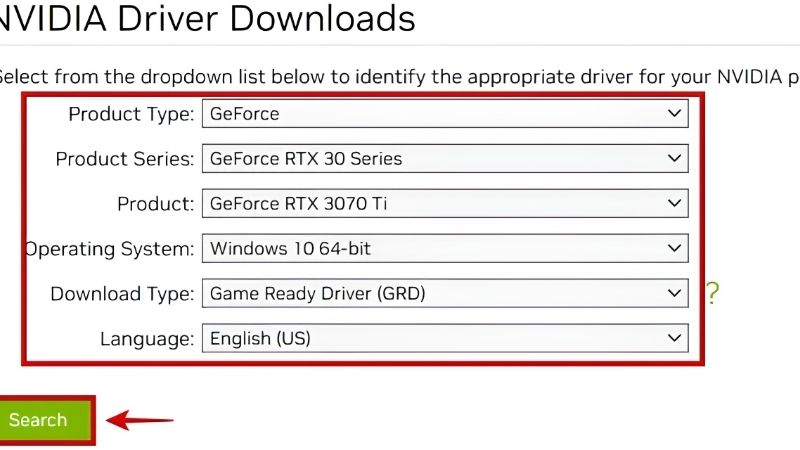
Use the automatic detection on nvidia.com or the NVIDIA App, which reads your hardware ID. If selecting manually, match the product series exactly, since laptop GPUs use different packages from desktop cards and some OEM laptops require the manufacturer’s own build for hybrid graphics switching.
What should I do before a major driver upgrade?
Note your current version, create a Windows restore point, close overlays and monitoring software, and back up any custom Control Panel profiles or per-game settings you rely on. That way a regression costs you ten minutes rather than an evening of troubleshooting.











Write Your Review
No reviews yet. Be the first to share your experience!