
NVIDIA Toolkit is the piece most people install without fully knowing what it does, then blame when a project refuses to run. If you are weighing whether the CUDA Toolkit is worth the disk space and the setup hassle, this review cuts through the confusion. We will cover exactly what it bundles, the install pain points real developers hit, the version traps that waste weekends, and which GeForce GPUs actually let the toolkit stretch its legs on AI, rendering, and compute work in 2026.
What the NVIDIA Toolkit Actually Includes
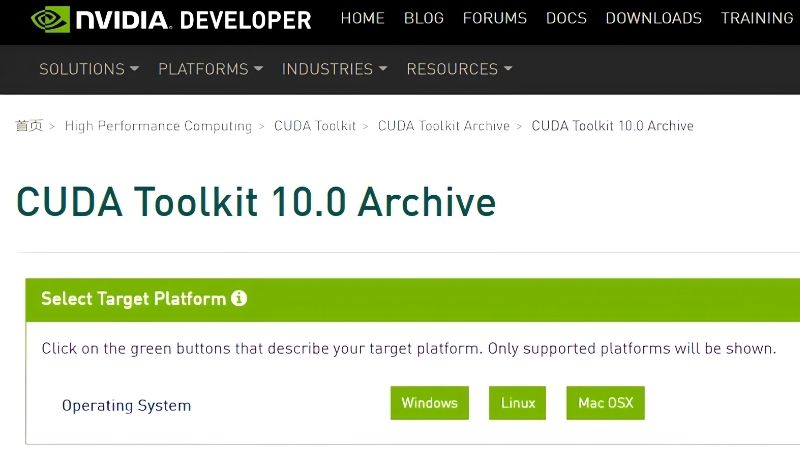
The name sounds like a single program, but the CUDA Toolkit is really a collection of compilers, libraries, and developer tools that let software run general-purpose math on your GPU. Understanding the parts helps you decide how much of it you truly need, because installing the whole package when you only need the runtime is a common source of wasted space and version conflicts.
The CUDA Compiler and Core Libraries
At the heart of the toolkit is nvcc, the compiler that turns CUDA code into something your GPU can execute. If you plan to build software from source, this is the component you cannot skip.
Alongside it sit the accelerated libraries that do most of the heavy lifting in real applications. cuBLAS handles linear algebra, cuFFT handles signal processing, and these are the same building blocks that AI frameworks and rendering engines lean on under the hood.
For most users, these libraries are the real value. They are heavily optimized by NVIDIA, so a task that would crawl on a CPU runs many times faster without you writing a single line of low-level GPU code.
Developer Tools and Debuggers
The toolkit also ships profiling and debugging tools such as Nsight, which let developers see exactly where a GPU program spends its time. For anyone tuning performance, these are genuinely useful rather than filler.
The catch is that most everyday users never touch them. If you are simply running a CUDA-accelerated app like Blender or an AI image generator, the debuggers add install size you will not use.
Still, it is worth knowing these tools exist and roughly what they reveal. A profiler shows which parts of a GPU program are slow and why, whether the limit is memory bandwidth, raw compute, or data transfer between the CPU and GPU. Even if you never run one yourself, understanding that this visibility exists explains why professionally optimized CUDA software squeezes far more out of the same hardware than a naive implementation ever could.
Do You Even Need the Full Toolkit?
Here is the honest answer many guides skip: a large share of users do not need the full toolkit at all. If you only run finished CUDA applications, the runtime that comes with your GPU driver is often enough.
You need the full toolkit mainly when you compile code or when a framework like PyTorch or TensorFlow explicitly asks for a matching toolkit version. Knowing which camp you are in saves hours of unnecessary setup and avoids the version tangles we cover next.
A quick test settles it for most people. If the app or framework you want lists a specific CUDA Toolkit version in its requirements, install exactly that version. If it only mentions needing an NVIDIA GPU and a recent driver, you can almost always skip the full toolkit and rely on the runtime that ships with your driver, saving both disk space and the version headaches that come with a full install.
Installation Experience and Common Pain Points
On paper the install is a download and a few clicks; in practice it is where most frustration lives. The problems are rarely about the toolkit being broken and almost always about versions not agreeing with each other, so a little planning up front prevents the classic weekend lost to error messages.
Version Matching Headaches
The number-one complaint from developers is version mismatch. Your framework expects a specific CUDA Toolkit version, which in turn expects a specific cuDNN version, and getting one wrong produces errors that look unrelated to the real cause.
The fix is to work backward. Check what CUDA version your framework supports first, then install that exact toolkit and the matching cuDNN, rather than grabbing the newest release and hoping it works.
This single habit prevents the majority of install failures. Newer is not always better here; compatibility is what actually gets your project running.
Driver vs Toolkit Confusion
Another frequent stumble is confusing the GPU driver with the toolkit. They are separate things: the driver runs your card and includes the CUDA runtime, while the toolkit adds the development components on top.
Many “it does not work” reports come from users who installed the toolkit but have an outdated driver, or vice versa. Keeping your driver current and your toolkit version deliberate is the combination that avoids this trap.
A simple mental model prevents the confusion entirely. Picture the driver as the engine that must always stay current to run your card, and the toolkit as a workshop you bolt on only when you intend to build software. Keep the engine fresh through regular driver updates, add the workshop deliberately at a version your project supports, and the two stop tripping over each other.
Pros and Cons of the NVIDIA Toolkit
On the plus side, the toolkit is free, thoroughly documented, and backed by the largest GPU-compute community in the industry, so answers to problems are rarely more than a search away. Its libraries deliver enormous speedups, and its tools are the professional standard for serious development.
On the downside, the install can be finicky, version management is unforgiving for beginners, and the full package is larger than most casual users need. None of these are dealbreakers, but they explain why matching the right toolkit to the right GPU and workload matters so much before you commit time to a project.
It also helps to weigh the alternative honestly. Competing compute platforms exist and are improving, but none currently match the toolkit’s documentation, tutorial coverage, and sheer volume of community answers. For the overwhelming majority of users, that ecosystem depth means less time stuck and more time building, which is why the occasional setup friction is a trade most developers accept without hesitation.
Hardware That Gets the Most From the Toolkit
The toolkit is only as capable as the GPU beneath it, and this is where your buying decision comes in. The software is free, but the performance ceiling is set entirely by your card’s compute power and memory, so choosing the right hardware is the difference between a smooth workflow and constant out-of-memory errors.
GPU Compute and CUDA Cores
More CUDA cores generally mean faster parallel work, but architecture matters as much as raw count. Newer RTX cards include Tensor cores that dramatically accelerate the AI math the toolkit’s libraries rely on, so a current-generation card does more per dollar than an older one with a similar core count.
For learners and light workloads, an RTX 3060 or newer is a comfortable entry point. For serious AI or rendering, stepping up to a higher-tier RTX pays off quickly, and the recommended toolkit-ready GPUs linked in this review balance compute, features, and price for real projects.
One nuance buyers repeatedly overlook is that a newer generation often beats raw core count. A current mid-range card with modern Tensor cores can finish toolkit-accelerated AI work faster than an older high-end card, because the newer hardware runs the exact math these libraries depend on far more efficiently. Chasing the latest architecture is therefore usually smarter than hunting a discount on last generation’s flagship, especially for AI-heavy workloads.
VRAM for Real Workloads
Memory is the wall beginners hit first. Toolkit-accelerated jobs load data into VRAM, and when a model or dataset does not fit, the job simply fails rather than slowing down.
As a rough guide, 8 GB covers entry-level tasks, 12 GB to 16 GB handles most serious hobbyist work, and 24 GB or more suits large models. Buying a little more memory than you think you need is the smartest future-proofing move, so lean toward the higher-VRAM options in this guide.
There is a practical way to size your memory before buying. Look up the footprint of the specific model or scene you plan to run, then add a comfortable margin for the larger datasets and batch sizes you will inevitably want later. Paying once for extra VRAM is far cheaper than replacing a card that ran out of room within a year, which is the most common regret among first-time buyers.
The 2026 Buying Picture
Two developments shape the decision this year. First, the United States has cleared NVIDIA to sell its powerful H200 AI chip to China; that is a data-center part, not a GeForce card, but it confirms that demand for CUDA-class compute is enormous and global, which keeps the whole toolkit ecosystem central and well-supported.
Second, on pricing, the steep climb of late 2025 has cooled into a relatively stable stretch, yet stable is not cheap. Memory-heavy cards, exactly the ones toolkit users want, remain pricey, and while new supply is coming from additional DDR5 sourcing and Micron’s Idaho fabs, those plants are not expected to run until roughly 2027 to 2028. In short, prices have paused rather than dropped, so waiting for a near-term crash is a weak plan, and buying a capable card now during this calmer window is reasonable.
For a toolkit user specifically, the takeaway is clear: prioritize memory capacity and a current architecture over chasing the absolute cheapest card. Those two factors decide how many of your projects actually run, so spending a little more in a stable-but-firm market usually beats waiting for relief that the supply timeline simply does not promise any time soon.
See More:
Final Verdict: Is the NVIDIA Toolkit Worth It?
The NVIDIA Toolkit is worth installing when you are building or compiling GPU-accelerated software, and often unnecessary when you only run finished CUDA apps. Its libraries and tools are the industry standard for good reason, and the only real friction, version matching, is entirely manageable once you install deliberately rather than grabbing the newest release blindly.
The bigger decision is the hardware you pair it with, because the toolkit’s speed is capped by your GPU’s compute and VRAM. With the ecosystem more entrenched than ever and prices merely stable rather than falling, there is no reason to sit on the sidelines. If you are ready to build a setup that runs the toolkit without hitting a memory wall on day one, compare the recommended CUDA-ready GeForce GPUs linked throughout this review and start with hardware that grows with your projects.
Frequently Asked Questions
Do I need the CUDA Toolkit just to play games?
No. Games rely on the display driver, which already includes the CUDA runtime components they need. The Toolkit is a developer package containing the compiler, libraries, headers and profiling tools, and installing it on a gaming-only machine adds several gigabytes with no performance benefit.
Who actually needs to install it?
Anyone compiling CUDA code, building machine learning frameworks from source, using certain scientific or rendering applications that require specific library versions, or working with cuDNN and TensorRT. Most end users of AI tools get prebuilt binaries that bundle the runtime instead.
Which version should I install?
Match the version your framework requires rather than always taking the newest. PyTorch and TensorFlow builds are compiled against specific CUDA versions, and mismatches cause cryptic load failures. Check your framework’s compatibility table first, then confirm your display driver meets the minimum version for that Toolkit.
Will installing it change my graphics driver?
It can. The Toolkit installer bundles a display driver and will offer to install it, which may replace a newer Game Ready driver with an older validated one. On a machine you also game on, untick the driver component and install only the Toolkit itself.
Does my GPU support the version I want?
Each CUDA release supports a range of compute capabilities, and older architectures get dropped over time. Pascal and Maxwell cards are excluded from the newest toolkits. Check the supported compute capability list against your card before assuming a recent release will work.
As an Amazon Associate we earn from qualifying purchases at no extra cost to you.












Write Your Review
No reviews yet. Be the first to share your experience!