
The NVIDIA Control Panel is one of the most powerful yet underused tools on any PC with a GeForce card, letting you fine-tune display, 3D, and color settings that directly affect how your games and monitor look and perform. Many users never open it, missing free improvements to sharpness, smoothness, and image quality, while others find it has mysteriously vanished from their system. This guide explains what the Control Panel does, the best settings to adjust, how to fix the most common problems like a missing or unresponsive panel, and how to get the most from it. Whether you want smoother gameplay or a sharper desktop, mastering the NVIDIA Control Panel takes only a few minutes. Let us walk through it.
What the NVIDIA Control Panel Does
Before changing settings, it helps to understand what the Control Panel is and how to reach it. This tool is your direct line to your GPU’s behavior, separate from Windows display settings. Here is the foundation you need.
What It Is and How to Open It
The NVIDIA Control Panel is a configuration app installed alongside your graphics driver, giving you granular control over how your GeForce card renders and outputs images. It goes well beyond what Windows offers on its own.
You can usually open it by right-clicking your desktop and selecting it, or by searching for it in the Start menu. If it is installed and your driver is current, it should appear in one of these places, ready to use.
On some newer systems the Control Panel may need to be installed separately from the Microsoft Store, since NVIDIA has changed how it is distributed. If it is not on your right-click menu at all, that store install is usually the quickest way to bring it back.
The Key Sections at a Glance
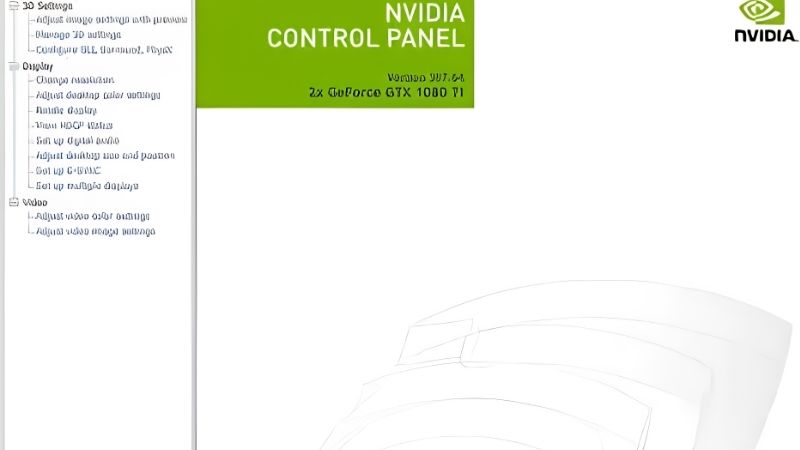
The Control Panel is organized into a few main areas. Display settings handle resolution, refresh rate, G-SYNC, and desktop color, while the 3D Settings section controls how games render, including features like V-Sync and low latency.
There is also a Video section for adjusting how video content looks. Knowing which section holds which setting saves time, since most of the impactful tweaks live under Display and 3D Settings.
Spending a moment to browse each section also demystifies the panel, which can look intimidating at first. Once you know that display and rendering options are the ones worth adjusting, the rest becomes far less overwhelming to navigate.
Control Panel vs the NVIDIA App
NVIDIA has been moving many features into the newer NVIDIA App, which now handles drivers, game optimization, and some settings that once lived only in the Control Panel. This can cause confusion about where to look.
For now, both tools coexist, with the Control Panel retaining deep, granular options and the NVIDIA App offering a friendlier interface. If a setting seems missing from one, checking the other is often the answer.
This transition is ongoing, so the exact split between the two tools can shift with driver updates. Keeping both installed and current ensures you always have access to every setting, wherever NVIDIA has chosen to place it.
Best NVIDIA Control Panel Settings to Adjust
A handful of settings make the biggest difference to your experience, and adjusting them is where the Control Panel earns its keep. From resolution to latency to color, here are the tweaks worth your attention.
Display Settings: Resolution, Refresh, and G-SYNC
Start with the display basics. Confirm your monitor is running at its native resolution and full refresh rate, since Windows sometimes defaults to a lower setting that leaves performance and smoothness on the table.
If your monitor supports it, enable G-SYNC to eliminate screen tearing while keeping input lag low. This single setting can transform how smooth your games feel, and it is one of the most worthwhile adjustments in the entire panel.
Do note that G-SYNC options only appear if you have a compatible monitor connected, so a missing toggle usually points to hardware rather than a fault. When it is available, enabling it is genuinely one of the biggest free upgrades to how your games feel.
3D Settings: V-Sync, Latency, and Sharpening
The 3D Settings section is where gamers spend most of their time. Here you can control V-Sync, enable Low Latency Mode for more responsive input, and turn on Image Sharpening to make games look crisper.
These options can be set globally or per game, letting you tailor performance and image quality to each title. A little experimentation here often yields a noticeably better experience without touching the game’s own menus.
Because these settings can be applied globally or per game, you can set sensible defaults for everything and then fine-tune individual titles. This layered approach gives you both convenience and precise control over how each game performs.
Color and Video Adjustments
Color settings let you adjust brightness, contrast, and vibrancy at the driver level, which is useful if your monitor’s colors look washed out or too dull. A modest increase in digital vibrance can make games and the desktop pop.
The Video section applies similar tweaks to video playback. These adjustments are subtle but worthwhile, especially on monitors that do not offer strong built-in color controls of their own.
Adjust these gradually and preview the result, since it is easy to overshoot and make images look unnatural. A subtle touch usually produces the most pleasing effect, adding a little life to the picture without distorting it.
Fixing Common NVIDIA Control Panel Problems
The Control Panel is usually reliable, but a few issues crop up often enough to frustrate users. The good news is that most have straightforward fixes. Here is how to solve the problems people hit most.
Control Panel Is Missing or Will Not Open
If the Control Panel has vanished from your right-click menu, the usual cause is a driver issue. Reinstalling your GeForce driver with a clean install typically restores it, as the panel is bundled with the driver.
You can also install or reinstall the NVIDIA Control Panel app from the Microsoft Store, and restarting the NVIDIA display services often revives an unresponsive panel. These steps resolve the vast majority of missing-panel cases.
If the panel still refuses to appear, a full driver removal with a dedicated uninstall tool followed by a clean reinstall almost always brings it back. This more thorough reset clears the deeper issues that a simple reinstall can occasionally miss.
Settings Not Saving or Greyed Out
Sometimes settings refuse to save or appear greyed out. This often happens when the panel cannot fully control the display, such as when a setting is being managed by the monitor or another application.
Running the Control Panel as administrator, updating your driver, and closing conflicting overlay software can resolve this. Ensuring your monitor is connected to the GPU rather than the motherboard’s video output is another common fix.
This last point catches out many first-time builders, whose cable is plugged into the motherboard instead of the graphics card. Moving it to the GPU’s own ports restores full control and unlocks settings that were previously greyed out.
Cannot Find a Particular Setting
With features shifting to the NVIDIA App, a setting you remember may have moved. If you cannot find something in the Control Panel, check the NVIDIA App, and vice versa.
Some settings also appear only when relevant hardware is detected, such as G-SYNC options requiring a compatible monitor. Confirming your hardware supports a feature explains many cases of a missing option.
Tips, Pros and Cons, and Getting More from It
Beyond the basics, a few habits help you get the most from the Control Panel, and it is worth weighing its strengths honestly. Here are practical tips, the trade-offs, and when settings alone cannot deliver what you want.
Use Per-Game Profiles
One of the most powerful features is per-application settings, letting you configure different options for each game. A demanding title might get performance-focused settings, while a competitive shooter gets low-latency ones.
Setting these once means each game launches with its ideal configuration automatically. It is a small effort that pays off every time you play, tailoring your GPU to each experience without manual changes.
Pros and Cons of the NVIDIA Control Panel
Here is the balanced view:
| Pros | Cons |
|---|---|
| Deep, granular control over your GPU | Interface feels dated |
| Powerful per-game profiles | Features splitting with the NVIDIA App |
| Free image and smoothness improvements | Some settings need matching hardware |
For anyone who wants real control over their graphics, the Control Panel remains invaluable despite its aging design and the gradual move toward the NVIDIA App.
When Settings Cannot Fix It
The Control Panel can optimize what your card is capable of, but it cannot create performance that is not there. If you constantly fall short at your resolution, no setting will fully compensate.
In that case, the real answer is a hardware upgrade. If you have tuned everything and still want more, compare current GPU prices on Amazon to find a card that meets your performance goals.
See More:
- Radeon drivers
- What is NVIDIA CUDA Toolkit
- 4080 Super vs 5060 Ti
- NVIDIA PhysX
- NVIDIA Game Ready Driver
Conclusion
The NVIDIA Control Panel is a powerful, free tool that too many GeForce owners ignore, offering real control over resolution, smoothness, latency, and color that can noticeably improve your experience. Learn where the key settings live, enable features like G-SYNC and Low Latency Mode, and set up per-game profiles to get the best from every title. When the panel goes missing or misbehaves, a clean driver install fixes most cases. Spend a few minutes with the NVIDIA Control Panel and your games and desktop will look and feel better with no extra hardware.
Frequently Asked Questions
Why is NVIDIA Control Panel missing from my desktop right-click menu?
Windows 11 hides legacy entries behind Show more options, and the panel is now distributed as a Microsoft Store app that sometimes fails to install with the driver. Reinstall it from the Store, or run a clean driver installation and reboot. Verify the NVIDIA Display Container service is set to automatic.
Which settings actually improve gaming performance?
Set Power management mode to Prefer maximum performance to stop clock dips, enable Low Latency Mode Ultra for competitive titles, cap frame rate a few frames below your refresh ceiling when using G-SYNC, and leave Texture filtering quality on High performance. Most other legacy options cost more than they gain.
Do I still need Control Panel now that the NVIDIA App exists?
Less than before. The NVIDIA App has absorbed driver updates, overlay, recording and per-game optimisation, and newer builds now expose most display and 3D settings directly. Control Panel still holds some niche items such as surround, custom resolutions and colour depth controls, so keep it installed until parity is complete.
How do I fix washed out or overly dark colours?
Open Change resolution, set Output dynamic range to Full rather than Limited, and confirm the output colour depth matches your monitor, typically 8-bit or 10-bit. HDMI connections commonly default to Limited range, which crushes blacks. Also check the display own picture mode, since it can override PC settings.
What does the Manage 3D settings global versus program tab do?
Global applies to every application, while Program Settings overrides it per executable. Use global for safe defaults such as power mode and vertical sync, then add per-game entries for anything unusual, like forcing a lower maximum frame rate in a menu-heavy title that otherwise spins fans up unnecessarily.
As an Amazon Associate we earn from qualifying purchases at no extra cost to you.













Write Your Review
No reviews yet. Be the first to share your experience!