
- Top Pick: PNY GeForce RTX™ 4070 Super 12GB XLR8 Gaming Verto™ Epic-X RGB™ OC Triple Fan Graphics Card DLSS 3 (NVIDIA GeForce SFF-Ready, ARGB, 192-bit, PCIe 4.0, GDDR6X, HDMI/Display, Supports 4k, 2 Slot)
- Best Value: NVIDIA GeForce RTX 5080 Founders Edition
- Premium Choice: CyberGeek GeForce RTX 5090 Triple Fan Graphics Card, 32GB GDDR7, 28 Gbps, 512-bit, 3352 AI Tops, DLSS 4, AI Content Creation, Local LLM Inference, DP 2.1b UHBR20 x3, HDMI 2.1b, with GPU Holder
NVIDIA GeForce Game Ready Driver updates land almost every time a big game launches, and if you just installed a new title or a fresh GPU you probably want one thing fast: the download, plus a straight answer on whether updating is worth the risk. You do not need a long video to learn that. This review explains what the driver actually changes, how to install it without breaking your system, and when updating helps versus when it just invites trouble.
What the NVIDIA GeForce Game Ready Driver Actually Does
A Game Ready Driver is NVIDIA’s gaming-focused software package, tuned and validated against upcoming AAA releases so your GPU performs its best on day one. It is not just a bug-fix bundle; each release is timed to a major game or a feature rollout, and understanding that timing is the key to deciding whether a given update belongs on your machine.
Game Ready vs Studio Drivers Explained
NVIDIA ships two branches from the same underlying code: Game Ready and Studio. Game Ready drivers prioritize the newest games and ship more frequently, while Studio drivers are validated for creative applications and update less often for maximum stability.
For most players the Game Ready branch is the correct default, because it carries the day-one optimizations and the latest gaming features. If you split your time between gaming and professional creative work, the Studio branch trades some launch-day speed for fewer surprises in apps like video editors and 3D suites.
The practical takeaway is simple: pick one branch and stay consistent. Bouncing between the two invites version conflicts, and there is rarely a reason to switch unless your workload genuinely changes.
One nuance worth knowing is that both branches receive the same critical fixes; the difference is cadence and validation focus, not quality. So a gamer on the Game Ready branch is not missing out on stability so much as trading a slightly higher update frequency for the fastest access to day-one game support. Choose based on how you actually use the machine rather than on which sounds more advanced.
How Day-One Optimizations Work
When a Game Ready Driver claims support for a new title, NVIDIA has profiled that game and adjusted how the GPU schedules work, manages memory, and applies game-specific tweaks. The result is measurable: the same hardware often gains a meaningful frame-rate uplift in a supported game simply from a driver update.
This is why the launch window matters. If you plan to play a major release on day one, installing the matching Game Ready Driver first is the single easiest performance gain available, and it costs nothing but a few minutes.
The uplift is not uniform across every game, and that is worth understanding rather than expecting. Titles built on engines NVIDIA has heavily profiled tend to see the largest gains, while a well-optimized game already running smoothly may improve only marginally. Reading the release notes tells you which games a given driver actually targets, so you know whether an update is relevant to your library or just routine housekeeping.
DLSS, Reflex, and Feature Updates in Drivers
Drivers are also how NVIDIA delivers new features to existing hardware. DLSS improvements, Reflex latency reductions, and expanded game support for Multi Frame Generation frequently arrive through driver releases rather than requiring new silicon.
That forward-looking angle is a quiet reason to keep drivers current. A card you bought a year ago can gain image-quality upgrades and latency wins purely from software, and those gains only reach you if you stay on a reasonably recent driver. For anyone who cares about squeezing future value out of their GPU, the driver is the delivery pipe.
How to Install and Update the Game Ready Driver Safely
Most driver headaches come from how people install, not from the driver itself. A clean, deliberate process removes almost all of the instability that gets blamed on updates, so it is worth doing this the right way rather than clicking through on autopilot.
Clean Install vs Express Update
The installer offers two paths. Express keeps your existing settings and layers the new driver on top, which is fast and fine for routine updates. A clean install wipes the previous driver’s configuration first, which is the better choice when you are troubleshooting crashes, switching GPU brands, or jumping across many versions.
As a rule of thumb, use Express for incremental updates and reserve the clean install for when something is already wrong. If you are chasing a stubborn stability problem, a clean install paired with a full driver-removal utility resolves a surprising share of cases.
NVIDIA App vs Manual Download
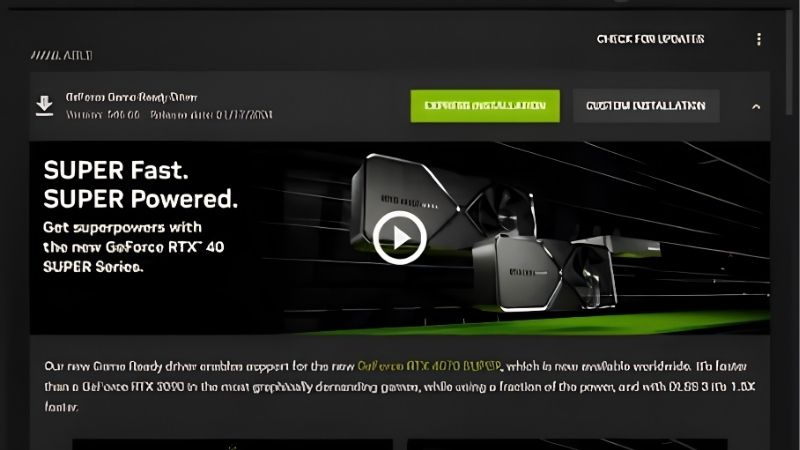
The NVIDIA App has replaced the older control panels as the recommended way to fetch drivers, and it detects your exact GPU and offers the correct package automatically. For most users this is the fastest safe route and removes the risk of downloading the wrong file.
Manual downloads from NVIDIA’s driver page remain useful when you need a specific older version or are setting up a machine offline. Whichever route you take, only download from NVIDIA directly, because driver files from third-party mirrors are a common vector for malware.
The NVIDIA App also consolidates features that used to be scattered across separate tools, including game optimization, driver rollback, and performance overlays. For a typical gamer this means one place to manage everything, and the built-in rollback option is genuinely useful the day a new release misbehaves, because reverting is a two-click operation rather than a manual hunt for an old installer.
Common Update Problems and How to Avoid Them
The most frequent complaints after an update are black screens on reboot, stuttering, or a game that suddenly runs worse. The majority trace back to leftover files from an old driver or a background overlay conflicting with the new release.
Avoid them by closing overlays and recording tools before installing, rebooting after the update completes, and keeping one known-good driver version noted down so you can roll back if a new release misbehaves. Not every release is perfect, and the ability to revert quickly is your safety net.
Is Updating the Game Ready Driver Worth It?
Updating is usually beneficial, but it is not a reflex you should follow blindly. The right cadence depends on what you play, how stable your current setup is, and whether your hardware is still keeping up with the games you care about.
Pros and Cons of Frequent Driver Updates
On the plus side, staying current gives you day-one performance in new games, the latest DLSS and Reflex improvements, security fixes, and bug resolutions. For players who chase new releases, these benefits are real and arrive at no cost beyond installation time.
The downside is that no release is guaranteed flawless. Occasionally a driver introduces a regression in a specific game or configuration, which is why cautious users wait a few days after a major release to see whether problems surface before updating.
The balanced verdict: update when a game you actually play gets support or a feature you want ships, but you do not need to install every single release the moment it appears. Match your updates to your needs rather than updating for its own sake.
It also helps to keep expectations calibrated. A driver update is a tuning tool, not a hardware upgrade, so the gains are real but bounded. Treating each release as free maintenance that occasionally delivers a nice performance bump is the healthy mindset; expecting every update to transform your frame rates only sets up disappointment.
When Your GPU and a 2026 Upgrade Matter
A driver can only optimize the hardware you own. If a new Game Ready Driver still leaves your frame rates short in modern titles, the honest bottleneck is the GPU itself, not the software, and no update will close a generational gap.
That raises the timing question, because 2026 hardware pricing is unusual. Component prices trended upward and have not fully released that pressure, though the steep climb of late 2025 has eased into relative stability. If your card is genuinely holding you back, waiting for a big price drop is a weak plan, since meaningful supply relief is years out and a card you need now is unlikely to get much cheaper soon.
Who Should Update and Who Should Wait
You should update promptly if you are about to play a freshly launched game, if you want a new DLSS or Reflex feature, or if you are troubleshooting a problem a newer driver is known to fix. These are the cases where the upside clearly outweighs the small risk.
You can safely wait if your current setup is stable, you are mid-way through a game that already runs well, and no listed fix applies to you. In that situation, letting a brand-new release age a few days costs you nothing and dodges the rare launch-day regression.
A sensible middle path suits most people: keep the NVIDIA App installed so you are notified of updates, glance at the release notes when one appears, and install promptly only when a game you play is named or a fix you need is listed. That habit captures the real benefits of staying current without turning every release into an obligation, and it keeps your system on a driver you trust.
See More:
- NVIDIA CUDA Toolkit Archive
- Gigabyte GeForce RTX 5070 Windforce OC
- AMD Radeon RX 9070 XT vs NVIDIA GeForce RTX 5070
- PNY GeForce RTX 5070 Ti Triple Fan
Conclusion
The NVIDIA GeForce Game Ready Driver is one of the highest-value free upgrades available to any GeForce owner, delivering day-one game optimizations, DLSS and Reflex improvements, and steady bug fixes to hardware you already own. Install it deliberately, keep a rollback version handy, and match your update cadence to the games you play. And if the latest Game Ready Driver still leaves your performance short, that is your cue to look at the hardware itself, where checking current GPU prices through the link below is the smart next step.
Frequently Asked Questions
What is the difference between Game Ready and Studio drivers?
Game Ready drivers ship quickly with day one optimizations and bug fixes for new game releases. Studio drivers use the same code base but undergo longer validation against creative applications like Premiere, Blender, and DaVinci Resolve. Gamers should take Game Ready, creators who value stability should take Studio.
Should I install every new driver release?
Not automatically. Update when a driver adds support for a game you play, fixes a bug you are experiencing, or enables a feature you want. If your system is stable and you are not playing new releases, skipping a couple of versions carries essentially no downside.
Do I need a clean install and what does it remove?
A clean install wipes existing driver profiles, custom settings, and per game configurations before installing fresh. Use it when troubleshooting crashes, black screens, or after switching GPU vendors. For routine updates the standard express install is fine and preserves your NVIDIA control panel preferences.
Is the NVIDIA App required to get drivers?
No. You can always download the standalone installer from NVIDIA’s driver page and skip the app entirely. The app adds automatic update checks, game optimization profiles, in-game overlay, and recording, which some users want and others consider unnecessary background overhead on a lean gaming system.
How do I roll back if a new driver breaks something?
Download the previous version from the driver archive, run DDU in Windows safe mode to strip the current install, then install the older package with networking disabled so Windows Update does not silently replace it. Afterwards, pause driver updates in Windows Update advanced options.
As an Amazon Associate we earn from qualifying purchases at no extra cost to you.














Write Your Review
No reviews yet. Be the first to share your experience!