
NVIDIA Reflex usually removes somewhere between 10 ms and 40 ms of system latency, and in heavily GPU-bound scenes it can cut total click-to-photon delay by roughly a third to a half. It works by stopping the CPU from queuing up frames the GPU has not started rendering yet. It does not make your GPU faster or add frames.
- What System Latency Actually Is: The Click-to-Photon Chain
- How Reflex Shortens the Render Queue
- Reflex On vs On + Boost vs Off
- Why It Matters Most When You Are GPU-Bound
- Reflex, Frame Generation and V-Sync
- How to Measure Your Own Latency
- The Levers That Matter More Than People Think
- Recommended Settings by Game Type
- Troubleshooting
- Frequently Asked Questions
That is the honest version of the answer. The marketing version (“up to 50% lower latency”) is real, but it describes a best case: a GPU pinned at 99% utilisation in a demanding title. If you are already running an esports game at 400 fps on a fast CPU, Reflex may only save you a couple of milliseconds, because the render queue you are trying to drain was barely full to begin with. Knowing which situation you are in is the whole game.
What System Latency Actually Is: The Click-to-Photon Chain
System latency is the total time between your mouse switch closing and the corresponding photons changing on your monitor. It is not “ping”, and it is not your frame time. It is a chain of separate delays, and Reflex only touches one link in that chain.
Understanding the chain matters because people routinely spend $600 on a graphics card to shave 3 ms off render time while sitting in front of a 60 Hz panel that is costing them 25 ms. Here is where the milliseconds actually live on a typical mid-range gaming PC.
| Stage | What is happening | Typical contribution | What actually fixes it |
|---|---|---|---|
| Switch and sensor | Mouse button debounce, sensor reporting motion | ~0.5–3 ms | A modern optical or fast mechanical switch mouse |
| USB polling | Waiting for the next report window | 0.5 ms at 1000 Hz, ~4 ms at 125 Hz | Set polling to 1000 Hz or higher |
| Input sampling and CPU simulation | Game reads input, runs game logic, builds the frame | 2–10 ms | Faster CPU, fewer background tasks |
| Render queue | Frames sitting in line waiting for the GPU | 0–40 ms+ | NVIDIA Reflex, or a correct frame cap |
| GPU render | Actually drawing the frame | 4–20 ms depending on fps | Lower settings, upscaling, faster GPU |
| Display processing and scanout | Panel receives, processes and draws the image | ~4 ms at 240 Hz, ~17 ms+ at 60 Hz | Higher refresh rate, low-lag panel |
| Pixel response | Pixels physically changing colour | 1–8 ms | Good overdrive tuning, OLED or fast IPS |
Notice the one row with the widest range. The render queue is the only stage that can balloon from near-zero to worse than everything else combined, and it is exactly the stage Reflex was built to control. That is why the feature exists as a standalone toggle instead of just being “run a faster GPU”.
How Reflex Shortens the Render Queue
Without Reflex, most DirectX games let the CPU run ahead of the GPU by one to three frames. The idea is throughput: keep the GPU fed so it never idles. The side effect is that by the time a frame reaches your screen, the mouse movement baked into it is two or three frames old. At 60 fps that is a 33–50 ms head start on being wrong.
Reflex is a low-level SDK the developer builds into the engine, so it is a per-game toggle rather than a driver switch. It does two things. First, it drains the render queue so the CPU cannot stack up unstarted work. Second — and this is the clever part — it paces frame submission so the CPU begins simulating a frame just in time for the GPU to be ready for it. Your input is sampled as late as possible before rendering starts, which means the frame that appears reflects where your crosshair was milliseconds ago instead of tens of milliseconds ago.
This is different from the old “Low Latency Mode: Ultra” (NULL) in the NVIDIA Control Panel, which is driver-side, works only on DirectX 9 and 11, and cannot do just-in-time input sampling. If a game offers Reflex, use Reflex and leave the control panel setting on Off or Default for that title. Our walkthrough of the NVIDIA Control Panel settings worth changing covers where those toggles overlap.
Reflex On vs On + Boost vs Off
| Setting | What it changes | Best for | Cost |
|---|---|---|---|
| Off | Engine default queue, CPU runs ahead | Nothing, honestly — there is no latency reason to pick it | Highest latency |
| On | Drains the render queue, just-in-time input sampling, auto frame cap with G-SYNC + V-Sync | Everyone, in every supported game | Often 0–2% fps at the very top end |
| On + Boost | Everything above, plus it keeps GPU clocks from dropping during CPU-bound stretches | CPU-bound esports titles where GPU load swings low | Higher power draw, more heat and fan noise, usually only 1–3 ms further gain |
The practical rule: turn Reflex On everywhere. Add Boost only in competitive titles where your GPU utilisation sits well under 90% and you do not care about power or noise. Boost’s job is to stop the GPU from down-clocking when it is barely working, because a sleepy GPU takes longer to wake up and render the one frame that matters. In a GPU-bound game the card is already at full clocks, so Boost does essentially nothing except burn watts.
Why It Matters Most When You Are GPU-Bound
When the GPU is the bottleneck — 97–100% utilisation, which is normal in single-player and ray-traced titles — the CPU finishes frames faster than the GPU can consume them, so the queue fills and stays full. That is the exact condition where Reflex delivers its dramatic numbers. When you are CPU-bound, the GPU is often waiting on work, the queue is naturally shallow, and Reflex has little left to remove.
Check this before you judge the feature: open the overlay, look at GPU utilisation during a firefight. If it reads 99%, Reflex is doing real work for you. If it reads 60%, your gains will be small, and your time is better spent on the CPU side. We break the diagnosis down further in our guide to spotting a CPU bottleneck versus a GPU bottleneck.
Reflex, Frame Generation and V-Sync
Frame generation does not reduce latency. It cannot — a generated frame is interpolated between two rendered frames, so the renderer must hold a finished frame back before it can display the interpolated one. That costs roughly one frame interval of delay, which is why NVIDIA requires Reflex to be active whenever DLSS Frame Generation is enabled. Reflex is there to claw back what frame generation spends. Net result: smoother motion at roughly similar latency to native, not lower latency. If your baseline framerate is already low (under ~50 fps), frame generation will feel floaty no matter what Reflex does. There is more on that trade-off in our explainer on what DLSS Frame Generation really costs.
V-Sync is the other big interaction. Traditional V-Sync adds a buffer queue and can add a full frame or more of delay. The correct modern setup on a variable refresh display is: G-SYNC on, V-Sync on in the control panel, and a framerate ceiling a few frames below your panel’s maximum so you never touch the V-Sync wall. When Reflex is enabled in-game, it applies that ceiling automatically — you do not need a manual cap on top. If you are still deciding on a display, our comparison of G-SYNC and FreeSync in practice explains which panels handle this cleanly.
How to Measure Your Own Latency
- Enable the performance overlay. In the NVIDIA app, turn on the statistics overlay and enable the latency metrics. On a Reflex-supported game you will get a PC latency figure covering input sampling through render completion.
- Record a baseline. Play a representative section with Reflex off, note the average PC latency and GPU utilisation together. One without the other tells you nothing.
- Toggle Reflex On, then On + Boost. Repeat the same section. The delta between Off and On is your real-world gain; the delta between On and Boost tells you whether Boost is worth the extra power.
- Use FrameView or PresentMon for a log. These capture per-frame render latency over a whole session, which is far more trustworthy than eyeballing a live counter during a fight.
- Remember what is not being measured. Overlay figures stop at the GPU. Your mouse, your USB stack, your panel’s processing and pixel response are all outside that number. Full end-to-end measurement needs a Reflex Latency Analyzer monitor with a compatible mouse, or a hardware tool like LDAT.
The Levers That Matter More Than People Think
Your monitor is the single biggest one
Going from 60 Hz to 144 Hz removes more latency than any software setting on this page, and it does it at every stage — shorter frame intervals, shorter scanout, fresher image. Going from 144 Hz to 240 Hz is a smaller but still real step. Panel processing matters too: some TVs add 20 ms before a pixel moves unless you are in game mode. If you are optimising latency and still on a 60 Hz office panel, buy the display first and read about choosing a high-refresh gaming monitor before you touch anything else.
Peripherals and polling rate
Set your mouse to 1000 Hz polling at minimum; 1000 Hz costs 0.5 ms on average versus about 4 ms at the old 125 Hz default. The jump from 1000 Hz to 4000 or 8000 Hz shaves fractions of a millisecond and can raise CPU overhead on weaker systems, so treat it as a bonus rather than a priority. Modern 2.4 GHz wireless from the major brands is effectively tied with wired — Bluetooth is the mode to avoid, since it can add 10 ms or more. Optical switches remove a millisecond or two of debounce delay compared with older mechanical switches.


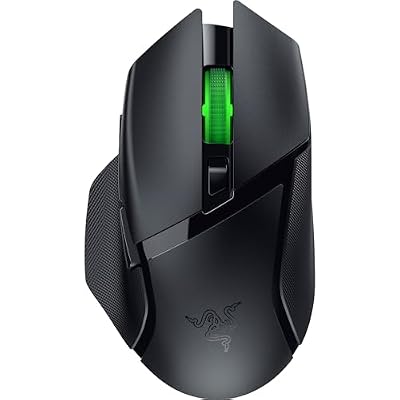


Weight and sensor quality still matter more than the last fraction of a millisecond. A mouse you can aim with beats a faster mouse you cannot, which is the point we keep making in our roundup of gaming mice worth the money.
In-game frame caps
A cap set slightly below your refresh rate keeps you inside the variable refresh window and out of the V-Sync buffer. Reflex handles this automatically; if a game lacks Reflex, set the cap yourself — in-engine first, then the driver’s Max Frame Rate, in that order of preference.
Recommended Settings by Game Type
| Game type | Reflex | V-Sync / G-SYNC | Frame cap | Frame generation |
|---|---|---|---|---|
| Competitive FPS (CS2, Valorant, Apex) | On + Boost | G-SYNC on, V-Sync on | Reflex auto-cap | Off |
| Single-player, ray tracing on | On | G-SYNC on, V-Sync on | Reflex auto-cap | On if base fps > 50 |
| Third-person action / souls-likes | On | G-SYNC on, V-Sync on | Reflex auto-cap | Optional |
| Older DX9 / DX11 titles with no Reflex | Unavailable — use Low Latency Mode: Ultra | G-SYNC on, V-Sync on | Manual, 3–5 below refresh | Off |
| Strategy, sims, anything turn-based | On (harmless) | G-SYNC on | Manual, for heat and noise | Fine |
Troubleshooting
The Reflex option is greyed out or missing. Reflex is per-game and requires developer integration — if the title never shipped it, no driver setting will add it. Confirm you are on a GeForce GTX 900-series or newer card with a current driver, and check that the game is not running through a compatibility or legacy renderer mode.
Latency did not change when you toggled it. Check GPU utilisation. If you are CPU-bound, there was no queue to drain. This is a correct result, not a broken feature.
Framerate dropped slightly with Reflex on. Expected and usually 1–2%. Draining the queue trades a sliver of throughput for responsiveness. If the drop is larger, something else changed — an in-game cap, a power profile, or thermal throttling. Our notes on diagnosing thermal throttling cover how to confirm that quickly.
Reflex on but the game still feels sluggish. Look outside the GPU. Check polling rate, confirm the monitor is running at its rated refresh rate in Windows display settings rather than defaulting to 60 Hz, disable any TV-style image processing, and make sure you are not accidentally on a Bluetooth connection for the mouse.
Frequently Asked Questions
Does NVIDIA Reflex increase FPS?
No. Reflex reduces the delay between your input and the frame that reflects it, but it does not render frames any faster. In fact it can cost about one to two percent of your average framerate, because draining the render queue slightly reduces how efficiently the GPU is kept fed. That trade is worth making in almost every case, since the responsiveness gain is far more noticeable than a couple of frames per second.
Should I use Reflex On or On + Boost?
Use On as the default in every supported game. Add Boost only when you are clearly CPU-bound, meaning GPU utilisation sits well below ninety percent during actual gameplay, which is typical in competitive shooters running at very high framerates. Boost prevents the GPU from dropping clocks while it is underloaded and usually buys one to three additional milliseconds, at the cost of noticeably higher power draw, heat and fan noise.
Does Reflex work with AMD graphics cards?
No. Reflex is an NVIDIA SDK and requires a GeForce GPU, specifically GTX 900-series or newer. AMD’s equivalent is Anti-Lag and Anti-Lag 2, which targets the same render queue problem with a similar approach, and Intel Arc offers its own low-latency mode. Each is vendor-locked, so the in-game toggle you see will depend entirely on which card you have installed.
Is Reflex the same as the Low Latency Mode in the NVIDIA Control Panel?
They are not the same and Reflex is substantially better. The control panel Low Latency Mode is a driver-side setting limited to DirectX 9 and 11 titles, and it can only limit how many frames the driver queues. Reflex is integrated into the game engine itself, works in DirectX 12 and Vulkan titles, and can time input sampling to happen just before rendering begins, which the driver cannot do from outside.
How much input lag does Reflex actually remove in real games?
Expect roughly ten to forty milliseconds in GPU-bound scenarios, which is where the widely quoted figure of up to half the system latency comes from. In CPU-bound esports titles already running at several hundred frames per second, the realistic saving is only a few milliseconds because the render queue was nearly empty already. Measure your own before and after rather than trusting a single published number.

Write Your Review
No reviews yet. Be the first to share your experience!