
If only one program flickers, crashes, stutters or shows a black screen while everything else runs fine, your graphics card is almost certainly healthy. The cause is usually that app’s own settings: it is running on integrated graphics, a hardware acceleration toggle is misbehaving, an overlay is hooking into it, or a per-app driver profile or corrupted shader cache is overriding normal behavior.
- Resolving App-Specific GPU Problems: Start With a Quick Diagnosis
- 1. Check Whether the App Is Using Integrated Graphics
- 2. Toggle Hardware Acceleration in the Misbehaving App
- 3. Rule Out Overlay Conflicts
- 4. Reset App-Specific Profiles in NVIDIA Control Panel
- 5. Clear a Corrupted Shader Cache Safely
- 6. Adjust Fullscreen Optimizations and Display Scaling
- 7. Read Event Viewer for Display Driver Resets (TDR)
- Try This Order: A Troubleshooting Checklist
- When It Is Not App-Specific: Signs the Hardware May Be at Fault
- Frequently Asked Questions
A failing GPU fails everywhere; a misconfigured app fails in one place. Below are the likely culprits in the order that wastes the least time, plus the signs that it really is hardware.
Resolving App-Specific GPU Problems: Start With a Quick Diagnosis
First confirm the problem is truly isolated. Run two or three other GPU-heavy programs, such as another game and a 4K video in your browser. If they behave, it is app-specific. If several misbehave, skip to the hardware section. Also note what changed recently: a game update, new driver, Windows update or new recording software are the usual triggers.
| Symptom (one app only) | Likely cause | Fix to try first |
|---|---|---|
| Very low FPS on a laptop or a PC with a CPU that has graphics built in | App is running on integrated graphics | Set the app to High performance in Windows graphics settings |
| Black or white window, flickering video, blank browser tabs | Hardware acceleration bug in that app | Toggle the app’s hardware or graphics acceleration setting |
| Crash on launch or when a match loads | Overlay or capture software hooking the app | Disable overlays one at a time |
| Wrong anti-aliasing, capped FPS, strange V-Sync behavior | Per-app profile in NVIDIA Control Panel or NVIDIA App | Restore that program’s profile to defaults |
| Heavy stutter or graphical corruption after an update | Stale or corrupted shader cache | Clear the shader cache and let it rebuild |
| Blurry UI, wrong resolution, alt-tab black screen | Fullscreen optimizations or DPI scaling | Adjust the app’s Compatibility settings |
| Screen goes black for a few seconds, then the app crashes | Driver timeout (TDR) triggered by that app | Check Event Viewer, then do a clean driver install |
1. Check Whether the App Is Using Integrated Graphics
On laptops, and on desktops with the monitor plugged into the motherboard, Windows can hand a program to the integrated GPU. The result is poor performance, missing features like DLSS, and sometimes crashes.
How to confirm which GPU an app uses
Open Task Manager, go to the Processes tab, right-click any column header and enable GPU engine. With the app running, that column shows which GPU it is using, labeled something like “GPU 0 – 3D” or “GPU 1 – 3D”. On a desktop, also make sure your display cable goes into the graphics card, not the motherboard’s video ports.
How to fix it and reset the preference
In Windows 11, open Settings, then System, Display, and Graphics. Find the app in the list (or add it by browsing to its .exe), then set its preference to High performance. If an earlier tweak is causing the problem, set it back to “Let Windows decide” or remove the app from the list to reset it. Labels vary between Windows versions. Our guide to Windows per-app GPU settings covers each option in detail. Gaming laptops with a MUX switch can also be set to discrete-only mode in the maker’s control app.
2. Toggle Hardware Acceleration in the Misbehaving App
Many everyday apps use the GPU to draw their interface and decode video. When that path hits a driver bug, you get flicker, black video or a blank window while games run perfectly. Toggling hardware acceleration is a quick test.
- Chrome and Edge: Settings, then System (or System and performance), and a toggle usually named “Use graphics acceleration when available.” Restart the browser after changing it.
- Firefox: Settings, General, Performance; untick the recommended settings to reveal the acceleration checkbox.
- Discord: User Settings, then Advanced (some versions place it near Voice and Video) and the Hardware Acceleration switch.
- Microsoft Office: Older builds have “Disable hardware graphics acceleration” under File, Options, Advanced. Newer Microsoft 365 builds removed it, so update Office and your driver instead.
- Video players: In VLC, Tools, Preferences, Input / Codecs, hardware-accelerated decoding.
Menu names change between app versions, so search settings for “acceleration.” If disabling it helps, update your driver and re-enable it later, since running without it uses more CPU.
3. Rule Out Overlay Conflicts
Overlays inject code into a running program to draw on top of it. Several overlays fighting over one game is a classic cause of launch crashes, stutter and anti-cheat errors. Common offenders:
- The NVIDIA App overlay (formerly GeForce Experience) and its instant replay feature
- Xbox Game Bar and background recording
- Steam and Discord in-game overlays
- MSI Afterburner with RivaTuner Statistics Server FPS counters
- OBS game capture and some RGB or monitor utilities
Disable them one at a time, relaunching after each change. Once you find the conflict, you can often keep the tool and just exclude that game.
4. Reset App-Specific Profiles in NVIDIA Control Panel
Per-program settings in NVIDIA Control Panel override global ones. A forgotten profile can force frame caps, low latency modes or V-Sync settings that clash with the game’s own options.
Open NVIDIA Control Panel, go to Manage 3D Settings, then the Program Settings tab. Select the misbehaving app and click Restore to return its profile to defaults. The NVIDIA App offers a similar per-program list under its Graphics section. Our NVIDIA Control Panel settings explainer covers which options are safe to change.
5. Clear a Corrupted Shader Cache Safely
Games store compiled shaders on disk for smoother launches. After a driver or game update, that cache can become stale or corrupted, causing stutter, missing textures or crashes in one title.
- Close every game, launcher and browser.
- Open Disk Cleanup, select your system drive and tick DirectX Shader Cache, then run it.
- For NVIDIA’s own cache, paste
%LOCALAPPDATA%NVIDIAinto File Explorer and delete the contents of the DXCache and GLCache folders. Files in use will refuse to delete, which is fine. - For Steam games, use the launcher’s “Verify integrity of game files” option, which can also rebuild shader data.
Expect the next launch to stutter or show a “compiling shaders” screen while the cache rebuilds. Saves and settings are not affected.
6. Adjust Fullscreen Optimizations and Display Scaling
Right-click the app’s .exe, choose Properties, then Compatibility. Try ticking Disable fullscreen optimizations, which helps with alt-tab black screens and some frame pacing issues. Under Change high DPI settings, enabling “Override high DPI scaling behavior” fixes blurry or oddly sized interfaces on high-resolution monitors.
Also try switching between exclusive fullscreen, borderless and windowed modes, and briefly test with G-SYNC or variable refresh rate off, since one game with a broken VRR implementation can flicker while others look perfect.
7. Read Event Viewer for Display Driver Resets (TDR)
If the screen goes black for a few seconds and the app then crashes, Windows likely reset the display driver. This is a Timeout Detection and Recovery (TDR) event.
Open Event Viewer, expand Windows Logs and select System. Look around the time of the crash for warnings with the source Display (commonly Event ID 4101, “display driver stopped responding and has successfully recovered”) or errors from nvlddmkm, NVIDIA’s kernel driver. If they appear only with one app, remove any overclock, then follow our DDU clean driver install guide. If they appear across many apps, treat it as a possible hardware issue.
Try This Order: A Troubleshooting Checklist
| Step | Action | Time needed |
|---|---|---|
| 1 | Test other apps to confirm the problem is isolated | 2 minutes |
| 2 | Update the app and restart the PC | 5 minutes |
| 3 | Confirm the app uses the dedicated GPU | 3 minutes |
| 4 | Toggle hardware acceleration | 2 minutes |
| 5 | Disable overlays one by one | 10 minutes |
| 6 | Restore the app’s NVIDIA profile | 2 minutes |
| 7 | Clear shader caches | 5 minutes |
| 8 | Adjust compatibility and display mode | 5 minutes |
| 9 | Check Event Viewer, then clean-install the driver | 20 minutes |
When It Is Not App-Specific: Signs the Hardware May Be at Fault
Suspect the hardware if you see any of these:
- Artifacts, colored lines or checkerboard patterns on the boot screen or BIOS, before Windows loads
- Crashes, black screens or driver resets across many different games and apps
- Problems that survive a clean driver install and a fresh Windows user profile
- Errors or artifacts during a stress test, or temperatures well above the card’s normal range
- The whole PC shutting off under load, which often points to the power supply
Before blaming the card, remove any overclock or undervolt, reseat the GPU and its power cables, and check thermals with our GPU temperature guide. Run a controlled test from our GPU stress testing walkthrough, and confirm your unit has enough headroom using our PSU sizing guide for graphics cards. If the card still fails at stock settings or in a second PC, use the warranty or replace it.
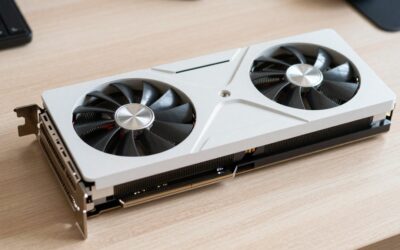
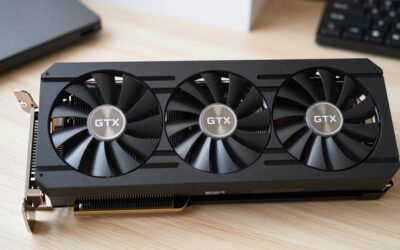
If you need a replacement, compare the cards below, checking length, power connectors and PSU requirements first.


Frequently Asked Questions
Can a failing graphics card cause problems in just one game?
It is possible but uncommon. A degrading GPU usually shows symptoms in several demanding titles, especially those that push memory or power hardest. If only one game fails and others at similar settings run flawlessly, software causes such as overlays, shader caches or per-app profiles are far more likely.
Why does my browser flicker but games work fine?
Browsers use the GPU differently from games, relying on video decoding and compositing paths that can hit specific driver bugs. Toggling the browser’s graphics acceleration setting, updating the browser and updating your GPU driver usually resolves it. Multi-monitor setups with mixed refresh rates can also trigger browser-only flicker.
Is it safe to delete the NVIDIA DXCache folder?
Yes. The folder only holds compiled shaders that the driver regenerates automatically when needed. Close all games and launchers first so files are not locked. The main side effect is a stuttery first launch in some games while shaders compile again, and it does not touch saves or settings.
Should I do a clean driver install for an app-specific problem?
Save it for later in the process. A clean install with DDU is effective, but it takes longer and resets all your driver settings. Try the faster checks first, including GPU assignment, acceleration toggles, overlays and profile resets. Move to a clean install if Event Viewer shows repeated display driver resets.
How do I know if a laptop app is using integrated graphics?
Open Task Manager, enable the GPU engine column on the Processes tab and look at the entry while the app runs. Compare the GPU number against the Performance tab to see which adapter it is. Low frame rates and missing features like DLSS are also strong clues that the integrated chip is being used.

Write Your Review
No reviews yet. Be the first to share your experience!