
amd adrenalin settings are the key to unlocking everything a Radeon graphics card can do, yet many owners never move past the defaults and leave real performance and image quality on the table. AMD Software: Adrenalin Edition is a genuine control center, bundling upscaling, frame generation, latency reduction, tuning, and recording into one dashboard. This guide walks through what the software offers, which settings are worth enabling, and what real users praise and criticize, so you can configure your Radeon card for the best experience without guesswork.
What AMD Adrenalin Software Is
AMD Software: Adrenalin Edition is the driver and control application for Radeon graphics cards, and it does far more than install updates. It is an all-in-one hub for performance features, image-quality tools, per-game profiles, tuning, and streaming, wrapped in a modern interface. Understanding how the software is organized, how its one-click optimization works, and how to find your way around it is the foundation for getting real value out of your Radeon hardware.
The All-in-One Radeon Control Center
At its core, Adrenalin consolidates tools that used to be scattered across separate utilities. From a single application you can update drivers, tweak performance features, adjust image quality, monitor metrics, and record gameplay through ReLive.
This consolidation is a real strength for the reader who prefers to configure things properly rather than accept defaults. Everything is accessible from one place, so you are not hunting through multiple menus or third-party apps to get the setup you want.
Because the software updates regularly, new features and refinements arrive over time, which means an Adrenalin card tends to gain capabilities long after purchase rather than staying static.
HYPR-RX and One-Click Optimization
The headline convenience feature is HYPR-RX, a single toggle that enables a bundle of AMD’s performance technologies at once, including Radeon Super Resolution, AMD Fluid Motion Frames, Anti-Lag, and Radeon Boost where supported.
For anyone who finds the full settings list overwhelming, HYPR-RX is the easy button: one click applies a tuned combination aimed at maximizing frame rate and smoothness. It is the fastest way to get most of the benefit without learning every individual toggle.
More advanced users can still enable these features individually for finer control, but HYPR-RX is an excellent starting point and a genuine differentiator of the Radeon software experience.
Navigating the Adrenalin Interface
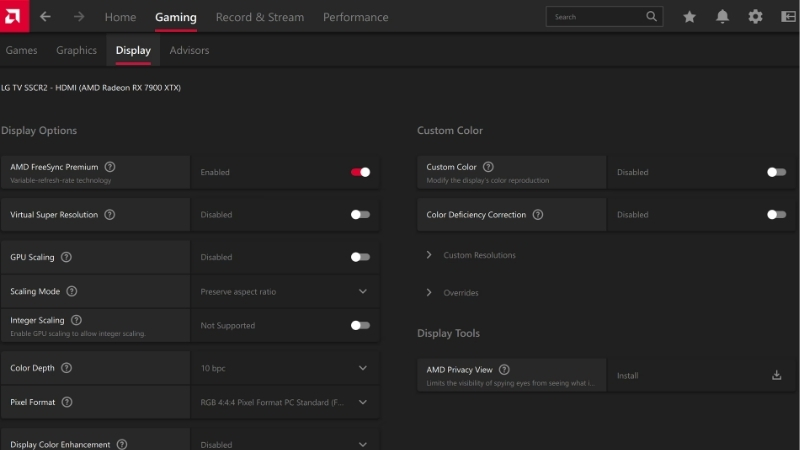
The interface is organized into clear tabs for Gaming, Performance, Recording, and Settings, so each category of options lives in a logical place. The Gaming tab holds per-game profiles, letting you apply different settings to different titles automatically.
The Performance tab surfaces monitoring metrics and the tuning controls, while the overlay accessible in-game lets you check frame rate and adjust features on the fly without leaving your session.
Learning this layout is worth a few minutes, because it turns the software from an occasional driver updater into a practical daily tool for controlling exactly how your games run.
The in-game overlay is especially handy here, since it lets you toggle features and read a live performance graph mid-session with a simple hotkey. That means you can experiment with a setting, immediately see its effect on frame rate and temperatures, and keep or revert it without ever closing your game, which makes fine-tuning far quicker and less disruptive.
The Best Adrenalin Settings to Enable
With the layout understood, the practical question is which settings actually improve your experience. Adrenalin offers a deep toolkit, but a handful of options deliver most of the benefit, and knowing which to enable, and when, is what separates a well-tuned Radeon system from a stock one. This section covers the performance features, the image-quality tools, and the tuning controls worth your attention.
Performance Settings: RSR, AFMF, Anti-Lag, Boost, and Chill
The performance features are where the biggest frame-rate gains live. Radeon Super Resolution upscales almost any fullscreen game for more frames, while AMD Fluid Motion Frames adds driver-level frame generation for extra smoothness.
Anti-Lag reduces input latency when you are GPU-bound, which benefits competitive play, and Radeon Boost dynamically lowers resolution during fast motion to keep frame rates high. Radeon Chill does the opposite when useful, reducing frames during idle moments to cut heat, noise, and power draw.
The practical advice is to enable RSR and AFMF for frame rate, Anti-Lag for responsiveness, and consider Chill for quieter, cooler operation, adjusting per game based on whether you prioritize speed or efficiency.
A smart habit is to use the per-game profiles rather than one global configuration. A competitive shooter benefits from Anti-Lag and Boost with frame generation left off, while a single-player showcase title is the ideal place to enable AFMF for smoothness. Because Adrenalin remembers these choices per title, you can set each game once and let the software apply the right combination automatically every time you launch it.
Image Quality Settings: Sharpening, Enhanced Sync, and VSR
On the image-quality side, Radeon Image Sharpening applies a light, low-cost sharpening pass that counteracts the softness upscaling can introduce, and it pairs especially well with RSR for a cleaner result.
Enhanced Sync offers a smoother alternative to traditional VSync, reducing tearing without the input-lag penalty, while Virtual Super Resolution lets you render at a higher-than-native resolution and downscale for extra sharpness on capable cards.
Used together, these tools let you fine-tune the balance between sharpness, smoothness, and performance to match your monitor and your preferences rather than settling for whatever the game defaults to.
Tuning and Overclocking Controls
For enthusiasts, the Performance tab includes tuning controls for the GPU clock, memory, power limit, and fan curve. AMD provides both automatic presets and manual sliders, so you can push for more performance or dial in a quieter, cooler profile.
The automatic tuning options are a safe starting point for newcomers, applying modest, tested adjustments without risk, while manual tuning rewards patience and testing for those who want to extract maximum performance.
The experimental appeal here is that AMD builds these capabilities directly into the driver, so you do not need third-party software to overclock, monitor, or set a custom fan curve, keeping everything in one trusted application.
The undervolting option deserves a special mention, because it is one of the most useful yet overlooked controls. Reducing voltage while holding clocks steady can lower temperatures, fan noise, and power draw with little or no performance loss, and on many Radeon cards it improves sustained boost clocks by giving the card more thermal headroom. For owners who value a quiet, efficient system, it is often more rewarding than chasing a raw overclock.
User Impressions, Pros and Cons, and Getting the Most From It
Beyond the feature list, what matters is how the software feels in daily use, so it helps to weigh what owners actually report. Combining the enthusiastic feedback with the recurring criticisms gives a balanced picture of the Adrenalin experience and helps set expectations before you dive into the settings. Here is the consistent pattern from long-term users.
What 4-5 Star Users Praise
Positive users consistently praise the all-in-one design, appreciating that performance features, tuning, recording, and monitoring live in a single polished application rather than scattered utilities.
HYPR-RX earns particular goodwill for making optimization approachable, letting less technical owners enable a strong feature bundle with one click. The clean, modern interface is frequently mentioned as a highlight compared with older driver software.
Many also value how the software keeps improving through updates, adding features like AFMF over time, which makes their Radeon card feel like a purchase that grows more capable rather than one frozen at its release-day feature set.
The built-in recording and streaming suite, ReLive, draws praise too, letting owners capture clips, stream, and even record instant replays without installing separate software. For users who like a self-contained ecosystem, having capture, tuning, and performance features under one roof is a genuine convenience that reduces clutter and the need to juggle multiple third-party tools.
Common Complaints from 2-3 Star Reviews
The most common criticism is the occasional bug or instability, with some users historically reporting driver timeouts or specific features misbehaving until a patch arrived. Stability has improved considerably, but the reputation lingers.
A second theme is that the sheer depth of options can overwhelm newcomers, who are unsure which settings to touch. Ironically, the same richness that enthusiasts love can intimidate first-time owners.
A minority also report that certain features do not work in every game or require specific conditions, such as exclusive fullscreen for RSR, which can cause confusion when a toggle appears to do nothing.
Pros and Cons of Adrenalin Settings
Here is the balanced summary drawn from owner feedback and hands-on use.
Pros: a genuine all-in-one control center, powerful performance and image-quality features, one-click HYPR-RX optimization, built-in tuning and recording, and steady improvement through updates. Cons: occasional bugs, a learning curve for newcomers, and some features that require specific conditions to work.
The bottom line is that the value of these settings is inseparable from owning a Radeon card, so if you are choosing a GPU to take advantage of them, checking current pricing on a supported Radeon card through the link on this page is a sensible next step.
See More:
Conclusion
Getting the most from your amd adrenalin settings is one of the easiest ways to improve your gaming experience without spending a cent, because the software turns a Radeon card into a highly configurable, feature-rich platform. Enable the performance tools like RSR and AFMF for frames, the image-quality options for sharpness, and lean on HYPR-RX if you want a simple one-click setup, then explore tuning as you grow more comfortable. Despite an occasional bug and a learning curve, Adrenalin is a standout part of the Radeon package. If you are ready to build around one, use the link above to compare live pricing on a supported Radeon GPU and get started today.
Top-Rated Picks


| Product | Brand | Rating | Reviews | Price |
|---|---|---|---|---|
| ARCTIC MX-4 (4 g) – Premium Performance Thermal Paste… | ARCTIC | ★ 4.8 | 104k | $4.99 |
| ARCTIC MX-4 (incl. Spatula, 4 g) – Premium Performanc… | ARCTIC | ★ 4.8 | 71.9k | $5.49 |
| Crucial 8GB DDR4 RAM 3200MHz (PC4-25600), Downclockab… | Crucial | ★ 4.8 | 62.8k | $74.99 |
| AMD Ryzen 5 5600X 6-core, 12-thread unlocked desktop … | — | ★ 4.8 | 30.2k | $177.60 |
| NVIDIA Shield Remote; Voice Search, Motion-Activated,… | — | ★ 4.7 | 10.6k | $25.99 |
Frequently Asked Questions
Which Adrenalin settings should I enable first?
Start with Radeon Anti-Lag to cut render queue latency, Enhanced Sync or a frame rate cap slightly below your refresh rate, and Radeon Chill if you want lower temperatures while idle in menus. Leave Image Sharpening at a modest value. These four cost nothing visually and improve responsiveness in almost every game.
What is the difference between RSR, FSR and AFMF?
Radeon Super Resolution is a driver-level spatial upscaler that works in nearly any fullscreen game. FSR is implemented inside the game itself and looks better because it has motion vectors. Fluid Motion Frames is driver-level frame generation that inserts interpolated frames. They solve different problems and can be combined carefully.
Should I use the automatic overclock tuning presets?
The undervolt option is the one worth trying, since RDNA 2 and RDNA 3 cards often run stable at lower voltage with the same clocks, dropping temperatures and fan noise. Automatic overclock presets are less reliable and can cause driver timeouts. Change one value at a time and stress test after each adjustment.
Do these settings work per-game or globally?
Both. Adrenalin keeps a global profile plus per-game profiles that override it, which is how you can run frame generation in a single player title while keeping a low latency configuration for competitive shooters. Add the executable manually if the scanner misses a game installed outside the usual folders.
Will enabling these features risk an anti-cheat ban?
Modern Anti-Lag 2 is integrated by developers specifically to avoid the problem that got the earlier Anti-Lag Plus flagged in Counter-Strike 2. Upscaling, Chill and frame generation are driver features and are not treated as tampering. Even so, avoid injecting third party overlays on top in competitive titles.











Write Your Review
No reviews yet. Be the first to share your experience!