
What is anti-aliasing is a question worth answering for anyone who has noticed jagged, stair-stepped edges along objects in their games. In simple terms, anti-aliasing is a graphics technique that smooths those rough edges, replacing the harsh staircase look with cleaner, more natural lines for a more polished image. It is one of the most common settings in any game’s graphics menu, and choosing the right method can noticeably improve how your games look. This guide explains how anti-aliasing works, why jagged edges appear in the first place, the main types you will encounter, the performance cost involved, and how to pick the best option for your hardware.
Understanding What Anti-Aliasing Is
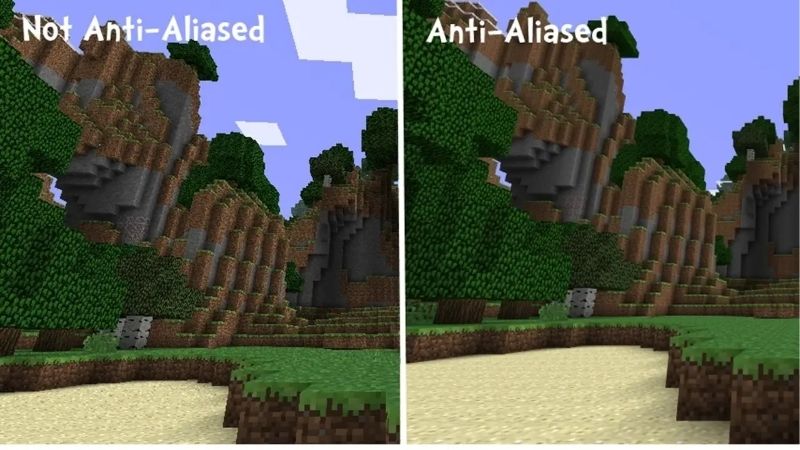
Before adjusting the setting, it helps to understand what anti-aliasing does and why games need it. Anti-aliasing exists because of how images are drawn on a grid of pixels, which naturally produces rough edges on diagonal and curved lines that the technique then works to smooth away. Once you see why those edges appear, the various methods and their trade-offs make far more sense.
As an Amazon Associate we earn from qualifying purchases at no extra cost to you.





How Anti-Aliasing Works
Anti-aliasing smooths jagged edges by blending the colors along them, softening the hard transition between an object and its background. Rather than a sharp step from one pixel to the next, it creates intermediate shades that trick the eye into seeing a smooth line.
Different methods achieve this in different ways, but the goal is the same: to reduce the harsh staircase effect on edges so they appear cleaner and more natural. The result is a more polished, less distracting image.
By filling in those transitions with blended tones, anti-aliasing makes diagonal lines, curves, and fine details look far smoother than they would on a raw, unprocessed image, which is why it is such a widely used setting.
Why Jagged Edges Happen
Screens display images using a grid of square pixels, which works well for straight horizontal and vertical lines but struggles with diagonals and curves. Those shapes have to be approximated using square pixels, creating a stair-step pattern.
This stair-stepping, often called aliasing, is most visible on the edges of objects against a contrasting background, such as a rooftop against the sky. The lower your resolution, the larger and more obvious these jagged steps become.
Because the pixel grid cannot perfectly represent a smooth diagonal, some form of smoothing is needed to make the image look natural, which is exactly the problem anti-aliasing was created to solve in games and other graphics.
The Main Types of Anti-Aliasing
There are several anti-aliasing methods, each balancing quality and performance differently. Older supersampling approaches render the image at a higher resolution and scale it down for excellent quality, but they are very demanding on the graphics card.
Multisampling methods like MSAA target just the edges for a good balance of quality and cost, while post-processing methods like FXAA are very cheap but can soften the whole image. Temporal methods like TAA use information from multiple frames for smooth results.
Modern games often favor temporal and AI-assisted approaches because they deliver smooth edges at a reasonable performance cost, though each method has trade-offs in sharpness, performance, and how it handles motion. You do not need to memorize every acronym, but knowing roughly where each method sits on the scale from cheap-and-soft to expensive-and-sharp makes it much easier to pick the right one when you open a game’s settings menu.
Why Anti-Aliasing Matters for Gaming
The setting only matters if it improves how your games look without hurting performance too much, so let us look at what anti-aliasing delivers. Its benefits are most visible at lower resolutions and on high-contrast edges, where jaggedness is otherwise hard to ignore, and understanding this helps you decide how much of it you actually need on your particular display.
The Visual Improvement It Delivers
The main benefit of anti-aliasing is a cleaner, more polished image. By smoothing jagged edges, it removes a distracting artifact that can make even a detailed game look rough and unfinished around the outlines of objects.
This improvement is especially noticeable on thin objects, distant detail, and high-contrast edges, where aliasing is most severe. With good anti-aliasing, these elements look stable and natural rather than shimmering and stair-stepped.
For everyday gaming, the result is a more immersive and visually pleasing experience, since smooth edges help the scene feel cohesive and let you focus on the game rather than on jagged outlines. The improvement is one of those things that is easy to overlook when present but immediately noticeable when absent, which is why anti-aliasing has been a standard graphics setting for so long across nearly every game.
The Pros and Cons of Anti-Aliasing
Anti-aliasing improves image quality, but it comes with trade-offs worth understanding before you crank it to the maximum.
Pros:
- Smooths jagged edges for a cleaner, more polished image.
- Reduces distracting shimmer on thin objects and distant detail.
- Offers methods to suit any hardware, from cheap to high quality.
Cons:
- Higher-quality methods can significantly reduce frame rates.
- Some methods, like certain post-processing types, soften the whole image.
- Temporal methods can introduce blur or artifacts in motion.
Anti-Aliasing and Performance Cost
The performance impact of anti-aliasing varies enormously by method. Demanding supersampling can cut frame rates sharply because it effectively renders the scene at a higher resolution, while cheap post-processing methods cost almost nothing.
This is why choosing the right method matters so much. A heavy method on a modest graphics card can make a game stutter, while a lighter method delivers most of the visual benefit with little performance loss.
The trade-off between quality and frame rate is the central consideration with anti-aliasing, and the best choice depends on your hardware, your resolution, and how much performance headroom you have to spare. A method that is perfect on a high-end card at a high resolution may be overkill on a modest system, where a lighter option delivers most of the visual benefit while leaving you the frames you need for smooth gameplay.
How to Use Anti-Aliasing for the Best Results
Getting the most from anti-aliasing comes down to choosing the right method and balancing it against performance. The setting is easy to adjust, and a few guidelines help you pick wisely. Here is the practical approach to smooth edges without wrecking your frame rate, whatever graphics card and resolution you happen to be working with.
Choosing the Right Anti-Aliasing Method
Start by matching the method to your hardware and resolution. On a powerful card, you can afford higher-quality methods, while a modest card benefits from lighter post-processing or temporal options that smooth edges cheaply.
At higher resolutions, aliasing is naturally less visible because pixels are smaller, so you can often use a lighter method or less aggressive setting. At lower resolutions, stronger anti-aliasing helps more since the jagged steps are larger.
Many modern games default to a temporal method that offers a good balance, but it is worth trying the available options to see which gives you the cleanest image without unwanted blur in motion for your particular setup.
Balancing Quality and Performance
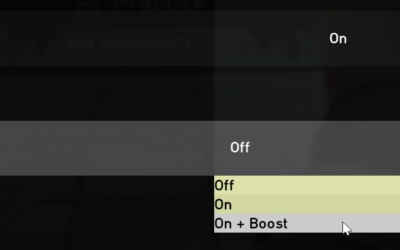
Anti-aliasing is one of the easier settings to tune for performance. If a game runs short of your target frame rate, lowering the anti-aliasing quality or switching to a cheaper method can recover frames with only a small visual cost.
Conversely, if you have performance to spare, a higher-quality method polishes the image further. Finding the right balance is a matter of adjusting the setting and judging whether the visual gain is worth the frames it costs.
Pairing anti-aliasing with modern upscaling can also help, since upscaling recovers performance that you can then spend on a higher-quality anti-aliasing method, keeping both image quality and frame rate high. This combination has become a popular way to get a clean, smooth image without sacrificing the frames you need, and it is well worth trying in any game that offers both an upscaler and a choice of anti-aliasing methods.
Hardware Tips and When to Use It
Anti-aliasing is most valuable at lower and mid resolutions where jagged edges are most visible, and on capable hardware you can use higher-quality methods for the cleanest result. A stronger graphics card simply gives you more freedom to choose.
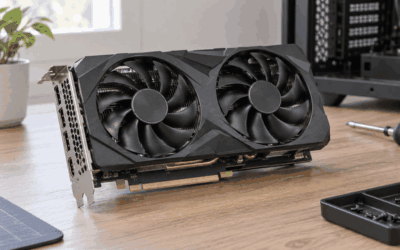
If you are gaming at a high resolution on a powerful card, you may find lighter anti-aliasing is all you need, since the high pixel density already reduces jaggedness. To find a graphics card that handles your resolution and quality settings with ease, compare current options and their verified prices through the links on this page.
It also helps to remember that anti-aliasing works alongside other image-quality settings rather than in isolation. A higher display resolution naturally reduces the need for aggressive anti-aliasing, while features like upscaling can free up the performance you then spend on a better smoothing method. Thinking about these settings together, rather than maxing out each one separately, is the surest way to land on a sharp, smooth image that still runs at the frame rate you want.
See More:
Final Thoughts on Anti-Aliasing
To wrap up, anti-aliasing is the graphics technique that smooths the jagged, stair-stepped edges caused by drawing images on a pixel grid, delivering a cleaner and more polished picture. Understanding what is anti-aliasing shows why those edges appear, how the main methods balance quality against performance, and why choosing the right one for your hardware and resolution matters so much. Pick a method that suits your card, tune it against your frame rate, and pair it with upscaling where helpful, and you will enjoy smooth, natural-looking edges in all of your games.
Top-Rated Picks


Editor's Pick
GIGABYTE GeForce RTX 3060 Gaming OC 12G (REV2.0) Graphics Card, 3X WINDFORCE Fans, 12GB 192-bit GDDR6, GV-N3060 Video Card


| Product | Brand | Rating | Reviews | Price |
|---|---|---|---|---|
| MSI GeForce RTX 3060 Ventus 2X 12G OC, Gaming Graphic… | — | ★ 4.7 | 4.5k | $635.00 |
| GIGABYTE GeForce RTX 3060 Gaming OC 12G (REV2.0) Grap… | — | ★ 4.7 | 3.2k | $479.00 |
| EVGA GeForce GTX 1060 3GB GAMING, ACX 2.0 (Single Fan… | EVGA | ★ 4.6 | 3.4k | $247.79 |
| MSI Gaming GeForce GTX 1660 Super 192-bit HDMI/DP 6GB… | — | ★ 4.7 | 2.2k | $232.60 |
| MSI GeForce RTX 4060 Ti Ventus 3X 8G OC (8GB GDDR6/PC… | — | ★ 4.7 | 1.3k | $998.00 |
Frequently Asked Questions
Which anti-aliasing type costs the least performance?
FXAA and SMAA are post-process filters that run on the finished image and typically cost only one to three percent of your frame rate. MSAA samples geometry edges multiple times and can cost twenty percent or more. TAA sits in between and is cheap because it reuses data from previous frames rather than supersampling.
Why does TAA look blurry in motion?
Temporal anti-aliasing blends samples from earlier frames, so when the camera or an object moves quickly the engine must guess where pixels went. Poor motion vectors cause smearing, ghosting trails behind characters and softened texture detail. Sharpening sliders, higher render resolution or swapping in DLAA or a newer upscaler DLL usually reduce the softness.
Do I still need anti-aliasing at 4K?
Less than at 1080p, but yes. Higher pixel density shrinks visible stair-stepping, yet thin geometry like power lines, railings, hair and distant foliage still shimmers without temporal filtering. A light TAA or DLAA pass at 4K costs little performance and removes the crawling edges that make otherwise sharp scenes look unstable in motion.
What is DLAA and how does it differ?
DLAA runs the DLSS neural network at your full native resolution instead of upscaling from a lower one. You get the AI edge reconstruction and temporal stability without any resolution loss, so it is the highest quality option available on RTX cards. It costs more performance than DLSS Quality because nothing is being upscaled.
Does anti-aliasing use extra VRAM?
MSAA is the heaviest because it stores multiple color and depth samples per pixel, which can add hundreds of megabytes at high resolutions with 4x or 8x sampling. Post-process methods like FXAA and SMAA add almost nothing. Temporal methods need history buffers, a modest cost of roughly one to two hundred megabytes.



Write Your Review
No reviews yet. Be the first to share your experience!