
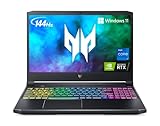
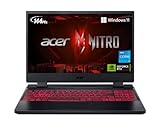
- Top Pick: Acer Predator Helios 300 PH315-54-760S Gaming Laptop | Intel i7-11800H | NVIDIA GeForce RTX 3060 GPU | 15.6" FHD 144Hz 3ms IPS Display | 16GB DDR4 | 512GB SSD | Killer WiFi 6 | RGB Keyboard
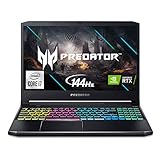
- Best Value: Acer Predator Helios 300 Gaming Laptop, Intel i7-10750H, NVIDIA GeForce RTX 3060 Laptop GPU, 15.6" Full HD 144Hz 3ms IPS Display, 16GB DDR4, 512GB NVMe SSD, WiFi 6, RGB Keyboard, PH315-53-71HN
- Premium Choice: Acer Predator Helios 300 PH315-55-70ZV PH315-55-70ZV Abyss Black Gaming Laptop, i7-12700H, 16GB, 512GB PCIe SSD, 15.6" IPS Full HD (1920×1080), NVIDIA GeForce RTX 3060, Windows 11 Home
Yes, the Acer Predator Helios 300 with RTX 3060 still holds up as a 1080p gaming laptop in 2026, but only if you understand what its 130W GPU configuration, cooling setup, and panel choice actually deliver under sustained load. It’s a used or clearance-market buy at this point, and the value depends entirely on which specific configuration you’re looking at.
As an Amazon Associate we earn from qualifying purchases at no extra cost to you.

The 130W 3060: What That Number Actually Means
Nvidia let laptop makers configure the mobile RTX 3060 anywhere from 60W to 130W. Acer used the top-end 130W variant in the Helios 300, paired with Dynamic Boost to push short-term spikes higher. That matters because two laptops with “RTX 3060” on the spec sheet can differ by 30-40% in real sustained performance depending on the wattage cap the vendor chose.
At 130W, this GPU has a base clock around 1283MHz and boost clock around 1703MHz on paper, but boost clocks are marketing numbers, not sustained numbers. What actually happens under a 20-30 minute gaming session depends on the cooling system’s ability to hold the die temperature below the thermal throttle point, typically around 87°C on this silicon.
Vapor Chamber and Liquid Metal: Where It Helps and Where It Doesn’t
Acer’s later Helios 300 revisions with the RTX 3060 use a vapor chamber over the GPU and, on some SKUs, liquid metal thermal compound instead of standard paste on the CPU. These are genuinely good engineering choices for a chassis this thin, but they solve different problems:
- Vapor chamber (GPU): Spreads heat across a wider surface than a heat pipe, which lets the fans extract it more evenly. This is what keeps the 3060 closer to its 130W ceiling during long sessions instead of dropping to 100W after 10 minutes.
- Liquid metal (CPU): Lowers junction-to-heatsink resistance, which mostly benefits the CPU’s ability to hold higher clocks during CPU-heavy scenes (open-world traversal, shader compilation, esports titles with high draw calls). It does very little for GPU-bound frame rates in most AAA titles at 1080p.
In practice, this means the laptop’s advertised power draw is achievable for longer than older, thinner gaming laptops from the same weight class, but it is not immune to throttling. Expect the GPU to settle somewhere between 110-125W sustained in a warm room, not the full 130W, once the chassis has been under load for 15+ minutes.
Chassis Thickness vs 2.5kg Reality
The Helios 300 in this generation sits around 22-27mm thick (varies slightly by hinge revision) and weighs approximately 2.5kg bare, closer to 3kg with the power brick included. That’s the actual travel weight, not the marketing weight. For a machine cooling a 130W GPU plus a mobile Core i7/i9, that’s a reasonable tradeoff, but it’s worth being honest about what “portable” means here:
- It fits in a normal backpack but you’ll notice it more than a 14-inch ultrabook.
- The brick itself is large (often 230W+) and adds real weight to a daily commute.
- Thermally, the extra chassis volume compared to slimmer 3060 laptops is a large part of why it sustains clocks better. Thinner competitors with the same GPU wattage often throttle 10-15% harder.
If your use case is mostly desk-bound with occasional transport, the thickness is a non-issue and arguably a benefit. If you’re carrying it daily on foot or by transit, the weight is the real limiting factor, not the specs.
144Hz vs 240Hz: How the Panel Choice Changes Your Settings
Acer sold this chassis with both a 1080p/144Hz panel and a 1080p/240Hz panel depending on region and configuration tier. This isn’t just a cosmetic upgrade, it changes how you should tune graphics settings, because the 130W 3060 cannot feed a 240Hz panel at high settings in most modern titles.
Bandwidth vs Frame Rate: The Real Tradeoff
A useful way to think about it: at 1080p, GPU horsepower is the bottleneck long before display refresh rate is. The RTX 3060 at 130W typically lands in these ranges at 1080p:
| Game type | High settings, native res | Frame rate vs panel ceiling |
|---|---|---|
| Competitive shooter (CS2, Valorant-class) | 180-260 fps | Can approach or hit 240Hz panel ceiling |
| Mid-weight esports/MOBA | 120-160 fps | Underfeeds a 240Hz panel; matches 144Hz well |
| AAA single-player (Cyberpunk-class, ray tracing off) | 55-75 fps | Well below both panel ceilings |
| AAA single-player, ray tracing on | 25-40 fps native, 55-70 fps with DLSS Quality | Panel refresh is irrelevant, GPU-bound |
This tells you the decision, not just the numbers: the 240Hz panel only pays off in competitive titles where you’re deliberately lowering settings to chase frame rate. In everything else, you’re GPU-limited well below 144Hz, which means the 144Hz panel loses nothing in real-world use and often costs less.
Practical Tuning by Panel
- If you have the 240Hz panel: Drop shadow quality, ambient occlusion, and motion blur first in competitive titles. These cost the most frame time for the least visible payoff at high refresh. Cap AAA single-player titles at 60 or 90fps with a frame limiter rather than chasing an unreachable ceiling, since forcing max settings toward 240fps isn’t realistic on this GPU tier.
- If you have the 144Hz panel: You can run one tier higher in settings (e.g., High instead of Medium shadows) in most games since you don’t need the extra headroom above 144fps. Enable DLSS Quality mode in supported titles to close the gap to 144fps in GPU-heavy scenes rather than dropping resolution.
- Both panels: Enable G-Sync/FreeSync-equivalent variable refresh if your panel supports it. This matters more for perceived smoothness than the raw Hz number once you’re above ~90fps.
Decision Matrix: Is This Laptop Right for You Now?
| Your situation | Verdict |
|---|---|
| Buying used/clearance under $500-$700 for 1080p esports and older AAA titles | Good value, the cooling holds up well for this price tier |
| Want ray tracing at native resolution in current releases | Skip it, 130W 3060 isn’t enough even with good cooling |
| Need something under 2kg for daily carry | Skip it, look at a thinner RTX 40-series-class ultraportable instead |
| Mainly play competitive shooters and found a 240Hz configuration cheap | Good fit, the panel and GPU combo is well matched here |
| Mainly play AAA single-player and found a 144Hz configuration cheap | Good fit, no performance left unused |
| Doing sustained creative workloads (rendering, video export) | Workable but check for a repaste before buying if it’s several years old, thermal paste degrades over time even with liquid metal on some units |
What to Check Before Buying a Used Unit
- Run a stress test (Furmark or a 20-minute benchmark loop) and watch for clock speeds dropping below roughly 1400MHz sustained on the GPU, that signals dust buildup or degraded thermal paste, both fixable but worth negotiating on price.
- Check fan noise under load. These fans are audible by design at full RPM, so silence under stress usually means a fan curve issue or a fan that’s failing, not a quiet laptop.
- Confirm which panel and wattage configuration you’re actually getting, since listings don’t always specify, and a 60-80W 3060 variant performs meaningfully worse than the 130W version described here.








Write Your Review
No reviews yet. Be the first to share your experience!