
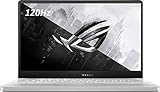
- Top Pick: ASUS ROG Zephyrus G14 GA401IV-BR9N6 Moonlight White Laptop-Gaming, Ryzen 9 4900HS, 16GB, 1TB PCIe SSD, 14.0" Flat Full HD (1920×1080), NVIDIA RTX 2060 Max-Q, Windows 10 Home
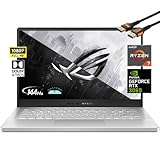
- Best Value: Asus 2022 ROG Zephyrus 14'' Flagship Gaming Laptop, AMD Ryzen 7 5800HS(8 Cores), GeForce RTX 3060 6GB GDDR6, 144Hz 100% sRGB Pantone, Backlit Keyboard, White (16GB RAM | 1TB PCIe SSD)
- Premium Choice: Asus ROG Zephyrus G14 VR Ready Gaming Laptop, 14" 144Hz Full HD IPS Display, 8 Cores AMD Ryzen 9 5900HS,NVIDIA GeForce RTX 3060, Moonlight White-Tikbot Accessories (16GB RAM |1TB PCIe SSD)
The ASUS ROG Zephyrus G14 with an RTX 3060 caps that GPU at roughly 80W, a power limit set by the chassis’ 1.7kg weight and thin cooling stack rather than by Nvidia’s spec sheet, and that single number explains almost every compromise in this laptop, from the frame rates you’ll actually see to the soldered RAM and single M.2 slot ASUS used to keep things thin.
As an Amazon Associate we earn from qualifying purchases at no extra cost to you.


Why 80W, and what it costs in frames
The RTX 3060 mobile chip has a TGP range Nvidia allows OEMs to set between 60W and 115W depending on cooling and battery life targets. ASUS picked a conservative point for the G14 to protect thermals and keep the laptop under 1.7kg. A desktop-class RTX 3060 or a 115W laptop variant in a 17-inch chassis will beat this 80W version by a wide margin, even though the silicon is nominally “the same GPU.”
Here’s the practical gap you’re paying for in a compact chassis:
| RTX 3060 config | TGP | Typical 1080p High, AAA titles | Relative frame rate |
|---|---|---|---|
| Zephyrus G14 (80W) | 80W | 55-65 fps | Baseline |
| Mid-size 15″ laptop | 100W | 65-75 fps | ~15-18% faster |
| 17″ gaming laptop | 115W | 70-80 fps | ~25-28% faster |
| Desktop RTX 3060 12GB | 170W | 85-95 fps | ~40-45% faster |
These numbers are directional, not lab results, but the pattern holds across most 1080p benchmarks: every 20W step down costs roughly 8-12% of the frame rate. That’s the real price of the G14’s size, and it’s worth internalizing before you look at the panel option.
The 120Hz 1440p panel problem
ASUS offers the G14 with a 14-inch 2560×1600 panel at 120Hz on some configurations. Do the math on what that resolution demands and the 80W GPU starts to look mismatched to its own screen.
2560×1600 has about 78% more pixels than 1920×1200, and roughly double the pixel count of standard 1080p. An 80W RTX 3060 that delivers ~60fps at 1080p High settings will typically drop to somewhere in the 30-40fps range at native 1440p with the same settings, well short of feeding a 120Hz panel in native AAA workloads. You have three practical ways to handle this mismatch:
- Run native 1440p at Medium-High settings and accept 45-60fps — fine for single-player, story-driven games, not ideal for anything competitive.
- Render at 1080p and let the panel upscale — recovers most of the frame rate the GPU can actually deliver, at some sharpness cost.
- Use DLSS where supported — this is the actual answer for most games. DLSS Quality mode at 1440p output typically renders internally close to 1080p, which is exactly the resolution this 80W chip is tuned for, and can push frame rates back into the 70-90fps range in supported titles.
If the games you play don’t support DLSS, the 1440p 120Hz panel option makes less sense on this specific power budget, and the 1080p panel configuration will feel better matched to what the GPU can sustain.
Soldered RAM and single M.2: consequences, not just specs
Two decisions ASUS made to hit the G14’s weight and thickness targets have real downstream effects:
Soldered memory
Most G14 configurations ship with RAM soldered to the motherboard, with a single SO-DIMM slot (or none at all, depending on the exact SKU) for expansion. Practically:
- Buy the RAM capacity you’ll need for the machine’s lifespan at purchase time. 16GB soldered plus one open slot lets you add a stick later; a fully soldered 16GB configuration does not.
- Dual-channel matters for integrated graphics performance on battery and for CPU-bound titles; if you add a single stick to a single soldered chip, confirm ASUS’s QVL or support documentation for that configuration actually runs dual-channel and at the rated speed.
- There’s no cost-saving upgrade path later. Paying more upfront for 32GB is usually cheaper than trying to source a compatible SO-DIMM after the fact, if one is even supported.
Single M.2 slot
Most G14 chassis have one M.2 2280 slot. That means:
- No RAID or a separate drive for the OS versus games; everything lives on one drive.
- Storage upgrades mean replacing the existing drive and reinstalling Windows (or cloning it), not adding capacity alongside it.
- Buy more storage than you think you need at purchase. A 1TB drive is usually the practical minimum for a modern game library; 2TB avoids the upgrade conversation entirely if the price gap is reasonable, generally in the $1,300-$1,900 range depending on CPU/GPU/RAM/storage combination.
Keyboard and chassis heat under load
Packing an 80W GPU and a mobile Ryzen CPU into a 14-inch, 1.7kg body leaves little room for heat to go anywhere except up through the keyboard deck. Under sustained gaming load, expect the upper-middle area of the keyboard, near the WASD zone for many layouts, and the area above the function row to get noticeably warm, sometimes uncomfortably so during long sessions. A few things reduce the impact:
- Use a laptop cooling stand or a hard, elevated surface rather than a lap or soft surface, which restricts the bottom intake vents and raises internal temperatures further.
- In ASUS’s Armoury Crate software, switching from “Turbo” to “Performance” mode trades a small frame rate loss for noticeably lower fan noise and surface temperatures, worth trying if the default profile feels too hot or loud.
- External keyboard and mouse for desk sessions sidesteps the heat issue entirely and is a reasonable default for anyone doing long gaming sessions at a desk rather than on the go.
Who this laptop actually makes sense for
| Your situation | G14 RTX 3060 fit |
|---|---|
| Want a laptop under 1.8kg you’ll carry daily, gaming is secondary | Good fit — this is the chassis’ actual design goal |
| Play mostly esports titles (Valorant, CS2, League) at 1080p | Good fit — 80W is plenty for lighter titles at high frame rates |
| Play recent AAA titles and want native 1440p above 60fps | Poor fit — the GPU can’t sustain it without DLSS |
| Need to expand RAM or storage after purchase | Poor fit — configure at time of purchase, not later |
| Want the best 3060 frame rates regardless of size/weight | Poor fit — a 15-17″ laptop with 100-115W TGP will outperform it clearly |
The Zephyrus G14 RTX 3060 isn’t underpowered by accident. ASUS traded raw frame rate for portability on purpose, and the resulting laptop makes the most sense for someone who values the 1.7kg body and battery life more than chasing the highest settings in the newest releases. Buy the RAM and storage you need upfront, pair the 1080p panel with the power budget if AAA gaming matters more than the sharper screen, and treat DLSS as the setting that actually makes the 1440p option worthwhile rather than optional.







Write Your Review
No reviews yet. Be the first to share your experience!