
- Top Pick: Is The Computer Fan Spinning Yet Funny IT Tech Support Nerd T-Shirt, Men, Asphalt Grey, Small
- Best Value: Is The Computer Fan Spinning Yet Funny IT Tech Support Nerd T-Shirt, Men, White, X-Large
- Premium Choice: Is The Computer Fan Spinning Yet Funny IT Tech Support Nerd T-Shirt, Men, Heather Grey, X-Large


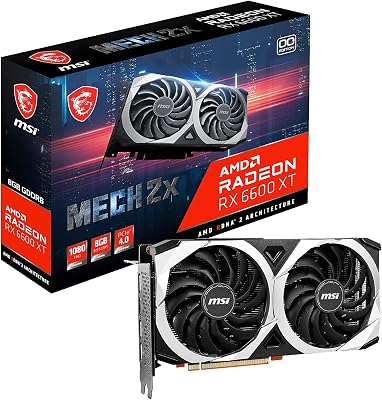

If you notice that your gpu fans stopped spinning during an intense gaming session or a heavy rendering task, the sudden drop in noise can be incredibly alarming. A graphics card relies entirely on consistent airflow to keep its high-performance silicon within safe thermal limits. When that airflow ceases, your frame rates will quickly plummet due to thermal throttling, or worse, your expensive hardware could suffer permanent damage. This comprehensive review examines the most common culprits behind this issue, evaluates DIY repair solutions, and analyzes the broader market forces of 2026 that dictate whether you should repair your current GPU or invest in a brand-new upgrade.
Decoding the Silence: Is Zero-RPM Mode or Hardware Failure to Blame?
Diagnosing why your graphics card has suddenly gone silent is the first and most critical step in safeguarding your PC’s hardware. Modern graphics processors are highly sophisticated, utilizing complex thermal sensors and firmware designed to balance acoustic comfort with physical cooling needs. Before you panic and assume your hardware is dead, it is vital to distinguish between normal automated behavior and an actual mechanical or electrical malfunction.
As an Amazon Associate we earn from qualifying purchases at no extra cost to you.


The Zero-RPM Mode: Software Feature vs. System Bug
Modern graphics cards from NVIDIA, AMD, and Intel are equipped with a thermal management feature widely known as “Zero-RPM” or “Silent Mode.” Under normal idle or low-load conditions—such as browsing the web, typing a document, or streaming a video—the GPU’s core temperature remains relatively cool. To eliminate unnecessary noise and extend the lifespan of the physical bearings, the onboard controller will deliberately cut power to the fan motors.
This feature typically keeps the fans completely stationary until the core temperature reaches a specific threshold, usually between 50°C and 60°C. For many users who are unfamiliar with this design, seeing their graphics card fans completely stationary is a source of immediate anxiety. However, if the fans kick back into action the moment you launch a graphically demanding 3D game, your hardware is operating exactly as the manufacturer intended.
Recognizing the Warning Signs of Genuine Fan Failure
When your graphics card remains silent even as your system performance drops to a crawl, you are likely facing a genuine hardware issue. One of the most obvious signs of a physical failure is severe thermal throttling, where your GPU core temperature exceeds 85°C or 90°C, causing your games to stutter violently. If your monitoring software indicates high thermal loads but the fans remain completely static, you are dealing with a critical breakdown.
Other physical warning signs include unusual mechanical sounds right before the fans stop entirely. Grinding, clicking, or high-pitched squeaking sounds are clear indicators that the internal bearings have dried out or accumulated excessive dust. Additionally, you can perform a gentle manual spin-test with your PC completely powered off; if a fan feels stiff, meets resistance, or wobbles on its spindle, the physical motor assembly has reached the end of its operational lifespan.
Software Overrides and Fan Curve Configurations
Sometimes, the root cause of stationary fans lies within corrupted software profiles or conflicting driver instructions. Applications like MSI Afterburner, EVGA Precision X1, or AMD Software: Adrenalin Edition allow users to create customized cooling profiles. If these profiles become corrupted or if multiple programs attempt to control the fan speeds simultaneously, the controller can lock up, leaving the fans stuck at 0% RPM.
To determine if software is the culprit, you should perform a clean driver installation using Display Driver Uninstaller (DDU) in Windows Safe Mode. Once the old drivers are completely wiped, install the latest official packages from your GPU manufacturer. You can then use a utility like MSI Afterburner to manually force the fan speed to 100% to see if the hardware responds to manual voltage overrides.
Hands-On Review: Troubleshooting Methods and Replacement Fan Kits
When software fixes fail to resolve the problem, it is time to evaluate physical repair and maintenance strategies. Fixing a graphics card yourself might seem intimidating, but the market for aftermarket repair parts has expanded dramatically. Let’s review the effectiveness of DIY replacement kits, weigh the pros and cons of these solutions, and identify the tools required to restore your system’s cooling efficiency.
Evaluating DIY Replacement Fan Kits on Amazon
For users facing dead fan motors, buying an exact OEM-equivalent replacement fan kit on Amazon is often the most cost-effective solution. Companies like inRobert, GFYAR, and various third-party suppliers manufacture replacement fan assemblies designed to match the mounting brackets and power connectors of specific GPU models. These kits allow you to keep your existing aluminum heatsink and shroud while replacing only the failing motorized components.
An analysis of customer reviews on Amazon reveals a highly polarized but generally positive reception for these replacement kits. Satisfied buyers (giving 4 and 5 stars) frequently praise how these kits completely restore original cooling performance for a fraction of the cost of a new card, noting that the replacement process is relatively straightforward. Conversely, critical reviews (ranging from 2 to 3 stars) often complain about stiff, unyielding cables, lack of clear installation instructions, or slight differences in screw hole alignments that require minor modifications to fit perfectly.
👉 Check the latest price on Amazon:
Pros and Cons of Upgrading to Aftermarket VGA Coolers
If you cannot find exact replacement fans for your specific model, or if you want to significantly upgrade your GPU’s thermal capacity, aftermarket VGA coolers are a viable alternative. These systems replace the entire shroud, heatsink, and fan assembly with a high-performance alternative, sometimes even transitioning your GPU to a liquid-cooled AIO (All-In-One) loop.
To help you decide if this path is right for your system, let’s break down the advantages and disadvantages of taking the DIY route when your gpu fans stopped spinning:
- Pros:
- Superior Thermal Efficiency: High-quality aftermarket coolers can lower operating temperatures by up to 15°C to 20°C compared to stock coolers.
- Extremely Quiet Operation: Larger, high-quality fans can move more air at lower RPMs, virtually eliminating fan whine.
- Extended Hardware Lifespan: Keeping your silicon significantly cooler prevents premature chip degradation and thermal fatigue.
- Cons:
- Complex Installation Process: Replacing a full cooler requires completely dismantling your GPU, which voids the manufacturer’s warranty.
- Physical Compatibility Risks: Aftermarket coolers are bulky and may not fit inside standard PC cases or align with custom PCB layouts.
- Higher Upfront Costs: A premium aftermarket cooling system can cost anywhere from $50 to $150, making it a significant investment.
Recommended Tools and Thermal Pastes for GPU Maintenance
To successfully execute a fan replacement or heatsink upgrade, you must equip yourself with the proper precision tools and thermal interface materials. Standard household screwdrivers are often too bulky and can easily strip the tiny, fragile screws used on graphics card PCBs. Investing in a dedicated electronics toolkit ensures you have the exact Torx and Phillips heads needed to dismantle your shroud safely.
Additionally, whenever you separate a GPU’s heatsink from its silicon die, you must thoroughly clean the old thermal compound and apply a fresh layer. High-performance thermal pastes like Arctic MX-6 or Noctua NT-H2 are highly recommended for their excellent thermal conductivity and long-term stability. Replacing dry, crusty thermal pads on the VRAM and VRM modules with high-quality thermal pads is also essential to prevent localized hotspots during operation.
Check the latest price on Amazon
Macro Trends: How Global AI Demand Affects Your GPU Repair Choices in 2026
The decision to repair a malfunctioning graphics card or replace it entirely with a brand-new model cannot be made in a vacuum. In 2026, the PC hardware market is undergoing massive shifts driven by macroeconomic pressures, international trade policies, and the explosive growth of artificial intelligence. Understanding these broader industry dynamics will help you make a smarter, more financially sound decision for your gaming rig or workstation.
The H200 AI Export Shift and Its Cascade onto Consumer Silicon
The global semiconductor market has been heavily impacted by recent regulatory decisions made by the United States government. Specifically, the updated trade guidelines now permit NVIDIA to export its highly advanced H200 AI chips to select international markets, including major technology hubs in China. While this policy shift has opened up massive revenue streams for enterprise silicon manufacturers, it has triggered a direct supply constraint in the consumer desktop GPU space.
Because enterprise-grade AI processors yield significantly higher profit margins than standard GeForce or Radeon graphics cards, foundry giants like TSMC are prioritizing wafer production and advanced CoWoS packaging capacity for these lucrative corporate orders. This corporate prioritization has bottlenecked the production lines of consumer-grade GPUs, particularly high-end models like the RTX 4080 Super and the RTX 4090. As a result, finding premium gaming cards at their recommended retail prices has become increasingly difficult, with retail inventory remaining sparse.
Rising Component Costs and Inflation in the Desktop Ecosystem
Compounding the supply bottlenecks is a steady, market-wide rise in the cost of raw materials and manufacturing logistics. The prices of high-density GDDR6X memory modules, specialized multi-layer PCBs, and copper heat pipes have steadily climbed throughout 2026. This inflationary pressure has forced graphics card manufacturers and pre-built system integrators to adjust their retail pricing upward, pushing the entry-level cost of modern PC gaming higher.
This rising price trend is equally prominent in the gaming laptop market, where compact cooling systems and high-refresh-rate displays are more expensive to source than ever before. For budget-conscious PC builders, waiting for a massive discount on a new GPU has become a highly unreliable strategy. This reality makes repairing your existing hardware a highly attractive and practical alternative to buying a completely new card.
Strategic Decisions: Why Repairing vs. Buying Now Saves Money
Given the high cost of new hardware and the persistent threat of supply crunches, taking care of your existing equipment is the smartest financial path. If your graphics card is still highly capable—such as an RTX 30-series or RX 6000-series card—paying $20 to $30 for a replacement fan kit is a vastly superior option to spending $600 or more on a brand-new GPU.
By taking the time to clean out dust, replace worn-out fan motors, and re-paste the silicon, you can easily extend the lifespan of your current card by another two to three years. This DIY approach keeps your system running at peak performance while protecting your hard-earned money from the volatile pricing and artificial inflation currently affecting the consumer hardware market in 2026.
Check the latest price on Amazon
Conclusion
Encountering a situation where your gpu fans stopped spinning can certainly be frustrating, but it does not have to mean the end of your graphics card. By systematically diagnosing the issue to rule out normal zero-RPM behaviors or software conflicts, you can pinpoint whether a physical fan motor replacement is truly necessary. In the challenging hardware climate of 2026, where enterprise AI silicon demands have restricted consumer GPU supplies and driven retail prices upward, opting to repair your existing cooling system with an affordable aftermarket fan kit is an incredibly smart, budget-conscious decision. Equip yourself with the right tools, take your time during the installation, and you can easily restore your PC to whisper-quiet, ice-cold operation without breaking the bank.
Frequently Asked Questions
Is it normal for GPU fans to stop at idle?
Yes, on almost every card made in the last decade. Zero-RPM or fan-stop mode halts the fans below roughly 50 to 60 degrees to eliminate idle noise, and they restart automatically under load. If your fans spin up during gaming and temperatures stay reasonable, nothing is wrong.
How do I tell a dead fan from normal fan-stop?
Load the card with a demanding game or stress test and watch temperature and fan RPM in monitoring software. If temperature climbs past 70 degrees while RPM stays at zero, the fan or its controller has failed. You can also force a fixed fan percentage in MSI Afterburner to test directly.
What causes fans to stop permanently?
Common causes are a disconnected or damaged fan header cable, worn bearings after years of dust, a failed fan controller on the board, or corrupted firmware after an interrupted BIOS flash. Dust packed into the bearing is the most frequent and the easiest to fix with compressed air and careful cleaning.
Can I keep gaming while I wait for a replacement?
Only with limits. Reduce the power limit in Afterburner to around 70 percent, cap frame rate, increase case airflow and watch temperatures continuously. Sustained operation above 85 degrees on the core or 95 on memory accelerates degradation of thermal pads and solder, so treat this as a short-term measure.
Are replacement fans worth fitting myself?
For an out-of-warranty card, yes. Replacement fan sets for common models are inexpensive and usually plug into a standard four-pin or five-pin header under the shroud. Removing the shroud is straightforward on most designs, but note the screw lengths and avoid disturbing the thermal pads on memory and power stages.










Write Your Review
No reviews yet. Be the first to share your experience!