
Check CUDA version sounds like a question with one answer. It has at least four, they usually disagree, and picking the wrong one is why your PyTorch install still refuses to see the GPU. The number in nvidia-smi is not the number in nvcc --version, and neither is the number your framework is actually using at runtime. This guide explains what each command reports, which one matters for your specific problem, and how to resolve the mismatch in under five minutes.
The Four Different CUDA Versions on Your Machine
A CUDA-capable system carries several independent version numbers that people routinely conflate. They can all differ from each other and the system will still be perfectly healthy. Understanding which layer you are querying is the entire skill here — once you know that, the commands are trivial and the error messages start making sense.
Driver Version vs Runtime Version vs Toolkit Version
The driver version (for example 550.54.14) is the kernel-mode software that talks to the GPU. It is the only layer that has to match your hardware.
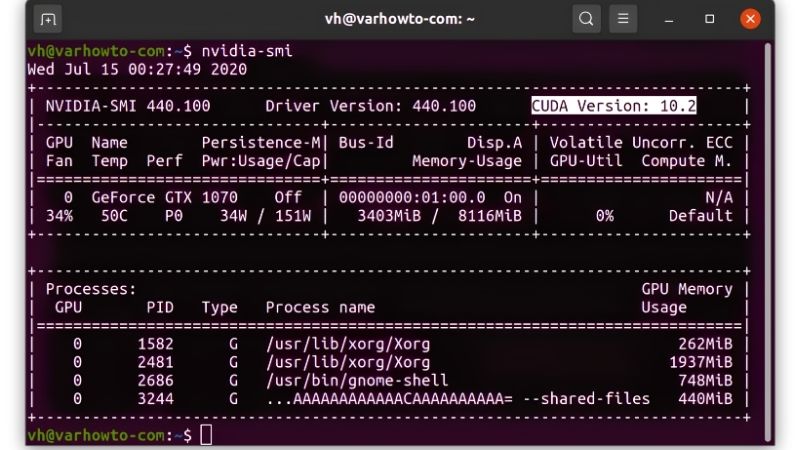
The driver’s maximum supported CUDA runtime is what nvidia-smi displays in the top-right corner. This is a ceiling, not an installation. A driver reporting 12.4 means it can run anything built for CUDA 12.4 or below; it does not mean CUDA 12.4 is installed anywhere on your disk.
The toolkit version is what nvcc --version reports. This is the compiler and development libraries actually sitting in your filesystem. If you never installed a toolkit, this command will not exist at all — and that is fine for most users.
| Layer | Command | What it tells you | Who needs it |
|---|---|---|---|
| Driver | nvidia-smi (left column) |
Kernel driver build | Everyone |
| Runtime ceiling | nvidia-smi (top right) |
Highest CUDA the driver supports | Everyone |
| Toolkit | nvcc --version |
Installed compiler version | People compiling CUDA code |
| Framework runtime | torch.version.cuda |
What your code actually uses | ML practitioners |
Why nvidia-smi and nvcc Almost Always Disagree
This is the single most-searched CUDA confusion, and the answer is anticlimactic: they are measuring different things, so agreement would be coincidence.
Consider a typical machine: nvidia-smi shows CUDA Version 12.4, nvcc --version shows release 11.8. Nothing is broken. The driver is modern enough to support up to 12.4, and someone installed the 11.8 toolkit because a project needed it. Both statements are true simultaneously.
The reverse case — nvcc showing a higher version than nvidia-smi — is the one that actually indicates a problem. That means you have a toolkit your driver cannot run. Compilation will succeed and execution will fail, usually with an unhelpful error about no CUDA-capable device being detected. The fix is always to update the driver, never to downgrade the toolkit.
The Version That Actually Matters: What Your Framework Uses
Here is the part that resolves most real problems. PyTorch and TensorFlow wheels ship with their own bundled CUDA runtime libraries. They do not use your system toolkit. A pip-installed PyTorch built against cu121 carries CUDA 12.1 runtime inside the package, regardless of what nvcc says.
This means the toolkit version is irrelevant to the overwhelming majority of people asking this question. If your goal is running models rather than compiling custom kernels, you can uninstall the toolkit entirely and nothing will break.
The command that answers the question you actually have:
python -c "import torch; print('torch:', torch.__version__); print('cuda:', torch.version.cuda); print('available:', torch.cuda.is_available())"If torch.cuda.is_available() returns False, that is your real problem, and it is nearly always a driver that is too old for the bundled runtime — not a toolkit mismatch.
The Commands for Every Platform and Situation
What follows is the practical reference. Copy what applies, ignore the rest. These work identically whether you are on a gaming desktop, a laptop with a mobile RTX chip, or a headless server, with the exception of the WSL notes at the end.
Checking CUDA Version on Windows
Open Command Prompt or PowerShell. The driver and its runtime ceiling:
nvidia-smiIf the command is not recognised, the executable is not on PATH. It lives at C:\Program Files\NVIDIA Corporation\NVSMI\nvidia-smi.exe on older installs, or C:\Windows\System32\nvidia-smi.exe on current ones. Run it with the full path.
For the toolkit, if you installed one:
nvcc --versionYou can also confirm what is installed without any command line at all — check C:\Program Files\NVIDIA GPU Computing Toolkit\CUDA\. Each installed toolkit gets its own versioned subfolder, and seeing three of them there explains a great deal about why your environment is behaving oddly.
Checking CUDA Version on Linux
The same two commands apply, plus several Linux-specific options that are often faster.
nvidia-smi
nvcc --version
If nvcc is missing but you believe a toolkit is installed, it is almost certainly a PATH issue rather than a missing install. Check directly:
ls /usr/local/ | grep cuda
cat /usr/local/cuda/version.json
The version.json file is authoritative and does not depend on your shell configuration. On older installs the equivalent is version.txt. If /usr/local/cuda is a symlink, the folder it points to is the toolkit your PATH will find — and repointing that symlink is the cleanest way to switch between installed toolkits:
sudo ln -sfn /usr/local/cuda-11.8 /usr/local/cudaChecking CUDA in Docker, WSL, and Conda Environments
Containers change the picture. Inside a Docker container, nvidia-smi reports the host driver, because the driver is never inside the container — it is passed through by the NVIDIA container runtime. The toolkit, however, is whatever the image ships.
docker run --rm --gpus all nvidia/cuda:11.8.0-base-ubuntu22.04 nvidia-smiIf that fails with an error about the nvidia runtime, your problem is the container toolkit on the host, not any CUDA version anywhere.
Under WSL2 the same logic applies: the Windows host driver provides GPU access, and you must not install a Linux driver inside WSL. Doing so is a common and destructive mistake. Install only the toolkit, using the WSL-specific package.
For conda environments, the toolkit is per-environment and system commands will mislead you:
conda list | grep -i cudaPros and Cons of Each Method for Checking CUDA Version
No single command answers every question, and reaching for the wrong one wastes time. The trade-off is between speed and accuracy: the fastest checks tell you the least, and the most accurate check requires a working Python environment you may not have yet.
When nvidia-smi Is the Right Tool
Use it first, always. It is present on every system with a working driver, requires no toolkit, and answers the two questions that gate everything else: does the system see the GPU, and how new is the driver.
Its limitation is that it says nothing about what is installed. Users regularly read “CUDA Version: 12.4” in the header and conclude they have CUDA 12.4 installed. They do not. They have a driver capable of supporting it.
The other genuine strength is diagnostic breadth. The same output gives you VRAM usage, temperature, power draw, and which processes hold the device — frequently the real answer when someone is investigating why a job will not start.
When nvcc –version Matters
Only when you compile. Building a custom CUDA extension, compiling flash-attention or a fused kernel from source, or working with any project whose setup step invokes the compiler — these need the toolkit, and its version has to be compatible with what the project expects.
Its weakness is that it reports whatever is first on PATH, which on a machine with several toolkits is a coin toss. It also stays silent about the runtime your code will actually load, which is a different library on a different path.
If nvcc is absent and you are not compiling anything, ignore it. Installing a toolkit to make a command work is solving a problem you invented.
When to Query the Framework Directly
This is the correct check for nearly everyone reading this. It reports the runtime your code will genuinely load, it accounts for the bundled libraries, and it verifies device access rather than merely reporting a number.
python -c "import torch; print(torch.version.cuda); print(torch.cuda.get_device_name(0))"Its only limitation is prerequisites: you need a working Python environment with the framework already installed. If you are still at the stage of choosing which wheel to install, you need nvidia-smi first to learn your driver ceiling.
One habit worth adopting: capture all three numbers together whenever you set up a new environment, and record them somewhere. Reconstructing which driver and which wheel produced a working state three months later, after a system update has moved everything, is genuinely painful. A single line in a project README costs nothing now and saves an afternoon later.
nvidia-smi --query-gpu=driver_version,name --format=csv,noheader
python -c "import torch; print(torch.__version__, torch.version.cuda)"
The same logic applies to teams sharing hardware. Most CUDA support tickets on shared machines resolve to two people having installed different toolkits and each assuming their PATH is the canonical one. Writing the versions down converts a debugging session into a five-second comparison.
| Your question | Command to run |
|---|---|
| Does my system see the GPU? | nvidia-smi |
| Which PyTorch wheel should I install? | nvidia-smi (read top-right ceiling) |
| Why is torch.cuda.is_available() False? | nvidia-smi — driver is likely too old |
| Can I compile this CUDA extension? | nvcc --version |
| Which toolkits are installed? | ls /usr/local/ | grep cuda |
| What runtime is my code using? | torch.version.cuda |
See More:
Conclusion: Check CUDA Version Without the Confusion
To check CUDA version reliably, work down the stack rather than across it. Start with nvidia-smi to confirm the driver sees the GPU and to read the runtime ceiling in the top-right corner. Use nvcc --version only if you compile CUDA code — and remember it reports the toolkit on PATH, not the runtime your program loads. Finish with torch.version.cuda and torch.cuda.is_available(), because that is the number your workload actually depends on.
The two rules worth memorising: nvidia-smi and nvcc disagreeing is normal and expected, but nvcc reporting a higher version than nvidia-smi’s ceiling is a real fault, and the fix is a newer driver rather than an older toolkit. Keep toolkits isolated per environment with conda, and check the framework rather than the system when something will not run. Most of the time, the toolkit was never the problem.
Frequently Asked Questions
Why do nvidia-smi and nvcc report different CUDA versions?
They report different things. nvidia-smi shows the highest CUDA runtime version your installed display driver can support. nvcc reports the version of the CUDA toolkit you actually installed. A driver capable of 12.8 with a 12.1 toolkit installed is completely normal and not an error condition.
Which number matters for my application?
The toolkit version determines what you compile against, and the driver version determines what can run. A framework built for CUDA 12.1 runs on any driver supporting 12.x thanks to minor version compatibility. Problems appear only when the driver is older than the major version your build requires.
How do I check the version on Linux and Windows?
Run nvidia-smi in a terminal on either platform to see the driver and maximum supported runtime. Run nvcc with the version flag to see the toolkit compiler version. On Linux you can also read the version file in the CUDA installation directory, which reflects the installed toolkit rather than the driver.
What if nvcc is not found?
That means the toolkit compiler is not installed or not on your PATH. Many frameworks ship their own CUDA runtime libraries and never need nvcc, so this is not automatically a problem. Install the full toolkit only if you need to compile CUDA source yourself, then add its bin directory to PATH.
How do I find the version from inside Python?
Most frameworks expose it directly. In PyTorch, the version module reports the CUDA version the build was compiled against, and a separate availability check confirms the driver can actually serve a device. Checking both is essential, because a CUDA enabled build on a machine with no working driver silently falls back to CPU.
As an Amazon Associate we earn from qualifying purchases at no extra cost to you.



Ready to decide? Our #1 pick for 2026 is the Driver.
Live price & availability on Amazon.










Write Your Review
No reviews yet. Be the first to share your experience!