
NVIDIA performance overlay is the built-in way to see your frame rate, latency, temperatures, and hardware usage right on top of your game, without installing any third-party monitoring tools. Whether you want to check if a setting change actually helped, spot a bottleneck, or just keep an eye on your GPU, the overlay puts the numbers where you can see them in real time. This guide explains what the overlay shows, how to enable and read it, the pros and cons of using it, and how to fix common problems, so you can monitor your PC with confidence.
What Is the NVIDIA Performance Overlay?
Before enabling it, it helps to understand what the overlay is and what it can tell you. It is a real-time information display, built into NVIDIA’s software, that shows live performance data over your games. Knowing what each metric means turns a screen full of numbers into genuinely useful feedback about how your system is running.
What the Overlay Shows You
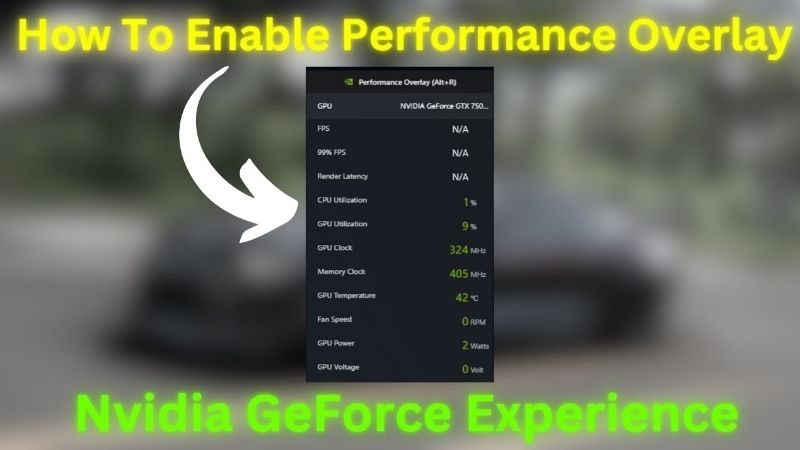
The NVIDIA performance overlay can display a range of live metrics, most importantly your frame rate, but also GPU and CPU usage, temperatures, and system latency. Seeing these together gives you an at-a-glance picture of how hard your hardware is working and whether your game is running as smoothly as it should.
Frame rate is the headline number most people care about, showing how many frames per second your system is producing. The additional metrics add context, revealing whether your GPU is fully utilized, whether temperatures are climbing too high, and how responsive your inputs feel, which together explain the experience behind the raw frame count.
For anyone tuning settings or chasing smoother gameplay, this combination of data is invaluable. Rather than guessing whether a change helped, you can watch the numbers respond in real time, turning optimization from guesswork into something you can actually measure and confirm.
The NVIDIA App and How It Replaced Older Tools
The performance overlay now lives in the NVIDIA app, which has taken over from the older GeForce Experience overlay as NVIDIA’s main hub for these features. The app brings driver updates, game optimization, capture tools, and the overlay together in one place, streamlining what used to be spread across different software.
If you used the overlay in GeForce Experience before, the functionality carries over and has generally been improved and expanded in the app. For new users, the app is simply where you go to enable and configure the overlay, making it the single starting point for monitoring your performance.
Consolidating everything in one app has a practical benefit beyond tidiness. Because the overlay sits alongside driver updates and game optimization, you can keep your system current and check its performance from the same place, which encourages good habits. Rather than juggling separate tools, you have a single hub that handles both keeping your PC healthy and showing you how well it is running.
Overlay Modes and Layouts
The overlay is customizable, letting you choose how much information to display and where it sits on screen. A simple mode might show just the frame rate in a corner, while a more detailed view adds usage, temperatures, and latency for those who want the full picture.
You can position the overlay so it does not obscure important parts of your game, and pick a layout that matches how much data you actually want to monitor. This flexibility means the overlay can be as unobtrusive or as comprehensive as you like, suiting both casual frame-rate checks and serious performance analysis.
Choosing the right layout is worth a moment’s thought based on your goals. If you just want reassurance that a game is running smoothly, a small frame-rate counter tucked in a corner is ideal, whereas if you are actively hunting a bottleneck, the fuller view with usage and temperatures gives you the diagnostic detail you need. Matching the overlay to the task keeps it helpful rather than distracting.
How to Enable and Use the Performance Overlay
Getting the overlay running is quick once you know where the controls are. Enabling it, learning to read the key metrics, and understanding the hotkey to toggle it covers everything you need to start monitoring your games effectively.
Turning On the Overlay
To enable the overlay, open the NVIDIA app and turn on the in-game overlay feature, then enable the performance overlay within its settings. From there you can choose your preferred layout and position before jumping into a game.
Once enabled, a hotkey toggles the overlay on and off while you play, so you can call up the stats whenever you want and hide them when you do not. Setting this up once means the overlay is always ready, letting you check your performance at any moment with a single keypress rather than leaving a game to look.
It is worth testing the hotkey in a game before you rely on it, so you know exactly how to toggle the display when you need it. Once you are comfortable with the shortcut, calling up the stats becomes second nature, and you can quickly glance at your frame rate or temperatures mid-session without any interruption to your play, then hide them again just as easily.
Reading FPS, Latency, and Hardware Stats
Reading the overlay is straightforward once you know the metrics. The frame rate tells you how smooth the game is, with higher and more stable numbers being better, while GPU usage near full capacity generally means your graphics card is the limiting factor, which is normal and expected in demanding games.
Temperatures let you confirm your hardware is staying within safe limits, and latency readings, where available, show how responsive your inputs are, which matters most in competitive play. Watching how these change as you adjust settings is the practical value of the overlay, letting you see exactly what each tweak does to your real performance rather than relying on feel alone.
Pros and Cons of Using the Overlay
Weighing the trade-offs helps you use the overlay wisely. On the plus side, it is free, built in, and requires no third-party software, it provides accurate real-time data straight from NVIDIA’s own tools, and it is invaluable for diagnosing performance issues and confirming that setting changes actually help. For anyone tuning their system, that is genuinely useful.
On the downside, displaying the overlay uses a tiny amount of resources and can clutter the screen if you show too many metrics, and some users simply prefer dedicated monitoring tools with even more detail. For most people, though, the overlay strikes an excellent balance of convenience and information, making it the natural first choice for keeping an eye on performance.
Getting the Most from the Overlay and Troubleshooting
Beyond simply displaying numbers, the overlay is a tool for improving your experience, and knowing how to act on its data and fix the occasional hiccup gets the most from it. A little know-how turns the overlay from a novelty into a genuinely helpful part of your setup.
Using the Data to Improve Performance
The real power of the overlay is using its data to make informed changes. If your frame rate is low while GPU usage is not maxed out, another component may be the bottleneck, whereas a fully used GPU with low frame rates points to the graphics settings being too demanding for your card.
High temperatures suggest you should check cooling or airflow, while unstable frame rates might improve by adjusting specific settings. By watching the overlay as you tweak, you can target the exact cause of a problem rather than changing things blindly, which makes optimization faster and far more effective.
This measurable approach is especially valuable when comparing settings that look similar on paper. Instead of debating whether a particular option is worth the visual cost, you can enable the overlay, change the setting, and see the frame-rate impact immediately. That instant feedback removes the guesswork from tuning and helps you build a configuration that genuinely suits your hardware and your priorities.
Fixing Common Overlay Problems
If the overlay does not appear, the most common causes are the in-game overlay being disabled, the performance overlay not being switched on, or drivers needing an update. Confirming both overlay options are enabled in the NVIDIA app resolves most cases immediately.
If the hotkey does not work, checking that it is not conflicting with another application’s shortcut usually helps, and keeping the NVIDIA app and drivers current prevents many compatibility issues. For games running in certain display modes, switching between fullscreen and borderless can also help the overlay display correctly.
Frequently Asked Questions About the Overlay
These quick answers resolve the questions that most often come up about the NVIDIA performance overlay.
Does the overlay lower performance? Only marginally. It uses a tiny amount of resources, far less than the value of the real-time data it provides for tuning your system.
Do I need extra software? No. The overlay is built into the NVIDIA app, so there is nothing extra to download for basic performance monitoring.
See More:
- NVIDIA
- NVIDIA DeepStream
- NVIDIA GPU driver update
- NVIDIA GeForce NOW download
- NVIDIA RTX A2000 12GB driver
Final Thoughts on the NVIDIA Performance Overlay
The NVIDIA performance overlay is one of the most useful free tools available to any NVIDIA owner, putting your frame rate, latency, temperatures, and hardware usage right where you can see them in real time. Enable it through the NVIDIA app, pick a layout that suits you, and use its data to diagnose bottlenecks and confirm that your setting changes actually help. Set it up once, learn the toggle hotkey, and let the numbers guide your tuning. Whether you are a casual player checking your frame rate or an enthusiast fine-tuning every detail, the NVIDIA performance overlay turns guesswork into measurable results, making it one of the easiest and most useful additions to any NVIDIA setup.
As an Amazon Associate we earn from qualifying purchases at no extra cost to you.












Write Your Review
No reviews yet. Be the first to share your experience!