
NVIDIA CUDA download is the first step for anyone who wants to harness their graphics card for more than gaming, from machine learning and data science to scientific computing and video processing. CUDA lets software tap into the massive parallel power of your NVIDIA GPU, but getting the right version installed correctly trips up many newcomers. This guide explains what CUDA is and who needs it, how to download and install the correct version on Windows and Linux, and how to verify and troubleshoot your setup, so you can get your GPU working for compute tasks without the usual headaches.
What Is CUDA and Why You Need It
Before downloading anything, it helps to understand what CUDA is and whether you actually need it. Not everyone with an NVIDIA card requires a CUDA download, so knowing what it does and who benefits saves you from installing software you do not need or, conversely, from wondering why a compute program will not run.
What the CUDA Toolkit Does
CUDA is NVIDIA’s platform for general-purpose computing on graphics cards, letting developers and applications use the GPU’s thousands of cores to perform many calculations at once. The CUDA Toolkit provides the libraries, compiler, and tools needed to build and run these GPU-accelerated programs.
This parallel processing power is what makes GPUs so valuable beyond gaming, dramatically accelerating tasks like training machine learning models, processing large datasets, and running scientific simulations. Without CUDA, most of this acceleration would be impossible, which is why it underpins so much modern AI and compute work on NVIDIA hardware.
For most users, the key point is that CUDA is the bridge between software that needs GPU acceleration and the graphics card itself. Whether you are running a machine learning framework or a compute application, it likely relies on CUDA behind the scenes to do its heavy lifting efficiently.
Who Needs to Download CUDA
You need a CUDA download if you are developing GPU-accelerated software, running machine learning frameworks that require it, or using compute applications that depend on it. Data scientists, AI developers, researchers, and certain content creators are the typical audience for the full toolkit.
Notably, if you only game, you do not need to download the CUDA Toolkit separately, since your regular graphics drivers already include the runtime components games and everyday apps use. The full toolkit is specifically for development and compute workloads, so knowing which category you fall into tells you exactly what to install.
This distinction trips up many newcomers who assume any GPU task requires a manual CUDA download. In reality, playing games, watching videos, and using most consumer applications never requires it, because the necessary components ship with your drivers. Reserving the full toolkit for actual development and compute work keeps your system uncluttered and avoids the confusion of installing software you will never directly use.
Checking Compatibility First
Before downloading, it is essential to confirm compatibility, because CUDA versions must match your GPU, your driver, and the software you intend to use. Many machine learning frameworks require a specific CUDA version, so installing the wrong one is a common cause of frustration.
Check the requirements of the software you plan to run first, then choose a CUDA version that satisfies it and is supported by your graphics driver. Taking a few minutes to line up these versions before downloading prevents the maddening compatibility errors that otherwise appear only after installation, saving considerable time and confusion.
A reliable approach is to start from the software rather than the toolkit. Look up the exact CUDA version your machine learning framework or application supports, then work backward to a driver and toolkit that satisfy it. This software-first method prevents the common trap of installing the newest CUDA only to discover your framework does not yet support it, which is one of the most frequent sources of frustration.
How to Download and Install CUDA
With compatibility confirmed, downloading and installing CUDA is a manageable process on both Windows and Linux. Choosing the right version and following the correct steps for your operating system ensures a clean installation that works with your intended software.
Downloading the Right CUDA Version
Always download CUDA from NVIDIA’s official developer website to ensure you get a genuine, safe installer. Follow these steps for a smooth download.
1. Confirm which CUDA version your software requires, since this dictates everything.
2. Go to NVIDIA’s official CUDA Toolkit download page.
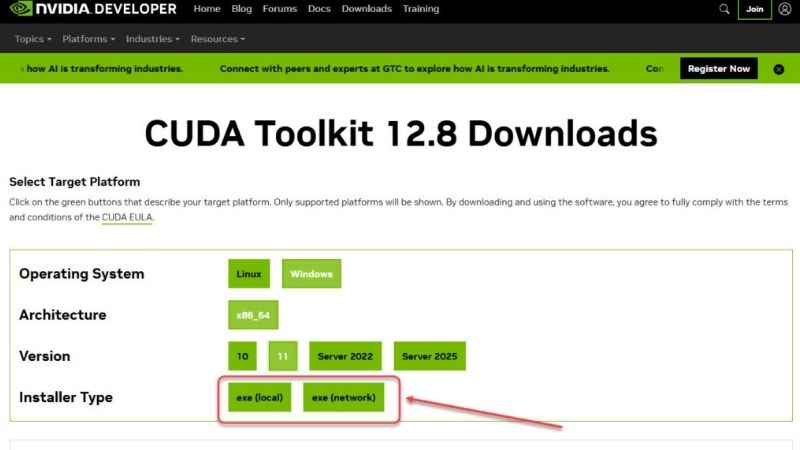
3. Select your operating system, architecture, and version, choosing an archived release if you need an older version for compatibility.
4. Choose your installer type, such as a local full installer or a smaller network installer, based on your preference.
5. Download the installer and keep note of the exact version you selected.
Choosing the correct version at this stage is the most important decision, since it determines whether your compute software will run. When in doubt, match the version your framework or application explicitly recommends.
Installing on Windows and Linux
On Windows, run the downloaded installer and follow the prompts, choosing the express option for a standard setup or the custom option if you want control over which components install. The installer handles the toolkit and updates your driver components as needed.
On Linux, installation is often done through the package manager or NVIDIA’s provided runfile, and it typically requires confirming your driver is compatible first. After installing, you may need to add CUDA to your system path so tools can find it. Following NVIDIA’s official instructions for your specific Linux distribution ensures the process goes smoothly and the toolkit is correctly recognized.
Linux users in particular benefit from following the distribution-specific guide closely, since package managers and driver handling differ between distributions. Rushing this step or mixing installation methods is a common cause of broken setups, whereas methodically following the official steps for your exact distribution almost always results in a clean, working installation the first time.
Pros and Cons of the Full Toolkit vs Runtime
It helps to know your options. The full CUDA Toolkit is what developers need, providing the compiler, libraries, and tools to build GPU-accelerated software, which is essential if you are writing or compiling compute programs. Its trade-off is a larger download and installation.
If you only need to run pre-built software rather than develop it, the runtime components bundled with your drivers, or a smaller runtime package, may be all you require, which is lighter and simpler. Choosing the full toolkit when you are developing and the lighter runtime when you are only running software avoids installing more than you need, keeping your system cleaner while ensuring compatibility.
After Installing: Verify and Troubleshoot
Once CUDA is installed, a quick verification confirms everything is working, and knowing the common fixes handles the occasional problem. A little follow-up ensures your GPU compute setup is ready for real work.
Verifying Your CUDA Installation
The standard way to confirm CUDA installed correctly is to open a terminal or command prompt and run nvcc --version, which displays the installed CUDA compiler version if the toolkit is set up properly. Seeing the expected version confirms the installation succeeded.
You can also run nvidia-smi to confirm your driver recognizes the GPU and reports a compatible CUDA version. If both commands return the expected information, your setup is ready, and you can proceed to run or build the GPU-accelerated software you installed CUDA for in the first place.
It is a good idea to run a small test workload afterward, such as a simple GPU-accelerated example or letting your framework detect the GPU, to confirm everything functions under real use rather than just reporting the right version. A successful test there is the final proof that your CUDA environment is genuinely ready for the compute work you set it up to do.
Fixing Common CUDA Problems
The most common issues are version mismatches, where the CUDA version does not match what your software or driver expects. Confirming that your CUDA version, driver, and framework all align resolves the majority of these errors, which is why checking compatibility beforehand matters so much.
If tools cannot find CUDA, the path may not be set correctly, particularly on Linux, so adding CUDA to your environment variables usually fixes it. When frameworks refuse to use the GPU, reinstalling the matching CUDA version or updating your driver typically resolves the conflict, restoring proper GPU acceleration.
Frequently Asked Questions About CUDA
These quick answers resolve the questions that most often come up around the CUDA download.
Do I need CUDA just for gaming? No. Your graphics drivers already include the runtime components games use, so the separate toolkit is only needed for development and compute work.
How do I know which version to install? Check the requirements of the software you plan to run, since frameworks often specify an exact supported CUDA version.
See More:
- NVIDIA
- NVIDIA DeepStream
- NVIDIA GPU driver update
- NVIDIA GeForce NOW download
- NVIDIA RTX A2000 12GB driver
Final Thoughts on the NVIDIA CUDA Download
The NVIDIA CUDA download unlocks your graphics card’s power for machine learning, data science, and compute work far beyond gaming, but the key to a smooth setup is matching the version to your GPU, driver, and software before you install. Download from NVIDIA’s official site, choose the release your framework requires, follow the correct steps for Windows or Linux, and verify with nvcc --version and nvidia-smi. Start from your software’s requirements, match everything to it, and test with a small workload once installed. Get the versions aligned and the NVIDIA CUDA download process is far simpler than it first appears, giving you a properly working GPU compute environment ready for machine learning, data science, or any serious work you have in mind.
As an Amazon Associate we earn from qualifying purchases at no extra cost to you.














Write Your Review
No reviews yet. Be the first to share your experience!