
Nvidia GeForce Experience is the companion app that ships alongside your graphics card, promising one-click driver updates, automatic game tuning, and effortless gameplay capture. But is it a must-have or just background bloat you should uninstall? This review works through every core feature, weighs the genuine benefits against the recurring complaints owners raise, and tells you exactly who should keep it running and who is better off without it. Whether you just built your first PC or you are a returning user wondering if the app is still worth the tray icon, you will finish knowing precisely how to get value from it.
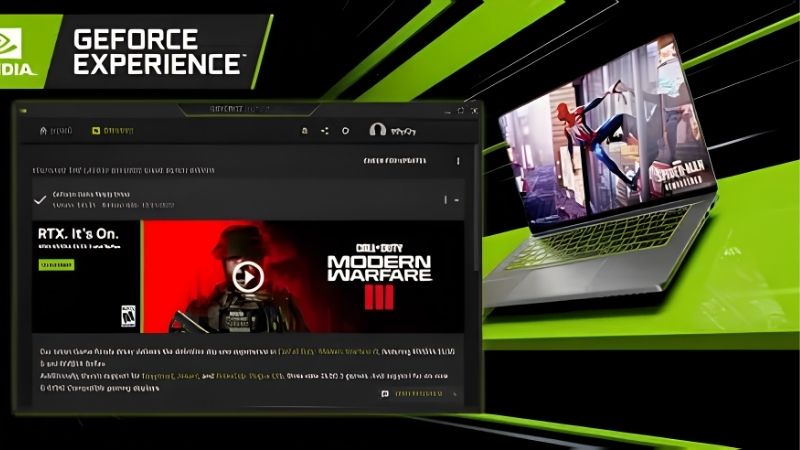
What Nvidia GeForce Experience Actually Does
At its heart the app bundles three jobs that would otherwise take separate tools: keeping your drivers current, matching game settings to your hardware, and recording or streaming your gameplay. Each of those tasks has a manual alternative, so the real question is whether the convenience of having them in one dashboard justifies the account login and background process. Understanding what each feature delivers is the first step to deciding if the trade is worth it for your setup.
One-Click Driver Updates
The headline feature is painless driver management. The app checks for new game-ready packages, notifies you when one lands, and installs it in a couple of clicks, which spares you from hunting the website for the correct file every time.
For most users this alone justifies the install. Staying current means better performance in new games and fewer bugs, and the app removes the friction that causes people to fall months behind on updates. It even offers the choice between game-ready and studio driver branches, so creators and gamers can pick the line that suits how they use the machine. Beyond drivers, each release often bundles security patches and support for new display standards, so keeping the app current quietly protects the whole system rather than just boosting game performance, an easy benefit to overlook until a vulnerability or a new monitor makes it matter.
The catch is that the app does not let you choose an older, known-good version as easily as a manual download does. If you prefer full control over exactly which driver you run, you may still want the website in your back pocket for those cases.
Automatic Game Optimization
The optimize feature scans your installed games and suggests settings tuned to your specific card, aiming for a smooth balance of visual quality and frame rate. For newcomers who do not know which graphics options to touch, this is a genuinely helpful shortcut to a playable configuration.
The recommendations are a sensible starting point rather than gospel. Experienced users often find the app leans conservative or prioritizes different things than they would, so treating its settings as a baseline you then fine-tune yields the best results. A reliable habit is to accept the optimized profile once, then adjust only the two or three settings you personally care about, such as shadow quality or anti-aliasing, reclaiming frames where you want speed and sharpening detail where you want fidelity without wading through the whole menu.
ShadowPlay Capture and Recording
The capture tool, built on the card’s dedicated encoder, records gameplay with minimal performance impact, and its Instant Replay mode continuously buffers the last several minutes so you can save a highlight after it happens. For anyone who clips moments to share, this is the standout feature.
Because encoding runs on dedicated hardware, the frame-rate cost is small compared with software recorders, which is why streamers and clip-makers value it. It is the feature most likely to turn a casual user into a daily one, since replacing it with a third-party tool usually means a bigger performance hit. Instant Replay is the mode most owners grow attached to, because it captures the moments you never saw coming, letting you save a standout play seconds after it happens without having remembered to press record, exactly the kind of low-effort capability casual users appreciate most.
Getting the Most From GeForce Experience
Installing the app is only half the story, because its real value comes from configuring the overlay, filters, and capture settings to match how you play. A few minutes of setup transforms it from a passive updater into an active toolkit, and knowing how to manage its modest overhead keeps it from becoming a nuisance. This section covers the practical steps that separate users who love the app from those who quietly resent it.
Setting Up the Overlay and Hotkeys
The in-game overlay is the control center for recording, screenshots, and performance monitoring, and mapping its hotkeys to keys you will actually remember is the first thing to do. Sensible bindings for instant replay and manual recording turn capture into a reflex rather than a fumble.
It is worth enabling the performance overlay too, which shows frame rate, temperatures, and utilization on screen. That live data is invaluable for spotting whether a stutter is a thermal issue, a CPU limit, or the GPU simply maxed out, and it costs nothing to display. Over time that overlay doubles as a lightweight diagnostic, helping you tell at a glance whether a stutter comes from a thermal limit, a CPU bottleneck, or a maxed-out GPU, so you fix the right problem instead of guessing or blindly lowering every setting at once.
Using Freestyle Filters and Highlights
Freestyle lets you apply post-processing filters to games in real time, from sharpening and color tweaks to more dramatic effects, which can noticeably improve clarity in titles with muddy default visuals. It is a creative tool that many owners overlook entirely.
The Highlights feature automatically captures key moments in supported games, such as multikills or objective completions, saving them without any input from you. For competitive players, this quietly builds a reel of your best plays that you can trim and share later.
Performance Overhead and How to Tame It
The most common criticism is that the app runs background processes and an overlay that some users blame for stutter or wasted resources. On modern systems the impact is usually small, but it is not always zero, especially on lower-spec machines.
The fix is selective use. You can disable the overlay if you never record, turn off background telemetry, and stop the app from launching at startup, keeping the driver-update benefit while shedding the parts you do not need. Tuning it this way addresses nearly every performance complaint people raise.
GeForce Experience Pros, Cons, and Real User Feedback
Aggregating verified user feedback, from enthusiastic endorsements to frustrated one-star reviews, paints a balanced picture that a feature list cannot. The consensus is that the app is genuinely useful for most people, yet a vocal minority object strongly to specific aspects, and understanding both sides helps you decide whether to embrace it or strip it back. Here is the honest tally of what owners consistently praise and criticize.
What Owners Consistently Love
The most common praise is convenience: effortless driver updates and low-overhead capture that just work. Users repeatedly describe the app as the tool that keeps their system current without them thinking about it, and clip-makers single out ShadowPlay as irreplaceable.
Newcomers especially appreciate the game optimization, which removes the intimidation of a settings menu full of unfamiliar options. For someone who wants to play rather than tinker, that hand-holding is exactly the value they were hoping for. It also smooths the transition for players moving from consoles to PC, where the sheer number of unfamiliar graphics options can feel overwhelming on the first day, giving them a sensible baseline to build confidence from rather than a blank, intimidating settings screen.
Common Complaints to Weigh
The loudest gripe is the mandatory account login, which some users find intrusive for what is essentially a driver tool. This single requirement drives a meaningful share of the negative reviews and pushes privacy-conscious users toward manual updates instead.
Others report occasional bugs, an overlay that conflicts with certain games, or a sense that the app does more than they want. None of these are universal, but they explain why a portion of experienced users choose to run a leaner setup without it.
Is It Worth Keeping Installed?
For the majority of gamers, especially newcomers and anyone who captures gameplay, the answer is a clear yes, because the convenience and recording features outweigh the modest overhead and login requirement. Configured sensibly, it is a net positive on almost any build.
For privacy-focused power users who prefer manual driver control and never record, the app is optional, and running without it is perfectly valid. The good news is that the choice is yours, and either path keeps your card fully functional.
See More:
Final Verdict on Nvidia GeForce Experience
The Nvidia GeForce Experience earns its place on most systems by turning driver upkeep, game tuning, and gameplay capture into a single, low-friction dashboard, and its hardware-accelerated recording remains its killer feature. The trade-offs, a required login and a small background footprint, are real but manageable, and power users who dislike them can simply run without it. Ultimately the app helps you extract more from the card you already own, but software can only optimize the hardware in your system. If you have tuned every setting and your frame rates still fall short of the smooth capture and gameplay you want, that is the honest sign a more capable graphics card will do what no app can, and you can compare current options through the link in this guide. Ultimately the app is a force multiplier for the hardware you already own, and pairing a well-configured GeForce Experience setup with a card that suits your resolution is the combination that delivers the smooth, shareable gameplay most people are really after in the first place.
Frequently Asked Questions
Is GeForce Experience still supported in 2026?
No, NVIDIA has retired GeForce Experience in favor of the unified NVIDIA App, which merges driver updates, the Control Panel settings, ShadowPlay recording and game optimization into one program. Existing installs still launch on older systems, but new features, driver notifications and fixes now land in the NVIDIA App instead.
Do I still need an account to use it?
GeForce Experience required a login before you could record clips or update drivers, which annoyed a lot of builders. The NVIDIA App removed that requirement, so driver downloads, overlay recording and per-game settings work without signing in. An account is only needed for rewards, GeForce NOW and beta program access.
Does the overlay cost me frames?
The in-game overlay and ShadowPlay use the dedicated NVENC hardware encoder on your GPU, so the performance hit is typically low single digit percent rather than the heavy CPU cost of software encoding. If you are chasing every frame in a competitive shooter, you can disable instant replay and keep the rest.
Should I trust its optimal game settings?
The automatic settings feature is a reasonable starting point for people who do not want to tune sliders, since it accounts for your GPU, CPU and display resolution. It tends to be conservative with shadows and view distance, so enthusiasts usually treat it as a baseline and then adjust the two or three settings that matter most.
How do I move from GeForce Experience to the NVIDIA App?
Download the NVIDIA App installer from nvidia.com, run it, and it will detect and remove the old GeForce Experience installation automatically while keeping your driver in place. Afterwards check the Graphics tab so your recording folder, resolution and bitrate settings match what you used before.
As an Amazon Associate we earn from qualifying purchases at no extra cost to you.














Write Your Review
No reviews yet. Be the first to share your experience!