


NVIDIA GeForce drivers are the free software layer that quietly turns your graphics card into a faster, smarter version of itself with every update. If you have wondered what each release actually changes, or whether keeping them current really boosts your FPS, this review answers it plainly. We will cover what GeForce drivers deliver, exactly where the extra frames come from, how to measure your own gains, and how to get the most out of every single update on your card.
As an Amazon Associate we earn from qualifying purchases at no extra cost to you.






What NVIDIA GeForce Drivers Actually Deliver
A driver is far more than a compatibility patch; it is where NVIDIA ships optimizations, features, and fixes that keep your hardware competitive long after launch. Understanding what arrives in these updates explains why the same card can feel noticeably better a year later, and why skipping updates leaves value unclaimed.
Game Ready Optimizations
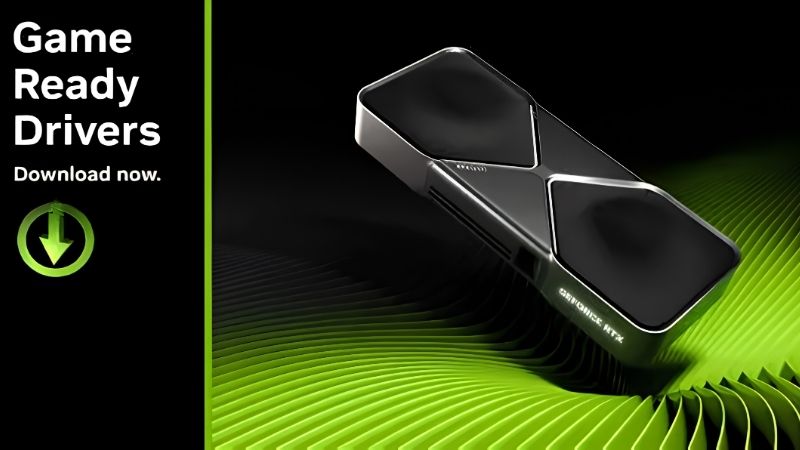
The headline feature of GeForce drivers is Game Ready optimization. NVIDIA tunes and releases drivers alongside major game launches, so you get the smoothest possible experience on day one.
These optimizations are not marketing fluff; they often raise frame rates in the targeted titles by meaningful amounts. A game that stutters at launch can run noticeably better simply by installing the matching driver.
Because new drivers arrive regularly around big releases, staying current is the simplest way to ensure every new game you play performs as intended from the start.
There is a caveat worth stating: the biggest gains land on current and recent cards, since those are what NVIDIA optimizes most aggressively. Older GPUs still benefit, but the improvements shrink as a card ages, which is simply the reality of a long product life.
Even so, the habit of updating around new releases pays off across a card’s whole life, keeping compatibility intact and squeezing out whatever gains remain. It is low effort for a steady, cumulative benefit.
Features Unlocked Through Drivers
Drivers do more than optimize; they unlock and improve entire features. Support for AI upscaling, low-latency modes, and image-sharpening tools all arrive and evolve through driver updates rather than new hardware.
This is where NVIDIA’s investment in proprietary technology shows up for everyday users. Features like DLSS and Reflex, which boost performance and reduce input lag, get better over time as drivers refine them.
The practical result is a card that gains capabilities it did not have at launch. Keeping drivers current is how you actually receive those free upgrades.
This is a genuinely underrated reason to update. Buyers often focus only on frame rates, but the steady stream of new and improved features means a GeForce card you bought a year ago can gain capabilities today that simply did not exist at launch.
The NVIDIA App Experience
The modern way to manage GeForce drivers is the NVIDIA App, which detects your card, notifies you of updates, and installs them from an official source. It replaces the older, heavier experience with something cleaner.
The app also bundles game optimization, an overlay for performance stats, and easy access to features, making it a convenient hub rather than just an updater. For most users, it is the simplest path to staying current.
If you prefer minimalism, you can still download drivers manually from the official site and skip the app entirely. But for most people the convenience of automatic notifications, one-click installs, and an integrated performance overlay makes the app the easiest way to keep a GeForce card in top form.
How GeForce Drivers Boost Your FPS
The most common question is whether updates really improve frame rates, and the honest answer is yes, though not uniformly. Knowing where those gains come from, and where they do not, helps you set realistic expectations and recognize a genuinely worthwhile update.
Where the Extra Frames Come From
Driver-driven FPS gains come mainly from smarter scheduling of work on the GPU and game-specific optimizations that remove bottlenecks. NVIDIA’s engineers profile new titles and adjust how the driver feeds the hardware.
Feature-based gains are larger still. Enabling AI upscaling through a driver-supported feature can lift frame rates substantially by rendering at a lower internal resolution and reconstructing detail, which is a performance win no raw hardware change delivers.
Combined, these mean a well-supported card keeps pace with new games far longer than its launch-day numbers would suggest, purely through software.
It helps to separate the two sources when judging an update. Pure driver optimizations are usually modest, single-digit to low double-digit gains in specific games, while enabling a supported upscaling feature can transform performance far more dramatically. Both are real, but they operate on very different scales.
Understanding this distinction also guards against disappointment. If you update expecting a huge raw uplift on every game you will feel let down, whereas knowing the big wins come mainly from features sets the right expectation.
Measuring Your Own Gains
The best way to trust the gains is to measure them yourself. Note your average FPS in a demanding scene before an update, then check the same scene afterward under identical settings.
Use the built-in performance overlay or a monitoring tool to capture consistent numbers. Testing the same spot each time removes the guesswork and shows the real difference a driver makes on your system.
Do not expect gains in every title, though. Optimizations target specific games, so an update may transform one title and leave another unchanged, which is completely normal.
A comfortable habit for most gamers is to update within a few days of a release they plan to play, then leave things be. That captures the meaningful day-one gains while sidestepping the churn and the small risk that comes with installing every single build the moment it appears.
Pros and Cons of Frequent GeForce Updates
The advantages of staying current are clear: day-one game optimizations, evolving features like upscaling and low-latency modes, security fixes, and steady FPS improvements in supported titles. For gamers, these are real, tangible benefits.
The trade-offs are modest. A brand-new driver occasionally ships with its own bug, and updating in the middle of a stable setup can rarely disrupt it. The sensible balance is to update promptly for the games you play while keeping a known-good version noted in case you ever need to roll back.
Getting the Most From Every Update
Installing a driver is easy; installing it well is what guarantees you actually receive the gains it promises. A little care during and after the update prevents the conflicts that otherwise mask improvements or introduce new problems, turning each release into a reliable step forward.
Clean Install for Consistent Results
The installer’s clean install option wipes old settings before applying the new driver, which prevents the leftover-file conflicts behind many performance inconsistencies. For routine updates an express install is fine.
Reach for the clean option when you are troubleshooting, jumping across many versions, or chasing an issue. It gives the new driver a fresh foundation so the optimizations land as intended rather than fighting old configuration.
For anyone switching from an AMD card to a GeForce one, a clean install is essential rather than optional. Leftover files from a different vendor are a classic source of instability, and removing them fully before installing GeForce drivers avoids a frustrating and confusing start.
Choosing the Right Settings After Updating
A new driver sometimes adds or changes settings, so it is worth a quick look at your control panel and in-game options after updating. Enabling a newly supported feature can unlock the very FPS gains the update advertised.
Take a moment to confirm your preferred settings survived the update, since features occasionally reset to defaults. A minute of checking ensures you are actually running the configuration you want.
It is also worth glancing at any newly introduced options after a big update. NVIDIA occasionally adds a toggle that improves latency or image quality, and enabling it is exactly how you claim the benefit an update advertises rather than leaving free performance switched off.
These checks take under a minute and turn a routine update into a deliberate one, which is the difference between hoping a driver helped and knowing it did.
Matching Drivers to Your GeForce Card
The right driver branch depends on how you use your card. Gamers should run Game Ready for the latest optimizations, while creators who value stability may prefer the Studio branch, both delivered through the same GeForce ecosystem.
If you have kept drivers current and your card still struggles in modern games, software has done all it can, and the hardware is the limit. In that case, the recommended GeForce GPUs linked in this review are a smart starting point for a card that will make the most of every future driver.
Think of it as a partnership between software and silicon. The best drivers cannot conjure performance a dated card lacks, and a powerful card underperforms on a messy driver, so keeping both current and correct is what unlocks the smooth, high-FPS experience you are chasing.
See More:
Final Verdict: Making the Most of NVIDIA GeForce Drivers
Keeping your NVIDIA GeForce drivers current is one of the easiest and cheapest ways to protect and even improve your frame rates, unlock evolving features, and stay compatible with every new release. Install cleanly when problems appear, check your settings after updating, and run the branch that matches how you play.
Just remember that drivers optimize the hardware you already own; they cannot replace it. If current drivers still leave your card short in the games you love, an upgrade is the real fix. When you reach that point, compare the recommended GeForce cards linked throughout this review to pair fresh drivers with hardware that can fully deliver on them.
Frequently Asked Questions
Will updating drivers give me smoother gameplay?
Often yes, particularly for newly released games where Game Ready drivers include specific shader and scheduling optimizations that can add ten percent or more. For older titles the benefit is mostly bug fixes and stability. Smoothness problems caused by CPU limits or VRAM shortages will not be fixed by a driver.
Which driver settings improve frame pacing?
Enable G-SYNC or adaptive sync with V-Sync on in the driver, then cap your frame rate three to five frames below your monitor refresh. Add Low Latency Mode set to On for competitive titles, and confirm the power management mode is not stuck on adaptive if you see clock fluctuations.
Should I use the NVIDIA App or manual downloads?
The App is convenient and notifies you of new releases, and it now works without an account. Manual downloads from nvidia.com give you version control, which matters if you need to pin a specific driver or roll back. Both deliver identical packages.
What about Resizable BAR and driver profiles?
Resizable BAR can add a few percent in supported games and should be enabled in BIOS on any modern platform. NVIDIA whitelists it per title in the driver, so gains vary. Per-game profiles let you force settings such as texture filtering quality or DLSS overrides for individual executables.
How do I fix stuttering after an update?
Clear the shader cache, confirm Windows did not install a different driver in the background, check your monitor is still running at the correct refresh rate, and verify power management settings. If stuttering persists, roll back to the previous version using a clean install in safe mode.










Write Your Review
No reviews yet. Be the first to share your experience!