
- Top Pick: MSI Titan 18 HX Dragon Edition User Guide: A Practical Step-by-Step Guide to Setup, Customization, Maximum Performance, Gaming, Maintenance, and … (The Ultimate Laptop Owner's Guide Series)
- Best Value: MSI Titan 18 HX Dragon Edition User Guide: A Practical Step-by-Step Guide to Setup, Customization, Maximum Performance, Gaming, Maintenance, and Troubleshooting … Laptop Owner's Guide Series Book 4)
- Premium Choice: How to Diagnose & Fix Common PC Hardware Failures in Under 30 Minutes: A Practical Guide for DIY PC Users, Gamers, and Small Repair Shops
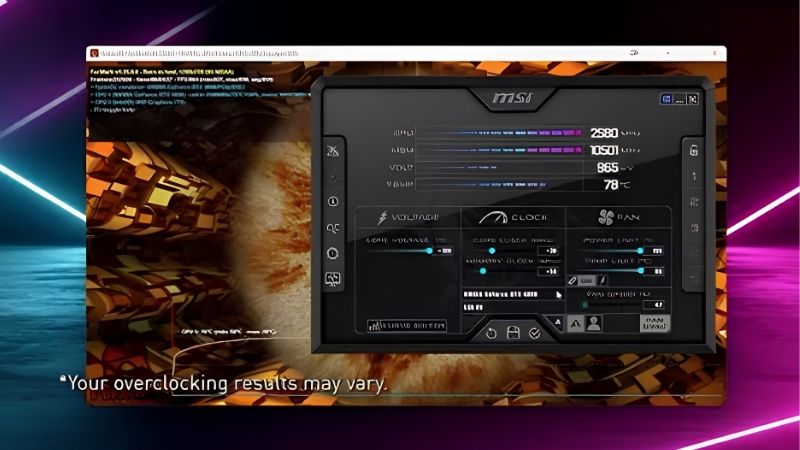
Few things are more frustrating than MSI Afterburner crashing games right when you want to play, and if your titles freeze, crash to desktop, or refuse to launch with Afterburner running, you are not alone. This popular monitoring and overclocking tool is powerful, but its overlay and overclock features can conflict with modern games, anti-cheat systems, and drivers. The good news is that these crashes almost always have a clear cause and a reliable fix. This guide walks through why MSI Afterburner crashes games, the proven step-by-step fixes, advanced troubleshooting for stubborn cases, and how to prevent it happening again. Follow along and you can keep Afterburner’s useful features without sacrificing stable, crash-free gaming.
Why MSI Afterburner Crashes Games
Understanding the cause is the fastest route to a fix, and Afterburner crashes usually trace to one of a few culprits. Knowing which applies to you saves time and prevents guesswork. Here are the main reasons games crash with Afterburner running.
Overlay and RivaTuner Conflicts
The most common cause is the on-screen display, powered by RivaTuner Statistics Server, which hooks into games to show framerate and stats. This hooking can conflict with modern games, especially those using newer graphics APIs.
When the overlay clashes with a game’s rendering, the result is often a crash or freeze. This is why disabling or reconfiguring the overlay resolves a large share of Afterburner-related crashes, as we cover in the fixes below.
The conflict is more likely in games using DirectX 12 or Vulkan, where overlay hooking is more sensitive. If your crashes started with a newer game while older ones ran fine, the overlay is the prime suspect and the first thing worth testing.
Unstable Overclock Settings
Afterburner is widely used to overclock graphics cards, and an unstable overclock is a frequent crash cause. Pushing clock speeds or memory too far makes the GPU unstable under load, which shows up as crashes precisely when a game stresses the card.
Because these crashes appear during gaming rather than at idle, people often blame the game or Afterburner itself. In reality, an aggressive overclock is the underlying problem, and dialing it back restores stability.
Memory overclocks in particular can seem stable in light use but fail under the sustained load of a demanding game. This is why a crash that only appears in heavy titles, rather than at the desktop, so often points straight to the overclock rather than the software.
Anti-Cheat and Compatibility Issues
Some online games use anti-cheat systems that are suspicious of software hooking into the game, which is exactly what Afterburner’s overlay does. This can cause crashes, launch failures, or even bans in strict cases.
Outdated versions of Afterburner or RivaTuner also cause compatibility problems with new games and drivers. Keeping both current, and being cautious with the overlay in anti-cheat titles, avoids many of these conflicts.
If you play competitive online games, it is worth checking each game’s stance on monitoring software, since policies differ. When in doubt, running Afterburner without its overlay in those specific titles gives you fan control and overclocking while sidestepping the anti-cheat risk entirely.
Proven Fixes for MSI Afterburner Crashing Games
With the causes clear, here are the fixes that resolve the vast majority of cases, in the order worth trying. Work through them and most crashes disappear quickly. Start at the top and stop when your games run stably.
Update Afterburner and RivaTuner
Always start by updating both MSI Afterburner and RivaTuner Statistics Server to their latest versions. Newer releases add compatibility for recent games, drivers, and graphics APIs, fixing many crashes outright.
Outdated software is one of the most common and easily overlooked causes. This single step resolves a surprising number of crashes, so it is always the right place to begin before deeper troubleshooting.
After updating, restart your PC before testing, so the new versions load cleanly. It is a small step, but skipping it can make an effective fix look like it failed when the old files were simply still in memory.
Disable or Reconfigure the Overlay
If updating does not help, target the overlay next. Try turning off the on-screen display in RivaTuner, then test your game, since this isolates whether the overlay is the culprit.
If disabling it fixes the crash, you can experiment with RivaTuner’s compatibility options or use a different overlay for monitoring. Many users keep Afterburner for overclocking while relying on another tool for the on-screen stats.
You can also try lowering how much information the overlay displays, since a simpler on-screen display hooks less aggressively. Sometimes trimming the overlay to just framerate is enough to keep the feature you want without triggering the crash.
Reset or Reduce the Overclock
If crashes continue, reset your GPU to stock speeds using Afterburner’s reset option. Test whether games remain stable at default clocks to confirm whether your overclock was the cause.
If stability returns, reapply a gentler overclock in small steps, testing each time. This methodical approach finds a stable setting that keeps most of the performance gain without the crashes an aggressive overclock causes.
Keep a note of the last stable settings so you can return to them instantly if a new value misbehaves. Patient, incremental testing is the difference between a reliable overclock and one that crashes at the worst possible moment mid-game.
Advanced Fixes and Prevention
When the basics do not fully solve it, a few deeper steps usually finish the job and keep crashes from returning. These target stubborn conflicts and long-term stability. Here is how to handle the tougher cases.
Clean Reinstall and Driver Check
A corrupted installation can cause persistent crashes, so fully uninstall Afterburner and RivaTuner, then reinstall the latest versions cleanly. This clears broken files that survive a simple update.
Also confirm your graphics driver is current and cleanly installed, since driver and overlay conflicts often go hand in hand. Pairing a fresh Afterburner install with an up-to-date driver eliminates many stubborn crashes.
When reinstalling, remove the old versions completely rather than installing over them, since leftover configuration files can carry the problem forward. A truly clean start is what separates this step from a simple update that did not stick.
Handle Anti-Cheat and Game-Specific Settings
For online games with anti-cheat, the safest move is to disable the overlay in those specific titles, or avoid running Afterburner’s hooking features while playing them. This prevents both crashes and any risk of false flags.
Some games also have known conflicts documented by their communities. Checking a game’s support resources can reveal a specific setting or workaround that resolves crashes in that particular title.
Community forums for popular games are often the fastest place to find these fixes, since other players have usually hit the same conflict. A quick search for the game name alongside Afterburner frequently turns up a proven, game-specific solution.
Stability Testing Your Overclock
If you overclock, test stability properly rather than assuming a setting is safe. Run a demanding game or a stress tool for an extended period and watch for crashes, artifacts, or excessive heat.
A stable overclock should survive sustained load without issues. If it crashes only under heavy games, it is not truly stable, and reducing the clocks slightly is the fix that keeps your gaming reliable.
It also helps to raise clocks in small increments and test after each change, rather than jumping to an ambitious target. This patient method costs a little time up front but saves you from the frustrating, hard-to-diagnose crashes that a too-aggressive overclock produces.
Alternatives, Pros and Cons, and When to Move On
Afterburner is excellent, but it is not the only option, and sometimes the real issue lies deeper. Here are alternatives, an honest look at the tool, and when the crash points to hardware rather than software.
Alternative Monitoring and Overclocking Tools
If Afterburner keeps causing trouble in certain games, other monitoring tools can display stats with less conflict, and some GPU makers offer their own overclocking software. Using a lighter overlay for problem titles is a practical compromise.
You do not have to abandon Afterburner entirely. Many users run it for overclocking and fan control while using an alternative overlay only in the games where its display causes crashes.
Pros and Cons of Using MSI Afterburner
Here is the balanced view:
| Pros | Cons |
|---|---|
| Powerful, free overclocking and monitoring | Overlay can conflict with some games |
| Detailed on-screen stats and fan control | Anti-cheat games may flag the overlay |
| Works across many GPU brands | Aggressive overclocks cause instability |
For most users the benefits far outweigh the drawbacks, and the crashes are almost always fixable with the steps above rather than a reason to abandon the tool.
When the GPU or Overclock Is the Real Problem
If crashes persist even at stock speeds with no overlay, the issue may be the graphics card itself, such as failing memory or inadequate cooling. In that case Afterburner is simply revealing a deeper hardware limit.
Improving case airflow or cooling can help, but a struggling or aging card may need replacing. If your GPU can no longer run games stably, compare current GPU prices on Amazon to find a reliable upgrade.
See More:
- Radeon drivers
- What is NVIDIA CUDA Toolkit
- 4080 Super vs 5060 Ti
- NVIDIA PhysX
- NVIDIA Game Ready Driver
Conclusion
MSI Afterburner crashing games is a common but very solvable problem, almost always caused by the overlay, an unstable overclock, or anti-cheat conflicts. Start by updating Afterburner and RivaTuner, then disable the overlay and reset your overclock to isolate the cause, moving to clean reinstalls and stability testing for stubborn cases. With these fixes you can keep Afterburner’s genuinely useful features without the crashes. If MSI Afterburner keeps crashing games even at stock settings, the hardware itself may be the limit, but for most people these steps restore smooth, stable play.
Frequently Asked Questions
Why does MSI Afterburner crash only some of my games?
Afterburner itself rarely crashes games; the RivaTuner Statistics Server overlay it installs does. RTSS injects a DLL into every Direct3D and Vulkan game to draw the on-screen display, and titles with kernel-level anti-cheat such as Valorant, Fortnite or Call of Duty treat that injection as tampering and terminate the process instantly.
How do I keep monitoring without the overlay causing problems?
Open RivaTuner Statistics Server, set Application detection level to None, or add the specific game executable to the profile list and disable the on-screen display for it only. You keep logging, fan curves and undervolt profiles applied at driver level while removing the injection hook that anti-cheat and some engines reject.
Could my overclock be the real cause instead of Afterburner?
Very likely. A core offset that passes a synthetic loop can still fail under mixed shader and ray tracing workloads, producing a driver timeout that looks like a game crash. Reset core and memory sliders to zero, keep the power limit change only, then retest before blaming the software layer.
Does undervolting with the curve editor risk instability?
Yes, an aggressive curve is the most common cause of black screens minutes into a session. Undervolts are stable at load but collapse at idle-to-load transitions when voltage drops too far. Raise the target voltage by 25 millivolts, or lower the locked clock by 30 to 45 megahertz, and retest for an hour.
What should I do if crashes continue after removing Afterburner?
Uninstall Afterburner and RTSS, reboot, then run Display Driver Uninstaller in safe mode and install a clean graphics driver. Also disable other overlays from Discord, Steam, GeForce Experience and Xbox Game Bar, since stacked injectors conflict with each other far more often than any single tool does alone.
As an Amazon Associate we earn from qualifying purchases at no extra cost to you.













Write Your Review
No reviews yet. Be the first to share your experience!