
- Top Pick: ASUS Dual NVIDIA GeForce RTX 5060 Ti 16GB GDDR7 OC Edition Graphics Card, (PCIe 5.0, DLSS 4, HDMI 2.1b, DisplayPort 2.1b, 2.5-Slot, Axial-tech Fan, 0dB Technology), 3 Year Warranty
- Best Value: ASUS Dual NVIDIA GeForce RTX 5060 8GB GDDR7 OC Edition (PCIe 5.0, 8GB GDDR7, DLSS 4, HDMI 2.1b, DisplayPort 2.1b, 2.5-Slot Design, Axial-tech Fan Design, 0dB Technology), 3 Year Warranty
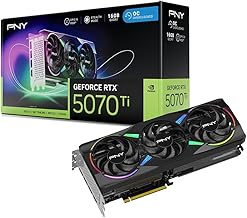
- Premium Choice: PNY NVIDIA GeForce RTX™ 5070 Ti Epic-X RGB™ OC Triple-Fan Graphics Card | 16GB GDDR7, 256-bit, Boost Speed: 2640 MHz, PCIe® 5.0, HDMI®/DP 2.1, NVIDIA Blackwell Architecture, DLSS 4.5
The NVIDIA PhysX setting has appeared in games and driver menus for years, yet many players are unsure what it does or whether to turn it on. In short, it is NVIDIA’s physics technology that can make effects like debris, cloth, and particles more realistic, sometimes using your GPU to power them. But the answer to whether you should enable it has grown more nuanced, especially with recent changes on the latest RTX cards. This guide explains what NVIDIA PhysX is, the difference between CPU and GPU PhysX, whether you should enable it, the important 32-bit change on the RTX 50 series, and how to configure it. By the end you will know exactly how to handle PhysX on your system.
What Is NVIDIA PhysX?
Before deciding whether to enable it, it helps to understand what PhysX actually does and where it runs. This technology is more layered than a simple on-off switch suggests. Here is what you need to know.
What PhysX Does in Games
NVIDIA PhysX is a physics engine that simulates how objects move and interact, from collisions to fluids to cloth. In many games it handles core physics quietly in the background, while in some titles it adds extra GPU-accelerated visual effects.
When you see a dedicated PhysX option, it usually refers to these enhanced effects, such as richer smoke, debris, or particle simulations. These can make a game world feel more dynamic and alive, though the impact varies a lot between titles.
It is worth setting expectations here: in most games you play today, PhysX is either handling ordinary physics invisibly or is not a factor at all. The dramatic, obvious PhysX effects belong mainly to a specific era of NVIDIA-sponsored titles.
CPU PhysX vs GPU PhysX
This is the key distinction. Most game physics run on your CPU as standard PhysX, which every system handles fine. The special case is GPU-accelerated PhysX, where an NVIDIA card takes over certain heavy effects for smoother, more detailed results.
GPU PhysX appears mainly in a set of older, NVIDIA-sponsored titles. In those games, letting the GPU handle PhysX can improve the extra effects, while on other games the setting has little or no visible impact because they rely on standard CPU physics.
This distinction explains why some players see a huge difference toggling PhysX while others notice nothing. The answer is almost always whether the specific game was built to use GPU-accelerated PhysX in the first place.
Where You See the PhysX Setting
You will find PhysX options in two main places: within some games’ graphics menus, and in the NVIDIA Control Panel under a dedicated PhysX configuration section. The Control Panel lets you choose which processor handles PhysX.
For most modern games, you never need to touch these settings, as PhysX simply works in the background. It is mainly the older GPU-accelerated titles where the option becomes meaningful to adjust.
If you are unsure whether a game uses GPU PhysX, a quick search for that title usually confirms it, since the supported games are a well-known list. For anything not on it, you can safely leave the setting on automatic and forget about it.
Should You Enable NVIDIA PhysX?
The practical question for most people is whether to turn PhysX on, and the honest answer depends on your games and hardware. Here is how to decide, including an important recent change that affects older titles.
The Benefits of Enabling PhysX
In the games that support GPU-accelerated PhysX, enabling it can noticeably enhance visual effects, adding realistic debris, flowing cloth, and dense particle effects that make scenes more immersive. For fans of those specific titles, it is a genuine visual upgrade.
On a capable NVIDIA card, these effects come with room to spare in older games, so there is often little downside to enabling them. The extra realism can meaningfully enrich the atmosphere in the titles designed around it.
For fans replaying these classics, GPU PhysX is part of what made them memorable, so enabling it recaptures the intended experience. On a modern card, the performance headroom in these older games is usually generous enough to enjoy the effects freely.
The Performance Cost and When to Disable It
GPU PhysX effects do consume performance, so on a weaker card or in a demanding scene, heavy PhysX can lower framerates. If you notice stutter in a PhysX-enabled title, reducing or disabling the effects can restore smoothness.
For competitive players who prioritize framerate over visual flair, leaving heavy PhysX effects off is a reasonable choice. It is a personal balance between eye-catching effects and raw performance, decided per game.
The 32-Bit PhysX Change on RTX 50 Series
An important recent development affects older games. The latest RTX 50 series cards dropped support for 32-bit PhysX, which means some classic titles that relied on GPU-accelerated 32-bit PhysX now fall back to the CPU.
Because the CPU handles these specific effects far less efficiently, affected old games can stutter badly when PhysX is enabled on a 50 series card. In those cases, disabling the GPU PhysX effects is the practical fix, and it is worth knowing about before assuming something is broken.
This is a genuine gotcha for anyone upgrading to a 50 series card and revisiting old favorites. Knowing the cause in advance saves you from chasing a hardware fault that does not exist, when the real answer is simply to turn the effect off.
Configuring and Troubleshooting PhysX
Setting up PhysX correctly is simple once you know where to look, and most issues have easy explanations. Here is how to configure it and resolve the problems people encounter.
Setting the PhysX Processor in the Control Panel
In the NVIDIA Control Panel, the PhysX configuration section lets you choose whether your GPU, CPU, or auto-select handles PhysX. For most users, leaving it on the automatic setting is the right choice.
If you want to force GPU PhysX in a supported older game, you can select your graphics card here. Conversely, choosing the CPU can help in the specific cases where GPU PhysX causes problems, such as affected titles on newer cards.
Changing this setting takes only a moment and is fully reversible, so it is safe to experiment. If a particular older game misbehaves, switching the PhysX processor is one of the first things worth trying before more involved troubleshooting.
Common PhysX Issues and Fixes
The most common complaint is stutter in older games with PhysX enabled, which often traces to the CPU handling effects it is not suited for. Disabling the GPU PhysX effects in the game, or lowering them, usually resolves it.
Games not appearing to use PhysX is another frequent question, but this is normal, since most modern titles simply do not use the GPU-accelerated version. In those cases there is nothing to fix, as PhysX is working as intended in the background.
Reinstalling drivers can also clear rare cases where PhysX seems to misbehave, since a clean driver restores the correct components. For the small number of genuine issues, this simple step resolves most of them without any deeper troubleshooting.
PhysX System Software
Some older games require a separate PhysX System Software package to run correctly, which installs the runtime components those titles expect. If an old game reports a missing PhysX component, installing this software is the fix.
Modern drivers usually include what most games need, so this is mainly relevant for older titles. Downloading the runtime from NVIDIA’s official source ensures the game has the components it is looking for.
Pros, Cons, and the Bottom Line
With the details covered, here is a clear summary of PhysX’s value, who benefits most, and how much it really matters today. This puts the whole picture in perspective.
Pros and Cons of NVIDIA PhysX
Here is the balanced view:
| Pros | Cons |
|---|---|
| Richer effects in supported games | Limited to a set of mostly older titles |
| GPU acceleration frees the CPU | Can lower framerates when heavy |
| Works automatically for most games | 32-bit PhysX dropped on RTX 50 series |
The takeaway is that PhysX is a nice bonus in the specific games built around it, but not a feature that shapes most modern gaming decisions.
Who Benefits Most from PhysX
Players who enjoy the older, NVIDIA-sponsored titles that showcase GPU PhysX get the most from it, gaining visibly richer effects. For them, enabling it on a capable card is an easy win.
Owners of a 50 series card should be aware of the 32-bit change and simply disable GPU PhysX in affected old games. For everyone else, PhysX quietly does its job with no action needed.
How Much PhysX Matters Today
In modern gaming, dedicated GPU PhysX effects have become less common, as developers use other physics solutions and effects systems. This makes the standalone PhysX setting less relevant than it once was.
That said, understanding it still helps you configure older games correctly and troubleshoot stutter. It is a useful piece of knowledge even if it rarely demands your attention on modern titles.
See More:
Conclusion
NVIDIA PhysX is NVIDIA’s physics technology that quietly powers game physics and, in certain older titles, adds richer GPU-accelerated effects worth enabling on a capable card. Whether you should turn it on depends on your games and hardware, with framerate the main trade-off, and 50 series owners should note the dropped 32-bit support that affects some classic titles. Configure it in the Control Panel, install the PhysX System Software only if an old game needs it, and disable heavy effects if they cause stutter. Understand NVIDIA PhysX and you can handle it confidently across any game in your library.
Frequently Asked Questions
What does PhysX actually do in a game?
It simulates physical interactions such as cloth, ragdolls, destructible debris, smoke and fluid. In its basic form it runs on the CPU for any hardware. In games with GPU accelerated effects, NVIDIA cards can handle far denser particle and fluid simulations than a processor could manage in real time.
Should I enable PhysX effects in older games?
If your GPU handles it comfortably, yes, because those effects were often the visual highlight of titles like Borderlands 2 and the Batman Arkham series. If you are on an RTX 50 series card, be aware that legacy 32-bit PhysX no longer accelerates on the GPU and will hurt performance badly.
Why did NVIDIA drop 32-bit PhysX support?
Blackwell removed 32-bit CUDA support entirely as part of modernising the architecture, and legacy PhysX titles were built as 32-bit applications. Without that CUDA path, the effects fall back to a single-threaded CPU implementation that was never intended to carry the full simulation load.
Do modern games still use PhysX?
Rarely in the branded GPU accelerated form. The core PhysX engine is open source and still used inside engines like Unity as a general purpose CPU physics solution, but the marketing-heavy GPU effects era ended as studios moved to engine-native or cross-platform physics that work on every vendor.
How do I choose which processor handles PhysX?
Open NVIDIA Control Panel, go to Configure Surround and PhysX, and select either auto-select, your GPU, or the CPU. Auto is correct for nearly everyone. Manually forcing the CPU is only useful for troubleshooting legacy titles or when a dedicated secondary card is installed for the task.
As an Amazon Associate we earn from qualifying purchases at no extra cost to you.














Write Your Review
No reviews yet. Be the first to share your experience!