
NVIDIA game driver software is what stands between your GeForce card and the smooth, high-frame-rate experience it is capable of, yet most players only think about it when something goes wrong. If you want to understand what the driver actually controls, how to get the right one, and how to squeeze the most performance from your GPU, this review covers it clearly, so you can manage your driver with confidence instead of guesswork.
Understanding the NVIDIA Game Driver and Its Versions
The NVIDIA game driver is the software layer that translates what a game asks for into instructions your GPU can execute, applying game-specific optimizations along the way. It is far more than a formality; the same hardware can perform noticeably differently depending on which driver is installed and how it is configured.
What the NVIDIA Game Driver Actually Controls
At its core, the driver manages how your GPU schedules work, allocates memory, and applies optimizations for individual games. When NVIDIA profiles a new title, it bakes those tuning decisions into a driver release, which is why a simple update can lift frame rates in a supported game.
The driver also exposes the control surface for features like resolution scaling, frame pacing, and image-quality settings. Much of your GPU’s flexibility is unlocked through the driver rather than the game itself, so understanding it gives you levers most players never touch.
The practical point is that the driver is an active performance component, not passive plumbing. Keeping it healthy and correctly configured is one of the easiest ways to get full value from the card you already own.
This is why two identical PCs can perform differently, and it often surprises people. A machine on an old or misconfigured driver can leave measurable performance on the table, while the same hardware on a current, well-set-up driver runs as intended. Recognizing the driver as a variable you control, rather than something fixed, is the first step to getting the most from your GPU.
Game Ready vs Studio Driver Branches
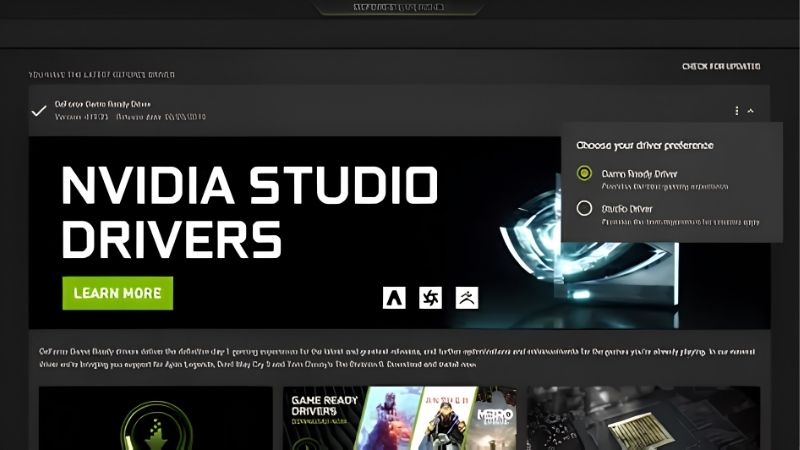
NVIDIA ships two branches from the same code base. Game Ready drivers prioritize the newest games and release more frequently, while Studio drivers are validated for creative applications and update less often for maximum stability.
For pure gaming, the Game Ready branch is the correct default because it carries day-one optimizations and the latest gaming features. Players who also do serious creative work may prefer the Studio branch, trading some launch-day speed for fewer surprises in professional apps.
The sensible approach is to pick the branch that matches your primary use and stay on it. Both receive critical fixes, so the difference is cadence and validation focus rather than one being higher quality than the other.
Finding the Right Driver for Your GPU
The easiest way to get the correct driver is the NVIDIA App, which detects your exact GPU and offers the right package automatically. This removes the risk of downloading a mismatched file and is the recommended route for most users.
If you prefer a manual approach, NVIDIA’s driver page lets you select your GPU model and operating system to find the matching download. Whichever route you choose, only download from NVIDIA directly, because driver files from third-party mirrors are a common vector for malware.
For a clean setup, especially when switching hardware or troubleshooting, a fresh install that clears old configuration first is more reliable than layering a new driver over an old one. It takes a few extra minutes but avoids a whole category of conflicts.
Getting the Most From Your NVIDIA Game Driver
Installing the driver is only half the story; how you configure it determines how much performance and image quality you actually get. A little time in the settings often yields a smoother experience than any single hardware tweak.
Optimizing Game Settings Through the NVIDIA App
The NVIDIA App can automatically suggest optimized settings for your specific GPU on a per-game basis, balancing image quality against frame rate. For players who do not want to tune every slider manually, this is a fast way to a sensible baseline.
Beyond one-click optimization, the app gives you an overlay for monitoring performance and applying features in real time. Seeing your actual frame rate and frame times while you play makes it far easier to judge whether a setting change is helping.
The practical advice is to start from the app’s optimized profile, then adjust to taste. It gets you most of the way with minimal effort, and you can fine-tune the few settings that matter most to you from there.
DLSS, Reflex, and G-Sync Features
The driver is how NVIDIA delivers its performance features. DLSS uses AI upscaling and frame generation to boost frame rates in supported games, and it is frequently the single largest performance lever available on modern GeForce cards.
Reflex reduces system latency for more responsive input, which competitive players value highly, while G-Sync smooths frame delivery to eliminate tearing. These features are delivered and updated through the driver, so staying reasonably current is how you keep access to the latest improvements.
The forward-looking angle matters: NVIDIA keeps expanding this feature set through driver updates, so a card you own can gain image quality and latency improvements over time purely from software. That ongoing value is a real reason to keep your driver healthy.
It is worth understanding what each feature is best at, because they are not interchangeable. DLSS is your lever when you need more frames, Reflex is for responsiveness in fast competitive games, and G-Sync is about smoothness and eliminating tearing. Knowing which one addresses the problem you actually have lets you enable the right feature rather than toggling everything and hoping, and all three are managed through the driver and its companion app.
Fixing Common Game Driver Problems
The most frequent driver complaints are black screens after an update, stuttering, or a game that suddenly runs worse. The majority trace back to leftover files from an old driver or a background overlay conflicting with the new release.
Avoid them by closing overlays and recording tools before installing, rebooting after the update completes, and keeping one known-good version noted so you can roll back if a release misbehaves. The NVIDIA App’s rollback option makes reverting a quick, low-stress operation.
If problems persist, a clean install using a full driver-removal step resolves a surprising share of stubborn cases. Most driver issues are configuration conflicts rather than faults in the driver itself.
Is Your NVIDIA Game Driver Enough, or Is It the GPU?
A driver can only optimize the hardware you own, so there is a point where updates and tuning stop mattering and the card itself becomes the limit. Knowing where that line sits keeps your expectations, and your spending, realistic.
Pros and Cons of Chasing Every Driver Release
On the plus side, staying current gives you day-one game performance, the latest DLSS and Reflex improvements, security fixes, and bug resolutions. For players who follow new releases, these benefits are real and cost nothing but install time.
The downside is that no release is guaranteed flawless, and occasionally a driver introduces a regression in a specific game or configuration. This is why cautious users wait a few days after a major release before updating, letting any problems surface first.
The balanced verdict is to update when a game you play gets support or a feature you want ships, rather than installing every release reflexively. Matching updates to your needs captures the benefits while avoiding needless risk.
When Software Optimization Hits Its Limit
If the latest driver, optimized settings, and DLSS still leave your frame rates short in modern titles, the honest bottleneck is the GPU, not the software. No update closes a generational hardware gap, and chasing driver releases will not fix an aging card.
That raises a timing question, because 2026 hardware pricing is unusual. Component prices trended upward and have not fully released that pressure, though the steep climb of late 2025 has eased into relative stability. If your card is genuinely holding you back, waiting for a large price drop is a weak plan, since meaningful supply relief is years away and a card you need now is unlikely to get much cheaper soon. When you reach that point, comparing current GPU options through the link below is the sensible next step.
Who Benefits Most From Staying Current
You benefit most from prompt updates if you play newly launched games, want the latest DLSS or Reflex features, or are troubleshooting an issue a newer driver fixes. In these cases the upside clearly outweighs the small risk of a launch-day quirk.
You can comfortably wait if your setup is stable and no listed fix applies to you. A sensible middle path suits most people: keep the NVIDIA App installed for notifications, glance at the release notes, and update promptly only when it actually benefits your games.
It also helps to keep expectations calibrated. A driver is a tuning tool, not a hardware upgrade, so its gains are real but bounded. Treating each release as free maintenance that occasionally delivers a nice performance bump is the healthy mindset, and it keeps you from either ignoring updates entirely or expecting every one to transform your frame rates.
See More:
- NVIDIA GeForce Game Ready Driver
- NVIDIA CUDA Toolkit Archive
- Gigabyte GeForce RTX 5070 Windforce OC
- AMD Radeon RX 9070 XT vs NVIDIA GeForce RTX 5070
- PNY GeForce RTX 5070 Ti Triple Fan
Conclusion
The NVIDIA game driver is one of the highest-value free tools any GeForce owner has, controlling optimizations, unlocking DLSS, Reflex, and G-Sync, and delivering steady improvements to hardware you already own. Choose the right branch, configure it through the NVIDIA App, keep a rollback version handy, and match your updates to the games you play. And if the latest NVIDIA game driver still leaves your performance short, that is your cue to look at the hardware itself, where checking current GPU prices through the link below is the smart next step.
Frequently Asked Questions
What is the difference between Game Ready and Studio drivers?
Game Ready drivers ship frequently and are validated against upcoming game launches, so they carry day-one optimisation and fixes. Studio drivers update less often and are tested against creative applications for stability. Gamers should use Game Ready, and anyone doing production work in Adobe or 3D tools should prefer Studio.
Do driver updates really increase frame rates?
Sometimes substantially, particularly for newly released titles where NVIDIA ships a fresh shader profile. Gains in older games are usually small. The bigger benefit is bug fixes and compatibility, so update around major game launches and when you experience crashes rather than compulsively every release.
How do I update drivers with the NVIDIA App?
Open the NVIDIA App, go to the Drivers tab, and choose the available Game Ready or Studio release. Use the custom installation option and tick perform a clean installation if you have had prior issues. The App replaced GeForce Experience and no longer requires an account to download drivers.
Should I always install the newest driver?
Not blindly. If your system is stable and you are not playing a newly launched title, waiting a week after release lets early bugs surface. Keep a copy of your last known good installer, since rolling back is far easier when you already have the file.
What settings in the driver most affect performance?
Enable Resizable BAR in your motherboard BIOS, turn on NVIDIA Reflex in supported games to cut latency, and check that the power management mode is not forcing unnecessary limits. Beyond that, in-game settings and DLSS mode selection have far more impact than driver control panel tweaks.
As an Amazon Associate we earn from qualifying purchases at no extra cost to you.















Write Your Review
No reviews yet. Be the first to share your experience!