
Nvidia graphics driver update is the single easiest way to boost gaming performance, fix crashes, and unlock new features — yet many people put it off because they worry about breaking something. If your games stutter, a new title runs poorly, or you just want the latest optimizations, this guide walks you through the whole process step by step. It is simpler than you think, and by the end you will know how to update, do a clean install, and avoid the mistakes that trip people up.

Prime
Editor's Pick
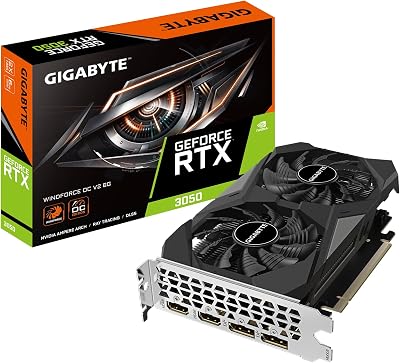
GIGABYTE GeForce RTX 3050 WINDFORCE OC V2 6G Graphics Card, 2X WINDFORCE Fans, 6GB GDDR6 96-bit GDDR6, GV-N3050WF2OCV2-6GD Graphics Card

What You Need Before an Nvidia Graphics Driver Update
A driver update goes smoothly when you prepare first, so before diving in, gather a few things and understand your options. This section covers the tools you will want on hand, how to identify your exact GPU, and the two main ways to update so you can pick the right one for your situation.
As an Amazon Associate we earn from qualifying purchases at no extra cost to you.





![Turabian: The Easy Way! [Updated for 8th Edition]](https://m.media-amazon.com/images/I/41+SMafHOwL._SL160_.jpg)
Tools and Preparation You Will Need
You do not need much, but a few things make the process painless. First, a stable internet connection to download the driver, which can be a large file. Second, a few minutes of uninterrupted time, since your screen may flicker or go black briefly during installation.
For anyone who updates drivers often or troubleshoots a lot, a reliable external drive to back up your system or keep driver installers on hand is genuinely useful — a good portable SSD makes backups fast and keeps a safety net before any major system change.
Finally, if you are troubleshooting persistent issues, a dedicated driver-cleanup utility is worth having ready. It ensures old driver files are fully removed, which we will cover in the clean-install steps.
None of this is strictly required for a simple update, but having these basics on hand turns a potentially stressful task into a quick, confident routine. Preparation is what separates a smooth update from a frantic troubleshooting session.
How to Identify Your Nvidia GPU
Before updating, you need to know which graphics card you have so you get the correct driver. The quickest way is to open Windows Task Manager, go to the Performance tab, and check the GPU entry, which lists your Nvidia model.
Alternatively, open Device Manager and expand Display adapters to see your exact GPU name. Knowing whether you have, say, an RTX 5060 Ti or an older RTX 3060 ensures you download the right software.
This step matters because installing a driver meant for the wrong series can cause problems. A minute of checking now saves a frustrating troubleshooting session later.
Write down or remember your exact model, since you will need it if you ever choose the manual download route. Having that detail ready makes every future update faster and removes any doubt about getting the right file.
Two Ways to Update: App vs Manual
There are two main methods for an Nvidia graphics driver update. The first is using Nvidia’s official app, which detects your card automatically and notifies you of new drivers — the easiest route for most people.
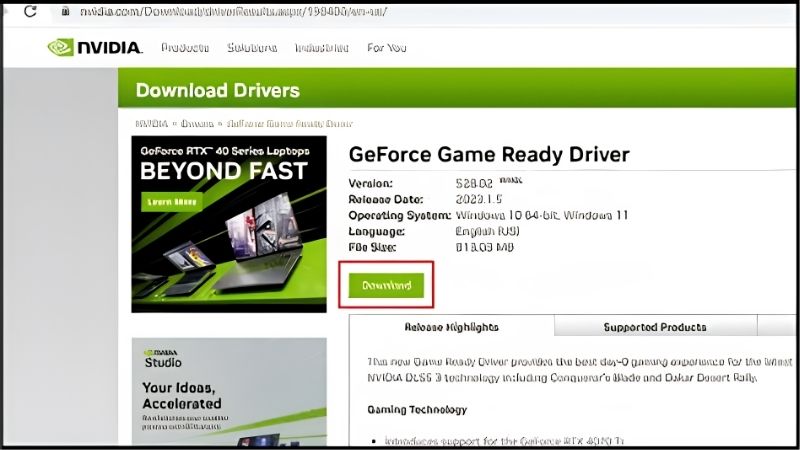
The second is downloading the driver manually from Nvidia’s official website by selecting your GPU model. This gives you full control and is useful when the app misbehaves or you want a specific driver version.
Both methods are valid. The app suits everyday users who want convenience, while the manual method suits those who prefer control or are troubleshooting a specific problem.
A quick tip: if you are new to this, start with the app method. You can always switch to the manual approach later if you need a specific driver version, but for routine updates the app is the fastest and least error-prone choice.
Step-by-Step Nvidia Graphics Driver Update Instructions
With preparation done, here is the actual process laid out as clear numbered steps for both the easy app method and the more thorough clean install. Follow these in order and the update will go smoothly, whether you are doing a routine refresh or fixing a stubborn issue.
The Easy Method Using the Nvidia App
Follow these numbered steps for the simplest update:
1. Download and install the official Nvidia app from Nvidia’s website. 2. Open the app and sign in if prompted. 3. Navigate to the Drivers section. 4. Click Check for Updates, and the app will find the latest driver for your card. 5. Choose Express Installation and let it download and install automatically. 6. Restart your PC when prompted to finish.
Express Installation handles everything for you, replacing the old driver with the new one automatically. It is the recommended path for the vast majority of users.
Why use the app? It removes guesswork, always matches the driver to your card, and makes future updates a one-click task. For most people, this is all they will ever need.
The app also lets you tweak game settings and manage other Nvidia features from one place, so once it is installed it becomes a convenient hub rather than just an updater. That added utility is a bonus reason to prefer the app method.
The Clean Install Method for Troubleshooting
If you are fixing crashes, artifacts, or performance issues, a clean install removes every trace of the old driver first. Follow these steps:
1. Download the latest driver installer first, so you have it ready offline. 2. Optionally download a driver-cleanup utility. 3. In the Nvidia app’s installation options, select Custom Installation. 4. Check the box for Perform a clean installation. 5. Proceed with the install and restart when finished.
A clean install wipes leftover settings and files that can cause conflicts, which is why it so often resolves problems a normal update cannot. It is the go-to fix for driver-related instability.
Do this whenever you switch between very different driver versions or when troubleshooting. Starting from a clean slate eliminates the corrupted-file issues behind many mysterious GPU problems.
Verifying the Update Worked
After restarting, confirm the update succeeded. Open the Nvidia app and check the driver version listed, comparing it to the latest version number to ensure it installed correctly.
You can also reopen Device Manager, find your GPU under Display adapters, and check the driver date and version in its properties. A current date confirms the new driver is active.
This verification step takes seconds and gives peace of mind. If the version looks wrong, simply repeat the process, and consider the clean-install method if a normal update refuses to stick.
Once verified, it is a good idea to launch a game and confirm everything runs smoothly. A quick real-world test is the final proof that the update installed cleanly and your system is ready to play.
Pro Tips and Mistakes to Avoid
Now that you can update confidently, a few expert pointers will keep the process smooth and help you sidestep the errors that commonly cause trouble. This section shares practical tips, the mistakes to avoid, and how staying current benefits your gaming and system stability.
Pro Tips for Smooth Driver Updates
First, update your drivers when a major new game launches, since Nvidia releases Game Ready drivers optimized for big titles — installing these can noticeably improve performance and fix game-specific bugs.
Second, do not feel obligated to install every single update the moment it appears. If your system is stable and running well, updating every few weeks or when a game you play gets an optimized driver is perfectly fine.
Third, keep the driver installer file or a system backup before a major update. If a new driver ever causes issues, you can roll back to the previous stable version quickly and without stress.
Common Mistakes to Avoid
The most common mistake is downloading drivers from unofficial third-party sites, which risks installing outdated or unsafe software. Always use Nvidia’s official app or website — nowhere else.
Another frequent error is skipping the restart. Drivers are not fully active until you reboot, so bypassing that step can leave you with a half-updated, unstable system. Always restart when prompted.
Finally, people often ignore a clean install when troubleshooting, then wonder why a simple update did not fix their problem. When issues persist, the clean-install method is the answer that a standard update cannot provide.
How Updates Boost Gaming and Stability
Keeping your Nvidia driver current delivers real benefits beyond bug fixes. Game Ready drivers optimize performance for new releases, often improving frame rates and smoothness in the latest titles at no cost to you.
Updates also unlock new features and improvements to technologies like DLSS, and they patch security vulnerabilities and stability issues. A current driver is simply a faster, safer, more capable driver.
The practical payoff is that a two-minute update can transform how a game runs. For the effort involved, few maintenance tasks give a better return than keeping your graphics driver up to date.
Think of driver updates as the cheapest performance upgrade available. No new hardware, no cost — just a quick download that can smooth out stutter, add frames, and keep your system stable. For any gamer, it is a habit worth building.
See More:
- 3060 Ti vs 9060 XT
- Nvidia Shield TV Pro
- RTX 5070 vs RX 9060 XT
- RTX 3090 24GB
- Nvidia price prediction
Conclusion
An Nvidia graphics driver update is one of the simplest, highest-value things you can do for your PC: better gaming performance, new features, fixed bugs, and improved stability, all in a few minutes. Using the official Nvidia app makes routine updates a one-click task, while the clean-install method solves the stubborn problems a normal update cannot. Avoid third-party download sites, always restart to finish, and update when big games launch. With the steps in this guide, you can keep your graphics card running at its best year-round. Grab a reliable backup drive to protect your system before your next major update and update with total confidence.
Frequently Asked Questions
What is the easiest way to update?
Install the NVIDIA App, open the Drivers tab, and it checks your GPU against the latest Game Ready and Studio releases, downloads the correct package and installs it in a few clicks. It replaced GeForce Experience, is free, and unlike the old application it does not require you to create or sign into an account.
Do I need an NVIDIA account?
No. The NVIDIA App removed the mandatory login that GeForce Experience enforced, so driver updates, the control panel settings and the overlay all work without registering. Signing in is optional and only unlocks extras such as reward promotions and cloud gaming integration, which have nothing to do with driver functionality.
What should I uncheck in a custom installation?
Choosing Custom lets you skip components you do not need, such as the USB-C driver on systems without a virtual reality headset, or the audio driver if you never use HDMI or DisplayPort audio. Leave the display driver and PhysX selected. The clean installation checkbox also lives here for troubleshooting.
Does updating the driver also update my card firmware?
No. Drivers are software running on Windows, while the VBIOS is firmware stored on the graphics card itself. NVIDIA has occasionally issued separate firmware updaters, for example to resolve display compatibility on newer cards, and those are distributed as standalone tools. Never flash a VBIOS unless the vendor explicitly instructs you to.
Is the process different on a laptop with switchable graphics?
The steps are the same and NVIDIA supports direct installation on most notebooks, but the integrated Intel or AMD graphics driver updates separately through its own vendor tool. Keep both current, since hybrid graphics problems such as games running on the wrong adapter are frequently caused by mismatched driver versions between the two.











Write Your Review
No reviews yet. Be the first to share your experience!