
Quick answer: On Windows 10 or 11, press Ctrl + Shift + Esc to open Task Manager, go to the Performance tab and click GPU 0 (and GPU 1 if it exists). The exact graphics card model appears in the top-right corner, with dedicated memory and driver version listed below the graph.
- Why You Need to Know Which GPU You Have
- How to Check Your GPU on Windows 10 and 11
- How to Check Your GPU on a Mac
- How to Check Your GPU on Linux
- Laptops: Integrated vs Dedicated GPU
- Which Method Shows What: Comparison Table
- Finding the Exact Model, VRAM and Driver Version
- Troubleshooting: When Your GPU Does Not Show Up
- Thinking About Upgrading?
- Frequently Asked Questions
Below are the other built-in methods on Windows, macOS and Linux, plus how to handle laptops with two GPUs. New to the topic? Read our plain-English explainer on what a GPU is.
Why You Need to Know Which GPU You Have
You need your exact model and VRAM to check game requirements, download the right driver (laptop and desktop versions are often listed separately), sell or upgrade accurately (an RTX 4060 and RTX 4060 Ti are very different cards), and get useful answers from support forums.
How to Check Your GPU on Windows 10 and 11
Windows offers five built-in ways to identify your graphics card. Menu names and layouts differ between Windows 10 and 11 and can shift with feature updates, so exact labels on your screen may vary.
1. Task Manager (Fastest for Most People)
- Press Ctrl + Shift + Esc, or right-click the Start button and choose Task Manager.
- If you see a small window, click More details (Windows 10).
- Open the Performance tab. In Windows 11 this is an icon in the left-hand navigation bar.
- Click each entry labeled GPU 0, GPU 1 and so on.
The model name sits in the top-right corner. Below the graphs you will see Dedicated GPU memory (your VRAM), Shared GPU memory, Driver version, Driver date and the DirectX version. It suits anyone who wants everything in one place. The same screen shows live load, covered in our guide to checking GPU usage on Windows.
2. Device Manager (Most Reliable Detection)
- Press Windows + X and choose Device Manager.
- Expand Display adapters.
- Every graphics adapter Windows detects is listed here. Double-click one and open the Driver tab to see the driver version and date.
Device Manager does not show VRAM, but it lists adapters even when the driver is missing or broken, so it is the place to look when something is wrong. A yellow warning triangle means the driver is not working properly.
3. DirectX Diagnostic Tool (dxdiag)
- Press Windows + R, type
dxdiagand press Enter. - Let the tool finish scanning (a progress bar runs at the bottom-left).
- Open the Display tab. Laptops may show Display 1 and Display 2, or a separate Render tab for the dedicated GPU.
Look for Name, Manufacturer, Chip Type, Display Memory, Dedicated Memory and Driver Version. Note that Display Memory combines dedicated and shared memory, so use the Dedicated Memory figure for your real VRAM. Save All Information exports a text file for support forums or buyers.
4. Windows Settings
In Windows 11, go to Settings > System > Display > Advanced display. Under Display information you will see which GPU the selected monitor is connected to. In Windows 10, the path is Settings > System > Display > Advanced display settings. On either version, clicking Display adapter properties opens a classic window whose Adapter tab lists the adapter type and dedicated video memory. It only shows the GPU driving that display.
5. NVIDIA, AMD or Intel Control Software
If the vendor driver package is installed, its app shows full details:
- NVIDIA: the NVIDIA App lists your GPU on its System page; the older NVIDIA Control Panel has System Information in the bottom-left corner or Help menu.
- AMD: AMD Software: Adrenalin Edition has a System section (via the gear icon in some versions).
- Intel: Intel Graphics Command Center or Intel’s newer Arc software shows adapter and driver details.
For a deeper look, including memory type, the free tool in our GPU-Z guide reads data straight from the card.
How to Check Your GPU on a Mac
Menu wording changed in macOS Ventura and later, so labels may vary by version.
- Click the Apple menu and choose About This Mac. On Apple silicon Macs, you will see the Chip (for example Apple M3 Pro); on Intel Macs you will see a Graphics line naming the GPU and its memory.
- For more detail, click More Info then System Report (a direct button on older versions).
- Select Graphics/Displays in the sidebar. This shows the chipset model, the number of GPU cores on Apple silicon, and VRAM on Intel Macs with discrete graphics.
Apple silicon uses unified memory, so there is no separate VRAM figure. In Terminal, run system_profiler SPDisplaysDataType for the same data.
How to Check Your GPU on Linux
Open a terminal and try these commands:
lspci | grep -i -E "vga|3d|display"lists every graphics device on the PCI bus. Add-k(as inlspci -k) to see which kernel driver is in use.glxinfo -Bshows the OpenGL renderer string (the GPU actually doing the rendering), driver version and, on most drivers, video memory. On Debian and Ubuntu it comes from themesa-utilspackage.nvidia-smiworks on systems with NVIDIA’s proprietary driver and shows model, memory and driver version together.
Laptops: Integrated vs Dedicated GPU
Many laptops have two GPUs: an integrated one inside the processor and a dedicated card for gaming. Both appear in Task Manager and Device Manager. To tell them apart:
- By name: Intel UHD Graphics, Intel Iris Xe and AMD Radeon Graphics (with no model number) are typically integrated. Names like NVIDIA GeForce RTX 4070 Laptop GPU or AMD Radeon RX 7600M are dedicated.
- By memory: in Task Manager, a dedicated GPU lists a meaningful Dedicated GPU memory figure, while an integrated GPU relies almost entirely on shared system memory.
- By numbering: GPU 0 is often the integrated chip, but do not rely on that; always check the name.
Laptops switch between them to save battery, so a game running on integrated graphics may simply be set to the wrong adapter. Assign a preferred GPU per app under Settings > System > Display > Graphics in Windows 11 (labels differ slightly on Windows 10).
Which Method Shows What: Comparison Table
| Method | OS | Shows Model | Shows VRAM | Shows Driver |
|---|---|---|---|---|
| Task Manager (Performance tab) | Windows 10/11 | Yes | Yes (dedicated and shared) | Yes |
| Device Manager | Windows 10/11 | Yes | No | Yes (Driver tab) |
| dxdiag | Windows 10/11 | Yes | Yes | Yes |
| Settings / Adapter properties | Windows 10/11 | Yes | Yes (Adapter tab) | No |
| NVIDIA / AMD / Intel software | Windows (Linux for some) | Yes | Yes | Yes |
| About This Mac / System Information | macOS | Yes | Intel Macs only | No |
| lspci | Linux | Yes | No | Kernel driver with -k |
| glxinfo -B | Linux | Yes (renderer) | Usually | Yes |
Finding the Exact Model, VRAM and Driver Version
If Windows shows only a family name, confirm the variant with the vendor app or GPU-Z, since cards like the RTX 3060 shipped with 8GB and 12GB versions. For VRAM, trust Dedicated GPU memory in Task Manager or Dedicated Memory in dxdiag rather than totals that include shared RAM.
Windows reports NVIDIA drivers in a long format such as 32.0.15.xxxx; NVIDIA’s own version number matches the last five digits. If you need firmware rather than driver details, see our walkthrough on finding your GPU BIOS version.
Troubleshooting: When Your GPU Does Not Show Up
| Problem | Likely Cause | What to Try |
|---|---|---|
| GPU not listed anywhere | Card not seated, missing PCIe power cable, disabled in BIOS, or hardware fault | Reseat the card, connect all power cables, check BIOS/UEFI settings |
| Shows “Microsoft Basic Display Adapter” | No proper driver installed | Install the latest driver from NVIDIA, AMD, Intel or your laptop maker, or run Windows Update and check optional driver updates |
| Only integrated graphics visible | Dedicated GPU disabled, driver crashed, or desktop monitor plugged into motherboard | Check Device Manager for a hidden or disabled device (View > Show hidden devices), reinstall drivers, and move the display cable to the card |
If the card is detected but crashes or throttles, see our guides to checking GPU temperature and testing GPU health.
Thinking About Upgrading?
With your model and VRAM known, you can judge whether an upgrade makes sense. Cards with 8GB of VRAM increasingly struggle with high textures in recent games, and older generations lack newer upscaling and frame generation features. Check power supply wattage, PCIe power connectors and case clearance first. Our graphics card buying guide explains how to match a new GPU to your CPU and monitor.



Frequently Asked Questions
What is the fastest way to see what graphics card I have?
On Windows, press Ctrl + Shift + Esc, open the Performance tab in Task Manager and click GPU 0. The model name appears in the top-right corner. On a Mac, choose About This Mac from the Apple menu. On Linux, run lspci with a grep for VGA in a terminal window.
Why does Task Manager show two GPUs?
Most laptops and many desktops with Intel or AMD processors have integrated graphics built into the CPU as well as a dedicated graphics card. Windows lists both as GPU 0 and GPU 1. The dedicated one usually has a model number and a sizable Dedicated GPU memory figure.
How do I check how much VRAM my GPU has?
In Task Manager, look for Dedicated GPU memory under the GPU graph. In dxdiag, use the Dedicated Memory field on the Display or Render tab. Ignore totals that include shared memory, since that is borrowed system RAM, not memory physically on the graphics card itself.
Can I check my GPU without turning on Windows?
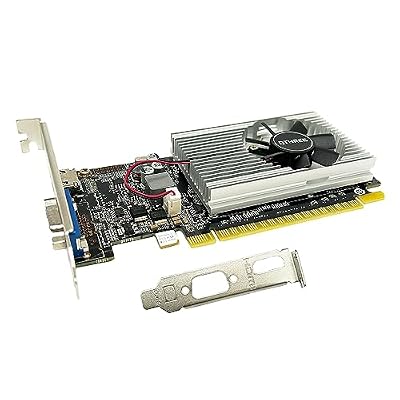
Some motherboard BIOS or UEFI screens list installed PCIe devices, though often only as a generic entry. The most reliable offline method is physically inspecting the card, which usually has a sticker with the model name. Booting a Linux live USB and running lspci also works well.
Why does my GPU show as Microsoft Basic Display Adapter?
That label means Windows is using a generic fallback driver because the proper graphics driver is missing or failed to load. Performance and resolution options will be limited. Install the latest driver from NVIDIA, AMD, Intel or your laptop manufacturer, then restart, and the real model name should appear.

Write Your Review
No reviews yet. Be the first to share your experience!