
The best graphics cards for 3D rendering in 2026 are the GeForce RTX 5090 for large scenes and fast final frames, the RTX 5070 Ti or RTX 5080 for most freelance artists, and the RTX 5060 Ti 16GB as the entry point; professional RTX PRO Blackwell cards make sense only when your scenes exceed 32GB of VRAM. The single most important rule is that your scene must fit in VRAM, because a card that runs out of memory either fails the render or slows down sharply.
This guide shows how to estimate your scene’s memory footprint, explains why NVIDIA dominates GPU rendering, and maps common workloads to a card.
Why VRAM Comes Before Speed
GPU renderers such as Blender Cycles, Redshift, Octane and V-Ray GPU load geometry, acceleration structures (BVH) and textures into graphics memory. When a scene fits, rendering is fast. When it does not, some renderers fall back to slower out-of-core modes that stream data from system RAM over PCIe, and others simply stop with an out-of-memory error. A faster card with too little VRAM can end up slower than a mid-range card with enough.
Estimating Your Scene’s Memory Footprint
You can approximate a scene’s VRAM needs before buying. Uncompressed textures take width × height × channels × bytes per channel:
| Asset | Calculation | Approx. VRAM |
|---|---|---|
| One 2K texture, RGBA 8-bit | 2048 × 2048 × 4 × 1 byte | ~17 MB |
| One 4K texture, RGBA 8-bit | 4096 × 4096 × 4 × 1 byte | ~67 MB |
| One 4K texture, RGBA 16-bit | 4096 × 4096 × 4 × 2 bytes | ~134 MB |
| One 8K texture, RGBA 8-bit | 8192 × 8192 × 4 × 1 byte | ~268 MB |
| 1 million triangles with BVH (rough) | Varies by renderer and attributes | ~100–200 MB |
| 8K HDRI environment, 32-bit float RGB | 8192 × 4096 × 3 × 4 bytes | ~403 MB |
Worked example: an interior archviz scene
- 60 materials, each with four 4K 8-bit maps (color, roughness, normal, displacement): 240 × 67 MB ≈ 16.1 GB
- 12 million triangles of furniture and architecture with BVH: about 1.2–2.4 GB
- One 8K HDRI: about 0.4 GB
- Renderer overhead, frame buffers and denoiser: roughly 1–2 GB
- Total: about 19–21 GB
That scene will not fit on a 16GB card without optimization, but it fits comfortably on a 24GB or 32GB card. Dropping background materials to 2K textures cuts their memory by 75%, which is often enough to bring a scene from 20GB down to around 12GB. Optimizing textures is the cheapest upgrade you can make.
Why NVIDIA RTX Leads for 3D Work
NVIDIA rtx for 3d work benefits from two things: CUDA, which every major GPU renderer supports, and RT cores, which accelerate ray-triangle intersection through OptiX. In Blender, switching Cycles from CUDA to OptiX on an RTX card typically speeds up renders significantly because the hardware handles ray traversal. Redshift and Octane were built around CUDA from the start, and several renderers remain NVIDIA-only. AMD cards can render in Blender through HIP, and the Radeon RX 9070 XT offers 16GB at a competitive price, but plugin and renderer support outside Blender is narrower.
Card Recommendations by Workload
| Card | VRAM | Best for | Typical price range |
|---|---|---|---|
| GeForce RTX 5060 Ti 16GB | 16 GB | Students, hobbyists, product shots, look-dev | Usually $430–$500 |
| GeForce RTX 5070 Ti | 16 GB | Freelance product and character work | Usually $750–$900 |
| GeForce RTX 5080 | 16 GB | Fast iteration on mid-size scenes | Usually $1,000–$1,300 |
| GeForce RTX 5090 | 32 GB | Archviz, large environments, animation | Usually $2,000–$3,000+ |
| RTX PRO 4000 Blackwell | 24 GB | Studio workstations needing pro drivers in a compact card | Usually $1,500–$1,900 |
| RTX PRO 6000 Blackwell | 96 GB | Film VFX, massive scenes, simulation caches | Usually $8,000–$10,000 |
The 16GB tier: three cards, one memory limit
The RTX 5060 Ti 16GB, 5070 Ti and 5080 share the same VRAM ceiling. They differ in speed, so they render the same scenes at different rates. If your scenes fit in 16GB, the 5070 Ti is usually the value sweet spot; if your scenes already approach 16GB, spend toward the RTX 5090’s 32GB instead of buying a faster 16GB card.
Used 24GB cards
A used RTX 4090 or RTX 3090 with 24GB can be a practical gpu for rendering when budgets are tight and scenes sit between 16 and 24GB. Check power supply capacity, card length and warranty status before buying second-hand.
Render-Time Math: When a Faster Card Pays Off
Speed matters most for animation, where frame times multiply. Here is an illustrative example of a 20-second animation at 30 fps (600 frames):
| Time per frame | Total render time | Renders per working week (40 h) |
|---|---|---|
| 120 seconds | 20 hours | 2 |
| 60 seconds | 10 hours | 4 |
| 30 seconds | 5 hours | 8 |
If you bill per project and iterate with clients, halving frame time doubles how many revision rounds you can deliver. For still images, the difference between 40 seconds and 20 seconds per render matters much less, so a mid-range card often makes more financial sense for illustration and product stills.
GPU for Blender: Settings That Help Any Card
- Use OptiX: Preferences, System, Cycles Render Devices, OptiX, and enable your RTX card.
- Enable the OptiX denoiser for viewport and final renders; it allows fewer samples for the same visual result.
- Adaptive sampling: set a noise threshold around 0.01 so Cycles stops sampling clean areas early.
- Texture limit: in Simplify, cap textures at 2048 for test renders to save VRAM.
- Persistent data: enable it for animations so Cycles reuses BVH between frames.
- Monitor VRAM: watch the memory readout in the render window; if it nears your card’s limit, reduce textures before the render fails.
Power and Build Considerations
Long renders keep the GPU at full load for hours. The RTX 5090 is rated around 575 W, so pair it with a quality 1000 W or larger power supply and a case with strong airflow. The RTX 5070 Ti and 5080 are rated around 300 W and 360 W respectively, and fit comfortably with an 850 W unit in most builds.
GPUs With the VRAM for Creative Work
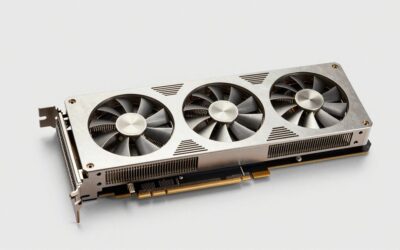
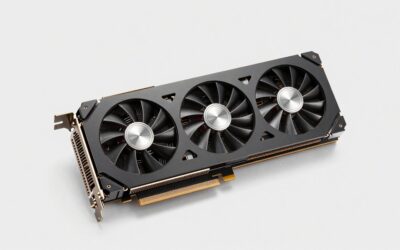
For editing and rendering, VRAM headroom matters more than raw gaming FPS. These in-stock 16GB cards cover entry to high-end workloads.
As an Amazon Associate we earn from qualifying purchases at no extra cost to you. Prices as of Oct 5, 2026 and subject to change.


Bottom Line
Estimate your scene size, then buy enough VRAM to hold it with headroom: 16GB for most product and character work, 32GB for archviz and large environments, and RTX PRO cards only when scenes exceed that. Within a VRAM tier, choose speed based on how much animation you render, since frame times multiply while still images rarely justify the top card.



Write Your Review
No reviews yet. Be the first to share your experience!