
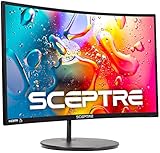
- Top Pick: New! Sceptre Curved 27-inch Prime Gaming Monitor DisplayPort x2 180Hz HDMI x2 180Hz 1500R 1ms Build-in Speakers, Machine Black 2027 (C275B-FW180T Series)
- Best Value: Sceptre Curved 27-inch Prime Gaming Monitor 1500R 100Hz HDMI X2 DisplayPort 1ms 100% sRGB, Build-in Speakers Machine Black 2025 (C275W-FW100T Series)
- Premium Choice: Samsung 27" Essential S3 (S36GD) Series FHD 1800R Curved Computer Monitor | 100Hz, Game Mode, Advanced Eye Comfort, HDMI and D-sub Ports (LS27D366GANXZA)
For a budget curved gaming monitor, a 27-inch or 32-inch 1440p VA panel with a 1000R to 1500R curve and a refresh rate of at least 144Hz covers most players, with the Samsung Odyssey G5, Gigabyte G27QC style models, MSI MAG curved monitors and AOC curved gaming lines among the families to shortlist. Exact model names get refreshed often, so use the specs below to compare whatever version is on sale.
As an Amazon Associate we earn from qualifying purchases at no extra cost to you.


Budget curved monitor families at a glance
| Family | Typical stated specs | Best for | Limits |
|---|---|---|---|
| Samsung Odyssey G5 (27 and 32 inch) | 1440p, VA, 1000R curve, 144Hz to 165Hz depending on model | Strong curve, immersive single-player gaming | VA panels can show motion smearing in dark scenes |
| Gigabyte G27QC / GS27QC style | 1440p, VA, 1500R curve, high refresh | Value 1440p with a moderate curve | Stand adjusts for tilt only on many units |
| MSI Optix and MAG curved models | 1080p or 1440p, VA, up to 165Hz or more | Gaming-focused menus and features | Confirm resolution and curve on the specific model |
| AOC C27G and CQ27G series | 1080p or 1440p, VA, 144Hz or higher | Competitive value picks | Panel quality varies by series |
| Sceptre curved monitors | 1080p to 1440p, 144Hz to 165Hz on gaming models | Lowest cost tier | Fewer ergonomic options, basic speakers |
| Acer Nitro curved models | 1080p or 1440p, VA, high refresh | Mix of features at low cost | Stands are basic; check the port selection |
The families above are names makers have sold in recent years. Because lineups rotate, confirm the model number’s stated resolution, refresh rate and curve on the maker’s own page before buying.
How to choose
Size and resolution
At 27 inches, 1440p gives a clear step up in sharpness over 1080p for desktop use. At 32 inches, 1440p stretches pixels thinner, so some people prefer 4K, though that costs more and needs a stronger graphics card. A 24-inch 1080p curved panel can suit small desks and low-powered PCs.
Curve radius
The number such as 1000R or 1500R states the radius of the curve in millimeters. A smaller number means a tighter curve. A 1000R curve is more immersive but can look distorted for desktop work, while 1500R is gentler and easier to live with if you also work or browse on the screen.
Panel type
Budget curved monitors mostly use VA panels, which offer strong contrast but slower dark-pixel transitions than good IPS or fast OLED panels. Reviewers at outlets such as RTINGS and Tom’s Hardware often note that VA smearing varies by model, so look at motion-handling comments in reviews for the model you are considering.
Refresh rate and adaptive sync
For gaming, 144Hz or above is the usual target. Look for FreeSync or G-Sync Compatible support so the display adjusts to your graphics card’s frame rate and cuts tearing. Check that the maker lists the refresh range over DisplayPort, since HDMI versions on cheap models can cap at lower rates.
Ports and stand
Count the DisplayPort and HDMI inputs and confirm the version. A stand that only tilts is common in this tier. VESA mounting holes let you replace it with an arm if desk space is limited.
Budget tiers explained
| Tier | What to expect | Trade-off |
|---|---|---|
| Budget | 1080p or entry 1440p VA, 144Hz, basic stand | Lower brightness and sparse ports |
| Mid-range | 1440p VA, 165Hz or more, better color and menus | Best balance of price and features |
| Premium curved | Larger ultrawide or QD-OLED curved panels | Costs well above the budget range |
Pick this if…
| If you want… | Pick |
|---|---|
| Deep, immersive curve for single-player games | Samsung Odyssey G5 style 1000R models |
| Gentle curve for mixed work and gaming | Gigabyte 1500R models |
| Competitive play at 1080p on a lower-end GPU | AOC or MSI 24 to 27 inch 144Hz models |
| Lowest cost entry | Sceptre or Acer Nitro curved models |
| Extra desk width | A budget ultrawide curved monitor |
Match the monitor to your graphics card
A 1440p monitor asks more of your GPU than a 1080p one. If your graphics card struggles at 1440p, a 1080p panel can deliver steadier frame rates, and many modern GPUs support upscaling features that help at higher resolutions. A 1440p 165Hz monitor makes sense with a mid-range card from recent generations, while an older entry card may be more comfortable at 1080p.
Common mistakes
- Choosing the strongest curve for desk work. A tight curve can distort straight lines in spreadsheets and design tasks.
- Ignoring the cable. Use the DisplayPort cable in the box or a certified one to reach the advertised refresh rate.
- Assuming the box refresh rate is on by default. Enable it in Windows display settings and the monitor menu.
- Skipping stand checks. If you need height or swivel, confirm the stand features or plan for a VESA arm.
- Overlooking panel lottery. Backlight bleed and uniformity can vary, so check the return policy.
Alternatives
A flat 1440p IPS gaming monitor often has better viewing angles and quicker response, and it works better for color-sensitive tasks. A budget ultrawide curved monitor adds width for racing and flight sims. A curved TV is a poor choice for a desk because of size and input lag. If you can stretch the budget, a small OLED gaming monitor offers faster response but may not be curved.
Picture settings and setup tips
Budget curved monitors often ship with the brightest, most saturated picture mode on. Switching to a standard or sRGB preset usually gives more natural colors, and lowering brightness in a dim room reduces eye strain. If the maker lists an overdrive setting, try the middle level first, since the strongest setting can add overshoot and trails on VA panels. Turn on adaptive sync in both the monitor menu and your graphics driver, and confirm the refresh rate in the operating system display settings.
Position matters with a curve. Sit near the center so the edges wrap toward you equally, and keep the top of the screen at about eye level. If your desk is shallow, a 24 or 27 inch size keeps everything within comfortable reach. Anyone sharing the screen with others should remember that curved panels look best from the middle seat, and viewing from the side can make the picture seem warped.
Frequently Asked Questions
Is a curved monitor better for gaming?
It is a preference. A curve can feel more immersive on larger screens, but flat panels are often just as good for competitive play. The panel quality and refresh rate matter more than the curve.
What does 1000R or 1500R mean?
The number states the curve radius in millimeters. Smaller means tighter. 1000R is more pronounced, while 1500R is gentler.
Are VA panels good enough for gaming?
They offer strong contrast and are common in budget curved monitors. Some show dark-scene smearing, so check reviews for the specific model you are considering.
Do I need 1440p?
At 27 inches and above, 1440p looks noticeably sharper than 1080p. If your GPU is modest, 1080p at a high frame rate may feel smoother.
Should I buy FreeSync or G-Sync?
Most budget monitors support FreeSync, which also works with many NVIDIA cards as G-Sync Compatible. Confirm the support listed by the maker for your graphics card.
How big a curved monitor fits my desk?
Many people sit about an arm’s length away from a 27 inch screen. A 32 inch curved panel needs more depth, so measure your desk before buying.




Write Your Review
No reviews yet. Be the first to share your experience!