
- Top Pick: Samsung 27" Odyssey G5 (G51F) Series QHD (1440P) Gaming Monitor | 180Hz, 1ms, AMD FreeSync, HDR10, Height Adj Stand, Black Equalizer, Virtual Aim Point, Auto Source Switch+ (LS27FG512ENXZA)
- Best Value: ASUS TUF Gaming VG27AQ3A 27 Inch 1440p 180Hz G-SYNC Gaming Monitor | Fast IPS, ELMB Sync, 1ms, 130% sRGB, Built-In Speakers, FreeSync Premium, HDR10, for PS5 and Xbox, 3yr warranty
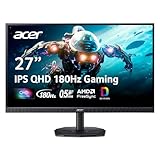
- Premium Choice: Acer Nitro 27in QHD 2560×1440 IPS 180Hz Gaming Monitor KG271U N3bmiipx | 0.5ms, AMD FreeSync, DCI-P3 95%, 2xHDMI, DisplayPort, Speaker, VESA Mountable, Bluelight Filter, Flickerless Technology
For most players, a 27 inch 1440p monitor with a fast IPS or Mini LED panel is the sweet spot, while OLED models suit anyone who prioritises motion clarity and contrast over brightness and long static-desktop use. A 27 inch screen at 2560 x 1440 gives a pixel density that looks sharp at normal desk distance, and it is far easier on a graphics card than 4K, so a mid-range GeForce RTX 50-series or Radeon RX 9000-series card can drive high refresh rates in most titles.
- At a Glance: Current 27 Inch 1440p Options
- Why 27 Inches and 1440p Work Together
- Panel Types Explained
- Specs That Matter Most
- Decision Table: Pick X If
- Budget Tiers Without Prices
- Matching the Monitor to Your Graphics Card
- Common Mistakes
- Alternatives Worth Considering
- Setup Tips After Buying
- Frequently Asked Questions
As an Amazon Associate we earn from qualifying purchases at no extra cost to you.



At a Glance: Current 27 Inch 1440p Options
| Model | Panel type | Best for | Main limit |
|---|---|---|---|
| Alienware AW2725DF | QD-OLED, high refresh rate (the maker lists up to 360Hz) | Competitive and cinematic play in dim rooms | OLED care needed; text fringing on some subpixel layouts |
| ASUS ROG Swift OLED PG27AQDM | WOLED, 240Hz | Fast shooters with deep blacks | Lower full-screen brightness than LCD |
| LG UltraGear 27GR83Q-B | Fast IPS, 240Hz class | Budget-to-mid-range speed | No local dimming, modest contrast |
| Gigabyte M27Q family | IPS, 170Hz class | Value buyers wanting high refresh | Basic stand and HDR is nominal |
| MSI MAG 274QRF-QD | Quantum-dot IPS, 165Hz class | Colourful games on a mid-range budget | Standard IPS black levels |
Specifications vary between regional variants and revisions, so treat the table as a shortlist and read the maker’s own spec page for the exact SKU before buying.
Why 27 Inches and 1440p Work Together
At 27 inches, 1440p lands at roughly 109 pixels per inch. That is crisp enough that individual pixels are hard to spot, yet scaling is rarely needed, so Windows text and game interfaces appear at a natural size. 4K at the same size looks sharper still but demands much more GPU power, and many competitive players prefer to spend that performance on frame rate instead.
A 24 inch 1080p screen feels small by comparison, and a 32 inch 1440p screen has visibly lower pixel density. If you sit closer than about 70 cm, 27 inches is the comfortable ceiling for 1440p.
Panel Types Explained
Fast IPS
Modern fast IPS panels offer wide viewing angles, strong colour, and quick response times. Their weakness is contrast, typically around the 1000:1 mark as stated by most makers, so blacks look grey in a dark room. They remain the best value, and pixel response on the better models is good enough that overdrive artefacts are the larger concern.
VA
VA panels give deeper contrast than IPS at a similar cost, but some models show smearing in dark scenes. They suit single-player games and mixed media more than twitch shooters.
Mini LED
Mini LED backlights add local dimming zones, which improves HDR highlights and contrast while keeping high brightness. Reviewers often note blooming around bright objects on dark backgrounds, and zone counts vary widely, so look at the maker’s stated number of zones and peak brightness.
OLED
OLED and QD-OLED panels pair near-instant pixel response with true per-pixel black. Makers publish static-content guidance, such as moving windows, using a dark theme, and letting built-in pixel-refresh routines run. Warranty terms on burn-in differ by brand, so read the warranty text rather than assuming coverage.
Specs That Matter Most
- Refresh rate: 144Hz is a good floor; 165 to 240Hz benefits fast shooters; the very highest rates only pay off if your GPU can feed them.
- Response time: Makers quote grey-to-grey figures under ideal overdrive settings, so independent reviewers’ motion-blur measurements are more informative.
- Adaptive sync: Look for G-Sync Compatible validation or FreeSync Premium on the maker’s page for tear-free play.
- HDR: A DisplayHDR 400 badge on an edge-lit IPS panel is mostly a label. DisplayHDR 600 or higher with local dimming, or an OLED with a True Black tier, gives a visible change.
- Ports: DisplayPort is the safest route to full refresh rate. HDMI 2.1 matters if you also connect a console.
- Stand: Height adjustment and VESA 100 mounting matter for posture; some budget models only tilt.
Decision Table: Pick X If
| Pick this type | If you | Watch out for |
|---|---|---|
| QD-OLED such as Alienware AW2725DF | Play in a dim room and want the strongest motion and contrast | Static HUD habits, room reflections lifting blacks |
| WOLED such as ASUS PG27AQDM | Want OLED with a conventional RGB-stripe feel for text | Dimmer full-screen white |
| Fast IPS such as LG 27GR83Q-B | Want a proven all-rounder for work and play | Grey blacks |
| Budget IPS such as Gigabyte M27Q | Need high refresh at the lowest outlay | Limited stand, plain HDR |
| Quantum-dot IPS such as MSI MAG 274QRF-QD | Care about saturated colour | Typical IPS contrast |
Budget Tiers Without Prices
Budget: Fast IPS at 144 to 170Hz with basic adaptive sync. Expect a simple stand and an sRGB-focused panel. Mid-range: 180 to 240Hz IPS or quantum-dot IPS, better stands, and more reliable overdrive. Premium: OLED or QD-OLED, or Mini LED with many zones, with the best motion and HDR but extra care requirements.
Matching the Monitor to Your Graphics Card
At 1440p, an entry RTX 50-series or Radeon RX 9000-series card handles esports titles at very high frame rates. Demanding single-player games with ray tracing may need upscaling such as DLSS or FSR to approach 144 frames per second. If your card tops out near 100 frames per second in your favourite games, a 240Hz or 360Hz monitor gains less, and a lower-refresh panel with better colour may be the smarter spend.
Common Mistakes
- Buying on refresh rate alone while ignoring response-time behaviour reviewers report.
- Trusting an HDR badge without checking brightness and dimming details.
- Using an HDMI cable that cannot carry the full refresh rate, leaving the monitor stuck at 60Hz.
- Ignoring the stand, then needing a separate arm.
- Choosing OLED for a mostly static office desktop without reading the maker’s care advice.
Alternatives Worth Considering
- 27 inch 4K monitors: Sharper for mixed work and play, but demand a stronger GPU.
- Ultrawide 34 inch 1440p: More immersive for racing and strategy, at the cost of width and sometimes lower pixel density.
- Dual-mode monitors: Some newer panels switch between 4K at lower refresh and 1080p at higher refresh, useful if you split time between content creation and competitive play.
Setup Tips After Buying
Use the DisplayPort cable supplied by the maker, set the refresh rate in the operating system display settings, and enable adaptive sync in the graphics driver. Leave overdrive on the middle setting first; the strongest setting can add inverse ghosting. Calibrate brightness to the room instead of leaving it at the factory maximum.
Frequently Asked Questions
Is 1440p still worth it with 4K monitors available?
Yes, for players who value frame rate. A 1440p screen needs roughly half the pixel throughput of 4K, so a mid-range card can sustain much higher refresh rates. It also keeps scaling simple at 27 inches.
Is an OLED monitor safe for daily desktop use?
Makers generally say it is fine if you follow their care guidance, which includes pixel-refresh cycles, screen savers, and varied content. Static taskbars and toolbars are the usual risk factor. Read the warranty terms for burn-in coverage before buying.
Do I need 240Hz or higher?
Only if your system regularly produces that many frames. Many players find 144 to 180Hz plenty smooth, and the jump beyond that is most noticeable in fast competitive games on a capable PC.
Which port should I use?
DisplayPort is generally the safest for full refresh rate and adaptive sync on PC. HDMI 2.1 is useful for consoles, but the monitor must list support for the bandwidth needed.
Does DisplayHDR 400 make games look better?
Reviewers commonly report little visible improvement on edge-lit IPS screens carrying that badge. A panel with local dimming or an OLED gives a more noticeable result.
Should I buy a curved 27 inch monitor?
Curvature is far more useful on ultrawide models. At 27 inches the effect is small, so choose on panel quality and features instead.






Write Your Review
No reviews yet. Be the first to share your experience!