
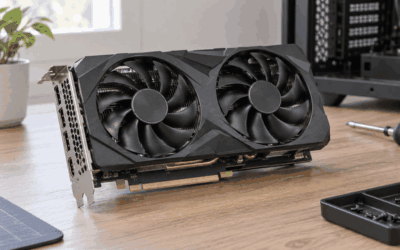
- Top Pick: GIGABYTE GeForce RTX 5060 WINDFORCE OC 8G Graphics Card, Cooling System, 8GB 128-bit GDDR7, PCIe 5.0, Manufactured by NVIDIA, DisplayPort & HDMI – Video Output Interface, GV-N5060WF2OC-8GD Video Card
- Best Value: ASUS Prime GeForce RTX 5070 12GB GDDR7 OC Edition Gaming Graphics Card
- Premium Choice: GIGABYTE GeForce RTX 5070 Ti Eagle OC ICE SFF 16G Graphics Card, 16GB 256-bit GDDR7, PCIe 5.0, WINDFORCE Cooling System, GV-N507TEAGLEOC ICE-16GD Video Card
An overlay that will not open is one of the more irritating PC problems because it fails silently. You press the shortcut, nothing happens, and the software gives you no error to search for. Worse, the symptom is identical whether the cause is a disabled toggle, a hotkey stolen by Discord, a permission Windows never granted, or a game that refuses overlay injection entirely.
The fix is almost always simple once the category is identified, so the useful approach is elimination rather than blindly reinstalling drivers. This guide works through the causes roughly in order of how often they turn out to be responsible, starting with checks that take seconds and ending with the heavier options. Most people stop at step three.
Quick Verdict
Test the shortcut on the Windows desktop first. That single test tells you whether the problem is the overlay itself or something specific to one game. If the panel opens on the desktop, stop looking at driver settings and start looking at hotkey conflicts and display modes. If it opens nowhere, the overlay is switched off, the background service is not running, or the key you are pressing is not the key that is bound.
| Symptom | Most likely cause | Fix | Time |
|---|---|---|---|
| Nothing happens anywhere, desktop included | Overlay master toggle is off | Enable the in-game overlay in NVIDIA app settings | Seconds |
| Worked before a driver update | Shortcut default changed or settings reset | Read the current binding in overlay keyboard shortcuts | Seconds |
| Works on desktop, not in one game | Hotkey conflict with an in-game binding | Rebind the overlay to an unused combination | A minute |
| Works in some games, not others | Display mode or anti-cheat blocking injection | Switch the game to borderless windowed | A minute |
| Overlay opens but recording fails | Capture folder missing or drive full | Reset the capture path in recording settings | A minute |
| Overlay flickers or fights another panel | Competing overlay from Discord, Steam or Game Bar | Disable one overlay or change its hotkey | A few minutes |
| Nothing works after clean install | Overlay component not installed | Reinstall the NVIDIA app with default components | Ten minutes |
| Laptop only, external display or dGPU titles | Hybrid graphics routing | Force the game onto the discrete GPU | A few minutes |
How to Do It
1. Check the master toggle and the actual keybind
Open the NVIDIA app and go to its settings. There is a switch that enables the in-game overlay as a whole, and it is genuinely off on a meaningful number of systems, usually because of a custom driver installation or a settings reset. In the same area sits the keyboard shortcut list. Read what is currently assigned rather than assuming. Alt plus Z is the long-standing default, but defaults have changed across versions and previous settings can carry forward, so the list in front of you is the only reliable source.
2. Rule out other overlays
Discord, Steam, Xbox Game Bar and several vendor utilities all inject overlays and claim hotkeys. When two of them want the same combination, the result is inconsistent rather than cleanly broken, which is why this cause is often diagnosed last despite being common. Temporarily disable the Steam and Discord overlays, check whether NVIDIA’s works, then re-enable them one at a time. Xbox Game Bar is enabled by default in Windows and is worth reviewing in Windows settings under Gaming.
3. Change the game’s display mode
Overlay injection is most reliable in borderless windowed mode. Exclusive full screen works in most modern titles but not all, and some older games, emulators and launcher front-ends do not accept injection at all. If the overlay opens fine on the desktop and in three games but not in the fourth, the fourth game’s display mode or its anti-tamper layer is the difference. Switching to borderless windowed is a one-setting test that resolves this often enough to be worth trying before anything else.
4. Deal with elevation mismatches
If a game runs as administrator and the NVIDIA software does not, Windows will not let the lower-privilege process inject into the higher-privilege one. The symptom is an overlay that works everywhere except one specific title, typically one you configured to run elevated to fix a different problem. Either remove the administrator requirement from the game or run the NVIDIA application elevated so the privilege levels match.
5. Confirm capture settings if only recording is broken
An overlay that opens but will not record is a different problem from one that will not open. Check the capture folder path in the recording settings, since a path pointing at a drive that has been removed or a folder that was deleted will fail silently. Check free disk space. Check that instant replay is actually enabled if you are trying to save a replay clip, because the save shortcut does nothing when the rolling buffer is not running.
6. Reinstall the software, not necessarily the driver
If the earlier steps fail, reinstall the NVIDIA app rather than immediately doing a clean driver sweep. The overlay is part of the application layer, and a repair or reinstall of that component is faster, less disruptive and more often the actual fix. If that does not work, then perform a clean driver installation with the default component selection, making sure you do not deselect the overlay or capture components during a custom install.
The Less Obvious Causes
Laptops with hybrid graphics add a wrinkle. When a game is running on the integrated GPU rather than the discrete GeForce card, the NVIDIA overlay may have nothing to attach to. Forcing the title onto the discrete GPU through the graphics settings in Windows, or through the per-application profile in NVIDIA’s software, resolves this. The same underlying issue explains why the overlay sometimes behaves differently when an external monitor is connected, because the display output path changes which GPU is driving the screen.
Security software is another quiet culprit. Overlay injection looks structurally similar to techniques used by malicious software, and some antivirus or anti-cheat products block it either permanently or after an update changes their heuristics. If the overlay stopped working on the same day your security suite updated, that correlation is worth taking seriously. Add an exclusion for the NVIDIA application directory rather than disabling protection wholesale.
Finally, remember that the software landscape changed. The NVIDIA app has replaced GeForce Experience for most users, and having remnants of the old client alongside the new one causes exactly the kind of ambiguous, inconsistent behaviour described here. If both are present on your system, remove the older client entirely and let the newer application own the overlay. Guides written for GeForce Experience will also point you at menu paths that no longer exist, which turns a five-minute fix into an afternoon.
One thing not to do is start with a registry edit or a third-party “fixer” utility. The overlay has a small number of failure modes, all of them addressable through the application’s own settings or Windows configuration, and none of them require modifying the registry by hand.
Related guides: best nvidia control panel settings for gaming, digital vibrance nvidia how to adjust, how to open the nvidia overlay shortcut, how to sign up for an nvidia account, nvidia app vs geforce experience
Thinking About a GPU Upgrade?
If driver and app tweaks are not enough, these in-stock RTX 50-series cards cover the main budget tiers.
As an Amazon Associate we earn from qualifying purchases at no extra cost to you. Prices as of Oct 5, 2026 and subject to change.


FAQ
Why did my NVIDIA overlay stop working after a driver update?
Updates can reset application settings or change shipped defaults, including the overlay toggle and shortcut assignments. Check both before assuming the update broke something deeper. Reinstalling the NVIDIA app is a faster next step than a full driver sweep.
Does the overlay work in every game?
No. Some titles with aggressive anti-tamper protection, some emulators, and some older applications do not permit overlay injection. Borderless windowed mode improves compatibility but cannot override a title that blocks injection outright.
Do I need to run the NVIDIA app as administrator?
Only if the game itself runs elevated. Mismatched privilege levels prevent injection, so either both should be elevated or neither. Running everything as administrator by default is unnecessary and not recommended.
Is the overlay the same as Xbox Game Bar?
No, they are separate features with overlapping capabilities, and both can capture gameplay. Running both is allowed but they can conflict over hotkeys, so pick one for capture and change or disable the other’s shortcuts.
Will a clean driver install definitely fix it?
Not necessarily, and it is rarely the first thing that should be tried. If the cause is a hotkey conflict, a display mode, a permission mismatch or a competing overlay, a clean driver install changes nothing while costing you all your driver settings.










Write Your Review
No reviews yet. Be the first to share your experience!