
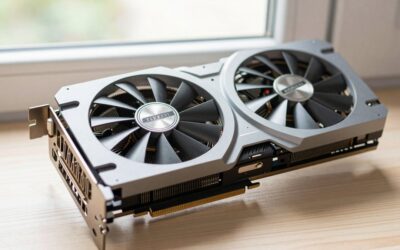
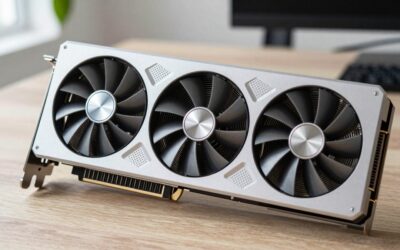
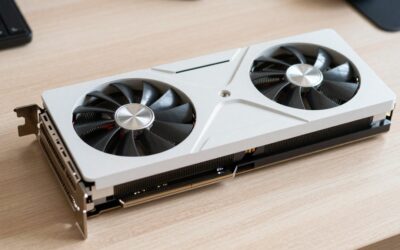
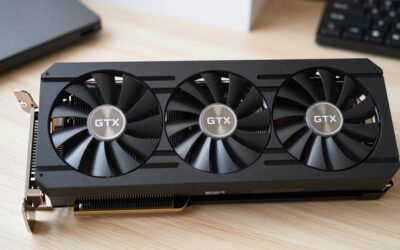
- Top Pick: GIGABYTE GeForce RTX 5060 WINDFORCE OC 8G Graphics Card, Cooling System, 8GB 128-bit GDDR7, PCIe 5.0, Manufactured by NVIDIA, DisplayPort & HDMI – Video Output Interface, GV-N5060WF2OC-8GD Video Card
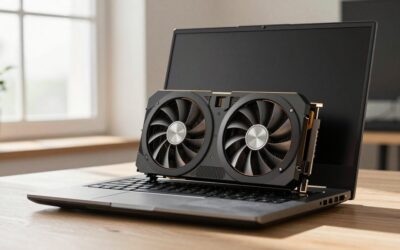
- Best Value: ASUS Prime GeForce RTX 5070 12GB GDDR7 OC Edition Gaming Graphics Card
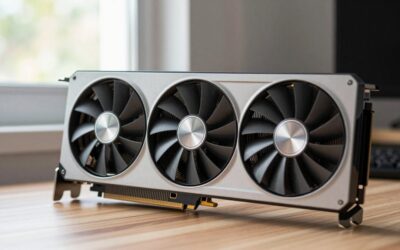
- Premium Choice: GIGABYTE GeForce RTX 5070 Ti Eagle OC ICE SFF 16G Graphics Card, 16GB 256-bit GDDR7, PCIe 5.0, WINDFORCE Cooling System, GV-N507TEAGLEOC ICE-16GD Video Card
Short answer: Get older NVIDIA drivers from NVIDIA’s own Advanced Driver Search, which lets you filter by GPU family, Windows version and driver branch and lists every archived release. Note your current version first, uninstall it with DDU or the installer’s clean-install option, install the older package, then stop Windows Update from quietly pushing the new one back.
- Why people roll back to an older NVIDIA driver
- Step 1: Identify your exact GPU and current driver version
- Step 2: Download old NVIDIA drivers from the official archive
- Step 3: Game Ready or Studio — which branch to stay on
- Step 4: Remove the current driver cleanly
- Step 5: Roll back through Windows Device Manager
- Step 6: Stop Windows Update from reinstalling the newer driver
- Troubleshooting: what usually goes wrong
- Frequently Asked Questions
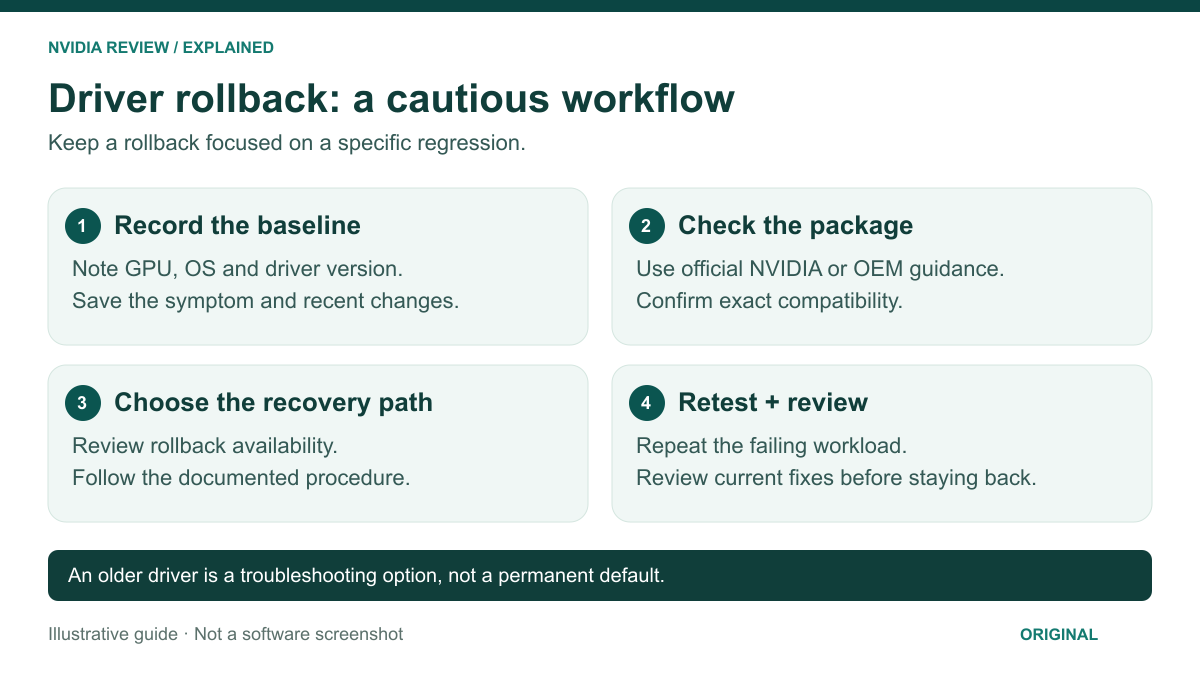
Why people roll back to an older NVIDIA driver
Driver updates are not always an upgrade. A new Game Ready branch ships optimisations for two or three launch titles and occasionally breaks something else: shader-compilation stutter that was not there last month, a black screen on alt-tab, a monitor waking at the wrong refresh rate, or a CUDA workload in Blender or DaVinci Resolve that crashes on export. Laptop owners hit it most often, because the GPU, the panel and hybrid-graphics switching all have to agree.
The rule of thumb: if the problem started the day you updated, the driver is the first suspect. If it predates the update, rolling back will not fix it — look at temperatures, power delivery or your GPU cooling and thermal behaviour instead. A rollback is a diagnostic, not a maintenance habit.
Step 1: Identify your exact GPU and current driver version
You need two facts before downloading anything: the exact card, and the branch you are on now (so you can go back to it if the older driver is worse).
- NVIDIA Control Panel — right-click the desktop, open it, then Help > System Information. The top line shows the driver version (for example 596.xx) and the GPU name.
- dxdiag — press Win+R, type
dxdiag, open the Display tab. It names the physical card, which matters on laptops listing both integrated and NVIDIA graphics. - Device Manager — expand Display adapters, right-click the NVIDIA entry, Properties > Driver. Write down the version and the date.
Be precise about the model: an RTX 4070 Laptop GPU is a different product line from a desktop RTX 4070, and older GTX 900 and GTX 700 cards sit on frozen legacy branches. Our breakdown of how NVIDIA names its GPU generations clears up the laptop-versus-desktop confusion.
Step 2: Download old NVIDIA drivers from the official archive
Never pull a driver from a mirror, a forum attachment or a “driver updater” utility. NVIDIA keeps every public release on its own site, and there are two official routes:
- Advanced Driver Search (nvidia.com, under Drivers) — the manual driver search. Choose product type, series, exact model, operating system, download type (Game Ready or Studio) and language, then Search. It returns a list of past releases for that combination, not just the newest file.
- Beta & Older Drivers page — an index of older and beta packages grouped by product family, including legacy branches for cards NVIDIA no longer develops for.
Download the full package (an .exe, typically 600–900 MB), not a stripped repack. Going from a 596-series release down to a 581-series one? Grab that specific 581 build and keep the file — reinstalling later is much quicker with the installer already on disk.
Which method should you use?
| Method | Best for | Speed | Trade-off |
|---|---|---|---|
| Device Manager “Roll Back Driver” | Reverting the update you installed yesterday | 2 minutes, no download | Only one version back, and only if Windows kept the old package |
| Advanced Driver Search + installer clean install | Going back several releases | 15 minutes | Leaves some registry and profile remnants behind |
| Advanced Driver Search + DDU in Safe Mode | Black screens, corrupted installs, switching branches | 25–30 minutes | Requires a reboot into Safe Mode and resets all your settings |
| Beta & Older Drivers page | Legacy GTX cards, beta hotfix builds | 15 minutes | Less filtering; you must match the branch to your card yourself |
Step 3: Game Ready or Studio — which branch to stay on
The two download types come from the same codebase but are validated differently, and picking the right one often solves the instability that sent you looking for an older driver in the first place.
| Branch | Release cadence | Validated against | Choose it if |
|---|---|---|---|
| Game Ready (GRD) | Frequent, timed to game launches | New and upcoming titles | You play day-one releases and want launch-day optimisation |
| Studio (SD) | Less frequent, longer soak testing | Creative apps: Adobe, Blender, Resolve, Autodesk | You render, edit or stream and value stability over launch-day patches |
A Studio release is effectively a settled version of a recent Game Ready branch. If you game casually but crash during exports, switching to Studio is often a better answer than hunting for an old GRD — and either branch pairs fine with our guide to the NVIDIA Control Panel settings worth changing.
Step 4: Remove the current driver cleanly
Installing an older driver on top of a newer one is the most common cause of “I rolled back and it is still broken”. Two clean paths:
The installer’s own clean install
Run the older driver’s .exe, choose Custom (Advanced) and tick Perform a clean installation. That wipes driver profiles and settings, and is enough for most straightforward downgrades. The screen will flash black once or twice — normal.
DDU in Safe Mode
Display Driver Uninstaller is the heavier option, and the right one after a failed install or black screen. The sequence matters:
- Download the older driver first, while you still have internet and a working display.
- Disconnect from the internet (unplug Ethernet, disable Wi-Fi) so Windows cannot grab a driver mid-process.
- Boot into Safe Mode: Settings > System > Recovery > Advanced startup > Restart now, then Troubleshoot > Advanced options > Startup Settings > Restart, then press 4.
- Run DDU, select GPU and NVIDIA, and choose Clean and restart.
- Back on the desktop (at low resolution — expected), install your older package, then reconnect the internet.
DDU also clears stale entries from previously installed cards. If a GPU swap is on your list, check compatibility first with our notes on what to verify before upgrading a graphics card.
Step 5: Roll back through Windows Device Manager
If the bad driver landed within the last few days, Windows may still have the previous package cached, and no download is needed:
- Press Win+X and open Device Manager.
- Expand Display adapters, right-click your NVIDIA GPU, choose Properties.
- Open the Driver tab and click Roll Back Driver.
- Pick a reason, confirm, and restart.
If the button is greyed out, Windows has no stored previous version — usually because a clean install removed it. Go back to Step 2 and install the older package manually.
Step 6: Stop Windows Update from reinstalling the newer driver
Windows Update treats graphics drivers as hardware updates and often reinstalls the newest one within a day or two, undoing your work. Three ways to prevent that:
- Microsoft’s “Show or hide updates” troubleshooter (wushowhide) — run it after your rollback, select the NVIDIA driver entry, and hide it. This is the targeted, reversible option.
- Group Policy (Windows Pro) — Computer Configuration > Administrative Templates > System > Device Installation > Device Installation Restrictions, and prevent installation of devices matching your GPU’s hardware ID (copy it from Device Manager > Details > Hardware Ids).
- Pause updates — Settings > Windows Update > Pause for a few weeks. Crude, but fine while you test whether the old driver actually fixed your issue.
Also turn off automatic driver downloads in the NVIDIA App or GeForce Experience, or it will re-offer the very release you removed.
Troubleshooting: what usually goes wrong
Black screen after install. Wait a full two minutes before forcing a reboot; the installer cycles the display several times. If it persists, boot into Safe Mode, run DDU, and reinstall.
“This graphics driver could not find compatible graphics hardware.” You downloaded the wrong package — usually a desktop driver for a laptop GPU, or a current branch for a legacy card. Re-run the Advanced Driver Search with the exact model and re-check the product series.
Installer hangs at “Checking system compatibility”. Close the NVIDIA App, GeForce Experience and any overlay software (Discord, MSI Afterburner, RTSS), then retry. Overlays hold open handles that stall the installer.
Wrong resolution or refresh rate afterwards. Re-select the refresh rate in Windows display settings and re-enable G-SYNC. If the panel still will not hit its rated rate, check the cable standard — see DisplayPort versus HDMI for high-refresh gaming.
Stutter did not go away. Clear the shader cache, confirm the game is using the NVIDIA GPU rather than integrated graphics, and check for power or thermal limits. Our walkthrough on diagnosing in-game stutter covers the non-driver causes.
New games refuse to run. A title released after your driver’s build date may not launch at all. That is the real cost of staying back a branch: retest the newest driver every few releases and move forward once the regression is fixed. Weighing a hardware change instead? Our 1440p graphics card recommendations help judge whether the driver is really the bottleneck.
Thinking About a GPU Upgrade?
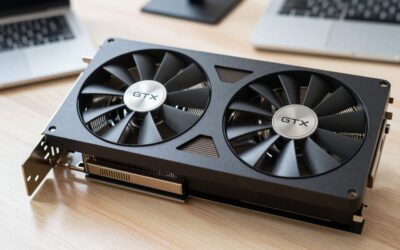
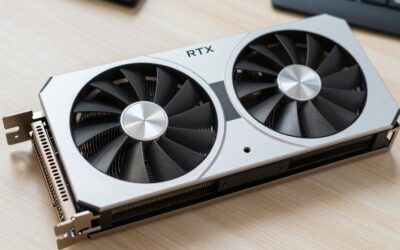
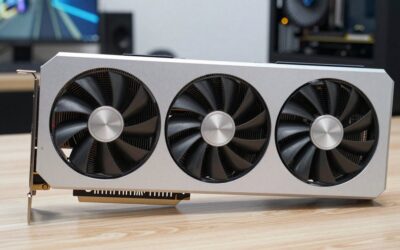
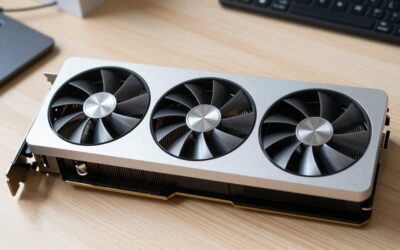
If driver and app tweaks are not enough, these in-stock RTX 50-series cards cover the main budget tiers.
As an Amazon Associate we earn from qualifying purchases at no extra cost to you. Prices as of Oct 5, 2026 and subject to change.


Frequently Asked Questions
Is it safe to use older NVIDIA drivers?
It is safe in the short term, provided you download from NVIDIA’s official Advanced Driver Search rather than a third-party mirror. The risks are cumulative: older releases miss security patches and lack profiles for newly released games. Treat a rollback as a temporary fix and retest a current driver every few releases.
How do I downgrade my NVIDIA driver from 596 to 581?
Download the 581-series package for your exact GPU and Windows version from the Advanced Driver Search before removing anything. Disconnect from the internet, boot into Safe Mode, run DDU and choose clean and restart, then install the 581 package. Finally, hide the newer driver in Windows Update so 596 does not return overnight.
Do I really need DDU, or is the installer’s clean install enough?
For an ordinary downgrade between two nearby releases on the same branch, the installer’s Custom > Perform a clean installation option is usually enough and far quicker. Reach for DDU when recovering from a black screen or failed install, switching between Game Ready and Studio, or clearing remnants of a previous card.
Where do I find drivers for a very old NVIDIA card?
Use the Beta & Older Drivers page, or set the Advanced Driver Search to the legacy product series your card belongs to. Older GTX families sit on frozen branches that receive no new releases, so the last available build is the correct one — it still installs on current Windows, minus modern API support.
Will rolling back a driver delete my game settings or overclocks?
Game settings live in each game’s own configuration files and are untouched. What does reset are NVIDIA Control Panel profiles, per-game 3D settings, G-SYNC and scaling options, and ShadowPlay preferences. Overclocks in MSI Afterburner survive, because that application stores them itself, but re-check them once the new driver loads.

Write Your Review
No reviews yet. Be the first to share your experience!