
- Top Pick: NVIDIA GeForce RTX 5080 Founders Edition
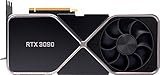
- Best Value: nVidia GeForce RTX 3090 Founders Edition Graphics Card
- Premium Choice: Nvidia RTX 2000 ADA 16GB Graphics Card
A graphics card is only as good as the driver running it. Outdated or improperly installed Nvidia drivers are behind a surprising number of stutters, crashes, and lost frames, and yet driver maintenance is one of the most overlooked steps in PC gaming. Getting it right unlocks the full potential of your GPU, whether it is a value RTX 3060 Ti or a powerhouse RTX 5080.
This guide walks through installing and updating Nvidia drivers the correct way, including the clean-install method that resolves persistent problems. Follow these steps and you will keep your card running at peak performance, with the latest optimizations for the newest games in 2026.
As an Amazon Associate we earn from qualifying purchases at no extra cost to you.






⚡ Save on Your Next PC — Amazon Prime
Prime members get fast free shipping on the systems above, plus early access to Prime Day & Black Friday PC deals. New members get a 30-day free trial.
Watch: How to Install and Update Nvidia Drivers for Optimal Performance — Video Review
Why Driver Updates Matter
Nvidia regularly releases Game Ready Drivers timed to major game launches, delivering performance improvements, bug fixes, and support for new features like the latest DLSS versions. Skipping updates means leaving frame rates and stability on the table. On a modern card such as the RTX 4070 or RTX 3090, a single driver update can noticeably smooth out a freshly released title.
Choosing the Right Driver
Nvidia offers two branches: Game Ready Drivers, optimized for the newest games, and Studio Drivers, tuned for stability in creative applications. Gamers should pick Game Ready, while creators using video editing or 3D software on cards like the Quadro RTX 6000 or RTX 3090 Ti may prefer Studio. Always download from Nvidia’s official source or through GeForce Experience to avoid counterfeit or malware-laden files.
- Identify your exact GPU model in Device Manager or GeForce Experience.
- Match the driver to your Windows version.
- Choose Game Ready or Studio based on your primary use.
The Standard Installation Method
For most users, updating is simple. Open GeForce Experience, check the Drivers tab, and click Download when a new version appears. Select Express Installation to let the app handle everything automatically. This method preserves your settings and is ideal for routine updates on any card from the RTX 2000-series onward.
Performing a Clean Installation
If you experience crashes, artifacts, or performance issues, a clean installation clears out corrupted or leftover driver files. In the Custom Installation options, check the Perform a Clean Installation box, which removes previous driver data before installing fresh. For stubborn problems, advanced users can boot into Safe Mode and use a display driver removal utility first, then install the new driver on a truly clean slate.
Tips
- Update before major releases: Install the latest Game Ready Driver a day before a big game launches.
- Clean install after upgrades: Always do a clean installation when swapping GPUs, such as moving from an RTX 3070 to an RTX 5080.
- Create a restore point: Set a Windows restore point before major driver changes as a safety net.
- Avoid beta drivers: Stick to stable Game Ready releases unless you specifically need a beta fix.
Frequently Asked Questions
How often should I update my Nvidia drivers?
Update when a new Game Ready Driver launches for a game you play, or roughly every few weeks. There is no need to install every single release if your current games run flawlessly.
What is a clean driver installation?
A clean installation removes all previous driver files before installing the new one, eliminating conflicts and corruption. It is the go-to fix for crashes, artifacts, or unexplained performance drops.
Can I just install drivers without GeForce Experience?
Yes. You can download drivers directly from Nvidia’s official website and install them manually, choosing the clean-install option if needed. GeForce Experience simply automates the process.
Will updating drivers delete my settings?
A standard Express update preserves your settings, while a clean installation resets them to default. Note any custom Nvidia Control Panel configurations before doing a clean install.
Conclusion
Keeping your Nvidia drivers current and correctly installed is the simplest way to guarantee your GPU performs at its best. Use the standard method for routine updates, reach for a clean installation when troubleshooting, and always download from official sources. With this habit in place, any Nvidia card from an RTX 3060 Ti to an RTX 5080 will stay fast, stable, and ready for whatever 2026 releases throw at it.

Write Your Review
No reviews yet. Be the first to share your experience!