
- Top Pick: How to Safely Overclock Your Graphics Card for Better Gaming Performance: Boost Your Gaming PC with GPU Overclock & Boost Your Gaming Performance
- Best Value: Building Your Own Gaming PC Made Easy: How to Choose, Build, Overclock and Optimize a High-Performance Gaming Desktop
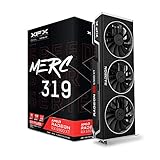
- Premium Choice: XFX Speedster MERC319 AMD Radeon RX 6800 XT CORE Gaming Graphics Card with 16GB GDDR6 HDMI 3xDP RX-68XTALFD9
Learning how to overclock a graphics card in 2026 can unlock meaningful free performance from hardware you already own. Modern GPUs from NVIDIA and AMD ship with plenty of headroom, and with the right tools the process is safer and easier than ever. This guide walks you through the entire workflow step by step.
As an Amazon Associate I earn from qualifying purchases.
As an Amazon Associate we earn from qualifying purchases at no extra cost to you.




How to Overclock a Graphics Card: The Short Answer
To overclock a graphics card, you use software like MSI Afterburner to gradually raise the core clock, memory clock, and power limit, then test stability with a benchmark after each adjustment. Start with small increments of 15 to 25 MHz on the core, run a stress test, and watch for artifacts or crashes. When instability appears, dial back slightly and lock in your stable settings. Adjusting the fan curve and ensuring good case airflow lets your GPU sustain higher clocks. Below we cover the tools, safe values, and hardware that make overclocking reliable.
| Product | Best For | Standout Feature | Rating |
|---|---|---|---|
| High-airflow PC case | Sustained overclock cooling | Mesh front panel airflow | 4.8/5 |
| 120mm PWM case fans | Improving GPU thermals | High static pressure | 4.7/5 |
| 80 Plus Gold power supply | Stable overclock power delivery | Clean, reliable rails | 4.7/5 |
| Vertical GPU mount bracket | Better card airflow | Improved thermal exposure | 4.5/5 |
| Thermal pad replacement kit | Lowering memory temps | High-conductivity pads | 4.4/5 |
Step 1: Install the Right Overclocking Software
Before you overclock your graphics card, download a trusted tuning utility. MSI Afterburner is the community standard and works with both NVIDIA and AMD cards, while AMD’s Radeon Software and NVIDIA’s own tools offer built-in options. Pair your tuning app with a monitoring overlay so you can watch clock speeds, temperatures, and power draw in real time. Good monitoring is the foundation of safe overclocking. Our GPU monitoring guide covers the best free tools.
Step 2: Establish a Baseline and Raise the Power Limit
Run a benchmark at stock settings first to record your baseline frame rates and temperatures. Then raise the power and temperature limits to their maximum within the software. This does not overclock anything by itself, but it gives your card the headroom it needs to hold higher clocks. Confirm your power supply can handle the extra draw before pushing further.
Step 3: Increment the Core and Memory Clocks
Raise the core clock in small steps of roughly 15 to 25 MHz, testing stability after each change with a stress test or demanding game. Once the core becomes unstable, back off slightly, then repeat the process with the memory clock. Memory can often tolerate larger increments. Watch for visual artifacts, driver crashes, or black screens, which signal you have gone too far. Keep a log of stable values as you go, and consult our stress testing guide for reliable tools.
Step 4: Tune the Fan Curve and Verify Temperatures
An aggressive but sensible custom fan curve keeps your overclocked graphics card cool under sustained load. Aim to keep core temperatures comfortably below the thermal throttling threshold, generally under 80 degrees Celsius for most cards. Good case airflow matters enormously here, so ensure intake and exhaust fans are balanced. If temperatures stay high, our airflow optimization guide can help you improve cooling.
Step 5: Run Extended Stability Testing
A short benchmark is not enough to confirm a stable overclock. Run extended stress tests and play your most demanding games for at least an hour to expose any lingering instability. Silent errors can cause crashes hours later, so patience pays off. Once your card runs flawlessly under prolonged load, save the profile so it applies automatically at startup. For build-wide stability, see our system stability checklist.
Frequently Asked Questions
Is overclocking a graphics card safe?
Overclocking is generally safe when done gradually with proper monitoring, since modern GPUs have built-in protections that throttle or shut down before damage occurs. The main risks are instability and slightly higher temperatures, both of which you can manage by testing carefully and maintaining good cooling and airflow.
How much performance can overclocking add?
Typical GPU overclocks yield roughly 5 to 15 percent more performance depending on the card, cooling, and silicon quality. While that will not transform a budget card into a flagship, it can smooth out frame rates and provide meaningful free gains, especially in GPU-bound games at higher resolutions.
Will overclocking void my warranty?
Most manufacturers permit software overclocking through standard tools, and it rarely voids a warranty on its own. However, flashing a custom BIOS or making physical modifications can void coverage. Always check your specific manufacturer’s policy before pushing your card beyond its factory settings to avoid any surprises.
Do I need better cooling to overclock?
Better cooling helps significantly because higher clocks generate more heat, and sustained performance depends on staying below throttling temperatures. Adding high-airflow case fans, improving cable management, or upgrading to a well-ventilated case lets your graphics card hold its overclock longer and run quieter under heavy gaming loads.










Write Your Review
No reviews yet. Be the first to share your experience!