
- Top Pick: msi Gaming GeForce GT 1030 4GB DDR4 64-bit HDCP Support DirectX 12 DP/HDMI Single Fan OC Graphics Card (GT 1030 4GD4 LP OC)
- Best Value: 2-in-1 Video Overlay Box for Computer Games, 2K 144hz Game Fusion Capture Card, Support 2 Sources Input/Output Simultaneously Fused to a Display (US Plug)
- Premium Choice: Graphics Card Virtual Display Emulator, HighResolution & VGA, for Remote Control, Small Size, Silver, 1 Unit
Turn off Nvidia overlay is advice you will find everywhere, usually attached to a promise of free frames. It is mostly wrong, and the guides telling you how to do it are pointing at a control panel that no longer exists. The overlay does not cost you performance — independent testing in 2026 could not measure any impact at all. Something else in the Nvidia App did cost up to 15%, it was fixed, and it was never the overlay. Here is what actually happened, what to disable if you want frames back, and how to turn the overlay off anyway if you have a real reason.
The Myth and Where It Came From
This is a case where a real problem produced a durable piece of wrong advice, and the advice outlived the problem by about eighteen months.
What Actually Happened in December 2026
When the Nvidia App v1.0 shipped, testing found frame rate drops of up to 15% in certain games with the app installed alongside the drivers. That was real, it was measured, and it was widely reported.
The cause was not the overlay. It was Game Filters and Photo Mode — features living inside the overlay that consumed resources whether or not you actively used them.
Nvidia acknowledged it publicly and gave a one-toggle fix: Settings → Features → Overlay → Game Filters and Photo Mode, off, then relaunch the game. Independent testing confirmed the shape of it — the hit appeared with Overlay and Game Filters enabled together, while performance was more or less identical with the overlay on or off.
What Testing Shows in 2026
The question was revisited recently with current drivers, and the answer is unambiguous. Enabling the Statistics Overlay and displaying it in its most verbose preset produced no measurable performance impact — not on an RTX 5060 Ti, not on an RTX 2060, not in any of the titles tested.
Showing frame rate, latency, and GPU utilisation on screen cost nothing. Leaving the overlay enabled without opening it cost nothing. The conclusion was that any impact is too small to measure, and something too small to measure is irrelevant.
The app itself uses roughly twice the system memory of the retired Control Panel when open — a few hundred megabytes, which is negligible and drops when you close it.
So Why Does Everyone Still Say This?
Because the fix was quiet and the complaint was loud. “Nvidia App costs 15% FPS” travelled a long way in December 2024. “It was Game Filters specifically, and there is a toggle” travelled considerably less far.
The advice calcified into folklore, and folklore does not get updated. If you disable the overlay expecting frames, you will get none, and you will conclude the problem must be something else — which is how people end up rolling back perfectly good drivers.
What to Disable If You Want Frames
There is a correct version of this advice, and it is one toggle in a different place.
Game Filters and Photo Mode
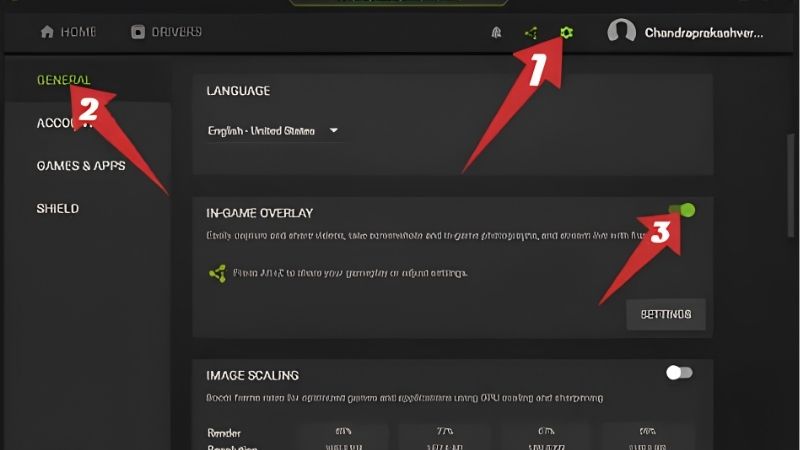
Open the Nvidia App. Settings → Features → Overlay → Game Filters and Photo Mode. Toggle it off. Relaunch your game.
That is the setting that cost people frames, and turning it off restores them without giving up the overlay, the statistics display, or recording.
If you never apply colour filters to games — and most people do not — you lose nothing at all.
What Else Genuinely Costs Performance
Recording does. If you have Instant Replay running constantly, that is a real encode happening in the background, and while NVENC is efficient it is not free. Turn it off when you are not using it.
The distinction matters: the overlay is a display layer, which is cheap. Filters and capture are processing, which is not. People conflate them because they live in the same menu.
The Diagnostic Habit Worth Having
Before disabling anything on the strength of an internet claim, measure. Run a fixed benchmark or a repeatable route twice to establish your run-to-run variance — most systems show 2–4% between identical runs.
Then change one thing and re-run. If the difference lands inside your variance, the change did nothing. This takes twenty minutes and it will save you from a great deal of advice like the kind this article is about.
Legitimate Reasons to Turn It Off Anyway
Performance is not the only reason to disable something. There are three real ones, and none of them are about frames.
Overlay Conflicts
This is the strongest case. Discord, Steam, RTSS, and various game launchers all inject their own overlays, and stacking several occasionally produces crashes, flickering, or a game that will not launch at all.
If you are debugging a crash that started when nothing else changed, disabling overlays one at a time is a reasonable diagnostic step. Nvidia’s is a fair place to start simply because it is easy to toggle.
Hotkey Collisions
The Nvidia overlay claims Alt+Z by default, along with several other combinations for recording and screenshots. If a game or another application wants those keys, you get unpredictable behaviour that is difficult to trace.
You can rebind rather than disable. But if you never use the overlay, turning it off is simpler than maintaining a hotkey map.
Anti-Cheat and Competitive Play
Some anti-cheat systems are suspicious of injected overlays. This is rarer than it used to be, and reports of overlays triggering false positives still surface occasionally in competitive titles.
If you play something with aggressive anti-cheat and you have had unexplained disconnects, this is worth ruling out.
How to Actually Turn It Off Now
Here is where most existing guides fail you, and the reason has nothing to do with overlays.
The Control Panel Is Gone
Nvidia retired the Nvidia Control Panel with the 610.47 driver release in May 2026, after twenty years. Game Ready and Studio driver users no longer receive it — with driver 610.62, the installer offers either the GPU driver alone or the driver plus the Nvidia App, and neither option installs the Control Panel.
Existing installs survive; the old panel only disappears after a clean driver installation. Anyone who genuinely needs it can still download it from the Microsoft Store, though Nvidia will add no further features or fixes. RTX PRO users keep Control Panel support until professional features move across.
One quirk worth knowing: Windows may automatically install a driver before you get to the manual one, and that can bring the Control Panel back without you asking. The current drivers do not remove it either way.
The practical upshot: every guide telling you to open the Control Panel to manage overlays is describing software you may not have. Translate to the Nvidia App rather than assuming your install is broken.
The Actual Steps
Open the Nvidia App. Go to Settings, then Features. The In-Game Overlay toggle is there — switch it off.
That disables the overlay entirely, including the statistics display, Game Filters, Photo Mode, and the recording hotkeys. It is the blunt option.
The overlay works on GeForce RTX and GTX 600-series and newer, so if the toggle is absent rather than off, your card predates support.
The Better Middle Ground
For most people the right configuration is not off. It is: overlay enabled, statistics available when you want them, Game Filters and Photo Mode disabled, Instant Replay off unless you are using it.
That gives you a free frame rate counter and latency readout — genuinely useful for the kind of measurement described earlier — while disabling the thing that actually cost people performance.
If you want a more capable overlay, RivaTuner Statistics Server ships free with MSI Afterburner and shows considerably more. It is the enthusiast standard for a reason, and it works on any card regardless of brand.
What You Give Up by Turning It Off
Worth weighing before you reach for the toggle, because the overlay does things people pay for elsewhere.
The latency readout is the genuinely valuable one. Reflex reports end-to-end system latency in milliseconds, and that number is not available from most third-party overlays. For competitive players it is more useful than frame rate.
Instant Replay is the other. Having the last thirty seconds retrievable costs nothing while idle and is the only way to capture something you did not know was coming. Turning the overlay off removes it.
See More:
- Nvidia beta
- Nvidia CUDA 11.8
- Check CUDA version
- Nvidia GPU for gaming
- PNY GeForce RTX 5080 16GB OC review
Conclusion: Should You Turn Off the Nvidia Overlay?
Probably not. The instruction to turn off Nvidia overlay for performance is folklore from a real bug that was fixed — the December 2024 issue cost up to 15% and it was Game Filters and Photo Mode, not the overlay. Testing in 2026 with current drivers could not measure any impact from the overlay at all, including its most verbose statistics display, on hardware ranging from an RTX 2060 to an RTX 5060 Ti.
If you want the frames that story promised, the toggle is Settings → Features → Overlay → Game Filters and Photo Mode. Turn that off and keep everything else. Turn the overlay itself off only for a real reason — a conflict with Discord or Steam, a hotkey collision, or an anti-cheat suspicion.
And note where the settings live now. Nvidia retired the Control Panel with driver 610.47 in May 2026, so the guides pointing you there are describing software that a clean install no longer gives you. It is in the Nvidia App, under Settings → Features. The most useful habit in all of this is the dullest one: measure your own run-to-run variance before believing any claim about frames, including the ones in this article. Twenty minutes with a repeatable benchmark will tell you more about your machine than a year of reading forum advice about it.
Frequently Asked Questions
Does the Nvidia overlay actually cost me frames?
On modern hardware the overlay itself costs close to nothing when idle, typically under one percent. The measurable cost comes from features running through it, notably instant replay, which continuously encodes video in the background. If you are chasing frames, disable instant replay first and leave the overlay itself alone.
What do I lose by turning it off?
You lose the performance monitoring overlay, screenshot and manual recording hotkeys, instant replay, the photo mode for supported titles, driver level filters, and the automatic GPU tuning interface. For many people the frame rate and latency counters alone are worth keeping the overlay enabled, since they are the fastest way to diagnose a stutter.
How do I disable it in the current Nvidia app?
Open the Nvidia app, go to the settings page, and toggle the in-game overlay off. That single switch disables the hotkeys and the injection into games. You can also keep the overlay on and disable only instant replay from the overlay itself if background recording is the specific thing you want stopped.
Can the overlay cause crashes or conflicts?
It can, though it is uncommon. Conflicts usually appear when multiple overlays inject into the same game at once, for example the Nvidia overlay, Steam, Discord, and an RGB utility. If a game crashes on launch, disabling overlays one at a time is a quick and reliable way to isolate the culprit.
Is instant replay worth the overhead?
If you play anything you might want to clip, yes. It uses the dedicated NVENC encoder rather than the shaders, so the cost is small on any RTX card, usually low single digit percent. Reducing the replay length and the bitrate lowers the overhead further while still capturing the last minute of play.
As an Amazon Associate we earn from qualifying purchases at no extra cost to you.













Write Your Review
No reviews yet. Be the first to share your experience!