
- Top Pick: Getting Started with NVIDIA GPUs : A Beginner’s Guide to AI Acceleration with python, C++ and Cuda
- Best Value: Nvidia Technology for Dummies: From Gaming Graphics to AI Supercomputers
- Premium Choice: RTX AI PC Guide: Beginner’s Handbook to NVIDIA RTX Setup, GPU Performance & AI Computing Optimization
Nvidia beta drivers sit in an uncomfortable position. Nvidia builds them, signs them, and hosts them on its own servers — then attaches a label that effectively says do not rely on this. For anyone chasing an extra 6–10% in a newly released title, or waiting on a fix for a stutter that has been ruining their evenings for three weeks, that label is the only thing standing between them and the download button. This review breaks down what the beta channel actually contains, what the failure modes look like in practice, and how to test one in twenty minutes without wrecking a working system.
- What “Nvidia Beta” Actually Means Inside Nvidia’s Release Pipeline
- Pros and Cons of Running an Nvidia Beta Driver
- Installing and Reverting an Nvidia Beta Driver Without Drama
- Why Beta Drivers Matter More in Today’s Hardware Market
- Final Verdict on Nvidia Beta Drivers
- Related Guides
- Frequently Asked Questions
- Related Articles
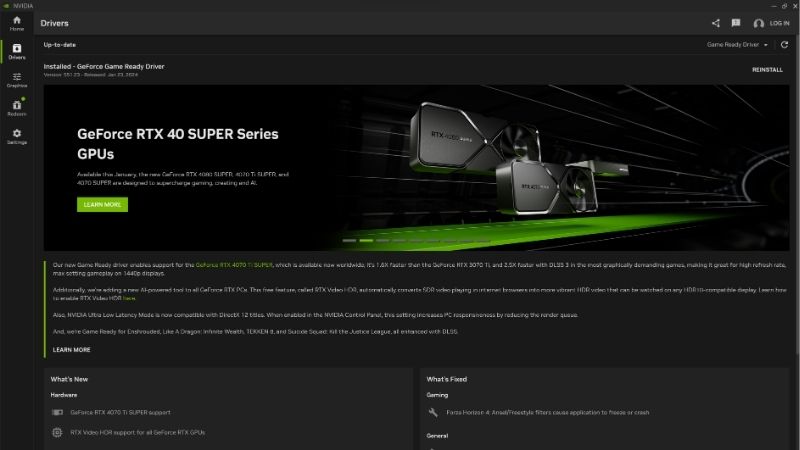
What “Nvidia Beta” Actually Means Inside Nvidia’s Release Pipeline
Nvidia applies the word “beta” to at least three different things: pre-release GeForce drivers, beta builds of the Nvidia App, and opt-in preview features inside otherwise stable releases. Which one you are looking at determines your actual risk. A beta feature toggle inside a WHQL driver is a very different proposition from an unsigned preview build pulled from a developer page — the distinction changes whether Windows Update will silently overwrite your install, and whether a rollback takes two minutes or two hours.
Beta vs Game Ready vs Studio: Three Channels, Three Risk Levels
Nvidia’s public driver output splits into three lanes. Game Ready drivers ship roughly every three to five weeks, timed to major game launches, and carry WHQL certification from Microsoft. Studio drivers ship less often — typically every six to eight weeks — and prioritise validated stability in Adobe, Blackmagic, and Autodesk applications over launch-day game profiles. Beta builds appear irregularly, sometimes to address a specific regression, sometimes to expose a feature ahead of general release.
| Channel | Typical cadence | WHQL signed | Validation breadth | Best suited to |
|---|---|---|---|---|
| Game Ready | 3–5 weeks | Yes | Full matrix | Gamers, general use |
| Studio | 6–8 weeks | Yes | Full matrix, creative-app weighted | Editors, 3D, CAD |
| Beta / Preview | Irregular | Often no | Narrow, targeted | Bug-specific fixes, early adopters |
| Hotfix | On demand | No | Single-issue | Users hit by one named bug |
How to Identify a Genuine Nvidia Beta Build Before You Download It
Version numbering will not tell you — Nvidia does not encode channel information into the branch number, so a 6xx.xx string looks identical whether it came from the Game Ready lane or a preview drop. The source page and file signature do. Legitimate beta and hotfix builds come only from Nvidia’s customer help portal or the Nvidia App’s opt-in preview toggle; anything on a third-party mirror or forum re-upload is untrusted regardless of filename.
The practical check takes ten seconds. Right-click the installer, open Properties, and look at the Digital Signatures tab. A genuine Nvidia package will show NVIDIA Corporation as the signer with a valid timestamp. A repacked or modified build will either fail this check or show a different signer entirely. If the tab is missing, stop there.
Who Nvidia Beta Drivers Are Actually Written For
Beta builds are not a performance product. They exist primarily so Nvidia can gather telemetry on a fix before committing it to a certified release. The intended audience is narrow: users who have already hit a specific, documented bug and are waiting on a resolution. If you are running a system that works, and no entry in the beta’s release notes matches a symptom you personally experience, the expected value of installing is close to zero and the variance is not.
Pros and Cons of Running an Nvidia Beta Driver
The honest assessment is that beta drivers deliver real, measurable value in a minority of cases and cause avoidable disruption in a larger minority. The remainder — probably the majority — produce no perceptible difference at all, which is its own kind of answer. Reports collected across user forums and support threads converge on a consistent pattern: when a beta is targeted at a bug you have, it usually works; when it is not, you are trading a known-good state for an unknown one.
What You Gain: Early Features and Real Frame-Rate Recovery
The strongest case for a beta is regression recovery. When a certified driver introduces a performance drop in a specific title — and this happens several times a year — the beta or hotfix that follows typically restores the lost frames within days rather than the three to five weeks it takes for the next Game Ready release. Users in this situation are not chasing a 3% gain; they are recovering a 15–25% loss.
The second gain is feature access. Nvidia’s newer optimisation work — the DLSS 4.5 model revisions that shipped at CES 2026, the MFG 6x mode that followed, Reflex behaviour changes — frequently appears in preview form first. This matters more now than it used to: DLSS 5 arrives this autumn with real-time neural rendering, and its early driver plumbing has already been spotted in the 610.47 release as DLSS-NR profile entries. Preview builds are where that work surfaces first.
What You Risk: Regressions, Black Screens, and Broken Encoders
The most common complaint pattern in 2–3 star user reports is not catastrophic failure — it is a fix in one place creating a break in another. A driver that resolves a stutter in one engine introduces a shader compilation hitch in a different one. Encoder behaviour is a recurring casualty: NVENC settings that streaming software used for months suddenly produce dropped frames or a black capture window.
The second cluster involves display topology. Multi-monitor setups with mixed refresh rates, and configurations mixing DisplayPort and HDMI, appear disproportionately in beta failure reports. Symptoms range from a monitor not waking after sleep to G-Sync silently disabling itself. These are exactly the problems that a broad validation matrix is designed to catch, and exactly what a narrow one misses.
The Honest Risk Table Before You Click Install
Risk is not uniform across users. It scales with how unusual your configuration is and how much you depend on the machine working tomorrow morning. The table below reflects the pattern that emerges from aggregated user reports rather than any single test.
| Your situation | Expected benefit | Risk level | Verdict |
|---|---|---|---|
| Beta release notes name your exact bug | High | Low–moderate | Install, after a restore point |
| Single monitor, gaming only, no streaming | Low | Low | Optional, little to gain |
| Multi-monitor, mixed refresh rates | Low | Elevated | Wait for certified build |
| You stream or record with NVENC | Low | Elevated | Wait, or test off-air first |
| Machine used for paid work | Low | High cost of failure | Stay on Studio driver |
| Testing new DLSS or frame-gen behaviour | Moderate | Moderate | Install, expect to roll back |
Installing and Reverting an Nvidia Beta Driver Without Drama
Most beta horror stories are installation stories, not driver stories. A driver layered on top of three previous versions, with leftover profile data and a half-removed control panel, will misbehave regardless of channel. The procedure below is short, but skipping steps raises your chance of a bad outcome.
The Clean-Install Method That Prevents Most Beta Failures
Start by creating a Windows restore point. This takes ninety seconds and is the difference between a five-minute recovery and a reinstall. Then disconnect from the internet before uninstalling — this prevents Windows Update from racing you to install a replacement driver the moment the old one disappears.
Use the Nvidia installer’s own “Custom (Advanced)” path and tick Perform a clean installation. This wipes existing profiles and control panel settings, which is exactly what you want when isolating whether a beta helps. If you have layered several drivers over each other, a dedicated display driver removal utility run in Safe Mode is the more thorough option, though it is overkill for most users.
Finally, set Windows Update to defer driver updates before you reconnect. On Windows 11 Pro this lives in Group Policy; on Home editions the practical workaround is the “Show or hide updates” troubleshooter. Without this step, your beta has a limited lifespan.
A 20-Minute Test Protocol to Prove the Beta Is Better
Subjective impressions after a driver change are close to worthless — expectation bias is powerful and consistent. The protocol below takes twenty minutes and needs nothing beyond a frame-time overlay.
- Before uninstalling, run a fixed benchmark or a repeatable 3-minute route in your problem game. Record average FPS and, more importantly, 1% lows.
- Record the same run twice to establish your own run-to-run variance. If two runs on the same driver differ by 4%, then a 3% “gain” after the beta means nothing.
- Install the beta using the clean-install path above, then reboot fully rather than relying on the installer’s prompt.
- Repeat the identical run twice. Same settings, same route, same time of day if the game has a dynamic clock.
- Compare 1% lows first, averages second. Stutter lives in the lows, and lows are what most beta fixes actually target.
If the difference falls inside your measured variance, the beta did nothing for you. Roll back and stop thinking about it.
Rolling Back When the Beta Breaks Something
Windows keeps the previous driver package. Open Device Manager, expand Display adapters, right-click your GPU, choose Properties, then the Driver tab, then Roll Back Driver. Windows will ask why; the answer does not matter. Reboot. This resolves the large majority of beta problems in under three minutes.
If the Roll Back button is greyed out — which happens after a clean install wiped the previous package — download your last known-good version from Nvidia’s driver archive and install it with the clean-install option ticked. Note the version number you were on before you experiment; recovering it later without that number is tedious.
Why Beta Drivers Matter More in Today’s Hardware Market
Interest in driver-level performance recovery has climbed rather than fallen, and the reason is economic. The cheapest upgrade path used to be a newer card; for a growing number of users that path has become noticeably more expensive, and squeezing existing hardware has moved from hobby to necessity.
Component Prices Have Stopped Spiking — But They Have Not Fallen
Laptop and component pricing has continued its upward trend, and the memory market has been the primary driver. The genuinely positive news is real but modest and distant: the steep climb seen through late 2025 has flattened, and Framework has reported a period of relative stability while still warning that further volatility remains possible. That is a meaningful change in slope, not a change in direction.
Supply is opening up, slowly. OEMs now have the option of sourcing DDR5 from Chinese suppliers such as CXMT, and Micron is building two new fabrication plants in Idaho. Neither development helps this year — those fabs will not be producing until 2027–2028. The practical translation for anyone reading a driver article: prices have levelled off, real relief is years out, and the card in your machine is likely to stay there longer than you originally planned.
The H200 China Decision and What It Signals for Consumer Supply
The United States has approved Nvidia selling the H200 — among its most capable AI accelerators — into China. For a GeForce user the relevance is indirect but real: Nvidia’s highest-margin datacentre demand has just been handed a large additional market, at a time when advanced packaging and high-bandwidth memory capacity are already the industry’s tightest constraint.
This does not mean GeForce cards vanish from shelves. It does mean the competitive pressure that would normally push consumer pricing down has a powerful counterweight, and that expecting a sudden correction in GPU prices is not a plan. Nvidia’s engineering attention follows the same gradient — which is precisely why so much of the company’s consumer performance story now arrives through software: DLSS model revisions, frame generation refinements, and Reflex improvements, all delivered by driver rather than by silicon.
When Free FPS Stops Being Enough
Driver optimisation has a ceiling, and it is lower than enthusiasm suggests. On a GTX 10-series or 16-series card, no driver delivers DLSS 4.5, frame generation, or the AI feature set carrying modern titles at playable settings — and DLSS 5, due this autumn, is expected to require RTX 50 hardware. The arithmetic settles it: a 10% recovery on 35 FPS is 38.5 FPS. If your 1% lows sit below 40, driver work will not close that gap.
If you land in the first group, the current market gives you one useful piece of guidance: waiting is not being rewarded. Prices have flattened rather than fallen, and the supply that would push them down is three years out. If you have been holding off on a card upgrade in the hope of a correction, the case for buying into today’s stable pricing rather than tomorrow’s uncertainty is stronger than it has been in a while. It is worth checking current listings on the RTX 50-series models and their AIB variants before the next round of memory contracts is priced in.
See More:
Final Verdict on Nvidia Beta Drivers
Nvidia beta drivers are a targeted tool, not a general upgrade. Install one when the release notes name a bug you actually have, when testing a feature you have reason to test, or when a certified build introduced a regression you can measure. Do not install one because it is newer. Benefit correlates almost entirely with whether the fix was aimed at you; risk correlates with how unusual your display and capture setup is.
The wider point matters more. Nvidia beta builds have become a meaningful part of the value proposition of a modern GeForce card, because so much of the company’s performance work now ships as software rather than silicon. That is worth exploiting on RTX 40 and RTX 50 hardware, and worth recognising as a dead end on anything older. Take the restore point, measure your 1% lows before and after, and let the numbers decide rather than the version string.
Frequently Asked Questions
What makes a driver a beta rather than a WHQL release?
Beta drivers have not completed Microsoft WHQL certification testing and generally receive shorter internal validation. They usually exist to deliver an urgent fix, support for a new title, or a new feature ahead of the certified schedule. The underlying code is the same development line, just at an earlier point in the release process.
Are beta drivers safe to install?
Broadly yes for enthusiasts, with the caveat that regressions are more likely. They will not damage hardware, but they can introduce instability in specific games, display issues, or application conflicts. Install one when it solves a problem you actually have, and know how to roll back before you start.
Should I use a beta driver on a work machine?
No. If your income depends on the system, use the Studio branch, which is validated over a longer cycle against professional applications. A beta driver on a workstation trades a small potential gain for the real risk of a mid project crash in a rendering or editing timeline.
How do I go back if a beta causes problems?
Use Device Manager to roll back to the previous driver, or download the last known good version from the Nvidia driver archive and install it with the clean installation option ticked. Also disable automatic driver delivery through Windows Update, or Windows may quietly reinstall a newer package over your rollback.
Do beta drivers deliver more performance?
Occasionally, but not systematically. The gains people attribute to beta releases are usually per-title optimisations that appear in the next certified driver anyway a few weeks later. Unless you are playing a brand new release that the beta specifically names, waiting for the WHQL build costs you nothing measurable.
As an Amazon Associate we earn from qualifying purchases at no extra cost to you.


Ready to decide? Our #1 pick for 2026 is the Game Ready.
Live price & availability on Amazon.










Write Your Review
No reviews yet. Be the first to share your experience!