
- Top Pick: NVIDIA Jetson AGX Orin 64GB Developer Kit with Ethernet, USB, Display Port
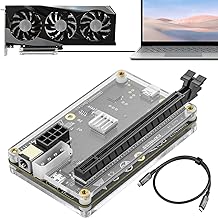
- Best Value: PCIE 3.0 x16 22Gbps eGPU DOCK, Thunderbolt 4 cable, compatible with external GPU NVIDIA AMD Graphics Card for Windows Laptop Console featuring Thunderbolt 3/4 USB 4, Powered by PD/8PinCPU/Molex/DC5521
- Premium Choice: MINISFORUM DEG1 eGPU Dock, External GPU Docking Station for RTX 4090, AMD RX 7900 XTX, eGPU Enclosure Graphics Card Extension Support ATX/SFX Standard Power, Oculink Expansion Graphics Docking Station
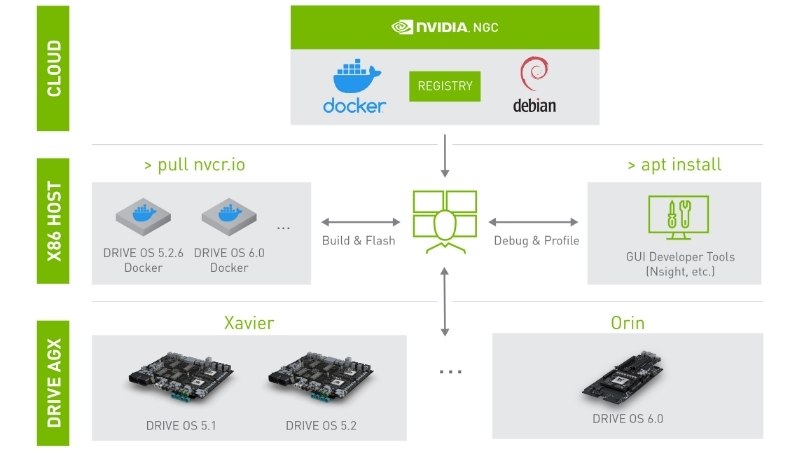
Install NVIDIA Docker is advertised as a five-minute job, and for a small number of people it genuinely is. For everyone else it becomes an afternoon of version pinning, a docker: Error response from daemon: could not select device driver "nvidia" message, and a slow realisation that the problem was never the command — it was the hardware underneath it. This review looks at the NVIDIA Container Toolkit stack the way a build engineer would: what actually breaks, which components carry the failure, and what the 2026 supply situation means if you are about to spend money fixing it.
Why the Install NVIDIA Docker Step Fails More Often Than the Docs Suggest
The official installation guide assumes a clean machine, a matching driver, and a kernel that has not been touched. Almost nobody meets all three conditions. In practice, the failure modes cluster into three areas, and none of them are solved by re-running the install command. Understanding which layer you are stuck on saves you from the most common time sink in this whole process: reinstalling something that was already correct.
The Driver, Toolkit, and CUDA Version Triangle
There are three independent version numbers in play and they are not interchangeable. The host driver (for example, 570.x or 580.x branch), the NVIDIA Container Toolkit (the nvidia-container-toolkit package that replaced the deprecated nvidia-docker2), and the CUDA runtime baked into your image. The container does not ship a driver. It ships a CUDA runtime that expects a host driver at or above a minimum version.
This is why the single most useful diagnostic is not docker info but nvidia-smi on the host. If the host cannot see the GPU, no amount of Docker configuration will help. If the host can see it and the container cannot, the toolkit hook is not registered — usually because nvidia-ctk runtime configure --runtime=docker was never run, or the daemon was never restarted afterwards.
The practical rule: pin the driver first, then match the image tag to it, and never let an unattended-upgrade job move the driver underneath a running stack. A driver bump on a machine with live containers is one of the few ways to break a working setup overnight with no code change.
VRAM Is the Wall You Hit First
Once the toolkit works, the next failure is quieter and more expensive: CUDA out of memory. This is a hardware ceiling, not a configuration issue, and it arrives faster than most people expect because the container adds no overhead but the framework does.
Rough working figures for 2026 workloads: a 7B parameter model in 4-bit quantisation needs roughly 5–6GB of VRAM for weights alone, before the KV cache and activation memory. The same model in FP16 needs closer to 14GB. A 13B model at 4-bit lands near 9–10GB. Stable Diffusion XL inference at 1024×1024 sits around 8–10GB with standard settings. Fine-tuning, even with LoRA, roughly doubles the requirement of inference.
That arithmetic explains why 8GB cards feel fine for a week and then become unusable. It also explains why 12GB is now the realistic floor for anyone treating this as more than a tutorial, and why 16GB is the point where you stop thinking about memory during normal work.
System RAM: The Silent Killer of Container Builds
The component nobody budgets for is system memory. Docker builds for CUDA images are large — a full nvidia/cuda:12.x-devel base plus PyTorch and dependencies routinely produces a 15–20GB image. The build process holds layers in memory and on disk simultaneously.
More importantly, data loading is a host-RAM operation. If your dataloader has 8 workers and each holds a batch, that memory is system RAM, not VRAM. A machine with 16GB will build the image, run a demo, and then start swapping the moment you point it at a real dataset. 32GB is the working minimum for a container host doing ML work; 64GB is where the machine stops being the bottleneck.
This matters more in 2026 than it did two years ago, for reasons covered in the market section below.
The Hardware Stack Reviewers Actually Recommend for NVIDIA Container Workloads
Reading through user feedback on the components people buy specifically for this use case, a clear split emerges between the 4- and 5-star reports and the 2- and 3-star complaints. The positive reviews almost never mention raw speed — they mention that the machine stayed up. The negative reviews almost never mention the GPU being slow — they mention thermal throttling, power supply shutdowns, and cards that were physically too large for the case. That pattern tells you where the risk actually sits.
GPU Tier Breakdown: 12GB, 16GB, and 24GB in Practice
The tiers behave differently enough that the choice is not really about budget, it is about what you intend to run.
| VRAM tier | Realistic workload | Where it breaks |
|---|---|---|
| 8GB | Tutorials, small CV models, inference on 3B models | Any 7B FP16 model; SDXL at high resolution |
| 12GB | 7B quantised inference, SDXL, most course material | Fine-tuning; long context windows |
| 16GB | 7B FP16, 13B quantised, LoRA fine-tuning | Full fine-tuning; 30B+ models |
| 24GB | 13B FP16, 30B quantised, serious fine-tuning | Multi-node territory |
The honest advice from the 4-star reviews is consistent: people who bought one tier up from what they thought they needed did not regret it; people who bought at their exact requirement were shopping again within a year. VRAM is the one specification you cannot add later.
Power Delivery and Cooling in a 24/7 Container Host
The most common 2-star complaint in this category is not about the GPU at all. It is about a power supply that handled gaming fine and then shut down under sustained CUDA load. The difference is duty cycle: a game pushes the GPU in bursts, a training run holds it at 100% for hours.
Practical numbers: a 12GB card in the current generation draws roughly 200–250W sustained. A 16GB card lands near 285–320W. A 24GB class card can hold 350–450W indefinitely. Add roughly 150W for a modern CPU under load and the rest of the system, then add 30% headroom for transient spikes. That puts a 12GB build at 650W minimum, a 16GB build at 750W, and a 24GB build at 850W or above.
Cooling follows the same logic. A card that peaks at 78°C in a benchmark can sit at 84°C after two hours of training, at which point it clocks down and your run slows by 10–15% with no error message to tell you why. Case airflow is not a luxury in this build; it is the difference between the performance you paid for and the performance you get.
Pros and Cons of Building Your Own NVIDIA Docker Node
Before spending, it is worth being blunt about the trade-off against renting cloud GPU time.
Pros: No hourly meter, so experimentation is free once the box exists — this alone changes how you work. Full control over driver and kernel versions, which removes an entire class of reproducibility problems. Data never leaves the building, which resolves most compliance conversations before they start. Break-even against cloud rental typically arrives somewhere between 8 and 14 months of steady use. And the machine keeps working when your connection does not.
Cons: The capital cost is front-loaded and, right now, rising. You are the sysadmin — driver rollbacks, kernel headers, and disk pressure are your problem at 11pm. Scaling means buying another box, not changing a flag. And a single card cannot match a rented 8-GPU node for a one-off large job, so you may end up doing both anyway.
If you are ready to commit to a local node, the components above are the ones worth checking current pricing on before the market moves again — you can compare configurations and availability through the links in this guide.
Market Timing in 2026: What Supply News Means for Your Container Build
This section exists because the hardware advice above has a price tag attached, and that price tag has been moving in one direction. Two developments matter for anyone specifying a machine this quarter.
The H200 Export Decision and Its Ripple Effect on Consumer Supply
The United States has cleared NVIDIA to sell the H200 — one of its most capable AI accelerators — to China. The immediate reading is that this is a data centre story with no consumer relevance. That reading is incomplete.
H200 production consumes HBM, advanced packaging capacity, and NVIDIA’s engineering attention. A larger addressable market for that product does not make consumer cards more expensive overnight, but it does compete for the same finite manufacturing and validation resources. For someone specifying a container host, the practical implication is simple: do not assume the current generation will be discounted into a successor launch the way it once was. The pressure on that supply chain is upward, not downward.
Memory Prices: Flat, Not Falling
The RAM figure in the section above — 32GB minimum, 64GB preferred — is where the pricing news bites hardest, because system memory is the component that moved most.
There is genuine good news, but it is weak and it is distant. Prices have stopped climbing at the rate seen in late 2025, and Framework has reported a period of relative stability while still warning that volatility has not ended. New supply is opening up: OEMs can now source DDR5 from Chinese suppliers such as CXMT, and Micron is building two fabs in Idaho. But those fabs will not produce until 2027 or 2028. The accurate summary is that prices have levelled off — they have not come down, and real relief is years away, not months.
Buy Now or Wait: A Decision Table for Container Builders
Given that laptops and components are still trending upward overall, “wait for a better price” is no longer a neutral choice — it has a cost.
| Your situation | Recommendation | Reason |
|---|---|---|
| Learning, no deadline | Buy the RAM now, GPU later | RAM has the worst outlook; GPU tiers are stable |
| Blocked on a project today | Buy now, full stack | Waiting costs more than it saves |
| Existing 8GB card, hitting OOM | Upgrade GPU, keep the rest | VRAM is the binding constraint |
| Existing 16GB RAM, builds swapping | RAM first, urgently | Cheapest fix, worst price trajectory |
The pattern across all four rows is the same: the components that fix your actual bottleneck are worth buying at today’s price, because the plausible upside from waiting is a flat market rather than a falling one. If your build is currently blocked, checking live pricing and stock on the GPU and memory tiers listed above is the single most useful next step — availability on specific SKUs has been the real constraint, not headline price.
See More:
- NVIDIA
- NVIDIA DeepStream
- NVIDIA GPU driver update
- NVIDIA GeForce NOW download
- NVIDIA RTX A2000 12GB driver
Final Verdict
The decision to install NVIDIA Docker is trivial. The decision that actually matters is what you install it on. The toolkit will work on almost anything with a supported driver, which is precisely why so many people discover the real limits three weeks later, when a model will not load or a build starts swapping. Specify 12GB of VRAM as a floor and 16GB as a comfortable target, 32GB of system RAM as a minimum and 64GB if the budget allows, and a power supply with 30% headroom over your sustained draw rather than your peak benchmark.
Given a market where prices have stopped rising steeply but show no sign of falling before 2027 at the earliest, the strategy that survives contact with reality is to buy the component that is blocking you, buy one tier above your current requirement, and stop trying to time a bottom that the supply data does not support. Check current pricing and availability on the tiers that match your workload — that is where the decision gets made, not in the install command.
Frequently Asked Questions
Is nvidia-docker still the right package to install?
No. The old nvidia-docker2 wrapper is deprecated and replaced by the NVIDIA Container Toolkit. Install the toolkit from NVIDIA’s repository, run the runtime configuration command for Docker, restart the daemon, then launch containers with the gpus all flag. The legacy nvidia-docker command exists only as a compatibility shim.
Do I need the CUDA toolkit installed on the host?
No, only the NVIDIA display driver. The container image supplies its own CUDA runtime libraries, which is the main benefit of the approach. The host driver must be new enough to satisfy the container’s CUDA version requirement, so check the compatibility matrix before pulling a very recent image onto an older driver.
Which GPUs work with container GPU passthrough?
Any CUDA-capable card the host driver supports, from Maxwell upward in practice, though CUDA 13 dropped Maxwell, Pascal and Volta entirely. Consumer GeForce cards work fine for development and inference. Multi-instance GPU partitioning is limited to A100, H100 and similar datacenter parts.
How do I verify the setup is working?
Run a CUDA base image with the gpus all flag and execute nvidia-smi inside it. If you see your card, driver version and memory listed, passthrough is functional. If the command fails with a library error, the toolkit is installed but the Docker runtime was not reconfigured or the daemon was not restarted.
Does WSL2 on Windows support this?
Yes. Install the standard Windows NVIDIA driver on the host, do not install a Linux driver inside WSL, then add the container toolkit within the distribution. Performance is close to native for compute, though there is measurable overhead on small kernels and host-to-device transfers compared with a bare metal Linux install.
As an Amazon Associate we earn from qualifying purchases at no extra cost to you.













Write Your Review
No reviews yet. Be the first to share your experience!