
- Top Pick: CUDA by Example: An Introduction to General-Purpose GPU Programming
- Best Value: Getting Started with NVIDIA GPUs : A Beginner’s Guide to AI Acceleration with python, C++ and Cuda
- Premium Choice: nVidia Quadro T1000 8GB GDDR6 Graphic Card with 896 CUDA cores, Support for Upto Four 5K displays, DirectX 12 PCI Express 3.0 x 16 128 bit
Install NVIDIA CUDA — three words that routinely consume an entire afternoon. The installer itself takes ten minutes. The remaining four hours go to a version mismatch nobody warned you about, a torch.cuda.is_available() that stubbornly returns False, and an nvidia-smi output that appears to contradict nvcc --version. This article resolves those in order, with commands you can copy, the compatibility table you should have read first, and an honest look at whether you need the toolkit at all.
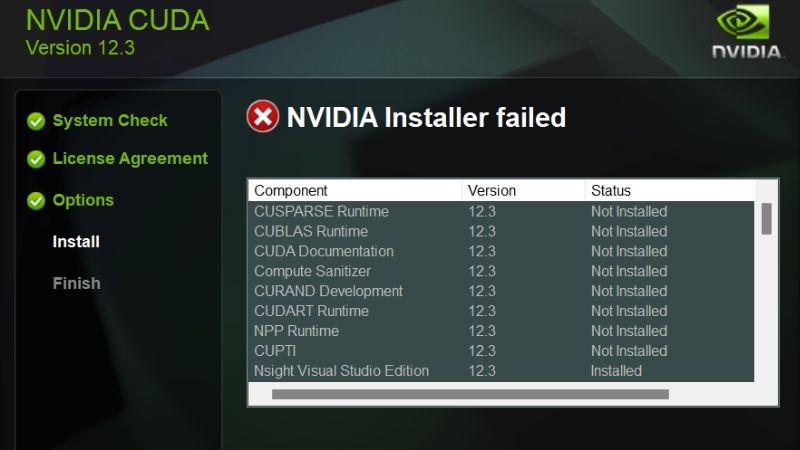
Before You Install NVIDIA CUDA: The Version Rules
Almost every failed CUDA installation traces back to a single misunderstanding about which version number means what. There are three separate versions in play — driver, toolkit, and runtime — and they are permitted to differ. Understanding the rules governing them takes five minutes and prevents the majority of the errors that fill developer forums.
Driver Version vs Toolkit Version: Why nvidia-smi Lies
Run nvidia-smi and you will see a CUDA version in the top-right corner. This is the single most misread output in the entire ecosystem.
That number is not your installed toolkit. It is the maximum CUDA version your current driver is capable of supporting. You can see CUDA Version: 12.8 there while having toolkit 12.1 installed, or no toolkit installed whatsoever. Both situations are entirely normal.
To see your actual toolkit version, use nvcc --version. The two commands answer different questions:
nvidia-smi          # driver version + max CUDA the driver supports
nvcc --version      # the CUDA Toolkit version actually installed
If nvidia-smi reports 12.8 and nvcc reports 12.1, nothing is wrong. If nvcc is not found at all, your toolkit either is not installed or is not on your PATH — a distinction that matters, and one the next section resolves.
The Compatibility Table You Need Before Installing
The governing rule is that the driver must be at least as new as the toolkit requires. Newer drivers run older toolkits. Older drivers do not run newer toolkits.
| CUDA Toolkit | Minimum Linux driver | Minimum Windows driver |
|---|---|---|
| CUDA 11.8 | 520.61.05 | 520.06 |
| CUDA 12.x | 525.60.13 | 527.41 |
| CUDA 13.x | Check release notes | Check release notes |
Two refinements are worth knowing. Minor version compatibility means any CUDA 12.x application runs on any driver that supports 12.0 or later — you do not need a driver bump for every point release. And the direction is asymmetric: a 2026 driver happily runs a CUDA 11.8 workload, while a 2022 driver refuses CUDA 12 entirely.
Verify your compute capability is still supported before installing. NVIDIA progressively retires older architectures from each toolkit generation, and a Pascal or Maxwell card may not be a target in current releases.
Do You Even Need the Full CUDA Toolkit?
This is the question that saves the most time, and almost no tutorial asks it.
If you only intend to run PyTorch or TensorFlow, you do not need the system CUDA Toolkit. Both ship their own bundled CUDA runtime and cuDNN. Install PyTorch and it brings everything it requires:
pip install torch --index-url https://download.pytorch.org/whl/cu121That command works on a machine with only an NVIDIA driver installed. No toolkit. No cuDNN. No PATH configuration.
Install the full toolkit only when you need nvcc to compile CUDA C++ yourself, or when a library builds custom kernels from source at install time. For a large share of developers reading this, the correct move is to skip the toolkit entirely and save the afternoon.
Installing CUDA Step by Step Without Breaking Anything
If you have established that you genuinely need nvcc, the installation itself is uncomplicated provided you follow the sequence. The order matters: driver first, toolkit second, PATH third, verify fourth. Skipping ahead is what produces the broken installs that end up requiring a full purge.
Windows Installation and PATH Configuration
- Update your driver first. Install the current Game Ready or Studio driver. Reboot. Confirm with
nvidia-smithat it responds. - Download the CUDA Toolkit installer matching the version your framework requires — not simply the newest available.
- Choose Custom install and deselect the bundled display driver if yours is newer. The installer will otherwise downgrade you, which is a common cause of a working setup breaking.
- Verify PATH. The installer normally handles this. Confirm that
C:\Program Files\NVIDIA GPU Computing Toolkit\CUDA\v12.1\binappears in your system PATH. - Open a new terminal and run
nvcc --version. An existing terminal will not have the updated PATH.
Linux and WSL2: The Commands That Work
On native Linux, prefer the package manager over the runfile — it handles dependencies and permits clean removal:
sudo apt update
sudo apt install nvidia-driver-550
sudo reboot
sudo apt install cuda-toolkit-12-1
Then set your PATH in ~/.bashrc:
export PATH=/usr/local/cuda-12.1/bin:$PATH
export LD_LIBRARY_PATH=/usr/local/cuda-12.1/lib64:$LD_LIBRARY_PATH
WSL2 has one rule that overrides everything else: never install an NVIDIA driver inside WSL. The driver lives on the Windows host and is exposed to WSL automatically. Installing one inside the Linux environment breaks the passthrough and produces the most confusing failure mode in the entire process. Install the toolkit inside WSL if you need it — the driver, never.
Verifying Your Install in Three Commands
Run these in order. Each isolates a different layer, which means the first one that fails tells you exactly where the problem is:
nvidia-smi                                          # 1. Driver sees the GPU?
nvcc --version                                      # 2. Toolkit on PATH?
python -c "import torch; print(torch.cuda.is_available())"   # 3. Framework connected?
If command 1 fails, the driver is not installed correctly — nothing downstream matters until it responds. If 2 fails but 1 works, your PATH is wrong, not your install. If 3 returns False while 1 and 2 both succeed, you have installed a CPU-only build of PyTorch, which is the single most common cause of this exact symptom.
Pros and Cons of a Local CUDA Install
Running CUDA locally is not automatically the right answer, and developer opinion divides along a line worth understanding before you commit. The advantages are real and so are the frustrations, and which set dominates depends heavily on how often you actually reach for a GPU.
Errors Developers Hit Most and How to Fix Them
| Error | Cause | Fix |
|---|---|---|
CUDA driver version is insufficient for CUDA runtime version |
Driver older than toolkit needs | Update driver, not toolkit |
no kernel image is available for execution on the device |
Binary lacks your compute capability | Rebuild with correct arch, or use a matching wheel |
nvcc: command not found |
PATH not set | Add the CUDA bin directory, open a new terminal |
torch.cuda.is_available() returns False |
CPU-only PyTorch build | Reinstall from the CUDA index URL |
| Works natively, fails in Docker | Container toolkit missing | Install NVIDIA Container Toolkit, run with --gpus all |
The pattern worth internalising: most of these are resolved by changing a driver or a wheel, not by reinstalling the toolkit. Reinstalling the toolkit is the reflex, and it is almost always the wrong lever.
Where a Local Install Genuinely Wins
Iteration speed is the strongest argument. No provisioning, no upload, no session expiring in the middle of an experiment. Debugging a kernel is measured in seconds.
Offline capability matters more than expected. A local install works on a plane, in a hotel with poor Wi-Fi, or during an outage.
Cost predictability is the third. A one-time hardware outlay is a known quantity. Cloud billing is not — and forgotten instances have produced some memorable invoices.
The Frustrations Worth Knowing About First
Version drift is the recurring complaint. A working environment breaks after an unrelated system update pulls a new driver, and diagnosing why consumes hours.
Disk consumption surprises people. A full toolkit runs to several gigabytes, and keeping multiple versions side by side multiplies that quickly.
The third is that a local install cannot exceed the VRAM you bought. No configuration change makes an 8 GB card hold a 13B model at FP16. This is the constraint that pushes developers toward cloud regardless of preference — and it connects directly to what hardware costs right now.
Local GPU or Cloud? The 2026 Cost Reality
The install guide above assumes you already own a GPU. If you are still deciding, the economics in 2026 have shifted in ways worth understanding before committing capital, because the question is no longer purely about convenience. It is about what the hardware costs and whether that cost is likely to move.
Why Component Prices Push Toward Local Ownership
Laptop and PC component prices have continued trending upward rather than settling back toward 2024 levels, with memory at the centre of the pressure. For anyone weighing a GPU purchase, this inverts a familiar assumption: hardware is not reliably getting cheaper while you deliberate.
The counterintuitive consequence is that this argues for buying rather than against it. When the asset you are considering is not depreciating in replacement cost, the usual reasoning for waiting weakens considerably.
The good news deserves an honest hearing. The rapid climb of late 2025 has cooled. Framework has described a stretch of comparative steadiness, with an explicit caveat that conditions remain unsettled. Cooling is not falling — and the distinction decides whether deferring makes sense.
Prices Have Plateaued, But Relief Waits Until 2027-2028
Two supply-side developments genuinely expand capacity, and you should know their timing before postponing a purchase. Micron has a pair of fabs under construction in Idaho. CXMT in China has opened DDR5 supply to OEMs who previously had fewer places to buy.
Neither helps you this year. The Idaho plants are not scheduled to produce until the 2027 to 2028 window. That is the earliest realistic point at which added supply could translate into lower consumer pricing.
Two years is a long time to rent compute while waiting on a discount nobody has committed to delivering.
The Break-Even Maths for Your Setup
Run the numbers rather than the intuition. Estimate your monthly GPU hours honestly — not aspirationally.
Under roughly 20 hours a month, renting wins comfortably. The card idles most of its life and the capital is better deployed elsewhere. Above roughly 100 hours a month, local ownership typically breaks even inside a year, and every hour after that is free.
The decisive factor is VRAM rather than hours. If your work fits in 24 GB, buy. If it genuinely requires 80 GB, no purchase decision exists — that hardware is not sold to you.
Compare current pricing across the 12 GB, 16 GB, and 24 GB tiers before committing — the price gap between them moves more than the performance gap does, and VRAM is the specification developers most consistently regret economising on.
See More:
- NVIDIA
- NVIDIA DeepStream
- NVIDIA GPU driver update
- NVIDIA GeForce NOW download
- NVIDIA RTX A2000 12GB driver
Conclusion
Install NVIDIA CUDA correctly and the process takes ten minutes. The four hours people lose go to a small number of misunderstandings, all of them avoidable. Remember that nvidia-smi reports the driver’s ceiling rather than your toolkit. Remember that newer drivers run older toolkits, never the reverse. Remember that WSL2 takes its driver from the Windows host and nowhere else.
Above all, ask whether you need the toolkit at all. If PyTorch is your endpoint, the framework ships its own runtime and the entire installation collapses into a single pip command.
And if you are still choosing hardware rather than configuring it: component prices have plateaued rather than fallen, with real supply relief sitting in the 2027-2028 window — so the VRAM tier you can afford today is the one to size your work against, not the cheaper one you are hoping arrives later.
Frequently Asked Questions
How do I match the CUDA version to my driver?
Run nvidia-smi and read the CUDA version in the header, which reports the maximum runtime the installed driver supports. Thanks to minor version compatibility, any CUDA 12.x runtime works on a driver from 525 onward. CUDA 13 requires a newer 580 series driver and drops Maxwell, Pascal and Volta support.
Should I install the toolkit or just the runtime?
If you are only running PyTorch or TensorFlow, the pip or conda packages bundle their own CUDA runtime libraries and you need nothing beyond the display driver. Install the full toolkit only when compiling CUDA source with nvcc, building custom kernels, or using profiling tools like Nsight Compute.
Which compute capability does my GPU have?
Pascal is 6.1, Turing 7.5, Ampere consumer 8.6 and A100 8.0, Ada Lovelace 8.9, datacenter Blackwell 10.0 and GeForce Blackwell 12.0. Frameworks compile kernels for specific architectures, so a very new card on an old framework build falls back to slow JIT compilation or fails outright.
Why does my install break the display driver on Linux?
The runfile installer bundles its own driver and will overwrite a distribution-managed one, creating version mismatches after kernel updates. Use your package manager repository instead, decline the bundled driver during runfile installation, and keep DKMS installed so the kernel module rebuilds automatically when the kernel changes.
Can I have multiple CUDA versions installed at once?
Yes, they install into versioned directories. Switch between them by pointing the CUDA_HOME environment variable and your PATH and LD_LIBRARY_PATH at the desired version, or use environment modules. This is the standard approach when different projects pin incompatible framework builds on the same workstation.
As an Amazon Associate we earn from qualifying purchases at no extra cost to you.



Ready to decide? Our #1 pick for 2026 is the CUDA 11.8.
Live price & availability on Amazon.










Write Your Review
No reviews yet. Be the first to share your experience!