


NVIDIA display driver updates are the quiet workhorse behind a smooth PC experience, yet they are also the first suspect when games crash, screens go black or performance mysteriously drops. Keeping the right driver installed the right way can be the difference between a stable, fast system and a frustrating one. This review explains what the NVIDIA display driver actually does, how to update and cleanly install it, the common problems it causes and cures, and how to choose between the Game Ready and Studio branches. The goal is to help you get maximum stability and performance from hardware you already own before spending on anything new.
What the NVIDIA Display Driver Is
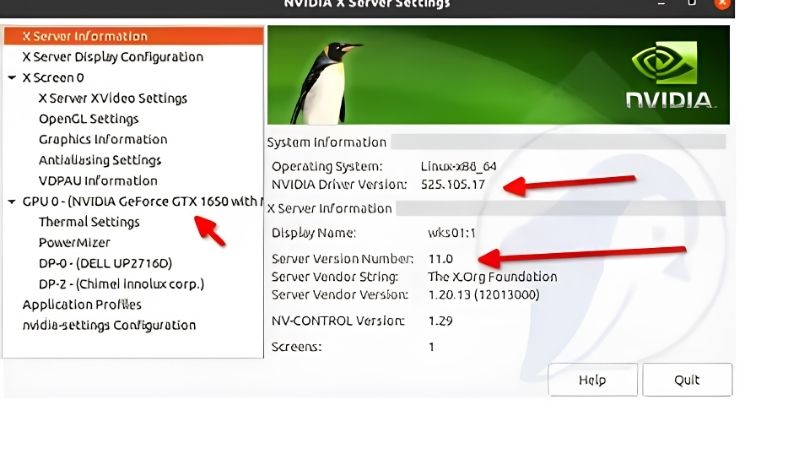
A graphics driver is the translation layer between Windows, your games and the GPU, and NVIDIA updates it constantly to add optimizations, fix bugs and support new titles. Understanding what the driver does, how to update it, and which features depend on it is the foundation for a trouble-free system, so this section starts there.
As an Amazon Associate we earn from qualifying purchases at no extra cost to you.


What the Driver Actually Does
The NVIDIA display driver tells your operating system how to talk to the GPU, and it carries game-specific optimizations that can meaningfully improve performance and stability. When a big title launches, NVIDIA often ships a driver tuned for it, which is why staying reasonably current matters.
There are two main branches to know. Game Ready drivers prioritize day-one optimization for new games, while Studio drivers prioritize stability for creative applications like video editing and 3D work. Both use the same underlying architecture, so the choice is about what you do most, not about raw capability.
It is also worth knowing that you do not need to install every single release. For a stable system, updating when a game you play gets a specific optimization, or when you hit a bug a newer driver fixes, is often enough. Chasing every update can occasionally introduce more problems than it solves.
Understanding this split is the first step to picking the right driver, rather than blindly installing whatever pops up.
How to Update the NVIDIA Display Driver
The simplest route is the NVIDIA App, which detects your GPU, shows available drivers and installs them in a few clicks. It has replaced the older GeForce Experience for most users and is the recommended path for routine updates.
For a cleaner result, especially when troubleshooting, choose the custom installation option and tick the box for a clean install, which wipes previous settings and reduces the chance of leftover files causing conflicts. This small step prevents a surprising number of problems.
Timing helps too. Close your games and background apps before updating, and restart afterward even when the installer does not force it. A clean reboot lets Windows and the driver settle, which quietly avoids some of the odd behavior people see right after an update.
You can also download drivers directly from NVIDIA’s website if you prefer to manage versions manually, which is useful when you want a specific known-good release rather than the very latest one.
DLSS and Features Tied to the Driver
Many of NVIDIA’s headline features depend on keeping the driver current. Improvements to DLSS, new game optimizations and fixes for specific titles all arrive through driver updates, so an out-of-date driver can quietly hold your card back.
The NVIDIA App also exposes driver-level tools like performance overlays, game filters and one-click optimization, turning the driver into more than a background utility. These extras are part of why staying updated is worthwhile beyond raw stability.
Treated this way, a driver update is less a chore and more a free, regular boost to a card you already own, which is a genuine part of the long-term value of choosing NVIDIA hardware.
In short, the driver is where a lot of your GPU’s ongoing value is delivered, which is exactly why managing it well pays off.
NVIDIA Display Driver Review: Reliability and Issues
No driver is perfect, and NVIDIA’s are no exception. This section covers the problems users hit most, the fixes that resolve them, and an honest look at what the driver does well and where it frustrates, based on the pattern of feedback these releases generate.
Common Problems and Their Fixes
The most reported issues are black screens after an update, random game crashes, and stutter that appears out of nowhere. The overwhelming majority of these trace back to a bad or partial installation rather than a fundamentally broken driver.
Before assuming the driver is at fault, it helps to isolate the problem. Note whether the issue started immediately after an update, whether it happens in one game or all of them, and whether it appears only under load. Those answers usually point straight at the cause and save a lot of trial and error.
The reliable fix is a clean install. Removing the existing driver completely and reinstalling fresh resolves most black-screen and crash complaints, and rolling back to a previous stable driver handles the rare case where a new release introduces a regression for your specific hardware or game.
What Users Praise
Users consistently praise how mature and broadly compatible NVIDIA drivers are. For most people, updates install cleanly and simply work, delivering steady performance across a huge range of games and applications.
The frequency of game-ready optimizations earns approval too, since players value having a tuned driver ready when a major title launches. The NVIDIA App’s straightforward update process is also well received compared with the clunkier tools of the past.
The move away from a mandatory login for basic driver management, which frustrated many users in the older tools, has been a particularly welcome change, making the whole process feel lighter and faster.
Pros and Cons of the NVIDIA Display Driver
The pros are strong: frequent optimizations, broad compatibility, useful built-in tools, and clear Game Ready and Studio branches for different needs. For the vast majority of users, the driver is a reliable, low-effort part of ownership.
The cons are the occasional problematic release that introduces a bug for certain setups, and the fact that troubleshooting still sometimes requires a manual clean install. These are minor annoyances against a generally excellent record, but they are real enough to be worth knowing.
Getting the Best from Your Display Driver
A few good habits turn driver management from a source of stress into a non-issue. This section covers clean-install best practices, how to choose your driver branch, and how to recognize when a driver simply cannot fix a deeper hardware problem.
Clean Install Best Practices
For routine updates, the NVIDIA App’s clean-install checkbox is usually enough. For persistent problems, the more thorough approach is to fully remove the old driver first using a dedicated display driver removal tool in Windows safe mode, then install the new driver fresh.
This deeper clean clears out leftover files and settings that ordinary installs can miss, and it resolves the stubborn cases where a simple reinstall does not. It takes a few extra minutes but is the single most effective troubleshooting step you can take.
Keep one known-good installer saved locally as well. If a future release misbehaves on your system, being able to roll straight back to a version you trust turns a stressful evening into a two-minute fix, with no scramble to find the right download.
Game Ready vs Studio: Which to Choose
If you mostly play games, the Game Ready driver is the right default, giving you the earliest optimizations for new releases. If you rely on creative applications for work, the Studio driver trades day-one game tuning for extra stability in those tools.
You can switch between the two through the NVIDIA App without changing hardware, so the decision is not permanent. Pick the branch that matches your primary use, and only switch if you notice issues in the workload you care about most.
Content creators who also game can comfortably run Game Ready drivers most of the time and only consider Studio if a specific creative app shows instability. In practice the two branches are close enough that most people never need to think hard about the choice.
When a Driver Won’t Fix the Problem
Sometimes the driver is not the culprit. If crashes and artifacts persist across clean installs and multiple driver versions, the issue may lie with the hardware itself, an aging GPU, a failing power supply, or inadequate cooling causing instability under load.
In those cases, the practical next step is to rule out hardware. Check temperatures and power delivery, and if an older card can no longer keep up or has developed faults, replacing it may be the real fix. If you reach that point, comparing a current RTX card through the links here is the sensible way to move forward with a modern, well-supported GPU.
See More:
Final Verdict: Getting the Most from Your NVIDIA Display Driver
Managed well, the NVIDIA display driver is one of the most reliable parts of PC gaming, delivering frequent optimizations, broad compatibility and useful tools with very little effort. Most problems people blame on it, from black screens to crashes, come down to installation issues that a clean install resolves, and choosing the right Game Ready or Studio branch keeps your system tuned for what you actually do.
Keep your NVIDIA display driver reasonably current, use a clean install when troubleshooting, and match the branch to your workload, and you will get the best your existing hardware can offer. If driver fixes still cannot resolve persistent instability and the cause turns out to be an aging or failing GPU, check the latest prices on a current RTX card through the links in this guide to move to hardware that stays smooth and well supported.
Frequently Asked Questions
What causes the display driver stopped responding error?
This timeout detection and recovery event usually stems from an unstable GPU or memory overclock, insufficient or failing power supply capacity, an overheating card, or a corrupted driver installation. Start by reverting any overclock and testing with the power limit reduced before assuming hardware failure.
How do I roll back to a previous driver version?
Open Device Manager, expand Display adapters, right-click the GPU, choose Properties, then the Driver tab and Roll Back Driver if the option is available. If it is greyed out, uninstall with DDU in Safe Mode and install the older package downloaded directly from NVIDIA.
Do I need to install every component of the driver package?
No. A custom install lets you skip the USB-C driver, PhysX, and the NVIDIA App if you do not use them. Keeping the audio driver is necessary for HDMI and DisplayPort sound, and skipping it is a common cause of missing audio devices after a clean install.
Why did my display settings reset after updating?
Driver updates can reset resolution, refresh rate, HDR state, and colour format because the display EDID is re-enumerated. Reconfirm that your monitor is running at its full refresh rate and that colour format is set to full RGB rather than limited after each major update.
How can I stop Windows from replacing my chosen driver?
Disable automatic driver delivery in the advanced system properties hardware installation settings, or use group policy to block driver updates through Windows Update. This is important when you deliberately run an older branch for stability in a specific application or game.











Write Your Review
No reviews yet. Be the first to share your experience!