
- Top Pick: GeForce GT 610 2G DDR3 Low Profile Graphics Card, PCI Express 1.1 x16, HDMI/VGA, Entry Level GPU for PC, SFF and HTPC, Compatible with Win11
- Best Value: msi Gaming GeForce GT 1030 4GB DDR4 64-bit HDCP Support DirectX 12 DP/HDMI Single Fan OC Graphics Card (GT 1030 4GD4 LP OC)
- Premium Choice: 319627-001 NVIDIA 319627-001 NVIDIA 319627-001
Nvidia hotfix drivers are one of the most misunderstood tools in a PC gamer’s kit, and knowing how to use them can turn a frustrating bug into a quick fix. These are special interim drivers Nvidia releases between its main updates to solve specific problems fast, but they are not for everyone or every situation. This guide explains exactly what an Nvidia hotfix driver is, when it makes sense to install one, how to do it safely, and what to do when a hotfix still does not solve your issue.
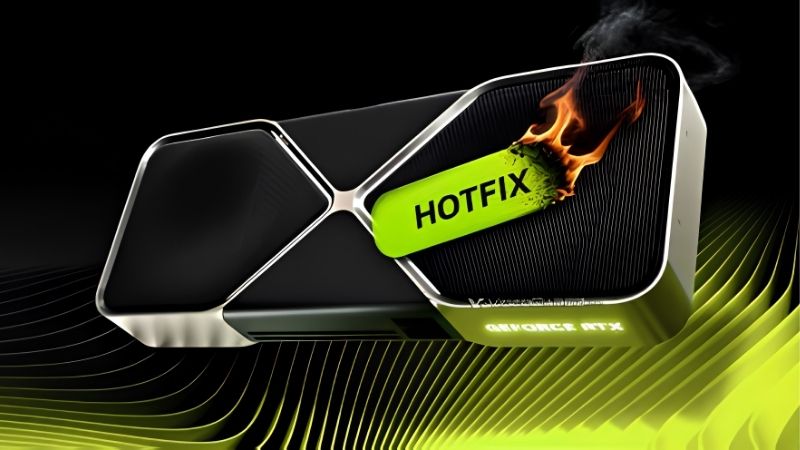
What Is an Nvidia Hotfix Driver?
Before installing anything, it helps to understand what a hotfix actually is and how it differs from the drivers most people use. A hotfix is a targeted, quick-turnaround release aimed at a narrow set of problems, and that focused nature is both its strength and its limitation, so setting expectations correctly is the first step to using one wisely.
Hotfix vs Regular Game Ready Drivers
A regular Game Ready driver is a fully tested, WHQL-certified release that Nvidia rolls out through the Nvidia app for everyone. It goes through extensive validation before it reaches your PC.
A hotfix driver, by contrast, is an interim beta release published to address specific reported issues quickly, without waiting for the next full driver cycle. It skips some of the lengthy certification process precisely so it can reach affected users fast.
The practical difference is speed versus polish: a hotfix gets a fix to you sooner but has undergone less broad testing, which is why it is offered as an optional download rather than pushed to everyone automatically.
Think of it like a spot repair versus a full service. A Game Ready driver overhauls and validates the whole package for every configuration, while a hotfix quickly patches one leaking pipe so affected users are not stuck waiting. Both come from Nvidia, but they serve different moments, and recognizing which one your situation calls for keeps you from over-updating a system that is already running fine.
Why Nvidia Releases Hotfixes
Nvidia releases hotfixes when a notable bug appears after a main driver launches and enough users are affected to warrant a rapid response. Rather than making everyone wait weeks for the next scheduled driver, Nvidia patches the specific problem.
These issues might include crashes in a particular game, a display glitch, high idle power draw, or a stability problem that slipped through on certain hardware. The hotfix targets that reported symptom directly.
Understanding this motivation tells you something important: a hotfix exists to solve a known, specific problem, so it is most useful when you are experiencing exactly the issue it was created to address.
This is also why the hotfix release notes are so important to read. Because each hotfix is built around a short, specific list of fixes, those notes tell you precisely whether it targets your problem. If your symptom is not described there, the hotfix was not made for you, and installing it anyway simply adds beta risk without any matching benefit.
Are Hotfix Drivers Safe to Install?
Hotfix drivers come directly from Nvidia, so they are legitimate and generally safe, but they carry the beta caveat of lighter testing than a full release. For most users experiencing the targeted bug, they work well.
Because they are less broadly validated, there is a small chance a hotfix introduces a different minor quirk, which is why Nvidia labels them optional and interim. They are not meant to be a permanent driver.
The sensible mindset is to treat a hotfix as a temporary bridge to the next full Game Ready driver, which will fold the same fix into a fully tested package. Used that way, the risk is minimal and the benefit is real.
It also helps to keep a note of the last stable driver you were running before installing a hotfix. If the interim release does introduce an unexpected quirk, you can roll back to that known-good version in a couple of minutes, which makes experimenting with a hotfix a low-stakes decision rather than a gamble with your system’s stability.
When You Should Install a Hotfix
A hotfix is a targeted tool, so the decision to install one should be equally targeted. The key question is whether your specific problem matches what the hotfix addresses, because installing one just to be current offers little upside and a slight downside, while installing the right one at the right time can resolve a genuinely annoying issue immediately.
Problems a Hotfix Typically Fixes
Hotfixes commonly address game-specific crashes, stuttering tied to a recent driver, display or flickering issues, and abnormal behavior like high memory clocks at idle. These are the sorts of concrete, reproducible bugs they target.
If you started experiencing a clear problem shortly after a driver update, and Nvidia has released a hotfix naming that exact issue, you are the intended audience. The match between your symptom and the hotfix notes is the signal to act.
Always read the hotfix’s release notes first, since they list precisely which issues it resolves. If your problem is on that list, the hotfix is very likely the fastest path to a fix.
When to Wait for the Full Driver Instead
If your system is running perfectly, there is no reason to install a hotfix, because it offers no benefit over your current stable driver and carries a slight beta risk. Stability you already have is worth keeping.
Similarly, if your problem is not mentioned in the hotfix notes, the hotfix is unlikely to help and you are better off waiting for the next full Game Ready driver or troubleshooting the actual cause. A hotfix is not a general cure-all.
As a rule, only reach for a hotfix when a specific, named issue is affecting you; otherwise, sticking with your certified driver and waiting for the next scheduled release is the safer choice.
How to Find the Right Hotfix
Nvidia publishes hotfix drivers on its official support and customer care pages rather than pushing them through the Nvidia app automatically. That is by design, since they are optional interim releases.
To find one, check Nvidia’s official support channels and confirm the hotfix version and its release notes match your issue and your GPU. Downloading only from Nvidia’s official source is essential to avoid fake or harmful driver files.
Never install a driver labeled as a hotfix from an unofficial third-party site, as driver files are a common vector for malware. Sticking to Nvidia’s own pages keeps you safe.
How to Install and Manage Hotfix Drivers
Once you have confirmed a hotfix matches your problem and downloaded it from Nvidia directly, installing it is straightforward. The steps mirror a normal driver install, with a few sensible precautions, and knowing how to roll back afterward keeps you in control if the hotfix does not deliver the result you hoped for.
Step-by-Step Installation
First, download the correct hotfix installer for your GPU from Nvidia’s official support page, matching your card and operating system. Confirm the version number against the release notes before proceeding.
Second, close your games and running applications, then launch the installer and follow the prompts, choosing a clean installation if you are troubleshooting a persistent issue. Your screen may flicker briefly as the driver loads, which is normal.
Finally, restart your PC if prompted and test whether the specific problem is resolved. If the hotfix fixed your issue, you can keep it until the next full Game Ready driver arrives with the same fix built in.
When that next certified driver appears, updating to it is the recommended final step, since it delivers the same fix inside a fully tested package and returns you to Nvidia’s standard release track rather than leaving you on an interim build indefinitely.
Pros and Cons of Using Hotfix Drivers
Pros: a fast, official fix for a known problem, direct from Nvidia, without waiting weeks for the next full driver, and easy to install just like a normal update.
Cons: lighter testing than a certified release, a small chance of introducing a different minor quirk, no benefit if your issue is not the one it targets, and it is only a temporary measure until the next full driver.
On balance, a hotfix is a valuable tool when it matches your problem and an unnecessary risk when it does not, so let your specific symptom decide whether the trade-off is worth it for you.
See More:
What to Do If a Hotfix Doesn’t Help
If a matching hotfix does not resolve your issue, the next step is a full clean install of the latest Game Ready driver, which clears out conflicting files and often succeeds where a partial update did not. This is the standard escalation.
Should problems persist even after a clean install, the cause may lie deeper, in Windows, a specific game, or aging hardware that is reaching its limits. At that point, driver tweaks stop being the answer.
If your card consistently struggles to deliver the performance you want even on the newest stable drivers, it may simply be time to consider a hardware upgrade. Use the links on this page to compare current GPUs and see what a modern card would do for your games.
An Nvidia hotfix is a genuinely useful tool when used correctly: a fast, official patch for a specific, known problem, best treated as a temporary bridge to the next fully certified Game Ready driver.
The golden rule for any Nvidia hotfix is to match the fix to your symptom, download only from Nvidia’s official pages, and fall back to a clean driver install, or a hardware upgrade, if the problem runs deeper than a single bug.
Frequently Asked Questions
What is an Nvidia hotfix driver?
A hotfix is an out-of-band driver release that targets a specific, usually urgent bug reported after a public driver launched. It is built on the same branch as the current release but skips the full validation cycle, so it fixes one or two named issues rather than adding broad new game support.
Where do I download hotfix drivers?
Hotfixes are published on Nvidia’s customer care support pages rather than the standard driver download section, and they do not appear in the Nvidia App update list. That is deliberate: Nvidia does not want them delivered broadly, only to users who are actually affected by the issue described in the release notes.
Are hotfix drivers safe to install?
They come from Nvidia and are generally reliable, but they are not WHQL-certified and have received less regression testing than a public release. Install one when the release notes describe a problem you are actually experiencing. Installing a hotfix speculatively risks trading a bug you do not have for one you might.
How do I go back if a hotfix causes problems?
Download the last public WHQL driver from Nvidia’s archive and install it with the clean installation option, which removes the hotfix components. You can also use Device Manager’s roll back option if Windows still has the previous driver cached. Note that Windows may attempt to reinstall a driver automatically after removal.
Will the fix appear in the next normal driver?
Yes, in almost all cases the hotfix changes are folded into the next public Game Ready release. That means a hotfix is a temporary bridge rather than a permanent branch, and you should move to the next standard driver once it ships so you regain full validation and new game optimisations.
As an Amazon Associate we earn from qualifying purchases at no extra cost to you.












Write Your Review
No reviews yet. Be the first to share your experience!