
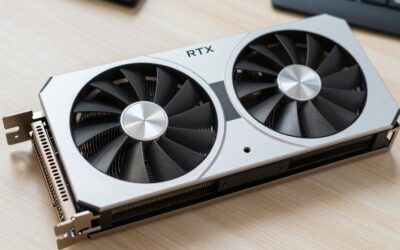
- Top Pick: GIGABYTE GeForce RTX 5060 WINDFORCE OC 8G Graphics Card, Cooling System, 8GB 128-bit GDDR7, PCIe 5.0, Manufactured by NVIDIA, DisplayPort & HDMI – Video Output Interface, GV-N5060WF2OC-8GD Video Card
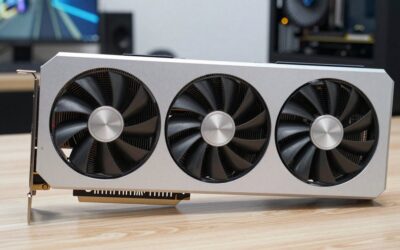
- Best Value: ASUS Prime GeForce RTX 5070 12GB GDDR7 OC Edition Gaming Graphics Card
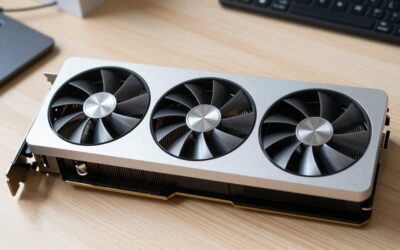
- Premium Choice: GIGABYTE GeForce RTX 5070 Ti Eagle OC ICE SFF 16G Graphics Card, 16GB 256-bit GDDR7, PCIe 5.0, WINDFORCE Cooling System, GV-N507TEAGLEOC ICE-16GD Video Card
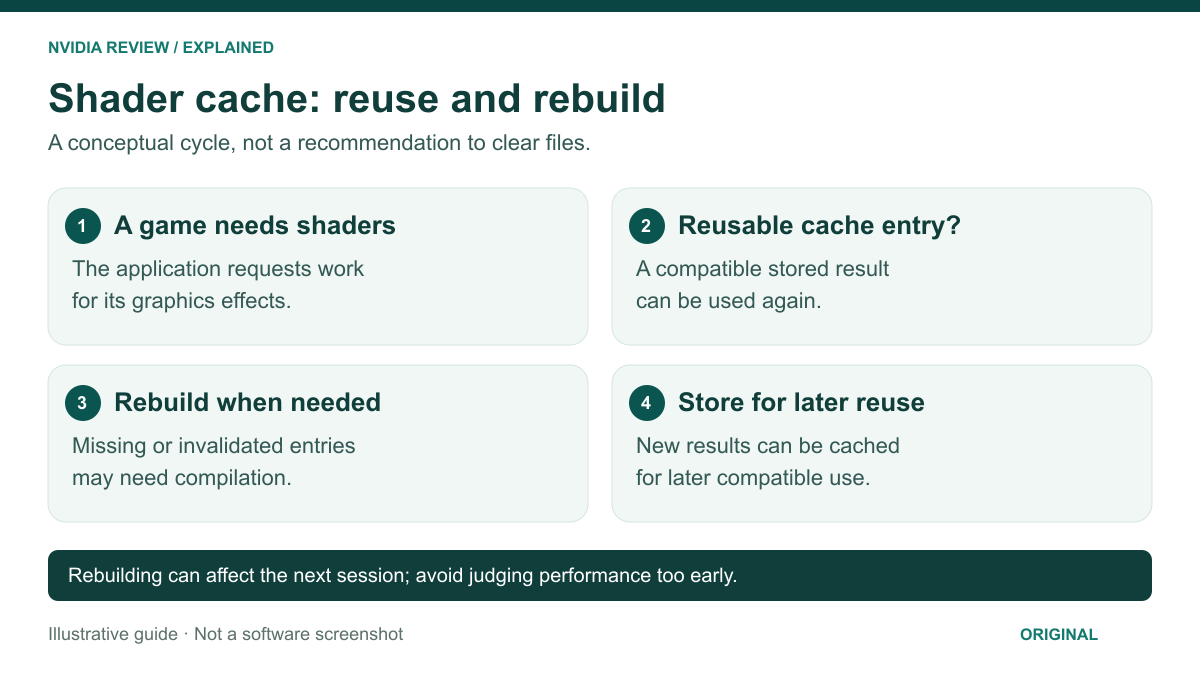
DXcache is the folder where your NVIDIA driver stores pre-compiled DirectX shaders so games load faster and stutter less. Deleting it is safe. The driver rebuilds it automatically, and nothing is permanently lost. The only cost is a few minutes of extra shader compilation the first time you launch each game again.
- What Is NVIDIA DXcache, Exactly?
- Why DXcache Grows to 5 GB, 9.7 GB or More
- Is It Safe to Delete NVIDIA DXcache?
- What Happens Right After You Delete It
- DXcache vs DLCache vs GLCache vs the Windows Shader Cache
- How to Clear DXcache Safely on Windows 11
- Does DXcache Hurt SSD Health?
- When Clearing DXcache Actually Fixes Something
- Troubleshooting: What Commonly Goes Wrong
- Frequently Asked Questions
What Is NVIDIA DXcache, Exactly?
When a DirectX 11 or 12 game loads, it hands the driver thousands of shader programs in an intermediate format (DXBC or DXIL). Those are not machine code: your NVIDIA driver must translate each one into instructions your specific GPU architecture understands. That translation is pure CPU work, and it is slow enough that you feel it as first-run hitching when a new effect, weapon or area appears on screen.
Rather than redo that work every launch, the driver writes the compiled result to disk. That store is the DXcache folder: on the next launch the driver looks up the shader by hash and loads the binary in microseconds instead of recompiling it. Same idea as a browser cache, applied to GPU code.
The folder lives at %LOCALAPPDATA%\NVIDIA\DXCache — in full, C:\Users\YourName\AppData\Local\NVIDIA\DXCache. Inside are hundreds or thousands of hash-named files: .bin files holding compiled shader binaries, and .toc index tables that let the driver find an entry without scanning everything. None of it is readable, editable or worth backing up. If you have ever wondered why the first hour in a new game stutters and then smooths out, this cache is most of the answer.
Why DXcache Grows to 5 GB, 9.7 GB or More
Nothing is wrong if yours is several gigabytes. Three things drive the size:
- Game count. Every title adds its own shader set, and modern UE5 or RE Engine games ship tens of thousands of permutations each.
- Driver updates. Compiled shaders are tied to the driver that produced them. After a driver update, old entries are invalidated rather than instantly deleted, so the folder carries dead weight for a while.
- Your cache size setting. NVIDIA Control Panel’s Shader Cache Size option under Manage 3D Settings runs from 100 MB up to Unlimited. A 9.7 GB DXcache almost always means Unlimited plus a large Steam library.
Left at Driver Default the cache self-trims once it passes its budget, evicting least-recently-used entries. It is self-managing, just not aggressive about it.
Is It Safe to Delete NVIDIA DXcache?
Yes. DXcache contains zero unique data — every byte was derived from game files and your driver, and both still exist. Deleting it cannot corrupt a game install, damage the driver, lose saves or settings, or brick anything. Microsoft ships a DirectX Shader Cache checkbox in Disk Cleanup for that reason: it is officially disposable.
Two precautions. Close every game, launcher and GPU-accelerated app first, so nothing holds a file handle open. And delete the contents rather than roaming through AppData\Local\NVIDIA removing folders you have not identified — the neighbours serve different purposes (see the table below).
What Happens Right After You Delete It
Expect one rough session per game: longer load times, a longer “compiling shaders” step if the game has one, and traversal or effect stutter as new shaders are compiled on the fly. On an 8-core CPU that is a few minutes of hitching in a big title; on a 4-core CPU it lasts longer, because compilation is CPU-bound and only lightly threaded in some engines.
By the second or third session the cache has rebuilt the shaders you actually use, and performance returns to where it was. Nothing degrades long-term. If you are chasing better 1% lows and frametime consistency, do not wipe the cache before a benchmark run — you will measure the rebuild, not the game.
DXcache vs DLCache vs GLCache vs the Windows Shader Cache
Four caches sit close together and get confused constantly:
| Cache | Location | What it stores | Typical size | Safe to delete? |
|---|---|---|---|---|
| DXCache | %LOCALAPPDATA%\NVIDIA\DXCache |
Compiled DirectX 11/12 shaders | 1-10 GB | Yes — rebuilds on next game launch |
| GLCache | %LOCALAPPDATA%\NVIDIA\GLCache |
Compiled OpenGL and Vulkan shaders (Minecraft, DOOM, emulators) | 100 MB – 2 GB | Yes — same behaviour |
| NV_Cache / DLCache | %LOCALAPPDATA%\NVIDIA\NV_Cache |
NGX / deep-learning assets: DLSS and related model data the driver caches | Tens of MB | Yes, but pointless — it is tiny and may be re-downloaded |
| D3DSCache | %LOCALAPPDATA%\D3DSCache |
Windows’ own DirectX shader cache, vendor-neutral | Hundreds of MB | Yes — this is what Disk Cleanup targets |
The practical difference: DXcache is a pure performance cache, while DLCache holds neural-network assets used by DLSS and the NGX runtime. Clearing DLCache saves almost nothing, so leave it alone unless you are chasing a DLSS fault.
How to Clear DXcache Safely on Windows 11
- Close everything GPU-related. Quit games, Steam, Epic, OBS and NVIDIA App overlays — files in use cannot be deleted, and you get a partial wipe.
- Use Disk Cleanup first (safest route). Press Start, type Disk Cleanup, pick your C: drive, and tick DirectX Shader Cache. On Windows 11 the same item appears under Settings > System > Storage > Temporary files.
- Or clear the NVIDIA folder directly. Press Win+R, paste
%LOCALAPPDATA%\NVIDIAand hit Enter. OpenDXCache, select all with Ctrl+A, and delete the contents. Keep the folder itself; the driver will recreate it if missing, but there is no reason to make it. - Optionally reset the size limit. Open NVIDIA Control Panel > Manage 3D Settings > Global Settings, set Shader Cache Size to Driver Default or a fixed 5 GB so the folder cannot balloon again. The rest of that panel is covered in our guide to NVIDIA Control Panel settings that actually matter.
- Launch one game and let it settle. Give it a few minutes in-game so the driver repopulates common shaders before you judge performance.
Does DXcache Hurt SSD Health?
No, not in any meaningful way. The cache is write-once-read-many: a shader binary is written once and read thousands of times. A heavy year of gaming across dozens of titles amounts to a few tens of gigabytes of cache writes, against endurance ratings in the hundreds of TBW for a modern 1 TB consumer drive. Windows writes far more through paging, logs and updates.
The counter-intuitive part: disabling the shader cache is worse for your system than leaving it on. With it off, every launch recompiles from scratch — burning CPU time, lengthening loads and reintroducing stutter — to save a rounding error of drive endurance. If your boot drive is full, the fix is capacity; see our notes on choosing a gaming SSD.
When Clearing DXcache Actually Fixes Something
Usually clearing DXcache is housekeeping, not a fix. But a stale or corrupted cache is genuinely the cause here:
- Stutter or artefacts that appeared right after a driver update, where old entries and a new compiler disagree.
- Shader-related crashes in one specific game while every other title is fine — the classic signature of a bad entry.
- Flickering textures, black geometry or corrupted post-processing that survive a reboot.
- After swapping GPUs, when shaders compiled for the old architecture are useless.
- After a power loss mid-game, which can leave a half-written
.binfile behind.
If clearing it does not help, the next step is a clean driver reinstall, not more cache deletion — see our walkthrough on doing a clean NVIDIA driver install with DDU.
Troubleshooting: What Commonly Goes Wrong
“Access denied” or files won’t delete. Something still holds them open. Close the NVIDIA overlay and any tray launcher, or reboot and delete before opening anything else.
The folder is empty but the drive did not free up. You cleared the wrong cache. Check %LOCALAPPDATA%\D3DSCache and %LOCALAPPDATA%\NVIDIA\GLCache, plus per-game folders such as Steam’s steamapps\shadercache.
Stutter is worse and stays worse. Confirm Shader Cache Size is not Disabled or 100 MB. A too-small cache thrashes, evicting shaders you are about to need.
The cache refills to 10 GB within days. That is Unlimited doing its job. Set a fixed ceiling instead of wiping on a schedule — clearing a healthy cache just buys you the rebuild again, one of the more stubborn PC performance myths worth unlearning.
Thinking About a GPU Upgrade?
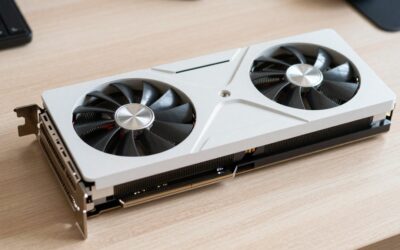
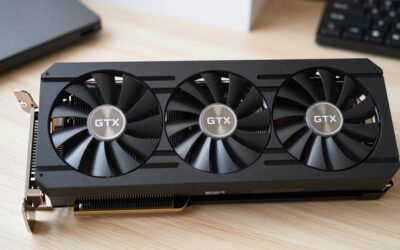
If driver and app tweaks are not enough, these in-stock RTX 50-series cards cover the main budget tiers.
As an Amazon Associate we earn from qualifying purchases at no extra cost to you. Prices as of Oct 5, 2026 and subject to change.


Frequently Asked Questions
Where is the NVIDIA DXcache folder located?
It sits at C:\Users\YourName\AppData\Local\NVIDIA\DXCache, which you can reach instantly by pressing Win+R and pasting %LOCALAPPDATA%\NVIDIA. AppData is hidden by default, so either use that shortcut or enable hidden items in File Explorer’s View menu. The sibling folders GLCache and NV_Cache live in the same directory and serve different APIs.
Will deleting DXcache uninstall or break my NVIDIA driver?
No. The cache holds only derived data — compiled copies of shaders that already exist inside your games. Removing it does not touch driver files, registry entries, control panel profiles, overclocks or game settings. The driver simply finds an empty cache, compiles what it needs on demand, and writes fresh entries. Worst case you get one slower launch per game.
Why is my DXcache 9.7 GB in size?
Almost certainly because Shader Cache Size is set to Unlimited or 10 GB in NVIDIA Control Panel, combined with a large game library and several driver updates layered on top. A size in that range is not a symptom of a fault. If you want it capped, set the value to Driver Default or 5 GB and clear it once so the new ceiling applies.
Should I disable the shader cache to save disk space?
Not unless you are desperate. Disabling it forces the driver to recompile shaders every single launch, which lengthens load times, raises CPU load during gameplay and brings back the exact stutter the cache exists to prevent. A fixed 1 GB or 5 GB limit is a far better compromise than Disabled if storage is genuinely tight on your boot drive.
Is DXcache the same as the DLSS or DLCache folder?
No. DXcache stores compiled DirectX shaders and is the large one. DLCache, usually surfaced as NV_Cache, holds NGX deep-learning assets the driver uses for DLSS and similar features, and is typically only tens of megabytes. Clearing DLCache frees almost nothing and may trigger a re-download, so leave it in place unless you are specifically debugging DLSS behaviour.


Write Your Review
No reviews yet. Be the first to share your experience!