
- Top Pick: Pimax Crystal Super VR Headset, 3840×3840 per Eye, Ultrawide, 140° FOV, Eye- Tracking, Ultra-Sharp for Flight & Racing Simulators & Gaming, DP Connection with PC
- Best Value: Meta Quest 3 512GB | Virtual Reality — VR Headset — Gorilla Tag Bundle
- Premium Choice: 3D VR Headset, Virtual Reality Glasses Headset Helmets, Compatible with 5.0-7.0 inch with Controller, for Mobile Games & Movies(Black)
Choosing a graphics card for a VR headset is not as simple as buying the most expensive GPU your budget allows. A headset’s resolution, refresh rate, field of view, connection method, game engine, and upscaling settings all change the workload. A card that feels excellent with a mainstream headset may struggle with a high-resolution simulator headset.
The most common mistake is matching a GPU to the headset’s sticker price instead of its display requirements. Another is ignoring video memory, then discovering that high-resolution textures and VR supersampling cause stutters. Some buyers also purchase a powerful desktop GPU for a standalone headset that does not need a PC at all. Use the guide below to match graphics power to the way you actually plan to play.
As an Amazon Associate we earn from qualifying purchases at no extra cost to you.


Decide These 3 Things First
- Is the headset standalone or PC-connected? Meta Quest 3 and Quest 3S can run many games without a computer. For standalone play, the headset’s built-in hardware matters more than your desktop GPU. A PC becomes relevant when you use a USB-C or wireless Link connection for PC VR.
- What is the per-eye resolution? A headset such as the Pimax Crystal Super, listed at 3,840 × 3,840 pixels per eye, presents dramatically more pixels than a lower-resolution model. High-resolution simulation headsets need substantially more rendering power.
- Which games will you play? Beat Saber, Superhot VR, and similar titles are relatively manageable. Microsoft Flight Simulator, DCS, racing simulators, VRChat in crowded worlds, and heavily modded games can require a top-tier GPU and a fast CPU.
Resolution and Render Scale
VR rendering is demanding because the GPU must produce two viewpoints, often at a high refresh rate. A headset advertised at 2,064 × 2,272 pixels per eye may not render internally at exactly that resolution. Lens distortion correction, headroom for motion smoothing, and supersampling can push the actual workload higher.
For mainstream PC VR at roughly 2,000 to 2,400 pixels per eye and 90Hz, a current midrange GPU with at least 8GB of VRAM is a sensible starting point. For headsets approaching 3,000 pixels per eye, consider a performance-class GPU with 12GB or more. The Pimax Crystal Super’s 3,840 × 3,840-per-eye specification belongs in the premium category; buyers should look toward a high-end card with 16GB or more, particularly for flight and racing simulators.
Do not assume you must run the headset at maximum resolution immediately. Reducing render scale from 100% to 80% lowers the number of pixels substantially and can improve smoothness. However, it also reduces image clarity, which is especially noticeable in cockpit instruments and distant scenery.
Refresh Rate and Frame-Time Stability
Refresh rate is the second major performance factor. Common VR modes include 72Hz, 80Hz, 90Hz, 100Hz, and 120Hz. At 90Hz, the system has about 11.1 milliseconds to produce each frame. At 120Hz, that falls to about 8.3 milliseconds. Missing those time limits can create judder, reprojection, or an uncomfortable feeling of lag.
A budget or midrange GPU may be appropriate if you are comfortable using 72Hz or 80Hz and moderate detail settings. A premium GPU is more useful when you want 90Hz or higher at elevated resolution, especially in fast racing games. A stable 90 frames per second is generally preferable to a fluctuating 120 frames per second.
Check the headset software for motion smoothing or reprojection options. These features can make an experience feel more consistent when the GPU cannot maintain the native refresh rate, but they are not a substitute for adequate graphics performance.
VRAM, Upscaling, and Ray Tracing
Video memory is easy to overlook because many product listings emphasize raw processing speed. For VR, 8GB is a practical floor for a new budget PC, while 12GB is more comfortable for modern PC VR. Choose 16GB or more for high-resolution headsets, large texture packs, simulation scenery, or long-term use.
Upscaling technologies can reduce the number of pixels the GPU renders natively. Depending on the headset and game, options such as dynamic resolution or a quality upscaler may provide a useful performance cushion. Leave some headroom rather than tuning every setting to the exact limit of your card.
Ray tracing is usually a low priority for VR buyers. Reflections and lighting effects can be attractive, but ray tracing consumes performance that may be better spent maintaining a steady frame rate. If you must choose between a faster rasterized VR experience and ray-traced effects, prioritize frame consistency.
GPU Size, Power, and PC Construction
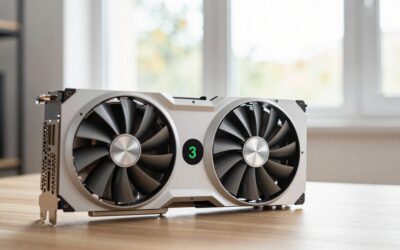
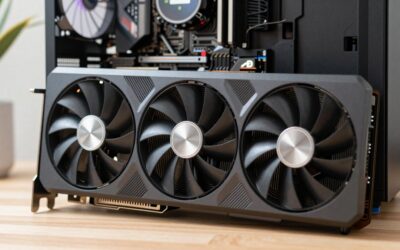
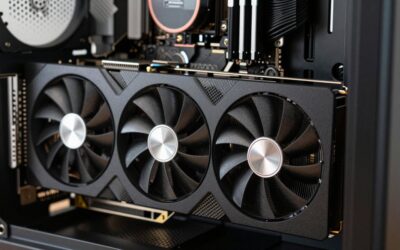
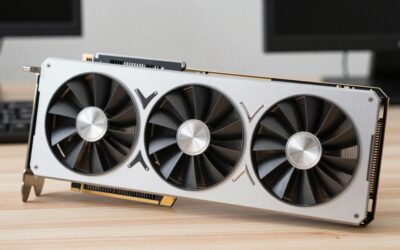
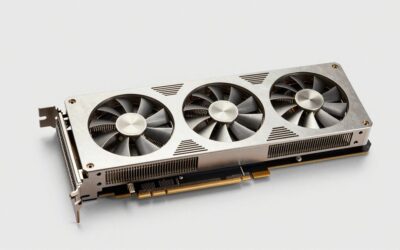
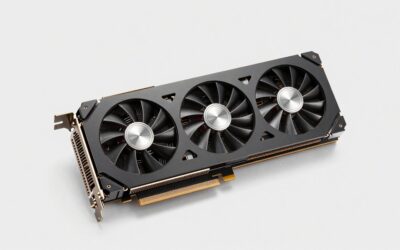
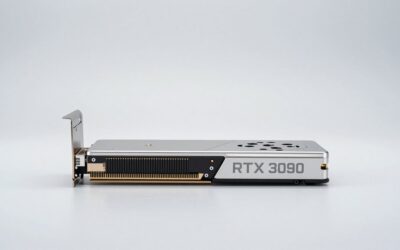
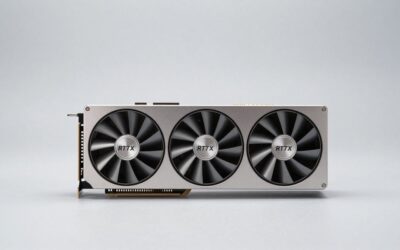
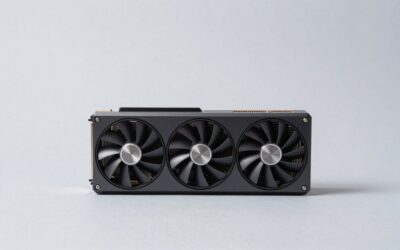
A graphics card must physically fit inside the computer. Many modern cards are 2.5 to 4 slots thick and approximately 11 to 14 inches long. Measure the case’s maximum GPU clearance, including space used by front fans or a radiator. Also check whether the card blocks adjacent expansion slots.
Power requirements rise with performance. A modest VR card may draw about 150 to 220 watts and work with a 550- to 650-watt power supply. A performance card can draw 250 to 350 watts and often calls for a 750- to 850-watt supply. Flagship-class cards may require 1,000 watts or more, depending on the model and the rest of the system.
Use a quality power supply with the correct native connector rather than relying on poorly routed adapters. Leave room for airflow: two front intake fans and one rear exhaust fan are a useful baseline for a gaming PC. A hot card may technically run a game but reduce boost speeds or make the room noticeably louder.
Connection, CPU, and Tracking Performance
For wired PC VR, confirm that the headset and computer support the same connection standard. DisplayPort is common on dedicated PC headsets, while Quest headsets can use USB-C Link or wireless streaming. A USB-C port that only handles charging is not automatically suitable for PC VR.
Wireless PC VR also depends on the network. A dedicated Wi-Fi 6 or Wi-Fi 6E router in the same room is preferable to a congested shared network. Ethernet between the gaming PC and router can reduce latency, even when the headset connects wirelessly.
The GPU is not the only performance limit. A modern six-core processor is a reasonable starting point, while flight simulators, racing games, and busy social worlds benefit from eight strong cores or better. At least 16GB of system RAM is workable; 32GB is a safer target for simulation games, large environments, and multitasking.
Price Tiers and Value
For the GPU alone, a budget PC VR build generally falls around $250 to $400. This tier suits lighter games and mainstream headsets at sensible settings, but it may require reduced resolution or refresh rate in demanding titles.
The $450 to $750 range is the value sweet spot for many PC VR buyers. Cards in this class commonly offer 12GB or more of VRAM and enough performance for 90Hz play on a Quest 3-class headset, depending on the game and settings.
Premium cards from about $800 to $1,500 or more make sense for very high-resolution headsets, extensive simulator use, and users who want to minimize compromises. Do not spend this much simply to operate a standalone Quest 3S or Quest 3. The Quest 3S 256GB, priced around $449, and the Quest 3 512GB, around $599, can both operate without a gaming PC for compatible standalone software.
At the opposite end, a under-$30 phone-based viewer is not comparable to a PC VR headset. It uses a smartphone screen and does not require a desktop GPU in the same way. Treat it as a basic mobile accessory rather than a performance VR purchase.
Warranty, Delivery, and Installation
Look for a graphics card with at least a two- or three-year manufacturer warranty, and save the receipt and serial number. Read the warranty terms before installing a water block, changing the cooler, or modifying the card, since those actions can affect coverage.
When ordering online, inspect the return window and the shipping condition immediately. A graphics card should arrive in a sealed anti-static package with no bent bracket, damaged connector, or loose heatsink. Photograph visible damage before installation.
Installation is usually straightforward: seat the card in the top full-length PCIe slot, secure the bracket, connect every required power lead, install current drivers, and select the headset’s native refresh rate. Allow roughly 30 to 60 minutes for a first-time installation, including driver setup and cable routing. A computer shop may charge about $50 to $150 for installation and testing.
Spec Checklist
| Spec | Budget | Mid | Premium |
|---|---|---|---|
| Typical GPU price | $250–$400 | $450–$750 | $800–$1,500+ |
| VRAM | 8GB | 12GB–16GB | 16GB–24GB |
| Best use | Light PC VR, 72–90Hz | Quest 3-class PC VR, 80–120Hz | High-resolution simulation headsets |
| Power draw | 150–220W | 200–300W | 300–450W |
| Recommended power supply | 550–650W | 650–850W | 850–1,200W |
| System RAM | 16GB | 32GB | 32GB–64GB |
Red Flags
- “VR-ready” without a specific GPU model: This label is too vague. Check VRAM, power draw, and independent game requirements.
- Only 6GB of VRAM in a new build: It may work for lighter titles but leaves little room for high-resolution textures or future games.
- A card larger than the case clearance: Measure length, thickness, and power-connector space before ordering.
- Unclear power-supply requirements: A powerful GPU paired with an old or undersized supply can cause crashes and connector problems.
- Maximum settings as the only goal: Native resolution, high refresh rate, and ultra graphics may be unrealistic in demanding simulators, even with an expensive card.
- Confusing standalone and PC VR: A Quest headset does not require a desktop GPU for its standalone library.
FAQ
What is the best GPU for a Quest 3?
For PC VR through Link or wireless streaming, a current midrange GPU with 12GB of VRAM is a balanced target. A faster card helps with demanding simulators, higher render scale, and 120Hz modes. Standalone Quest 3 games do not use the desktop GPU.
Do I need a high-end GPU for a Pimax Crystal Super?
For its 3,840 × 3,840-per-eye resolution, especially in flight or racing simulators, a high-end GPU with at least 16GB of VRAM is the safer choice. You may still need to adjust render scale, shadows, traffic, or scenery detail to maintain consistent frame times.
Is 8GB of VRAM enough for VR?
Eight gigabytes can be enough for lighter games and moderate settings on a mainstream headset. Choose 12GB or more if you play modern simulators, use large texture packs, or want to keep the card for several years.
Should I prioritize GPU or CPU for VR?
Prioritize the GPU when resolution and visual quality are the main concerns. Choose a strong CPU as well if you play flight simulators, racing games, VRChat, or other CPU-heavy software. A balanced six- to eight-core system with a suitable GPU is better than pairing a flagship card with an outdated processor.

Write Your Review
No reviews yet. Be the first to share your experience!