
The Short Answer
For Blender, 12GB of GPU memory is the practical starting point for comfortable Cycles rendering, while 16GB is the better all-around target for most serious hobbyists, students, and freelance artists. Choose 24GB or more if you create large architectural scenes, dense environments, product scenes with many 4K textures, fluid simulations, or high-resolution animation frames.
GPU memory, also called VRAM, holds the scene data Blender needs during GPU rendering: geometry, textures, materials, lighting data, and acceleration structures. If a scene exceeds the available VRAM, rendering may fail, slow down substantially, or require simplifying the file. System RAM does not fully replace dedicated GPU memory for a GPU-rendered Cycles scene.
As an Amazon Associate we earn from qualifying purchases at no extra cost to you.


For a new Blender workstation in 2026, use these simple buying ranges:
- 8GB: Basic learning, low-poly work, small scenes, and viewport-focused projects.
- 12GB: A solid minimum for regular Cycles rendering and moderately detailed scenes.
- 16GB: Best value for most Blender users working with detailed assets and 2K to 4K textures.
- 20GB to 24GB: Recommended for architecture, professional product visualization, large scenes, and animation.
- 32GB or more: Best for unusually heavy production files, large simulations, cinematic environments, and long-term headroom.
Expect a capable 12GB graphics card to fall roughly in the $350 to $650 range, 16GB cards commonly around $450 to $900, and 24GB-plus options from about $1,000 upward. Pricing changes frequently, but more VRAM is often worth prioritizing over a small clock-speed increase when Blender rendering is your main task.
Standard Sizes
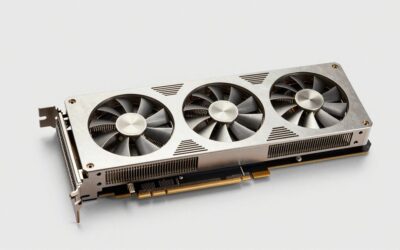
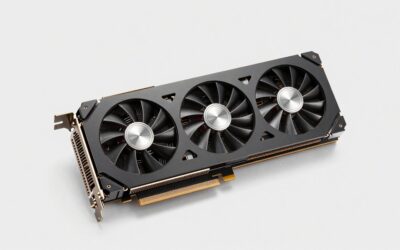
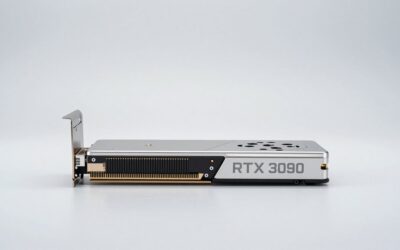
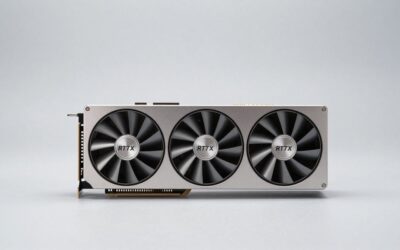
VRAM itself is measured in gigabytes rather than inches, but the GPU that carries it must fit inside your case and leave enough room for airflow. High-memory cards are often larger, heavier, and more power-hungry than entry-level models. Check both the memory capacity and the physical measurements before buying.
| Blender VRAM Tier | Best For | Typical GPU Length | Typical Thickness | Typical Power Draw |
|---|---|---|---|---|
| 8GB | Learning, Eevee, light Cycles scenes | 7.5 to 11 in. / 19 to 28 cm | 1.5 to 2.5 slots; 1.2 to 2.0 in. / 3 to 5 cm | 115 to 200W |
| 12GB | Everyday Cycles rendering, medium scenes | 9 to 12.5 in. / 23 to 32 cm | 2 to 3 slots; 1.6 to 2.4 in. / 4 to 6 cm | 160 to 250W |
| 16GB | Detailed assets, 4K textures, animation | 10 to 13.5 in. / 25 to 34 cm | 2.5 to 3.5 slots; 2.0 to 2.8 in. / 5 to 7 cm | 200 to 320W |
| 20GB to 24GB | Large interiors, visualizations, complex scenes | 11 to 14 in. / 28 to 35.5 cm | 3 to 4 slots; 2.4 to 3.2 in. / 6 to 8 cm | 285 to 450W |
| 32GB+ | Heavy production, simulations, high-end scenes | 11.5 to 14.5 in. / 29 to 37 cm | 3 to 4 slots; 2.5 to 3.5 in. / 6.5 to 9 cm | 350 to 600W+ |
A compact mini PC can be appealing for a small desk, but its GPU memory is usually fixed and upgrade options are limited. A full desktop tower gives you more flexibility to move from 12GB to 16GB or 24GB later. Large graphics cards can weigh 3 to 5 lb. / 1.4 to 2.3 kg, so a support bracket is sensible for long, thick models.
How to Measure Your Space
- Check your case’s published GPU clearance. This is the maximum card length allowed, usually measured from the rear expansion slots to the front fans or radiator. If the case lists 13 in. / 33 cm of clearance, do not buy a 13 in. card without checking whether front-mounted fans reduce that space.
- Measure the usable interior length. With the side panel removed, measure from the inside rear of the case to the nearest obstacle. Include front fans, radiator tubes, drive cages, and cable bundles in your assessment.
- Count expansion slots. A 3-slot card occupies about 2.4 in. / 6 cm of vertical space at the back of the case. Make sure it will not block a needed PCIe card, capture card, or storage adapter.
- Allow cable-bend room. Leave at least 1.4 to 1.8 in. / 3.5 to 4.5 cm between the GPU power connector and the side panel. Tightly bending a power cable against the panel is poor practice and can make the case difficult to close.
- Plan for intake air. Leave at least 2 in. / 5 cm between the front or bottom intake area and nearby furniture. A computer tucked tightly into a cabinet can run louder and warmer during long renders.
- Confirm the power supply. Match the GPU maker’s recommended wattage, then add some margin. A 650W supply may suit many 12GB systems, while a 750W to 1,000W quality supply is more typical for high-memory, high-wattage builds.
By Room or Use Case
Small Desk, Bedroom, or Shared Workspace
For a compact setup, aim for 12GB to 16GB in a card under 11.5 in. / 29 cm long. Pair it with a case that has at least 12.5 in. / 32 cm of clearance so cables and front fans are not pressed against the card. A 12GB card is enough for learning Blender, portfolio renders, smaller product models, and many interior scenes. If your work area is quiet, prioritize a larger dual- or triple-fan cooler rather than the smallest card possible.
Home Office for Product Visualization
Choose 16GB if you render furniture, decor, appliances, packaging, or other product scenes with multiple materials. Wood grain, fabric, brushed metal, glass, and high-resolution labels can raise memory use quickly. A 16GB card gives more room for 4K texture maps and detailed bevels without making every file a compromise. Plan for a mid-tower case around 17 to 19 in. / 43 to 48 cm tall and at least 13.5 in. / 34 cm of internal GPU clearance.
Architecture, Interiors, and Real Estate Rendering
For furnished rooms, exterior landscaping, and large architectural models, 20GB to 24GB is the safer choice. These scenes can include thousands of repeated assets, high-resolution textures, vegetation, displacement maps, and extensive lighting. A 24GB GPU is especially useful when you prefer to keep a detailed scene intact instead of repeatedly swapping assets or reducing texture resolution. Expect many cards in this class to need a full-size tower and a 750W to 1,000W power supply.
Animation, Simulation, and Long Render Sessions
Animation adds another consideration: each shot must render reliably across many frames. If a complex scene barely fits into 12GB, it may become unstable after additional characters, particles, or set dressing are added. Start at 16GB for regular animated work and consider 24GB for effects-heavy scenes. Blender simulations also benefit from ample system RAM; 32GB is a sensible minimum system-memory target, while 64GB is more comfortable for demanding fluid, smoke, or geometry-heavy projects.
Common Sizing Mistakes
- Buying based only on GPU speed. A fast card with too little VRAM can be less useful than a slightly slower card with enough memory for the scene.
- Assuming 8GB is future-proof. It can work well for simple projects, but detailed assets and 4K textures can consume that capacity quickly.
- Ignoring physical card depth. Length is not the only measurement. Thick 3-slot and 4-slot models may interfere with adjacent expansion slots or side panels.
- Forgetting connector clearance. A case can technically fit the GPU yet still leave too little room for the power cable.
- Confusing system RAM with VRAM. More desktop memory helps Blender overall, but it does not provide the same GPU-rendering headroom as dedicated VRAM.
- Using a cramped enclosed cabinet. Long renders create sustained heat. Give the computer open ventilation on all sides, especially at the front and rear.
FAQ
Is 8GB of GPU memory enough for Blender?
Yes, for learning, modeling, Eevee projects, and smaller Cycles scenes. It becomes limiting with large texture libraries, dense environments, complex vegetation, or high-resolution architectural work. For a new purchase intended mainly for Blender, 12GB is a more comfortable baseline.
Is 12GB or 16GB better for Blender?
Choose 16GB when the price difference fits your budget. The extra 4GB provides useful breathing room for detailed scenes, 4K textures, and longer-term use. Choose 12GB when your work is mainly product renders, modest scenes, and general 3D learning.
Do I need 24GB VRAM for architectural visualization?
Not for every project, but it is valuable for large furnished interiors, high-detail exteriors, vegetation-heavy scenes, and projects that use many 4K texture maps. For occasional architecture work, 16GB can be sufficient. For frequent professional visualization, 24GB reduces compromises.
Does a larger GPU need a larger computer case?
Often, yes. Many 16GB and 24GB GPUs measure 11 to 14 in. / 28 to 35.5 cm long and can be 3 or 4 slots thick. Check the case’s exact GPU-length clearance, expansion-slot space, cable room, and airflow before ordering.

Write Your Review
No reviews yet. Be the first to share your experience!