
A new graphics card only shows what your monitor lets it show. A flagship card in front of a 1080p 60Hz screen wastes most of its power, while a mid-range card in front of a 4K 240Hz panel struggles to fill the pixels. The monitor is the other half of a GPU upgrade.
This guide starts with the card you own or will buy, then matches a screen to it. Five pairings cover the RTX 50-series ladder, 5060-class to 5090-class. Offers change during the sale, so check the current price and offers on the Amazon product page first.
As an Amazon Associate, we earn from qualifying purchases.
Quick answer
For a 5060-class card, buy a 24-inch 1080p 180Hz IPS screen. For a 5070-class card, buy a 27-inch 1440p 170Hz IPS screen. For a 5070 Ti-class card, buy a 27-inch 1440p 240Hz OLED screen. For a 5080-class card, buy a 34-inch ultrawide QD-OLED screen. For a 5090-class card, buy a 27-inch 4K 240Hz QD-OLED screen with DisplayPort 2.1.
The pairing rule in one minute
Three numbers decide the fit. Resolution sets the workload: 1080p is light, 1440p is the middle, 4K is heavy, and ultrawide 3440 by 1440 sits between the two. Refresh rate sets the frame target: a 240Hz screen only earns its keep if your card pushes frame rates near that number. The cable sets the ceiling: DisplayPort 1.4 carries 4K at high refresh only with compression; DisplayPort 2.1 carries it uncompressed. Panel type is about image character, not speed. IPS is bright, accurate and affordable. OLED gives perfect blacks and near-instant response, with lower full-screen brightness and burn-in habits to mind. QD-OLED blends the two.
The five pairings
Pairing 1: 5060-class card — ASUS TUF Gaming VG249QL3A
A 5060-class card is built for 1080p: high frame rates in shooters, high settings in story games. This ASUS TUF panel runs at 180Hz, so the card, not the screen, is the limit in most games, and its height-adjustable stand beats fixed stands.
Specs: 23.8-inch Fast IPS; 1920 by 1080; 180Hz; 1ms GTG; FreeSync Premium, G-SYNC Compatible; DisplayPort 1.2, two HDMI 2.0; speakers; height-adjustable stand; 3-year warranty. ASIN: B0CHN4JZT8.
Pairs best with: a 5060 or 5060 Ti for 1080p high-refresh play. Watch out for: 250 nits suits a normal room, not a sunlit one, and 1080p at 24 inches is the sweet spot — bigger makes pixels visible.
Pairing 2: 5070-class card — GIGABYTE M27Q
A 5070-class card is the 1440p card, with headroom for 2560 by 1440 at high settings. This 27-inch Gigabyte panel is the classic match: 170Hz, Super Speed IPS, and a built-in KVM switch serving one keyboard and mouse across a gaming PC and a laptop. The 92 percent DCI-P3 coverage also suits photo and video work.
Specs: 27-inch Super Speed IPS; 2560 by 1440; 170Hz (165Hz native, OC to 170Hz); 0.5ms MPRT; 92 percent DCI-P3; VESA DisplayHDR 400; FreeSync Premium; built-in KVM; DisplayPort 1.2, two HDMI 2.0 and USB 3.0. ASIN: B08JWCHR5N.
Pairs best with: a 5070 or 5070 Ti as a do-everything screen. Watch out for: DisplayPort 1.2 and HDMI 2.0 cap bandwidth, so this is a 1440p screen first — do not expect 4K input — and the KVM only helps if you run two machines.
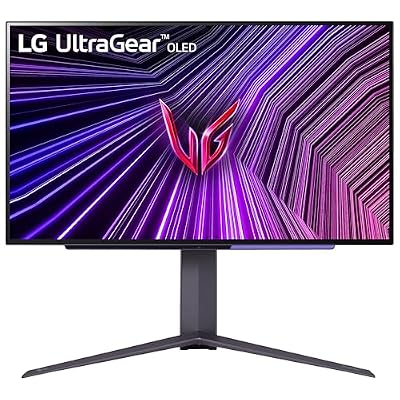
Pairing 3: 5070 Ti-class card — LG UltraGear 27GR95QE-B
This is where OLED makes sense. A 5070 Ti-class card holds frame rates at 1440p that justify a 240Hz screen, and this LG OLED pairs that speed with contrast no IPS panel can match. Blacks are truly black, motion is near-instant at 0.03ms, and HDR highlights hit harder than flat panels can manage. The included remote matters, because OLED settings deserve adjusting per game.
Specs: 26.5-inch OLED; 2560 by 1440; 240Hz; 0.03ms GTG; 98.5 percent DCI-P3; VESA DisplayHDR True Black 400; two HDMI 2.1, DisplayPort 1.4; G-SYNC Compatible, FreeSync Premium; remote included. ASIN: B0BRBW8KRK.
Pairs best with: a 5070 Ti or 5080 at 1440p, especially cinematic games and competitive shooters in a dimmer room. Watch out for: modest full-screen brightness washes out in a bright room, and static HUD elements deserve the usual OLED care — hide the taskbar and let the pixel refresh run.
Pairing 4: 5080-class card — Alienware AW3423DWF
A 5080-class card has the muscle for ultrawide. At 3440 by 1440 this curved QD-OLED asks for roughly a third more pixels than standard 1440p, and a 5080 handles that while 165Hz keeps motion smooth. The 21:9 curve wraps your vision in racing games, flight sims and open worlds, with OLED blacks and bright colour.
Specs: 34.18-inch curved QD-OLED, 1800R; 3440 by 1440; 165Hz; 0.1ms GTG; 99.3 percent DCI-P3; DisplayHDR True Black 400; FreeSync Premium Pro, G-SYNC Compatible; 1,000,000 to 1 contrast. ASIN: B0BP94J8VD.
Pairs best with: a 5080 or 5090 for racing, sims and open worlds, on a desk wide enough for a 34-inch curve. Watch out for: not every game supports 21:9, so older or competitive titles may show black bars, and the width needs roughly 80 centimetres of desk.
Pairing 5: 5090-class card — ASUS ROG Swift PG27UCDM
A 5090-class card is the only tier that can feed a 4K 240Hz screen, and this ASUS Swift is the only screen here built to receive it without compromise. Its DisplayPort 2.1a connection runs at full 80 gigabits per second, carrying 4K at 240Hz uncompressed where 1.4 would need compression. The fourth-gen tandem QD-OLED panel is brighter and longer-lived than earlier OLED, text is razor sharp at 166 pixels per inch, and the 90W USB-C port doubles as a one-cable laptop dock.
Specs: 26.5-inch fourth-gen tandem QD-OLED; 3840 by 2160; 240Hz; 0.03ms GTG; 99 percent DCI-P3; DisplayPort 2.1a UHBR20, two HDMI 2.1, USB-C 90W; G-SYNC Compatible, FreeSync Premium Pro; Dolby Vision; 3-year warranty incl. burn-in cover. ASIN: B0DM6SHQTN.
Pairs best with: a 5090, or a 5080 in games that run well at 4K, for the sharpest 27-inch image. Watch out for: 4K text at 27 inches is small, so scaling matters, and anything below a 5080-class card will rarely reach this panel’s refresh rates.
How to choose
Start with the card, not the monitor: a 5060-class card belongs at 1080p, a 5070-class card at 1440p, a 5080-class card at ultrawide 1440p or 4K, and a 5090-class card at 4K. Buying one tier above your card is the most common and most expensive mistake here.
Next, check the frame rates you get. A 240Hz screen is wasted if your favourite game runs at 90 frames per second. High refresh only pays off where your card already produces high frame rates — usually shooters and lighter titles. For story games, 144Hz or 165Hz is plenty.
Then check the ports. A 4K 144Hz or faster screen needs HDMI 2.1 or DisplayPort 1.4 with compression at minimum, and full-bandwidth 4K 240Hz needs DisplayPort 2.1. Check your card’s outputs, and budget for a proper cable if the included one is older. Finally, think about the room and the desk: OLED rewards a dimmer room, a 34-inch ultrawide needs a deep desk, and 27-inch 4K needs display scaling.
Mistakes that waste a new GPU
First, buying resolution your card cannot feed. A 4K screen on a 5060-class card means turning settings down until the image looks worse than 1440p on a cheaper screen. Second, chasing refresh rate your games never reach: at 110 frames per second, a 165Hz screen shows the same motion as a 360Hz one.
Third, the cable. People buy a 4K high-refresh monitor, plug in an old HDMI cable from a drawer, and wonder why the screen caps at 60Hz. Check the port versions on both ends and use the shipped cable, or a certified one. Fourth, ignoring variable refresh range: G-SYNC Compatible and FreeSync only smooth the picture inside their working range, so a wide adaptive-sync range matters more than a headline refresh number when games swing between 50 and 140 frames per second. Fifth, buying an ultrawide without checking your games — most modern titles support 21:9, but competitive shooters sometimes crop it and older games may not.
Who should skip
Skip this upgrade if your current monitor already matches your card. A good 1440p 165Hz IPS screen with a 5070-class card is a finished setup — a new panel only makes games look slightly different. Skip it if you mostly play on a console or a TV: consoles cap at 120Hz and look best on a large screen from sofa distance.
Skip it if you are buying the monitor before the card. GPU stock shifts during the sale, and the card you end up with may be a tier above or below plan. Buy the card first, confirm the model, then match the screen to it. And skip the flagship 4K OLED if your games are mostly competitive shooters at low settings — those care about refresh rate and response time, not resolution, and a fast 1440p OLED gives the same speed.
FAQ
Do I need DisplayPort 2.1 for a 5080 or 5090?
Not always. DisplayPort 1.4 with compression handles 4K at 144Hz and 1440p at 240Hz without visible loss for most people. DisplayPort 2.1 matters at the top end — 4K at 240Hz uncompressed — the PG27UCDM pairing in this guide. If your screen tops out at 4K 144Hz, 1.4 is enough.
Is OLED safe for everyday desktop use?
Yes, with habits. Modern OLED monitors have pixel refresh cycles, logo dimming and burn-in warranties; the risk is static elements left on screen for very long stretches. Hide the taskbar, use a changing dark wallpaper, avoid leaving the same HUD up for hours, and let the panel run its refresh cycle when prompted.
Can a 5070 run games at 4K?
It can run many games at 4K, but usually with settings turned down or upscaling doing heavy work. A 5070-class card is at its best at 1440p, holding high frame rates at high settings. If 4K is the goal, a 5080-class card or above is the realistic start.
Should I buy the monitor before the graphics card?
Buy the card first. The monitor should match the card you own, and sale stock can push you a tier up or down from your plan. Once the card is confirmed, the pairing in this guide tells you the screen to buy, and the Amazon product page will show the current price and offers.
Final verdict
The right monitor matches the card you own. A 5060-class card belongs with the 24-inch 1080p 180Hz ASUS TUF screen, a 5070-class card with the 27-inch 1440p Gigabyte, a 5070 Ti-class card with the 27-inch 1440p OLED from LG, a 5080-class card with the 34-inch ultrawide Alienware, and a 5090-class card with the 4K 240Hz Swift. Buy one tier too high and you pay for refresh and resolution your card cannot use; buy too low and the card waits on the screen. Match them, check the ports and desk space, and check the current price and offers on the Amazon product page first.









Write Your Review
No reviews yet. Be the first to share your experience!