
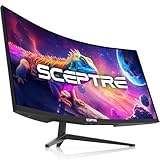
- Top Pick: Sceptre 34-inch Curved ultrawide WQHD Monitor (3440 × 1440), R1500, up to 180Hz/165Hz, DisplayPort x2, 99% sRGB, 1ms, Built-in Speakers, Machine Black, 2025 (C345B-QUT168)
- Best Value: LG 34U530A-W 34-inch UltraWide WFHD (2560 x 1080) IPS Wide Computer Monitor, 100Hz, VESA DisplayHDR 400, HDMI, DisplayPort, USB Type-C, Tilt/Height/Swivel Stand, White
- Premium Choice: LG 34WR55QK-B 34-inch UltraWide WQHD (3440 x 1440) Curved Computer Monitor, 100Hz, 5ms, HDR10, Reader Mode, HDMI, DisplayPort, USB Type-C, Tilt/Height Adjustable Stand, Black
For most gamers, 3440×1440 on a 34-inch 21:9 panel is the best ultrawide resolution, 5120×1440 on a 49-inch 32:9 panel suits those with a flagship GPU who want maximum immersion, and 2560×1080 is only worth it on a tight budget or a modest graphics card. The right answer depends less on the monitor and more on what your graphics card can push at the refresh rate you want.
As an Amazon Associate we earn from qualifying purchases at no extra cost to you.


Quick Answer by Buyer
| Resolution | Typical size and ratio | Best for | Main limit |
|---|---|---|---|
| 2560×1080 | 29 inch, 21:9 | Entry-level GPUs, small desks | Lower pixel density, text looks soft |
| 3440×1440 | 34 to 39 inch, 21:9 | Most gamers and mixed work/play desks | Needs a capable mid-range or better GPU for high refresh |
| 3840×1600 | 38 inch, 21:9 | Productivity-first buyers who also game | Fewer models, heavier GPU load than 3440×1440 |
| 5120×1440 | 49 inch, 32:9 | Sim racing, flight sims, dual-monitor replacement | About 49 percent more pixels than 3440×1440; many games need UI fixes |
| 5120×2160 | 40 to 45 inch, 21:9 | Enthusiasts with a top-tier GPU | Very demanding; limited high-refresh headroom |
Why 3440×1440 Is the Default Pick
A 34-inch panel at 3440×1440 works out to roughly 110 pixels per inch, which sits close to a 27-inch 1440p monitor. Text and game textures look sharp without scaling tricks, and the desk footprint is sensible. Roundups from outlets such as Display Ninja consistently place 34-inch 3440×1440 models at the centre of their ultrawide recommendations.
The pixel count is the practical reason. 3440×1440 is 4,953,600 pixels, about 34 percent more than standard 2560×1440. A common rule of thumb is to read 1440p benchmarks for your GPU and expect somewhat lower frame rates at this resolution. That keeps the workload within reach of recent mid-range cards from the Nvidia RTX 50-series and AMD Radeon RX 9000 families, especially when you use upscaling such as DLSS or FSR.
Models that reviewers frequently name here include the Alienware AW3425DW, a 34-inch QD-OLED at 240Hz, and the LG 39GS95QE, a 39-inch OLED at 3440×1440 and 240Hz. The makers list these specs on their product pages, and reviewers praise the contrast and response time of OLED, while noting that OLED panels can be more prone to image retention if static elements stay on screen for long sessions.
When 5120×1440 Makes Sense
The 49-inch 32:9 format at 5120×1440 effectively gives two 27-inch 1440p screens in one curved piece of glass. Pixel density stays near 109 PPI, so it looks as crisp as the 34-inch option, only much wider. That is 7,372,800 pixels, which is more than three and a half times 1080p.
It shines in racing and flight sims where peripheral vision adds real value, and in productivity setups where you want several windows side by side without a bezel gap. The Samsung Odyssey OLED G9 and the Mini LED Odyssey G9 are the models most outlets cite in this class.
The trade-offs are real. Not every game supports 32:9 properly, so some titles pillarbox, stretch the interface, or crop the vertical field of view. The GPU load is heavy, so buyers with a top-tier card get the smooth experience, while those with a mid-range card will lean on upscaling. A monitor this wide also needs about 100 cm of desk width and a deep desk so you are not sitting too close.
The Case for 2560×1080 and 3840×1600
2560×1080 ultrawides are inexpensive and easy on the graphics card, but a 29-inch panel at that resolution is only about 90 PPI, so text edges are visible. They suit second PCs or esports-focused setups where frame rate matters more than clarity. If you are choosing today, most reviewers push buyers toward 3440×1440 unless the budget is firm.
3840×1600 on a 38-inch panel adds vertical room, which spreadsheet and editing users like. It is the same density class as 3440×1440 on a larger canvas, but it asks more from the GPU and has fewer gaming-focused models. Treat it as a work-first choice that also plays games well.
The Bigger 5120×2160 Option
Panels such as the LG 45GX950A, a 45-inch OLED at 5120×2160, are for buyers who want near-4K sharpness on an ultrawide canvas. The maker lists a dual-mode feature on this class that lets the monitor drop to a lower resolution and a higher refresh rate. That is a useful safety net if your GPU cannot hold high frame rates at native resolution, though you should read the maker’s spec page for the exact modes.
How to Match Resolution to Your GPU
- Entry GPU: 2560×1080, or 3440×1440 with upscaling and medium settings.
- Mid-range GPU: 3440×1440 is the sweet spot at 100 to 144 frames per second in most games.
- High-end GPU: 3440×1440 at 240Hz, or 5120×1440 at 120 to 165 frames per second with settings tuned.
- Flagship GPU: 5120×1440 or 5120×2160 becomes comfortable in many current titles.
Frame generation features can raise the displayed frame rate, but reviewers note they add some latency, so competitive players often prefer to avoid them.
Connection and Bandwidth Notes
3440×1440 at up to 144Hz fits within DisplayPort 1.4 without trouble. Pushing either 3440×1440 or 5120×1440 to 240Hz relies on Display Stream Compression, which is visually lossless in most reviewers’ accounts but limits some features on certain monitors. Look for DisplayPort 1.4 or newer, or HDMI 2.1, and use the cable that came in the box. Cheap cables are a classic cause of flickering at high refresh rates.
Decision Table
| Pick this if you | Choose | Why |
|---|---|---|
| Want one monitor for work and games | 34-inch 3440×1440 | Balanced size, sharp text, manageable GPU load |
| Sim race or fly | 49-inch 5120×1440 | Wide field of view, replaces a dual setup |
| Own a mid-range GPU and a tight budget | 29-inch 2560×1080 or entry 3440×1440 | Keeps frame rates high |
| Edit, code, and game | 38-inch 3840×1600 | Extra vertical space |
| Have a flagship GPU and a large desk | 45-inch 5120×2160 | Sharpest ultrawide canvas |
Common Mistakes
- Buying 5120×1440 with a card that cannot drive it, then living on low settings.
- Ignoring game support, since some older titles do not handle 21:9 or 32:9 well.
- Assuming a bigger panel means a sharper image; pixel density is what counts.
- Forgetting desk depth, which matters more than width for comfortable viewing.
- Choosing OLED without considering static desktop elements and the maker’s burn-in warranty terms.
Alternatives to Consider
If you are torn, a 27-inch 1440p flat monitor still delivers the best raw frame rates per unit of GPU power. A 32-inch 4K display gives more detail but is a poor fit for competitive shooters on mid-range hardware. Two matched 27-inch monitors cost about the same as a large ultrawide and give more flexibility, though the bezel gap is visible in games.
Frequently Asked Questions
Is 3440×1440 better than 4K for gaming?
They are different trade-offs. 4K has about 67 percent more pixels, so it is harder to drive, while 3440×1440 gives a wider field of view with a lighter load. Most gamers get higher frame rates at 3440×1440.
Will a mid-range GPU run 5120×1440?
It can, but expect lowered settings or upscaling in demanding games. Reviewers generally pair this resolution with high-end cards.
Is 2560×1080 still worth buying?
Only for tight budgets or low-power GPUs. The lower pixel density makes text look softer than 3440×1440.
Do all games support ultrawide?
Most modern titles do, but support for 32:9 is less consistent. Community fixes exist for some games, and the PCGamingWiki is a common place to look up a specific title.
What refresh rate should I choose?
144Hz to 165Hz is a comfortable target for most players. 240Hz only pays off if your GPU can hold frame rates that high at your chosen resolution.
Which panel type suits ultrawide gaming?
OLED offers the best contrast and response time, Mini LED VA gives high brightness and strong contrast, and IPS is the safe, mature middle ground. Read the maker’s warranty details for OLED burn-in coverage.




Write Your Review
No reviews yet. Be the first to share your experience!