
G-Sync is NVIDIA’s variable refresh rate technology. It lets a compatible monitor change its refresh rate on the fly so that it matches the frame rate your graphics card is producing, which removes screen tearing and reduces stutter without the delay that traditional V-Sync can add.
The name also covers several tiers of monitor certification, which is where confusion usually starts. This guide explains the problem G-Sync was built to solve, how variable refresh rate works, how G-Sync, G-Sync Compatible and G-Sync Ultimate differ, and what you need to turn it on.
The Problem: Tearing and Stutter
A standard monitor refreshes at a fixed rate, for example 60 or 144 times per second. A graphics card, however, delivers frames at an uneven pace that depends on the scene. When these two clocks do not line up, two problems appear.
Screen tearing
If the card sends a new frame while the monitor is partway through drawing the previous one, the screen shows pieces of two frames at once. The visible seam is a tear, and it is most noticeable in fast horizontal movement.
Stutter and input lag from V-Sync
Vertical sync stops tearing by making the card wait for the monitor’s next refresh. The downside is that if the card misses a refresh, the previous frame is shown again, which looks like a stutter. The waiting can also add input delay, which competitive players dislike.
The fixed-clock root cause
Both problems come from the same source: the monitor decides when to refresh, and the card has to conform. G-Sync reverses that relationship by letting the card decide when the monitor refreshes.
How Variable Refresh Rate Works
With variable refresh rate, often shortened to VRR, the monitor waits for each new frame from the graphics card before it starts a refresh. If a frame takes 12 milliseconds to render, the display refreshes after 12 milliseconds. If the next takes 9 milliseconds, the display follows that pace. Every frame is shown whole and on time, so there are no tears and no repeated frames caused by a mismatch.
VRR works within a range defined by the monitor, such as a lower limit and an upper limit equal to the maximum refresh rate. When the frame rate drops below the lower limit, many monitors use a technique often called low framerate compensation, which repeats frames in multiples to keep the refresh inside the supported range. When the frame rate rises above the monitor’s maximum, the display cannot go faster, and tearing or V-Sync behavior returns unless the frame rate is capped.
That last point leads to a practical habit: many players cap the frame rate a few frames below the monitor’s maximum refresh rate so that VRR stays active at all times.
G-Sync, G-Sync Compatible and G-Sync Ultimate
NVIDIA uses the G-Sync name for three monitor tiers. The categories and their requirements have changed over the years, so check the manufacturer’s current documentation for the latest definitions.
| Tier | How it works | Typical traits |
|---|---|---|
| G-Sync Compatible | Uses the standard Adaptive-Sync VRR feature built into the display; NVIDIA validates the monitor | Widest choice of monitors; no dedicated NVIDIA hardware inside the display |
| G-Sync | Monitor certified by NVIDIA, historically with a dedicated G-Sync module | Validated VRR range and tuned image quality features, often including variable overdrive |
| G-Sync Ultimate | Highest certification tier, aimed at HDR displays | Stricter requirements for HDR brightness and color along with VRR |
The practical difference is smaller than the naming suggests. All three tiers deliver variable refresh rate, but the higher tiers carry stricter certification on aspects such as the VRR range, image quality and HDR performance. A G-Sync Compatible monitor that meets your needs can be a fine choice, particularly if you want a wide selection of screen sizes and resolutions.
Some monitors without any NVIDIA certification also support VRR through the same standard. They may work with a GeForce card, but behavior is not guaranteed, and the manufacturer’s documentation is the place to confirm.
What You Need to Use G-Sync
Getting VRR running requires three things to line up: a supported graphics card, a supported monitor and a supported connection.
- Graphics card: a GeForce card, with support for the Compatible tier starting from the GTX 10 series and later. Older cards cannot use it.
- Monitor: a certified G-Sync model or one that supports Adaptive-Sync and is validated by NVIDIA.
- Cable and port: DisplayPort is the most universally supported connection. Many modern monitors and cards also support VRR over HDMI, but support depends on the specific model and version.
- Driver: a current NVIDIA driver, since VRR support and validated monitor lists change with updates.
Windows 10 and Windows 11 both support the feature, and some setups also benefit from enabling the variable refresh rate option in Windows display settings.
How to Enable It
The process is quick and every step is reversible.
- Connect the monitor with DisplayPort, or with a high-bandwidth HDMI cable if the monitor supports VRR over HDMI.
- Turn on Adaptive-Sync or the equivalent option in the monitor’s on-screen menu, if it is off by default.
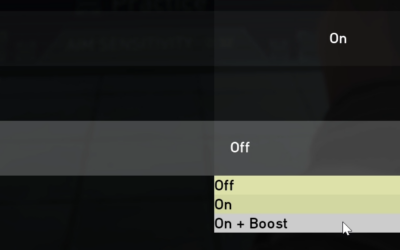
- Open the NVIDIA Control Panel or NVIDIA app and find the G-Sync setup page.
- Tick the option to enable G-Sync for the monitor, then choose whether to apply it in full-screen only or also in windowed mode.
- Set the monitor to its highest refresh rate in Windows display settings.
- Optionally cap the in-game frame rate slightly below the maximum refresh.
If the option does not appear, the usual causes are a cable that does not support VRR, a monitor setting that is switched off, or an outdated driver.
Limits and Trade-offs
G-Sync solves tearing and uneven pacing, but it does not make a game run faster. If the frame rate is low, a game remains choppy, just without tears. VRR also cannot fix stutter caused by loading or CPU limits, since the delay originates before the frame is ready.
Some monitors show slight flicker in certain menus or loading screens when frame rate varies sharply, a behavior tied to the panel type. Competitive players who run frame rates far above the refresh rate may prefer to leave VRR off and accept some tearing to minimize delay, though many find it unnecessary to do so.
G-Sync Compared With FreeSync and HDMI VRR
G-Sync is not the only variable refresh rate system. AMD’s FreeSync is built on the same VESA Adaptive-Sync standard that G-Sync Compatible monitors use. Because of that shared foundation, many monitors work with both brands of graphics card, although the level of validation differs. HDMI also includes its own variable refresh rate feature, used by game consoles and some televisions.
For a GeForce owner, the practical advice is simple. A monitor listed as G-Sync Compatible or certified by NVIDIA has been checked against a set of requirements, which reduces the chance of flicker, blanking or a limited range. A monitor that advertises only FreeSync may still work, but results vary by model, so look for confirmation in the manufacturer’s current documentation or in NVIDIA’s list of validated displays.
When comparing monitors, look at the VRR range and not only the label. A range that starts at a very low refresh rate and extends to the monitor’s maximum gives the most freedom, because the display can follow the frame rate through large swings. A narrow range can cause the feature to drop out during slow scenes.
Troubleshooting Common G-Sync Problems
- The option is missing in the control panel: check that the monitor’s Adaptive-Sync setting is on, the cable is DisplayPort or a compatible HDMI connection, and the driver is current.
- Flicker in menus or loading screens: frame rate swings can make some panels flicker. Capping the frame rate in menus or limiting the refresh range often helps.
- Tearing still appears: the frame rate may be above the monitor’s maximum. Set a frame cap a few frames below it.
- It works in full screen but not in windows: enable the windowed mode option in the G-Sync settings, and check the Windows graphics settings for the application.
- Multi-monitor issues: mixed refresh rates and different monitor types can complicate VRR. Test with a single monitor to isolate the cause.
These steps are reversible and rely on settings in Windows, the monitor menu and NVIDIA’s own software.
Related guides
- What Does Manage Gpu Performance Counters Mean On Nvidia Hardware
- Low Profile Nvidia Graphics Cards For Small Form Factor Pcs
- Nvidia App Error Your System Configuration Is Not Supported
Frequently Asked Questions
What does G-Sync do?
It makes a compatible monitor change its refresh rate to match the frame rate from a GeForce graphics card. The effect is fewer visible tears and smoother motion than a fixed refresh with V-Sync.
Is G-Sync Compatible as good as G-Sync?
Both provide variable refresh rate. The certified tiers add stricter requirements on range and image quality, while G-Sync Compatible gives a wider range of monitors and often works well in everyday use.
Do I need DisplayPort for G-Sync?
DisplayPort is the most widely supported option. Many newer monitors also support VRR over HDMI, so check your monitor’s manual and the current NVIDIA documentation.
Should I leave V-Sync on with G-Sync?
Many guides suggest enabling V-Sync in the NVIDIA settings and turning it off in the game, along with a frame rate cap just under the refresh rate. This keeps VRR active and avoids tearing at the top of the range.



Write Your Review
No reviews yet. Be the first to share your experience!