
The fastest fix for a Bluetooth headset that keeps disconnecting on a Windows PC is to stop Windows from powering down the Bluetooth adapter: open Device Manager, double-click your Bluetooth adapter, go to the Power Management tab, and untick the option that lets the computer turn off the device to save power. If that does not help, work through the remaining steps below, from the easiest to the hardest.
Symptoms and what they usually point to
Bluetooth drops come in a few distinct patterns, and the pattern narrows down the cause.
- Disconnects after idle time or when the PC sleeps. Typically power management on the adapter or the USB port.
- Audio stutters, then cuts out at a distance or behind obstacles. Radio interference or range.
- Drops only while a game or voice chat is running. Headset profile switching between music and call mode, or USB 3.0 interference near the adapter.
- Disconnects started after a Windows or driver update. A driver problem.
- The headset also drops on a phone. The headset itself, its battery, or its firmware.
Likely causes, ranked
- Power-saving settings on the Bluetooth adapter or USB hub.
- Outdated, corrupted, or recently changed Bluetooth drivers.
- Wireless interference from Wi-Fi routers, USB 3.0 devices, and other 2.4 GHz gear.
- A low or ageing headset battery.
- An old Bluetooth adapter version, or a cheap dongle.
- Stale pairing data.
- Rarely, a hardware fault in the adapter, headset, or antenna.
Step-by-step fixes, easiest first
- Charge the headset and move closer. A weak battery can cause dropouts. Keep the headset within a few metres of the PC with a clear line of sight to the adapter; the case and desk can block the signal.
- Toggle Bluetooth and restart. Turn Bluetooth off and on in Settings, Bluetooth and devices, then restart the PC.
- Remove and re-pair the headset. In Bluetooth and devices, remove the headset, put it into pairing mode as the maker describes, and pair again.
- Turn off adapter power saving. In Device Manager, expand Bluetooth, open your adapter, select the Power Management tab, and untick the option that allows the computer to turn off the device. On a desktop with a USB dongle, do the same for the USB Root Hub entries. Microsoft’s support page on Bluetooth disconnects lists power settings among the first things to adjust.
- Disable USB selective suspend. In Control Panel, Power Options, change plan settings, then advanced settings, expand USB settings and set USB selective suspend to Disabled. Reports note that big Windows updates can reset this setting.
- Restart the Bluetooth Support Service. Press Win+R, run services.msc, find Bluetooth Support Service, and restart it. Set its startup type to Automatic.
- Run the Bluetooth troubleshooter. In Settings, System, Troubleshoot, other troubleshooters, run the Bluetooth entry.
- Update or roll back the driver. Install the latest Bluetooth driver from the PC, motherboard, or adapter maker rather than relying only on Windows Update. If drops began after an update, use Roll Back Driver on the adapter’s Driver tab.
- Reduce interference. Move the dongle to a front port or onto a short USB extension cable, away from USB 3.0 drives and hubs, whose emissions are known to interfere with 2.4 GHz radios. If your Wi-Fi router uses 2.4 GHz, try the 5 GHz band for the PC.
- Change the headset connection mode. Some headsets have a setting for the audio profile. If your headset properties in Windows offer an LE Audio option, try turning it off to see if stability changes.
- Update the headset firmware. Use the maker’s own app, which may offer firmware updates addressing connectivity.
- Try a different adapter. A modern Bluetooth 5-class USB adapter with an external antenna often improves range and stability for a desktop whose built-in radio sits behind the case.
Quick-reference table: symptom, cause, fix
| Symptom | Likely cause | Fix |
|---|---|---|
| Drops after being idle | Adapter or USB power saving | Untick power-off option, disable USB selective suspend |
| Won’t reconnect after sleep | Power state or driver bug | Disable power saving, update driver, restart Bluetooth service |
| Stutter near the router or USB drive | 2.4 GHz interference | Move dongle, use extension cable, use 5 GHz Wi-Fi |
| Cuts out across the room | Range or obstruction | Move closer, use adapter with external antenna |
| Started after an update | Driver change | Roll back or install maker driver |
| Also drops on phone | Headset battery or firmware | Charge, reset, update firmware |
| Voice chat switches audio to low quality | Hands-free profile switching | Choose the headset’s stereo output, use a dongle or wired mode for mic |
Gaming-specific tips
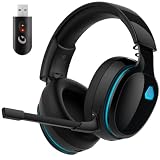
Standard Bluetooth adds noticeable delay, with sources commonly citing a range of roughly 100 to 300 ms for classic profiles, which makes it a poor fit for fast competitive play. Many gaming headsets include a 2.4 GHz USB dongle that uses its own connection and avoids Windows Bluetooth settings altogether. If your headset supports it, switching to the dongle often removes drops completely. Using Bluetooth for the microphone also forces Windows into the narrow-band hands-free mode, which is why audio quality drops when voice chat starts; a headset with a dongle or a separate microphone avoids this.
Safety notes
- Switch off and unplug the PC before opening the case to reseat an internal Bluetooth card or antenna.
- Never open a power supply; if the PC shows power faults, contact the maker or a technician.
- If a headset battery swells, becomes hot, or smells, stop using it and contact the maker.
- BIOS and driver changes can cause instability; make one change at a time and note it so you can undo it.
When to stop and contact the maker or a technician
If the headset disconnects on multiple devices, it is probably faulty or under warranty, so contact the headset maker. If the adapter disappears from Device Manager or shows an error code, a failing card or USB port may be the cause, and a technician can test it. If you have worked through every step above and an external adapter does not help, a hardware fault in the PC’s USB controller or motherboard is possible.
Prevention tips
- Keep Bluetooth drivers and headset firmware updated.
- Avoid placing the dongle behind the case or next to USB 3.0 storage.
- Recheck power-saving options after major Windows updates.
- Keep the battery between low and full charge when storing the headset for long periods.
- Use the headset’s dongle mode for gaming when it exists.
Frequently Asked Questions
Why does my Bluetooth headset disconnect when my PC is idle?
Windows can switch off the Bluetooth adapter or its USB port to save power. Turning off the power-saving option on the adapter and disabling USB selective suspend usually stops it. Restart the PC afterward so the changes apply.
Can Wi-Fi cause Bluetooth dropouts?
Yes, both can share the 2.4 GHz band, and a busy router or nearby USB 3.0 devices can raise interference. Moving the dongle with an extension cable and using the 5 GHz Wi-Fi band often helps.
Should I reinstall the Bluetooth driver?
If drops began after an update, rolling back or reinstalling the maker’s driver is a reasonable step. Uninstall the adapter in Device Manager, restart so Windows reinstalls it, or install the version from the PC or adapter maker.
Is it the headset or the PC?
Test the headset with a phone or another PC. If it drops there too, the headset, battery, or firmware is the likely cause. If it works elsewhere, focus on the PC’s adapter, drivers, and power settings.
Would a USB Bluetooth adapter fix it?
It often helps, especially on a desktop with a weak built-in radio. Choose a recent Bluetooth version and plug it into a port away from other USB 3.0 devices. It is not a guaranteed fix, so apply the software steps first.
Is wired or dongle mode better for gaming?
Reviewers consistently report that wired and 2.4 GHz dongle connections have lower delay and fewer dropouts than standard Bluetooth. Many headsets include both a dongle and Bluetooth, so you can use Bluetooth for phone calls and the dongle at the PC.






Write Your Review
No reviews yet. Be the first to share your experience!