
To run LLMs locally, you need three things: a computer with enough memory for the model (graphics card VRAM, or unified memory on a Mac), a runner app such as Ollama, LM Studio or llama.cpp, and a quantized model file that fits your hardware. On a PC with a 16 GB graphics card, you can go from nothing to a private, offline chat assistant in about 15 minutes. This guide walks through every step: checking your hardware, picking a tool, installing it, choosing a model that fits, and tuning speed and context. It includes a model-size to VRAM table you can use before you download anything.
- What “Running an LLM Locally” Means
- Step 1: Check Your Hardware
- Step 2: Pick Your Tool
- Step 3: Run Your First Model with Ollama
- Step 4: Or Use LM Studio for a Point-and-Click Setup
- Step 5: Or Go Direct with llama.cpp
- Step 6: Choose a Model That Fits Your VRAM
- Step 7: Tune for Speed and Context
- Step 8: Connect Your Local Model to Other Apps
- Hardware Upgrades That Make the Biggest Difference
- Troubleshooting Common Problems
- How to Run LLMs Locally: FAQ
- The Short Path
Disclosure: this page contains affiliate product cards. We may earn a commission if you buy through them, at no extra cost to you.
Quick answer: Our top pick in 2026 is the CPU only / laptop — our #1 rated choice. See the full ranked comparison, alternatives and buying advice below.
What “Running an LLM Locally” Means
Running a model locally means the model’s weights sit on your drive and every token is generated by your own CPU or GPU. Nothing you type leaves the machine. Almost always this means inference, using a model someone else trained, not training one yourself. Inference needs far less hardware than training, which is why a single gaming GPU or a well-equipped Mac can run models that rival older paid cloud assistants.
People do this for four main reasons: privacy (sensitive documents, client code, medical or legal material), cost (no per-token fees once you own the hardware), offline access, and control (you choose the model, version and settings, and nothing changes under you).
The trade-off is that your hardware sets a hard limit on model size and speed. The rest of this guide is about matching the two.
Step 1: Check Your Hardware
The single most important number is how much memory your GPU can use. On a Windows or Linux PC with a graphics card, that is the card’s VRAM. On an Apple Silicon Mac, or an AMD Ryzen AI Max system, it is the shared unified memory, minus what the operating system keeps. The model, plus a working buffer called the KV cache, has to fit in that memory to run at full speed. If it spills into system RAM, speed can drop by 10 times or more.
The second number is memory bandwidth. It decides how fast tokens come out once the model fits. A card with twice the bandwidth generates text roughly twice as fast on the same model.
To find your numbers on Windows, open Task Manager, go to Performance and select GPU. “Dedicated GPU memory” is your VRAM. On a Mac, open About This Mac and read the memory figure. On Linux with an NVIDIA card, run nvidia-smi.
| Hardware tier | Usable GPU memory | Example hardware | Bandwidth | What runs well (4-bit) |
|---|---|---|---|---|
| CPU only / laptop | System RAM (16 to 32 GB) | Any modern 8-core CPU | ~50 to 120 GB/s | 1B to 8B models, slowly |
| Entry GPU | 8 GB | RTX 5060, RTX 4060 | 272 to 448 GB/s | Up to 8B with short context |
| Mainstream GPU | 12 GB | RTX 5070, RTX 3060 12GB | 360 to 672 GB/s | 8B to 14B |
| Sweet-spot GPU | 16 GB | RTX 5060 Ti 16GB, RTX 5070 Ti, RTX 5080, RX 9070 XT | 448 to 960 GB/s | 14B dense; 20B to 26B MoE |
| Enthusiast GPU | 24 to 32 GB | RTX 3090, RTX 4090, RTX 5090, Radeon AI PRO R9700 | 640 to 1,792 GB/s | 27B to 32B dense; 30B to 35B MoE |
| Unified memory box | 64 to 128 GB+ | Mac Studio M5 Max/Ultra, Ryzen AI Max+ 395, DGX Spark | 256 to 1,200 GB/s | 70B dense; 120B MoE |
Also check storage and RAM. Model files run from about 2 GB to more than 60 GB each, so keep 100 GB or more free on an SSD. Have at least 16 GB of system RAM, or 32 GB if you plan to run models partly on the CPU.
Step 2: Pick Your Tool
Three tools cover almost everyone. All three are free, run on Windows, macOS and Linux, use the same GGUF model format underneath, and can serve an OpenAI-compatible API so other apps can use your local model.
| Tool | Interface | Best for | Default API address | Strength | Limitation |
|---|---|---|---|---|---|
| Ollama | Desktop app plus command line | Most users; developers wiring models into apps | http://localhost:11434/v1 | One-command installs, automatic GPU detection, huge integration support | Fewer visible knobs; context default is small on smaller GPUs |
| LM Studio | Full graphical app | Beginners and anyone who prefers clicking to typing | http://localhost:1234/v1 | Model browser with fit hints, sliders for every setting, MLX engine on Mac | Closed source |
| llama.cpp | Command line and built-in web UI | Power users who want maximum control and speed | http://localhost:8080/v1 | The engine the others build on; newest features first; runs on almost anything | More flags to learn |
For a first run, pick Ollama if you are comfortable typing one command, or LM Studio if you aren’t. You can install both. They don’t conflict, though each keeps its own copy of downloaded models.
Step 3: Run Your First Model with Ollama
- Install. Download the installer from ollama.com for Windows or macOS and run it. On macOS you can also use brew install ollama. On Linux, run the one-line install script shown on the Ollama download page.
- Pull a model. Open a terminal and run ollama pull llama3.1:8b. This downloads about 4.9 GB, a good first test that fits on an 8 GB GPU. With a 16 GB card, try ollama pull gpt-oss:20b instead.
- Chat. Run ollama run llama3.1:8b and type a question. Type /bye to exit.
- Check that the GPU is used. While the model is loaded, run ollama ps. The PROCESSOR column should read “100% GPU”. If it shows a CPU/GPU split, the model or its context is too big for your VRAM.
- Use the desktop app, if you prefer. The Ollama app on Windows and macOS gives you a chat window, a model picker and a settings slider for context length, so you don’t need the terminal day to day.
Context length matters. Since early 2026, Ollama sets the default context window based on VRAM: 4,096 tokens below 24 GB, 32,768 tokens from 24 to 48 GB, and 262,144 tokens at 48 GB or more. Ollama’s docs recommend at least 64,000 tokens for coding tools, agents and web search. Raise it with the context slider in the app, or start the server with OLLAMA_CONTEXT_LENGTH=32768 ollama serve. A larger context uses more VRAM. Step 7 shows how much.
On Apple Silicon, recent Ollama releases run supported model architectures on Apple’s MLX framework automatically, which generally speeds up generation on Macs.
Step 4: Or Use LM Studio for a Point-and-Click Setup
- Download LM Studio from lmstudio.ai and install it.
- Open the Discover tab and search for a model family, such as Qwen, Gemma or gpt-oss.
- Pick a quantization. LM Studio marks which files should fit fully on your GPU, and it suggests a sensible default. Q4_K_M is the usual starting point.
- Click Download, then load the model from the top bar and start chatting.
- In the model load settings, check GPU offload (set it to the maximum if the model fits) and context length. LM Studio’s default context is 8K tokens as of mid-2026.
- To serve the model to other apps, open the Developer tab and start the local server.
LM Studio 0.4 added parallel request handling, a stateful REST API with MCP tool support, and llmster, a headless daemon for running LM Studio on a server without the graphical interface. On Macs it can use either llama.cpp or the MLX engine. MLX is usually faster on Apple Silicon.
Step 5: Or Go Direct with llama.cpp
llama.cpp is the open-source inference engine underneath Ollama, LM Studio and many other tools. Using it directly gets you new model support and features first, along with every tuning flag.
- Install. On Windows, run winget install llama.cpp. On macOS or Linux, run brew install llama.cpp. Mac builds use Metal by default. Prebuilt releases with CUDA, Vulkan and other backends are also on the project’s GitHub releases page.
- Start a server straight from Hugging Face. For example: llama-server -hf ggml-org/gpt-oss-20b-GGUF –port 8080. The model downloads on first run and caches locally.
- Open the web UI. Browse to http://localhost:8080 for a built-in chat interface, or point any OpenAI-compatible app at http://localhost:8080/v1.
- Tune. The most useful flags are -ngl (how many layers go on the GPU; set it high to put everything there), -c (context length), and the KV-cache type options, which let you store the cache in 8-bit to save memory.
Use llama.cpp when you want to split a model between GPU and CPU in a precise way, run MoE models with their expert layers in system RAM, or try a new model the day it lands.
Step 6: Choose a Model That Fits Your VRAM
Models are sold by parameter count (8B means 8 billion weights) and run in quantized form, compressed from 16 bits per weight down to around 4 to 8. In GGUF files, Q4_K_M averages about 4.8 bits per weight, Q5_K_M about 5.7, and Q8_0 about 8.5. As a rule of thumb, Q4_K_M keeps most of the quality and is the best default. Go up to Q5 or Q8 only if you have spare memory.
The table below gives approximate memory needed at Q4_K_M with a modest 4K to 8K context. Add the context overhead from Step 7 if you plan to use long documents.
| Model size | Example models (2026) | Approx. file size, 4-bit | Memory to run comfortably | Minimum GPU class |
|---|---|---|---|---|
| 1B to 4B | Gemma 4 E2B / E4B, small Qwen models | 1 to 3 GB | 4 to 6 GB | Any 6 GB GPU, or CPU only |
| 7B to 8B | Llama 3.1 8B | ~4.9 GB | 6 to 8 GB | 8 GB GPU |
| 12B to 14B | Gemma 4 12B | ~7 to 9 GB | 10 to 12 GB | 12 GB GPU |
| 20B to 26B MoE | gpt-oss-20b, Gemma 4 26B-A4B | ~13 to 15 GB | 16 GB | 16 GB GPU |
| 27B to 32B dense | Qwen3.6-27B, Gemma 4 31B | ~16 to 19 GB | 20 to 24 GB | 24 GB GPU |
| 30B to 35B MoE | Qwen3.6-35B-A3B | ~20 to 24 GB | 24 to 32 GB | 32 GB GPU, or 24 GB with some CPU offload |
| 70B dense | Llama 3.3 70B | ~42 GB | 48 GB+ | Two 24 GB GPUs, or a 64 GB+ unified-memory system |
| 120B MoE | gpt-oss-120b | ~63 to 66 GB | 80 GB+ | 96 to 128 GB unified memory |
Good starting picks by memory: on 8 GB, Llama 3.1 8B or Gemma 4 E4B. On 12 GB, Gemma 4 12B, which also accepts images. On 16 GB, gpt-oss-20b for reasoning and tool use, or Gemma 4 26B-A4B. On 24 GB, Qwen3.6-27B, a strong coding model. On 32 GB, Qwen3.6-35B-A3B. On 128 GB of unified memory, gpt-oss-120b. Check licenses on each model card before commercial use.
Why MoE models punch above their size: a mixture-of-experts model such as gpt-oss-20b has about 21 billion total parameters, but only about 3.6 billion are active for each token. It needs the memory of a 20B model but generates at close to the speed of a 4B model. That’s why MoE models are the best fit for 16 GB cards and unified-memory boxes.
Step 7: Tune for Speed and Context
Keep everything on the GPU
The biggest speed factor is whether the whole model sits in VRAM. Leave about 0.5 to 1 GB free for the driver and display. If ollama ps or LM Studio shows a CPU split, drop to a smaller quantization, a smaller model or a shorter context.
Budget memory for context
Every token of context needs KV-cache memory on top of the model. For a typical modern 8B model with grouped-query attention, the FP16 cache is about 128 KB per token. That works out to about 1 GB at 8K tokens and 4 GB at 32K. A 70B model needs about 320 KB per token, or roughly 10 GB at 32K. Storing the cache in 8-bit halves those figures with little quality loss.
Pick the right quantization
Start at Q4_K_M. If the model fits with room to spare, try Q5_K_M or Q6_K for a small quality gain. Below 4 bits (Q3, IQ3, Q2), quality drops faster, especially for coding and math. A larger model at Q4 usually beats a smaller model at Q8 when both fit in the same memory.
Partial offload as a last resort
If a model is slightly too big, llama.cpp and LM Studio can keep some layers on the CPU. Expect a sharp slowdown. For MoE models, keeping the expert layers in system RAM and the rest on the GPU works much better than splitting dense layers.
Step 8: Connect Your Local Model to Other Apps
All three tools expose an OpenAI-compatible endpoint, so most AI apps can use your local model by changing the base URL and model name:
- Open WebUI gives you a ChatGPT-style browser interface on top of Ollama, with chat history, document upload and multiple users. It is usually installed with Docker.
- Coding assistants such as Continue for VS Code and JetBrains can point at Ollama or LM Studio for private code completion and chat.
- Your own scripts can use the official OpenAI client libraries. Set the base URL to your local endpoint and use any placeholder string as the API key.
Hardware Upgrades That Make the Biggest Difference
If your current machine is too small, VRAM is the upgrade that matters. Here is how the common choices line up in October 2026. NVIDIA’s rumored RTX 50 Super cards with more VRAM have not been announced and don’t appear likely to reach stores this year, so plan around what’s on shelves.
| GPU | VRAM | Bandwidth | Board power | Largest comfortable model (4-bit) | Price tier |
|---|---|---|---|---|---|
| RTX 5060 Ti 16GB | 16 GB GDDR7 | 448 GB/s | 180 W | 14B dense / 20B to 26B MoE | Budget |
| RTX 5070 Ti | 16 GB GDDR7 | 896 GB/s | 300 W | 14B dense / 20B to 26B MoE, about twice as fast | Mid-range |
| Radeon AI PRO R9700 | 32 GB GDDR6 | 640 GB/s | 300 W | 27B to 32B dense / 35B MoE | Upper-mid |
| RTX 5090 | 32 GB GDDR7 | 1,792 GB/s | 575 W | 27B to 32B dense / 35B MoE, fastest consumer option | Premium |
Best budget entry: RTX 5060 Ti 16GB
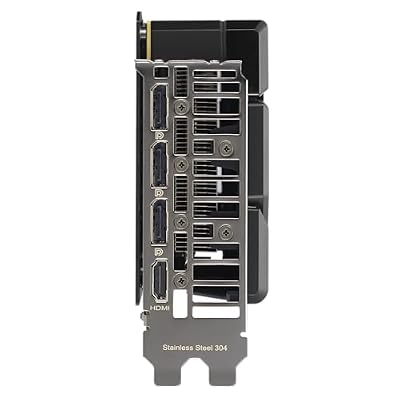
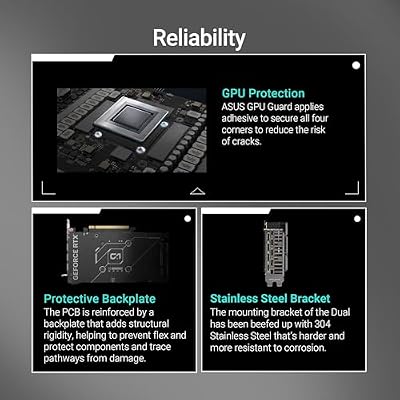
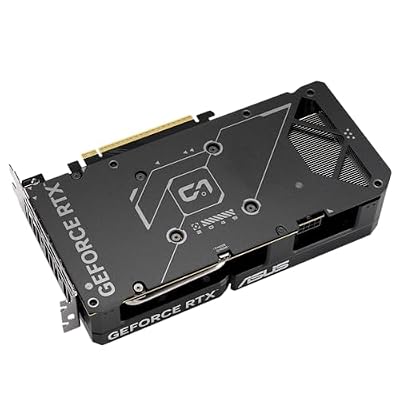
The cheapest current NVIDIA card with 16 GB, which is the line where gpt-oss-20b, Gemma 4 26B-A4B and 14B dense models fit fully on the GPU. Its 128-bit bus limits speed, but full CUDA support makes it the low-friction choice for Ollama and LM Studio.

ASUS Dual GeForce RTX 5060 Ti 16GB GDDR7 OC Edition Gaming Graphics Card






As an Amazon Associate we earn from qualifying purchases. Product prices and availability are accurate as of the date/time indicated.
Best speed at 16 GB: RTX 5070 Ti
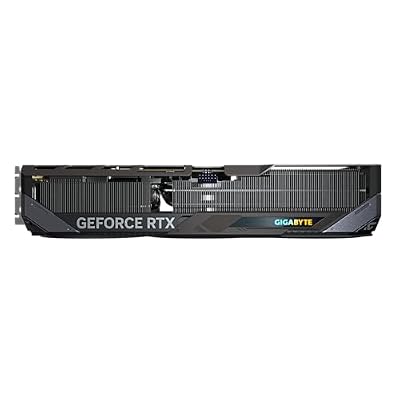
Same 16 GB capacity, but twice the bandwidth on a 256-bit bus, so the same models generate roughly twice as fast. It’s the better pick if you also game at 1440p or 4K.

GIGABYTE GeForce RTX 5070 Ti Gaming OC 16G Graphics Card, 16GB 256-bit GDDR7, PCIe 5.0, WINDFORCE Cooling System, GV-N507TGAMING OC-16GD Video Card


As an Amazon Associate we earn from qualifying purchases. Product prices and availability are accurate as of the date/time indicated.
Most VRAM per dollar: Radeon AI PRO R9700
32 GB of memory at a workstation-card price well below an RTX 5090. It runs llama.cpp through Vulkan or ROCm, and LM Studio supports it. Bandwidth is lower than the 5090’s, and CUDA-only tools won’t run on it.

ASRock Radeon AI PRO R9700 Creator 32GB Professional Graphics Card, 2920 MHz Boost Clock, GDDR6, AMD RDNA 4, AI-Accelerators, DisplayPort 2.1a, PCIe 5.0, Blower Cooler


As an Amazon Associate we earn from qualifying purchases. Product prices and availability are accurate as of the date/time indicated.
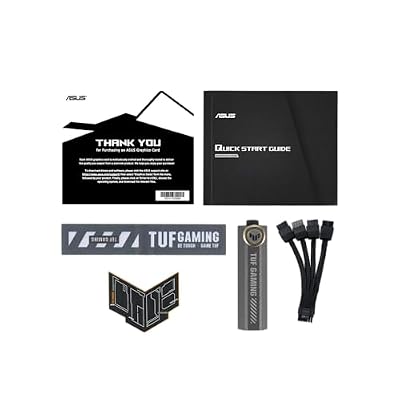
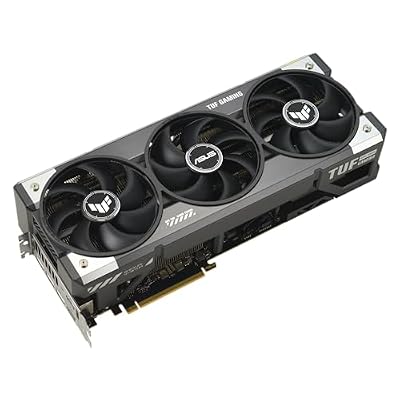
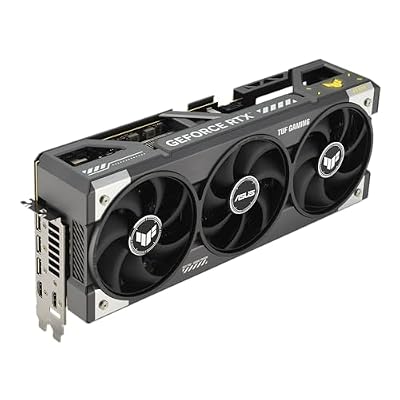
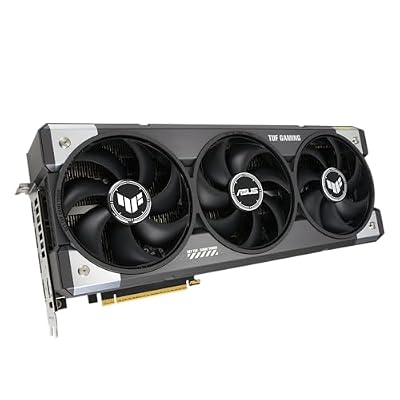
Fastest single card: RTX 5090
32 GB and 1,792 GB/s make it the fastest consumer GPU for local models that fit in 32 GB. It needs a strong power supply (NVIDIA recommends 1,000 W) and a case with room for a large card.

ASUS TUF Gaming GeForce RTX 5090 32GB GDDR7 OC Edition Gaming Graphics Card











As an Amazon Associate we earn from qualifying purchases. Product prices and availability are accurate as of the date/time indicated.
If you need to run 70B or 120B models, no single consumer card is enough. Look at unified-memory systems such as the Mac Studio, Ryzen AI Max+ 395 mini PCs or NVIDIA’s DGX Spark, or at multi-GPU builds.
Troubleshooting Common Problems
- Very slow output (1 to 3 tok/s) on a GPU system: the model has spilled into system RAM. Check ollama ps and reduce the model size, quantization or context.
- The model forgets earlier parts of the conversation: the context window is too small. Raise it in settings or with OLLAMA_CONTEXT_LENGTH.
- The GPU isn’t detected: update your graphics driver. AMD users on Windows may need to switch LM Studio’s runtime to Vulkan.
- Out-of-memory errors when loading: close other GPU-heavy apps (games, browsers with many tabs, video editors) and retry with a smaller quantization.
- Odd or repetitive answers: make sure you’re using the model’s correct chat template. All three tools handle this automatically for official model files, but random community uploads can get it wrong.
How to Run LLMs Locally: FAQ
Can I run an LLM locally without a GPU?
Yes. llama.cpp, Ollama and LM Studio all run on the CPU alone. With 16 to 32 GB of RAM and a modern 8-core processor, small models from 1B to 8B work at readable speeds. Larger models get slow, because system RAM has much less bandwidth than VRAM.
Is Ollama or LM Studio better?
Neither is better overall. Ollama is lighter, scriptable and supported by more third-party apps, which suits developers. LM Studio has the friendlier interface, shows which files fit your GPU, and exposes every setting through menus. Many people use LM Studio to explore and Ollama to serve models to other apps.
How much VRAM do I need to run LLMs locally?
8 GB runs 7B to 8B models. 12 GB handles up to about 14B. 16 GB is the current sweet spot, fitting 20B to 26B MoE models. 24 to 32 GB runs 27B to 35B models. 70B dense models need about 48 GB or more, which in practice means unified memory or multiple GPUs.
Are local LLMs free?
The software is free and many models have open weights, so there are no per-token fees. Your costs are hardware and electricity. Some model licenses restrict commercial use or very large deployments, so read the license on the model card before building a product on it.
Are local models as good as ChatGPT or Claude?
The best open models you can run on a 24 to 32 GB GPU are very capable for writing, summarizing and coding help. But the largest cloud models are still stronger at hard reasoning and long, complex tasks. A local model is the right choice when privacy, cost or offline access matters more than having the absolute top model.
Is running an LLM locally private?
Inference happens entirely on your machine, so your prompts and documents aren’t sent anywhere. Downloads, update checks and any cloud features you turn on do use the network. Some runners also offer optional cloud models, so make sure the model you pick is a local one.
Can I use a local LLM for coding?
Yes. Point Continue or a similar editor extension at Ollama or LM Studio and pick a coding-focused model. Qwen3.6-27B is a common pick on 24 GB cards, and gpt-oss-20b on 16 GB. Coding agents need a large context, so set it to 32K to 64K tokens and budget the VRAM for it.
The Short Path
Check your VRAM. Install Ollama or LM Studio. Download a Q4_K_M model from the table above that fits with about 1 GB to spare. Confirm it runs 100 percent on the GPU, then raise the context length as far as your memory allows. Once you know which models you actually use, you’ll know whether a 16 GB card is enough or whether a 32 GB card or a unified-memory system is worth the upgrade.
Ready to decide? Our #1 pick for 2026 is the CPU only / laptop.
Live price & availability on Amazon.
Top picks from this guide
GIGABYTEGIGABYTE GeForce RTX 5070 Ti Gaming OC 16G Graphics Card,…$1,162 \xc2\xb7 99/100ASUSASUS TUF Gaming GeForce RTX 5090 32GB GDDR7 OC Edition…$7,444 \xc2\xb7 94/100ASRockASRock Radeon AI PRO R9700 Creator 32GB Professional Graphics Card,…$1,700 \xc2\xb7 94/100ASUSASUS Dual GeForce RTX 5060 Ti 16GB GDDR7 OC Edition…$790 \xc2\xb7 94/100










Write Your Review
No reviews yet. Be the first to share your experience!