
- Top Pick: NVIDIA Certified Professional: Agentic AI (NCP-AAI) (NVIDIA Certification Guides)
- Best Value: THE NVIDIA RTX 5090 USER GUIDE: Step-by-Step Installation, Overclocking Tips, Driver Optimization, System Compatibility, and Pro Gamer Techniques for … Ray Tracing, and AI-Accelerated Workloads
- Premium Choice: StreamElements User Guide in 2026: A Complete Handbook for Stream Management, Overlays, and Engagement Tools
Finding out how to disable Nvidia overlay is one of the easiest ways to reclaim lost system resources, fix annoying hotkey conflicts, and eliminate random framerate drops during your gaming sessions. While the Share overlay provides handy tools for capturing your best plays, recording gameplay background feeds, and displaying real-time hardware telemetry, it is also notorious for running continuous background processes that can severely impact system responsiveness, especially on mid-range gaming rigs. Whether you are using the classic GeForce Experience platform or transitioning to the newly redesigned unified app, disabling this component takes only a few simple clicks. By removing this unnecessary software layer, you allow your graphics processing unit to dedicate its entire resource pool directly to rendering frames.
Why You Might Want to Turn Off GeForce Experience Overlay
Before diving into the actual step-by-step methods, it is vital to understand why millions of PC gamers worldwide choose to turn off this feature. Nvidia shadowplay and telemetry services run continuously in the background, consuming CPU cycles and system memory that could otherwise be allocated to your active game. By taking control of these background tasks, you can ensure a much smoother and more consistent gaming experience.
Resolving In-Game Performance Issues and Stutters
The primary reason most gamers look up how to disable Nvidia overlay is to combat sudden, unexplained framerate drops and micro-stutters. Because the software continuously monitors your screen for instant-replay recording, it places a constant load on your system memory and storage drive. On older mechanical hard drives or highly congested solid-state drives, this constant writing and caching of background video files can cause severe lag spikes during high-intensity firefights or fast-paced racing games.
Furthermore, many modern competitive multiplayer titles have complex anti-cheat software that flags third-party overlays as potential security risks. When the overlay tries to inject itself into the game engine’s rendering pipeline, it can trigger compatibility conflicts, leading to game crashes, delayed mouse input, or failure to launch the title altogether. Turning off the overlay immediately resolves these software-level bottlenecks and stabilizes your frame-time distribution.
👉 Check the latest price on Amazon:
- Pny Geforce Rtx 5070 Ti Epic-x Rgb Plus Oc
- Install Nvidia Cuda Toolkit
- Nvidia Official Drivers
- Disable Nvidia Overlay
Eliminating Unwanted Shortcuts and Hotkey Conflicts
Another major annoyance is the default hotkey configuration used by GeForce Experience. The main overlay shortcut, Alt + Z, often conflicts with complex keyboard combinations used in competitive strategy games, design applications, or productivity tools. Nothing is more frustrating than trying to execute a critical in-game macro only to have a massive green overlay menu pop up and interrupt your focus.
Additionally, other shortcuts like Alt + F12 for the FPS counter or Alt + F9 for manual recording can interfere with standard operating system commands or custom binding setups in popular Steam games. If you do not actively use these capture features, leaving them enabled simply invites accidental key presses that disrupt your workflow. Disabling the overlay entirely removes all associated hotkey listeners from your Windows environment, ensuring your keyboard behaves exactly as intended.
Pros and Cons of Disabling the Nvidia Overlay Features
Analyzing the advantages and disadvantages of managing your graphics card settings is essential to making an informed decision for your gaming rig. Turning off the overlay completely frees up system resources, reduces input latency, and prevents random crashing in competitive titles. It also cleans up your Windows background processes, which is a massive benefit for budget-oriented gaming setups.
On the other hand, disabling this utility means you will lose access to instant replay highlights, convenient in-game screenshot tools, and the built-in performance monitor. If you still want to track your hardware metrics or record your gameplay, you will need to rely on alternative lightweight tools such as MSI Afterburner or OBS Studio. Weighing these trade-offs will help you decide if keeping the overlay active is truly worth the performance cost.
Step-by-Step Instructions on How to Disable Nvidia Overlay
Disabling this software feature is a highly straightforward process, regardless of whether you are running the legacy GeForce Experience program or the modern unified software interface. Below, we break down the exact methods to help you customize your settings quickly and return to your games with maximum performance.
Method 1: Disabling Overlay via the Nvidia GeForce Experience App
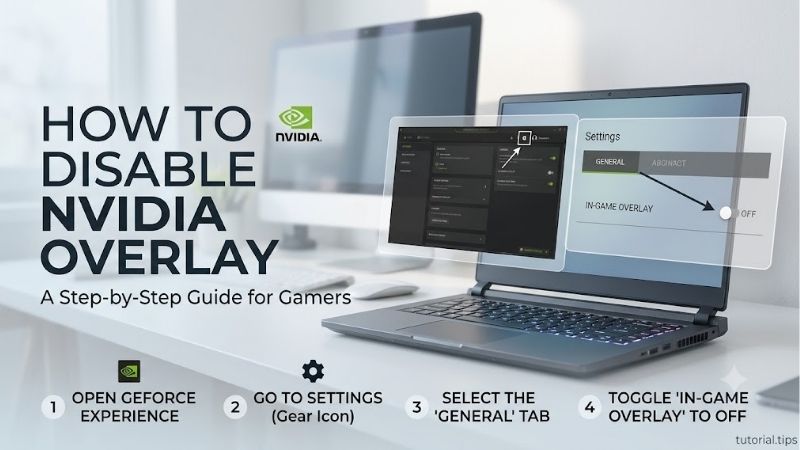
For the vast majority of users running traditional systems, the legacy GeForce Experience application is the main control center for managing driver updates and screen recording features. To disable the overlay using this classic utility, start by clicking on the Windows Search bar, typing “GeForce Experience,” and pressing Enter to launch the program. Once the application opens, look towards the top-right corner of the window, right next to your profile name, and click on the gear-shaped “Settings” icon.
Inside the Settings menu, navigate to the “General” tab on the left-side panel. Scroll down the main page until you locate the section labeled “In-Game Overlay.” You will see a green toggle switch next to a brief description of the feature. Simply click on this toggle to switch it from “On” to “Off.” The interface may freeze for a brief second as Windows terminates the shadowplay processes in the background. Once the toggle turns grey, you have successfully disabled the overlay, and you can safely close the application.
Method 2: Disabling Overlay in the New Unified Nvidia App
Nvidia has gradually been transitioning users away from the old Control Panel and GeForce Experience apps toward a new, unified platform simply called the Nvidia App. If you have upgraded to this streamlined utility, the process is slightly different but even more efficient. Open the new application by double-clicking its icon in your system tray or searching for it in your Windows Start menu.
Once the interface loads, click on the “Settings” tab located at the bottom-left corner of the sidebar navigation menu. Under the “Features” section in the main pane, you will find a dedicated entry for “Nvidia Overlay.” Click the toggle button to turn the feature off completely. You will notice that the change takes effect instantly without requiring a system reboot, immediately shutting down any active recording services and clearing up your system RAM.
What You Will Need for a Smooth PC Hardware Upgrade
While optimizing your software settings goes a long way, sometimes aging hardware is the true bottleneck behind your performance struggles. To get the absolute most out of modern PC gaming, having the right components is critical. Upgrading your graphics card, system memory, or primary storage can breathe new life into an older computer, rendering software tweaks entirely optional.
If you are looking to boost your frame rates to the absolute limit, consider checking out the latest high-performance GPUs on the market today. For gamers seeking a premium upgrade that delivers flawless ray tracing and DLSS capabilities, you can check the latest price of the RTX 4070 Super on Amazon. Additionally, ensuring your PC has fast, reliable storage is crucial for quick game load times and eliminating background asset streaming stutters. To upgrade your storage setup, check the latest price of the Samsung 990 Pro SSD on Amazon.
Hardware Market Trends and the Future of Gaming GPUs
Understanding the current state of the global hardware market is essential for any PC enthusiast looking to buy new parts or build a custom rig. The year 2026 has brought unprecedented shifts in manufacturing priorities, supply chain logistics, and overall pricing dynamics, fundamentally altering how consumers approach hardware purchasing decisions.
The Impact of Nvidia H200 AI Chip Export Regulations
The global semiconductor landscape has experienced massive adjustments following the United States government’s decision to allow the export of advanced H200 AI chips to specific markets, including China. Because these enterprise-grade artificial intelligence chips command incredibly high profit margins, major manufacturers like Nvidia are allocating a significant portion of their foundry capacity at TSMC to produce high-end AI silicon. This hyper-focus on industrial AI hardware inevitably limits the physical wafer supply available for consumer-grade GeForce graphics cards.
For everyday gamers, this supply chain shift means that mid-range and high-end gaming GPUs may see sporadic availability and slower stock replenishment throughout the year. Production priority is heavily skewed toward business enterprise clients, meaning that popular desktop graphics cards could face artificial scarcity. As a result, consumer market sentiment has grown increasingly cautious, with many builders realizing that waiting for massive price drops on next-generation architectures might not be a viable strategy anymore.
Rising Component Prices and Why You Should Buy Now
Adding to the supply constraints is a broader, industry-wide trend of rising prices for essential computer components, laptops, and prebuilt gaming systems. Raw material costs, increased transport fees, and rising energy costs in manufacturing hubs have forced component makers to adjust their retail pricing upward. From power supplies and motherboards to high-speed DDR5 memory modules, building a gaming computer is becoming steadily more expensive month over month.
This upward pricing trajectory makes a strong case for buying your desired upgrades sooner rather than later. If you have been eyeing a new graphics card or a laptop refresh, pulling the trigger now protects you from future inflation and unexpected tariff adjustments. Waiting for holiday sales may not yield the deep discounts of previous years, making immediate purchasing a highly logical move to secure your hardware before prices climb even higher.
Pro Tips and Common Mistakes to Avoid When Managing PC Settings
When configuring your PC for optimal gaming performance, there are several common pitfalls you should actively avoid. First, many users make the mistake of leaving Windows Game Mode turned off. In the past, this feature caused issues, but modern Windows updates have optimized it to prioritize system resources for games while gracefully suspending background system telemetry.
Second, if you choose to keep the Nvidia overlay active for its recording capabilities, make sure you configure your temporary recording directory to a fast secondary solid-state drive rather than your primary system C-drive. Writing gigabytes of high-bitrate video footage to your main operating system drive can severely degrade its lifespan and cause massive system-wide freezes during intense read/write operations. Keeping these tips in mind ensures your system remains fast and highly responsive.
Conclusion
Successfully executing the steps on how to disable Nvidia overlay is a guaranteed way to streamline your system background tasks, eliminate frustrating game stutters, and prevent annoying hotkey conflicts. While the software offers a variety of neat features, the tangible performance gains and improved frame-time consistency make turning it off a highly worthwhile trade-off for competitive gamers.
If software optimization alone isn’t giving you the buttery-smooth gameplay you desire, it might be time to consider upgrading your hardware. Securing a powerful graphics card or a blazing-fast SSD is a foolproof way to future-proof your system against upcoming gaming titles. Take action today, optimize your configuration, and elevate your gaming experience to new heights!
Frequently Asked Questions
What are the exact steps to disable it?
Open the Nvidia App, go to its settings section, find the in-game overlay entry and switch it off. Restart any game that is running, since the hook is installed when the game launches. If an older GeForce Experience install remains, disable the overlay there too or uninstall it entirely.
Why does the overlay keep reappearing after updates?
Driver and application updates occasionally reset the overlay to its default enabled state, especially when the installer replaces the application rather than patching it. After each major driver update, take a moment to confirm the toggle is still off rather than assuming your preference persisted.
Does it change VRAM usage?
Slightly. The overlay reserves a small amount of memory for its compositing surfaces, and instant replay reserves more for its rolling video buffer. On an 8GB card that is already close to its limit, freeing a few hundred megabytes can meaningfully reduce texture streaming stutter.
Should I disable it for competitive shooters?
Yes, generally. Competitive players benefit from the reduced input path and fewer background hooks, and the overlay offers little that the game itself does not. Pair that with Nvidia Reflex enabled in the game, Low Latency Mode set appropriately in the Control Panel, and a frame cap below your refresh ceiling.
Can I disable it without installing the Nvidia App at all?
You can install the display driver alone using the custom installation option and skip the application entirely, which means no overlay exists to disable. You then lose automatic driver update notifications and game optimisation, but all core graphics functionality including DLSS and G-SYNC remains fully available.
As an Amazon Associate we earn from qualifying purchases at no extra cost to you.













Write Your Review
No reviews yet. Be the first to share your experience!