
Best Gaming PC for Seniors: Simple, Quiet & Reliable
The best gaming PC for seniors is a quiet, prebuilt desktop with a mid-range graphics card, 16GB of memory, a 1TB SSD, front-facing USB ports, and accessible support—such as a Lenovo Legion Tower 5, HP OMEN 35L, or another system with similar specifications.
- Best Gaming PC for Seniors: Simple, Quiet & Reliable
- What to Look for in a Senior-Friendly Gaming PC
- Recommended Specification Levels
- Which Type of PC Fits the Player?
- Why 1080p or 1440p Is Usually Enough
- Simple Setup Plan
- Quiet-PC Power and Heat Check
- Maintenance That Takes Only a Few Minutes
- Final Recommendation
For most older players, the goal is not maximum frame rate. It is a computer that starts reliably, connects easily to a monitor and speakers, runs familiar games smoothly, and does not require constant maintenance. A desktop is usually preferable to a gaming laptop because it offers a larger screen, a full-size keyboard, easier upgrades, and quieter cooling at the same performance level.
As an Amazon Associate we earn from qualifying purchases at no extra cost to you.




What to Look for in a Senior-Friendly Gaming PC
1. Choose a sensible performance level
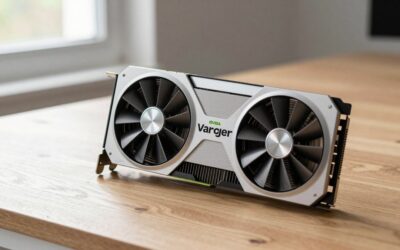
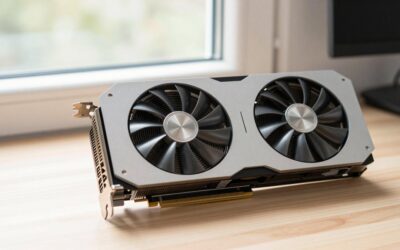
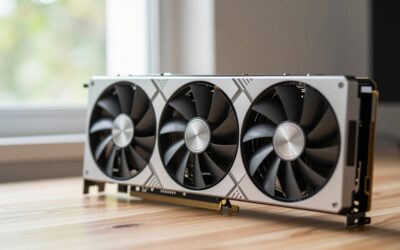
Look for an Intel Core i5 or AMD Ryzen 5 processor from a recent generation, 16GB of RAM, and a dedicated graphics card such as an NVIDIA GeForce RTX 4060, RTX 5060, or AMD Radeon RX 7600-class model. These components are strong enough for popular games at 1080p and many games at 1440p without paying for high-end performance that may never be used.
Integrated graphics can work for solitaire, card games, older adventures, and lightweight titles, but a dedicated graphics card provides more headroom for modern games and makes the system less likely to feel obsolete after a few years.
2. Prioritize quiet cooling over maximum speed
A large case with several slow-spinning fans is usually quieter than a small case with one tiny fan working hard. A tower with a mesh front, a standard-size CPU cooler, and at least two case fans is a good design. Avoid extremely compact gaming PCs unless desk space is the overriding concern.
Noise is also affected by settings. A frame rate of 60 frames per second is sufficient for many strategy, role-playing, simulation, and story-driven games. Limiting the frame rate prevents the graphics card from producing unnecessary heat and fan noise.
3. Make connections easy to see and reach
Front-panel ports matter more than many specification sheets suggest. Look for two or more front USB-A ports, a front headphone jack, and ideally a front USB-C port. Rear ports should include HDMI or DisplayPort for the monitor, several USB ports for a keyboard and mouse, wired Ethernet, and three or more audio connections if separate speakers and a microphone will be used.
Front ports reduce the need to reach behind the desk. A brightly colored or clearly labeled port layout is also helpful for someone who does not regularly work with computer hardware.
4. Use an SSD, not a hard drive, for the main installation
A 1TB NVMe SSD is the most practical starting point. It gives Windows and games much faster loading than a traditional hard drive and avoids the vibration and noise of spinning storage. A 512GB SSD can fill quickly after installing several large games, while a 2TB SSD is worthwhile for a large library.
5. Buy support, not just components
A prebuilt desktop from a manufacturer with telephone, chat, or remote-support options can be worth more than a slightly faster computer from a company that offers only documentation. Check the warranty length, whether support can help with Windows setup, and whether replacement parts are standard rather than proprietary.
Useful support features include driver-update utilities, recovery tools, clear warranty terms, and an option to restore the computer without manually reinstalling every driver.
Recommended Specification Levels
| Use case | Recommended specification | Typical monitor | General market range |
|---|---|---|---|
| Casual and older games | Core i5 or Ryzen 5, 16GB RAM, integrated graphics or entry-level GPU, 512GB SSD | 1080p, 60Hz | Usually $500–$800 |
| Best all-around choice | Core i5 or Ryzen 5, 16GB RAM, RTX 4060/5060 or RX 7600 class, 1TB SSD | 1080p, 75–144Hz | Usually $800–$1,300 |
| Large-screen 1440p gaming | Core i5/i7 or Ryzen 5/7, 32GB RAM, RTX 4070/5070 or RX 7800 XT class, 1TB SSD | 1440p, 75–144Hz | Usually $1,300–$2,000 |
The middle row is the sweet spot for most buyers searching for the best gaming PC for seniors. It provides smooth performance without the extra heat, cost, and complexity of a high-end system.
Which Type of PC Fits the Player?
| Player situation | Best choice | Why |
|---|---|---|
| Mostly card, puzzle, and older games | Quiet desktop with integrated graphics or entry-level GPU | Lower cost, lower power use, and less fan noise |
| Wants modern games at a normal desk | Mid-range tower with RTX 4060/5060 or RX 7600-class graphics | Good 1080p performance and straightforward upgrades |
| Needs large text and a large viewing distance | Desktop with a 27-inch 1440p monitor | Sharper text and more usable screen area than a 24-inch display |
| Family member provides remote help | Windows desktop with remote-support and recovery tools | Problems can be diagnosed without an in-person visit |
| Very limited desk space | Compact gaming desktop, provided it has standard cooling and ports | Saves room, but may be harder to upgrade or keep quiet |
Why 1080p or 1440p Is Usually Enough
A common mistake is buying an expensive graphics card for a monitor that cannot show its advantage. At 1080p and 60Hz, the display can show up to 60 frames per second. At 1440p and 144Hz, the computer must render substantially more information.
Here is the workload difference:
- 1080p contains 1,920 × 1,080 = 2,073,600 pixels per frame.
- 1440p contains 2,560 × 1,440 = 3,686,400 pixels per frame.
- At 60Hz, 1080p requires about 124 million pixels per second.
- At 144Hz, 1440p requires about 531 million pixels per second.
That is more than four times the pixel workload. A 1080p, 60Hz or 75Hz monitor is therefore a sensible way to keep temperatures, noise, and cost under control. Choose 1440p when sharper text, a larger screen, or more desktop workspace is important—not simply because the number is higher.
Simple Setup Plan
Step 1: Position the tower correctly
Place the computer on a firm surface with several inches of clearance around the air vents. Do not put it inside a closed cabinet or directly on a thick carpet. Restricted airflow makes the fans spin faster and increases dust buildup.
Step 2: Connect only the essentials first
Connect the monitor, keyboard, mouse, power cable, and wired Ethernet or Wi-Fi. Use the graphics card’s DisplayPort or HDMI socket rather than a video socket on the motherboard when a dedicated graphics card is installed. This ensures the monitor uses the intended graphics hardware.
Step 3: Complete updates before installing games
Run Windows Update, restart when requested, and install the graphics driver through the computer manufacturer’s update utility or the graphics-card manufacturer’s official software. Doing this first avoids confusing game problems with unfinished system setup.
Step 4: Make the interface easier to read
- Set Windows display scaling to 125% or 150% if text is difficult to read.
- Use a 27-inch monitor if the viewing distance is more than arm’s length.
- Increase the mouse pointer size and select a high-contrast pointer color.
- Pin frequently used games and support applications to the Start menu or taskbar.
- Keep the desktop uncluttered so the computer is easier to operate.
Step 5: Set games for comfort
Begin with the game’s “medium” or “high” preset, then set the frame-rate limit to 60fps. Turn on subtitles, increase interface size where available, and use borderless window mode if switching between a game and a support guide is useful. If the game becomes noisy, lower shadows and reflections first; these settings often reduce GPU load with little effect on readability.
Quiet-PC Power and Heat Check
A mid-range gaming computer typically uses about 50–80 watts at the Windows desktop and roughly 250–350 watts while gaming, depending on the graphics card. A 650-watt power supply is normally ample for an RTX 4060/5060 or RX 7600-class system and leaves useful headroom.
For example, if the processor can use 90 watts, the graphics card 180 watts, the rest of the system 70 watts, and a safety margin of 30 percent is added, the estimate is:
(90 + 180 + 70) × 1.3 = 442 watts.
A quality 550-watt supply would cover that example, while a 650-watt model provides more room for future upgrades. More wattage does not automatically make a PC better; the power supply’s quality, efficiency, warranty, and suitable connectors matter more than an oversized number.
Maintenance That Takes Only a Few Minutes
- Keep at least 10–15 percent of the SSD empty so Windows and games have working space.
- Dust the intake filters and vents every three to six months.
- Restart the computer after major Windows or graphics-driver updates.
- Use Windows Security rather than installing multiple antivirus programs.
- Back up documents and photographs to an external drive or trusted cloud service.
- Do not install “driver booster” or registry-cleaner utilities that create unnecessary alerts.
Final Recommendation
For the majority of older gamers, choose a quiet mid-tower with a recent Core i5 or Ryzen 5 processor, 16GB of RAM, a 1TB NVMe SSD, an RTX 4060/5060 or RX 7600-class graphics card, front USB ports, and a 650-watt-quality power supply. Lenovo Legion Tower 5 and HP OMEN 35L systems are examples of the right general category, but the exact configuration matters more than the logo.
Pair the PC with a large 1080p or 1440p monitor, a comfortable full-size keyboard, and a mouse with clearly separated buttons. That combination delivers the most important qualities of the best gaming PC for seniors: simple setup, readable controls, quiet operation, dependable performance, and support that remains manageable when something goes wrong.
Ready to decide? Our #1 pick for 2026 is the Casual and older games.
Live price & availability on Amazon.


Write Your Review
No reviews yet. Be the first to share your experience!