
- Top Pick: Sceptre New 22-Inch Gaming Monitor, FHD 1080p, Up to 144Hz, HDMI, DisplayPort, Built-in Speakers, Machine Black (E225W-FW144 Series, 2026)
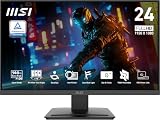
- Best Value: msi PRO MP243L E14 24-inch IPS 1920 x 1080 (FHD) Gaming Office Monitor, 144Hz, Free-Synch, HDR Ready, HDMI, VGA Port,VESA Mountable, Tilt, 4-Side Slim Bezel,1ms, Black
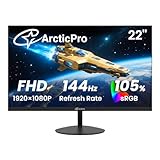
- Premium Choice: ArcticPro 22 Inch Gaming Monitor 144Hz, FHD Computer Monitor, 105% sRGB | 1080p, 4000:1 Contrast, 3-Sided Frameless, Ultra Slim, VESA Mount, Eye Care, HDMI 1.4, VGA
The best cheap 144Hz monitor for most gamers is a 24 to 27 inch 1080p IPS panel from a mainstream line such as AOC’s 24G2 family, Acer’s Nitro series, ASUS TUF Gaming or Gigabyte’s gaming range, and in 2026 many budget models have moved beyond 144Hz to 165Hz or 180Hz at the same tier. Choose by panel type, response time claims, adaptive sync support and whether your graphics card can actually push the frame rates.
As an Amazon Associate we earn from qualifying purchases at no extra cost to you.


What cheap really means in 2026
Budget gaming monitors have improved quickly. Entry-level panels now commonly use IPS or fast VA technology, support adaptive sync and list refresh rates above 144Hz. Review outlets such as RTINGS and Tom’s Hardware publish measured response times and input lag, and their findings often show that maker-advertised response numbers are best-case figures. That is a good reason to read independent results before buying.
For this guide, I name product families rather than precise model numbers, because makers refresh lineups often and retailers stock different variants. Confirm exact model suffixes on the maker’s page before buying.
At a glance
| Family | Best for | Typical maker-stated traits | Limits |
|---|---|---|---|
| AOC 24G2 family | Budget all-rounder | 24 to 27 inch 1080p IPS, high refresh rate, adaptive sync | Basic stand and styling; HDR is minimal |
| Acer Nitro series | Wide selection | Many sizes, IPS and VA options, adaptive sync | Model-to-model variation; check panel type |
| ASUS TUF Gaming | Sturdier build | Height-adjustable stands on many models, motion blur reduction features | Cost tier above the cheapest |
| Gigabyte and MSI gaming lines | Feature-rich budget | Extras such as KVM switching or aim stabiliser on some models | Software options vary |
| LG UltraGear and Samsung Odyssey entry models | Brand-name panels | Fast IPS or VA offerings at mid-budget | Entry models may lack stand adjustments |
Panel type: IPS or VA
IPS panels give wide viewing angles and good colour, and they are the common choice for budget esports monitors. VA panels offer higher contrast, which helps dark scenes, but can show more smearing in dark transitions on some models. Reviewers generally steer competitive players to fast IPS and cinematic single-player fans to VA, though results vary per model.
Resolution and size
At 24 inches, 1080p looks sharp enough for most players and keeps frame rates high on modest graphics cards. At 27 inches, 1440p is a clearer upgrade, but it needs a stronger GPU to reach 144 frames per second in new games. If your card is an older or entry-level model, 1080p at 144Hz or above is the practical match.
Refresh rate, response time and sync
- Refresh rate: 144Hz is the long-standing minimum for a smooth experience; 165Hz and 180Hz are now common at the same tier.
- Response time: Makers quote grey-to-grey numbers such as 1 ms; independent testing outlets often find real averages higher. Look for overshoot results, not just the headline.
- Adaptive sync: Look for AMD FreeSync and Nvidia G-Sync Compatible support so the display matches your frame rate and reduces tearing.
- Ports: DisplayPort is usually needed to reach the top refresh rate on budget models; HDMI may be limited. Check the maker’s spec table.
Stand and ergonomics
Cheaper monitors often have tilt-only stands. If you want height adjustment, look for models that list it, or plan to use a VESA mount arm. Most budget gaming monitors list VESA mounting compatibility, which makes this an easy upgrade.
Match the monitor to your GPU
A 144Hz monitor only helps if your system produces frames to match. Entry-level graphics cards can hit 144 frames per second in esports titles at 1080p but not in demanding new releases. If you play mostly shooters such as Counter-Strike or Valorant, a modest GPU is fine; if you play recent open-world games, you may use the monitor’s adaptive sync to keep play smooth at lower frame rates.
How to choose
- Set your resolution by GPU. 1080p for entry-level cards, 1440p if you have mid-range hardware.
- Choose panel type by game style. IPS for fast play and colours, VA for contrast.
- Read independent reviews. RTINGS and similar outlets publish measured data.
- Check inputs. Confirm a DisplayPort connection at your target refresh rate.
- Set it up properly. In the operating system’s display settings, choose the highest refresh rate; many users leave a new monitor at 60Hz by mistake.
Pick X if
| If you … | Pick | Why |
|---|---|---|
| want the safest budget all-rounder | AOC 24G2 family | Well-known 1080p IPS value line |
| want options in many sizes | Acer Nitro | Large catalogue, check the panel type |
| want a sturdier stand | ASUS TUF Gaming | Adjustable stands on many models |
| want extra features | Gigabyte or MSI gaming | KVM or aim aids on some models |
| prefer higher contrast | VA models from Samsung or Acer | Deeper blacks than most IPS panels |
Alternatives
- Used or refurbished monitors: Can offer higher specs at the same budget, but check warranty and dead-pixel policies.
- Budget 1440p monitors: Worth considering if your GPU can handle the resolution.
- Gaming TVs: Some support 120Hz, but they are larger and less suited to desk use.
Common mistakes
- Leaving the refresh rate at 60Hz after setup.
- Using an HDMI cable or port that cannot carry the full refresh rate.
- Paying extra for an HDR label on an entry-level panel. Reviewers commonly note that low-tier HDR adds little.
- Buying for response time claims alone without looking at independent results.
Frequently Asked Questions
Is a 144Hz monitor worth it?
Yes for most gamers, because it makes motion smoother and aiming feel more responsive compared with 60Hz. You need a graphics card that can produce enough frames to benefit.
IPS or VA for a cheap gaming monitor?
IPS is generally preferred for fast games and colour, while VA offers stronger contrast. Check independent reviews for the specific model, since results differ.
Do I need DisplayPort?
Often, yes, to reach the top refresh rate on budget monitors. Check the maker’s specifications to see what each port supports.
Is 1080p fine in 2026?
For 24-inch screens and entry-level GPUs, it is. At 27 inches and with a stronger card, 1440p offers a sharper image.
Do I need FreeSync or G-Sync?
Adaptive sync reduces tearing and stutter when frame rates vary. Most budget monitors support at least FreeSync, and many work with Nvidia cards as G-Sync Compatible.
Why does my new monitor look like 60Hz?
The operating system may be set to 60Hz. Open your display settings, choose advanced display options and select the highest listed refresh rate, using the correct cable.






Write Your Review
No reviews yet. Be the first to share your experience!